My goal was to keep my Android experience as efficient and productive, with extensive screen-time and app notification management.
While most of them are effective in delivering a clutter-free look and cutting my screen time, even to the point of purging apps from my home screen, I need to shell out money to unlock all features or use them without the pesky ads.
I thought there was no way to get this focus-style look on my Android phones without paying, until I realized Android has a built-in tool that delivers the same results as those launchers.
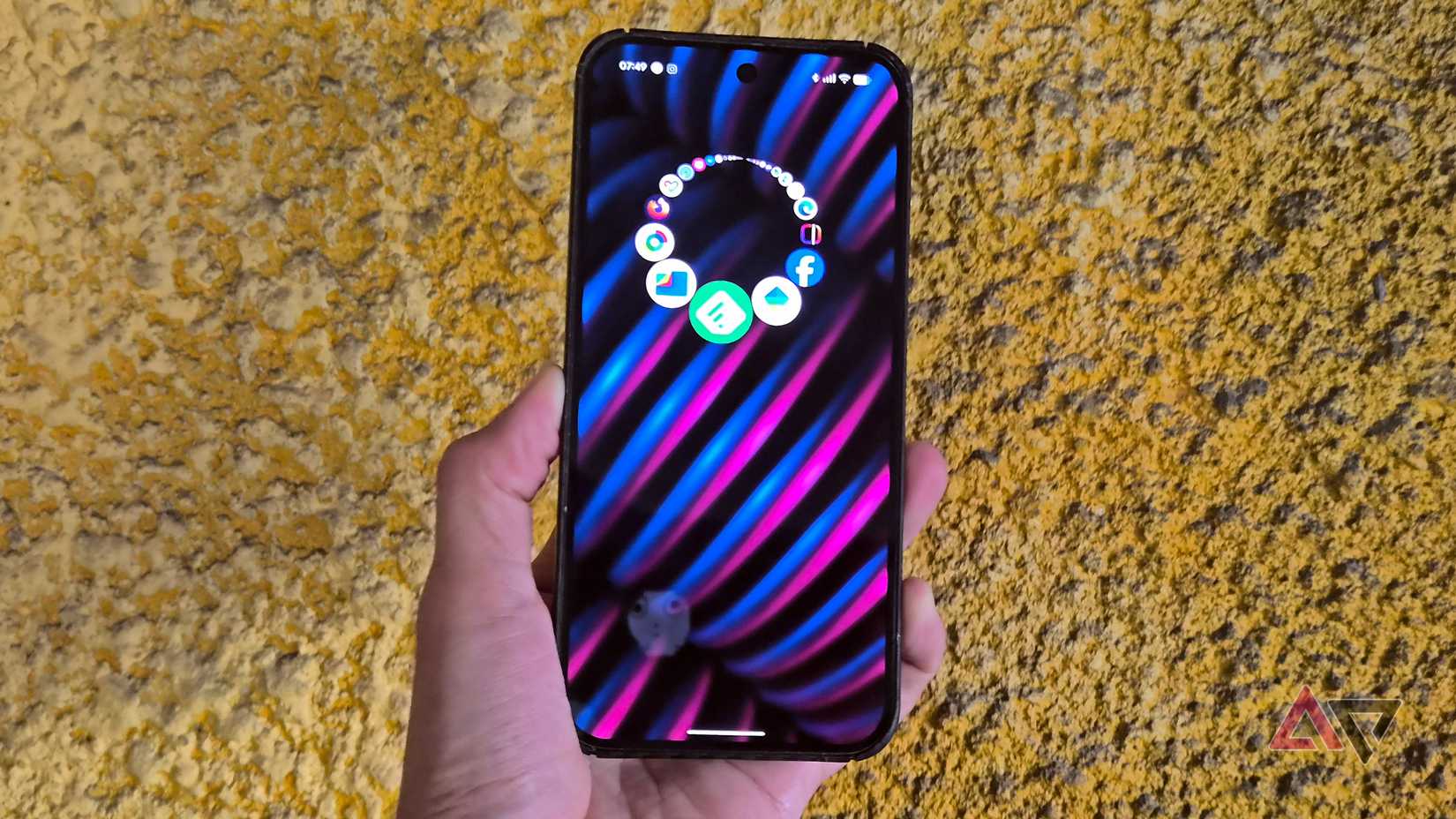
Third-party minimalist launchers are effective
But they don’t bring everything in one package
Before Launcher and Olauncher are two of my favorite minimalist launchers that I’ve tested and used extensively across my Android devices.
They provide effective app screen-time management and extended Android notification control.
While it’s true they offer a stripped-down home screen style and handy measures to limit my app addiction, especially with social media apps, they don’t bring the same level of customization that I get from Pixel Launcher or One UI when I feel like spicing up my home screen.
It was either switch back to the default launcher without those exclusive controls, or keep relying on third-party launchers while accepting the trade-offs.
Eventually, I went back to the default Android launcher on my devices.
Although Focus mode helps curb my app screen time, it’s not a complete solution.
I still managed to abuse the safeguards, so I wasted more time on social media apps like Facebook, Instagram, and X.
At first, I thought I was out of options. But I was wrong.
It was silly of me that the very right solution to my problem was built into my Android phone all along.
Google designed Private Space for security, but it doubles as a digital detox
It cured my excessive screen time
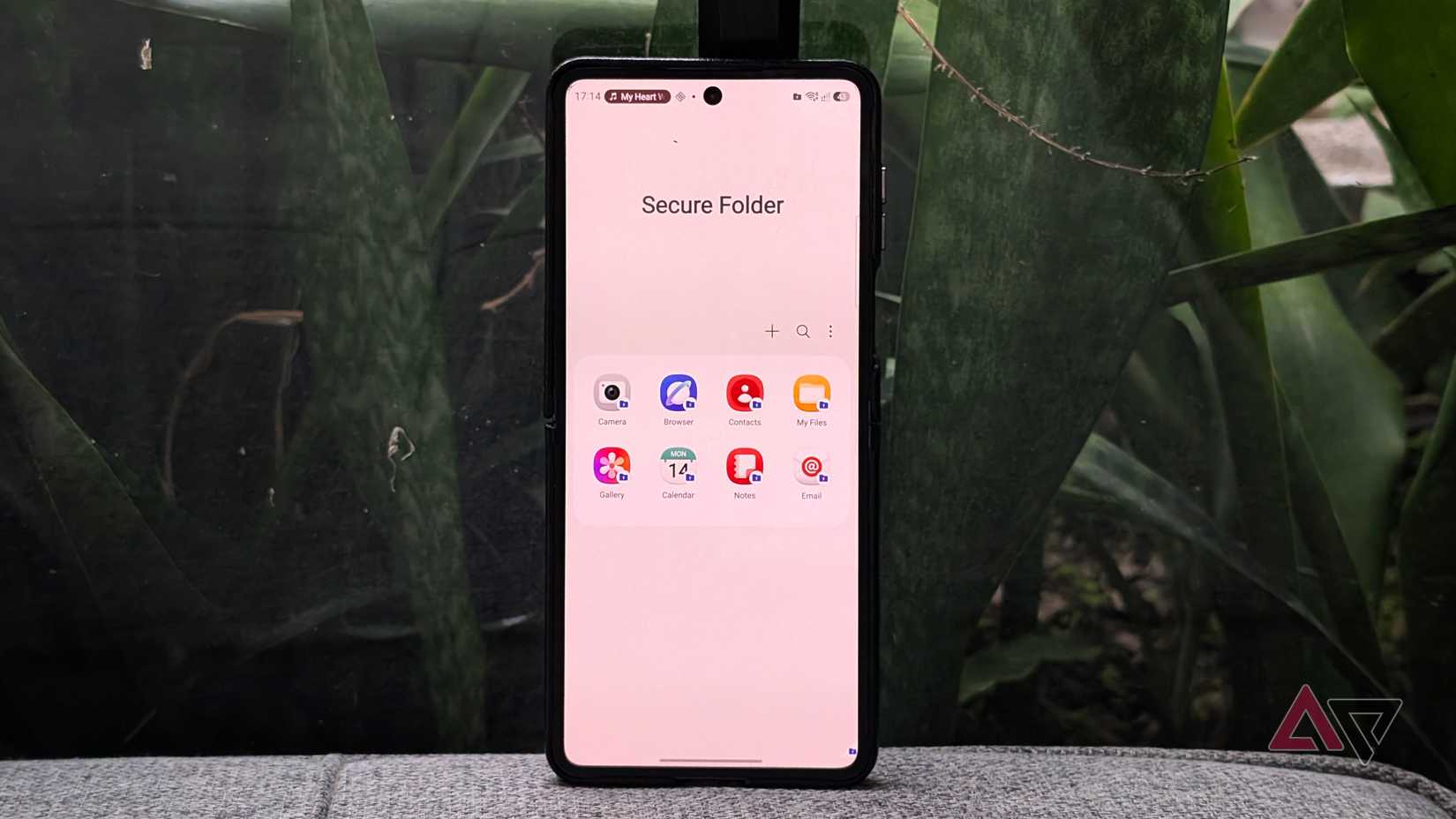
I’m referring to Private Space for Pixel and stock Android. On Samsung One UI, the equivalent feature is called Secure Folder.
Both security features serve the same purpose: to isolate apps and files in a secure container that can be hidden from the app menu.
The core idea is that it works by installing separate apps, which is equivalent to cloning them.
This means I can use a separate account for my social media apps.
However, I can also use Private Space with my existing accounts. That’s also where it helps with managing my screen time.
For instance, I have Facebook and X installed inside Private Space on my Pixel phone, which lets me isolate these apps, including their notifications.
Incoming alerts from these apps are isolated and won’t reach my device when they are not open.
That helped reduce how often I needed to check notifications, eventually cutting down my overall screen time.
It also works for messaging apps, which is incredible if you want to focus more and spend less time checking for new messages.
I’m in the same boat even when notifications are filtered, because I still keep checking my inboxes.
Hidden perks of Private Space
Decluttering my home screen and locking stray notes
Private Space also means a cleaner home screen, since I only have to pin the important, frequently used apps.
Meanwhile, for locked apps, I have to go to the app drawer and then clear a biometric or password check, which discourages me from opening the folder.
It also addresses limitations in some of my favorite apps. That includes Google Keep Notes.
The main problem is that it has no built-in security feature to lock a specific note with sensitive details. That’s where Private Space comes in handy.
Instead of leaving my notes exposed, I’ve started putting Keep Notes inside the locked container, which has a different password.
That applies not only to note-taking apps, but also to other services like Google Photos and even individual files.
Step-by-step setup for a quarantined app drawer
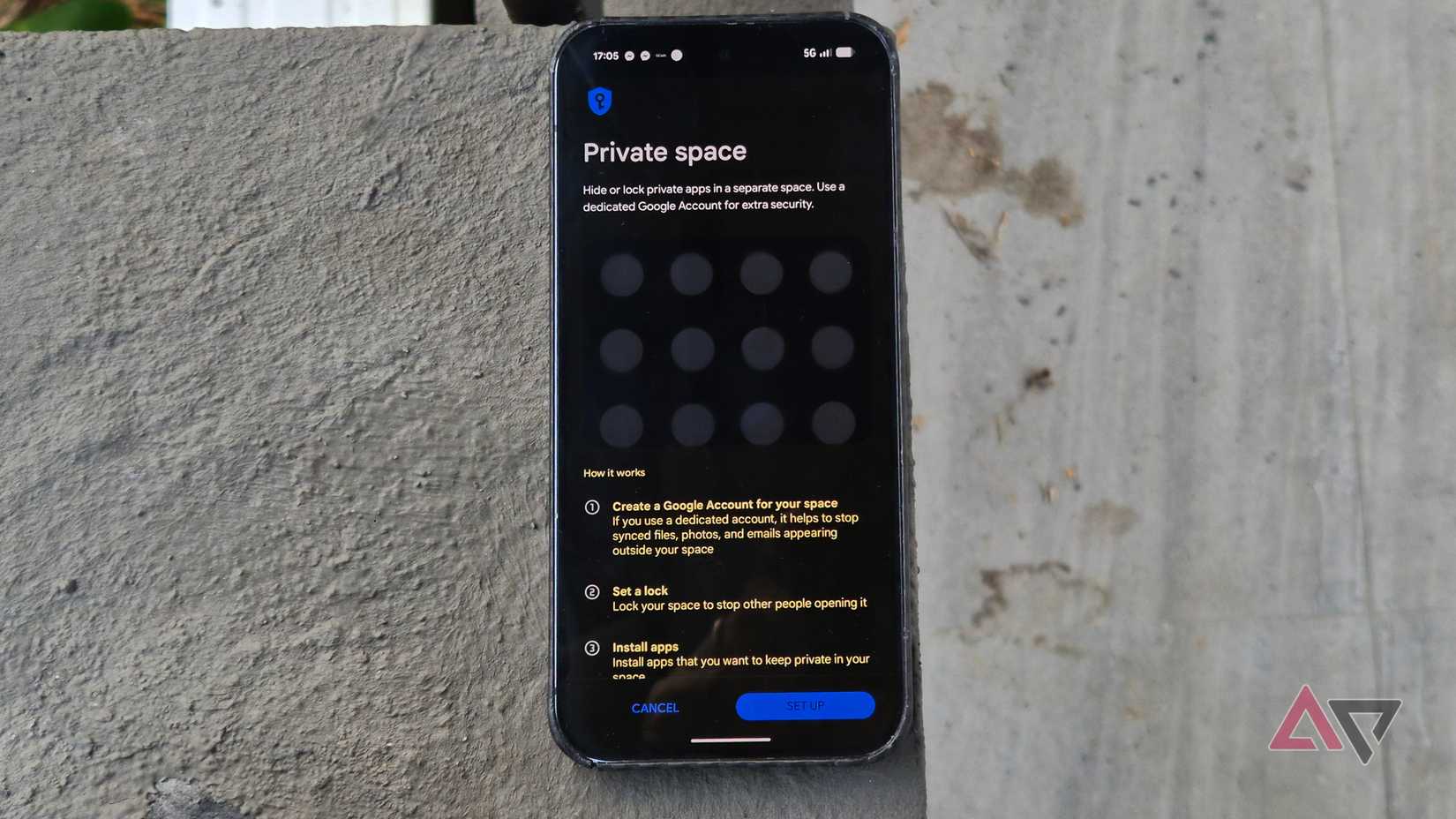
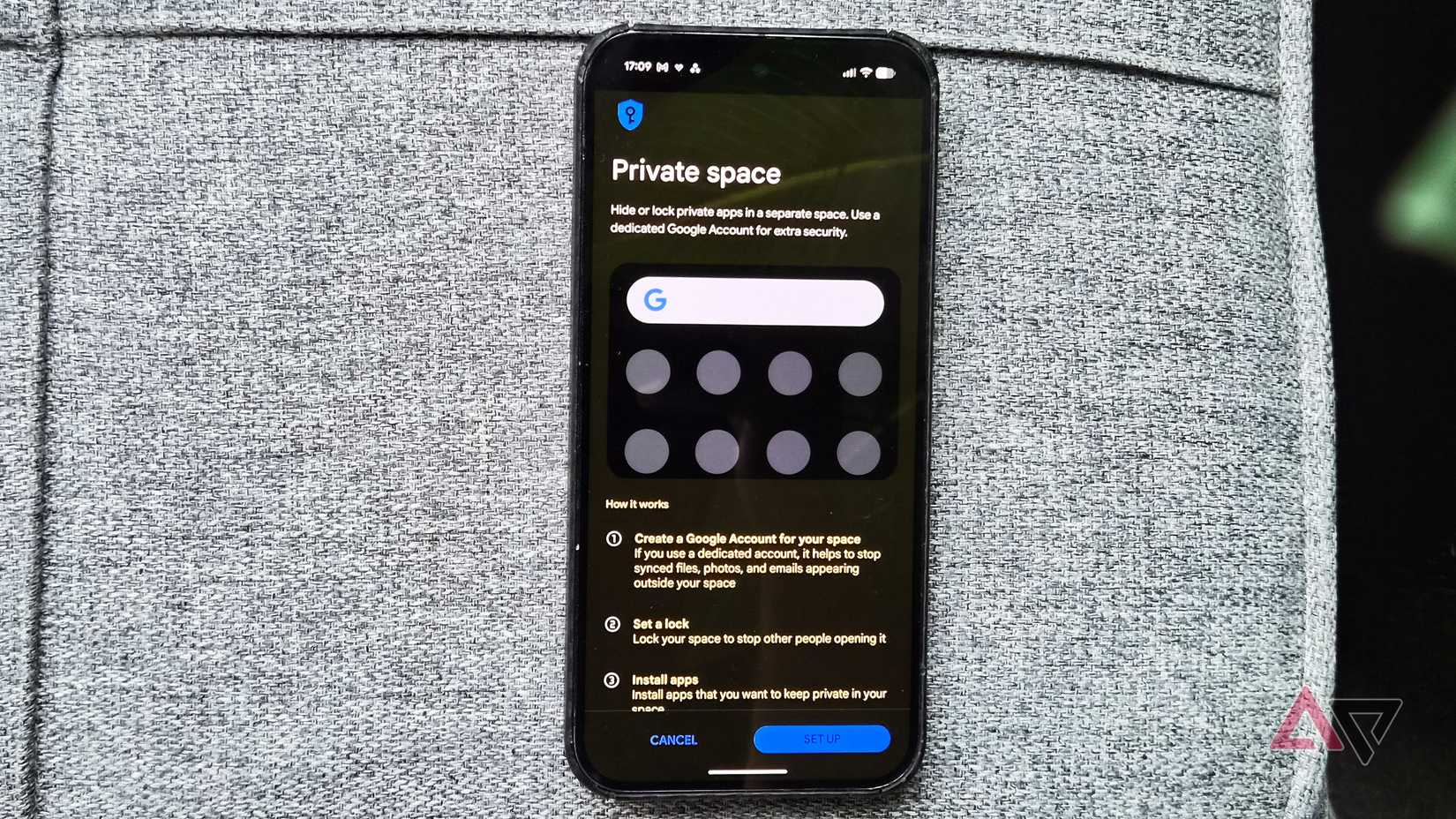
To use Private Space, set it up first. If it is not configured, go to Settings, tap Security & privacy, and select Private Space.
You will be asked to create a new Google account or use an existing one.
Keep in mind that you will need to enter your credentials here if you want to sign in with your current Google account.
Next, set a dedicated password or PIN to use whenever you open Private Space and access the files and apps inside it.
To access your Private Space folder later, open your app drawer and scroll to the bottom. Tap Install apps to add applications. You’ll also need to sign in to your social media and messaging platforms.
After you are set up, you can launch these apps from the same locked section at the bottom of the app menu.
Alternatively, you can require a password or biometric verification every time you access it, or keep it unlocked for a brief window.
Samsung devices offer Secure Folder, which works similarly to Private Space, and setting it up is just as straightforward.
You can add apps from the app menu by unlocking Private Space, then selecting and long-pressing an app.
Stop paying subscriptions for what Android already does for free
Although I previously used Private Space solely to quarantine apps with sensitive personal data, I only recently realized it’s a fantastic free option for keeping my home screen spotless and kicking my screen time addiction.
Instead of relying on a stripped-down third-party interface that charges a monthly fee just to hide an app icon, Private Space inserts actual security friction between my impulsive thumb and doomscrolling habits.
I find that friction more reliable than standard app timers that I override, and best of all, I don’t have to sacrifice my custom widgets and home screen setups to stop looking at my phone all day.