

I used to think about phone privacy when I was installing a new app or getting one of those permission pop-ups. Otherwise, it was easy to assume Android was handling most of it in the background.
However, that changed when I started paying attention to the small privacy problems that can come up in everyday use. A strange Wi-Fi network, an app asking for access it doesn’t need, or the little green indicator appearing at the top of my screen can be worth a closer look.
Android gives me more tools to check what’s going on than I realized. Now, when something feels off, my phone is usually the first place I look.
I started with Android’s privacy tools
Check what your apps are doing behind the scenes
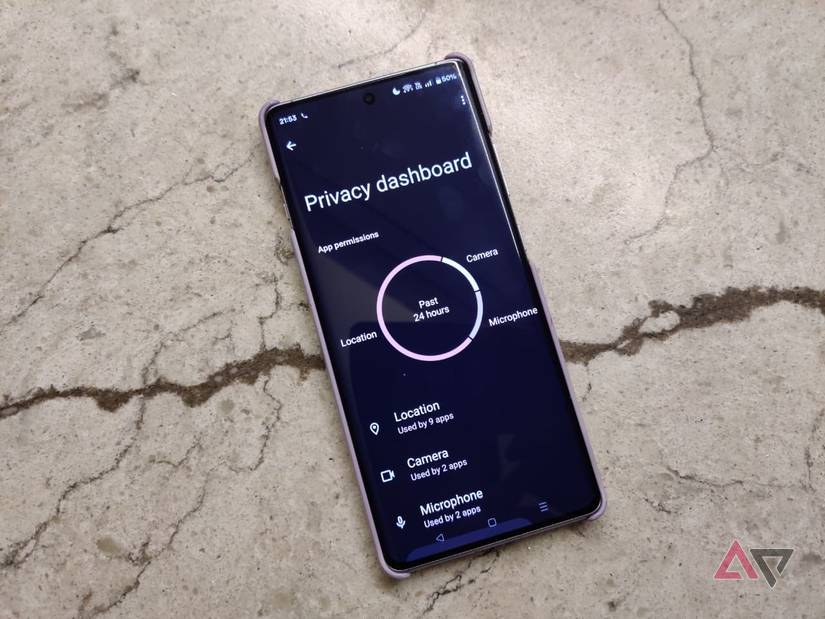
Android has a Privacy dashboard that gives me a quick look at which apps have recently accessed permissions, such as the camera, microphone, and location.
This offers context instead of presenting a long list of permissions hidden in Settings. If I find an app using my location too often, I can check its permissions and make changes.
I also pay more attention to Android’s permission prompts now. I don’t automatically tap Allow because an app asks for something. If an app wants access to my microphone, contacts, or location, I think about whether it needs it.
Depending on your Android version, you can find it under Settings > Privacy or Settings > Security & privacy > Privacy dashboard. You can select permissions such as camera, microphone, or location, and see which apps accessed them and when.
I turned on theft protection before I actually needed it
Losing my phone shouldn’t mean losing my data
I don’t like thinking about what would happen if someone grabbed my phone while it was unlocked. My phone has access to my email, saved passwords, photos, payment apps, and other information I wouldn’t want a stranger going through.
So I went looking through Android’s Theft protection settings before I had a reason to use them.
Depending on the phone and Android version, you can find it under Settings > Google > All services > Theft protection.
Theft Detection Lock can automatically lock the screen if your phone detects someone snatching the phone and trying to run, bike, or drive away with it.
Offline Device Lock can also lock the phone if it suddenly goes offline after being stolen.
I also enable Remote Lock, which lets me lock the phone from another device if it disappears. Go to android.com/lock, enter your verified phone number, and request a lock. If the phone is offline when you send the request, it locks when it comes back online.
I started using Private Space for apps I don’t want sitting in plain sight
Lock your sensitive apps
Private Space gives me a separate, locked area for apps I want to keep apart from the rest of my phone. I can install apps there and lock the space when I’m not using it.
When it’s locked, the apps inside are hidden from the launcher, recent apps, and notifications.
I find it useful for applications that contain information I’d rather not have sitting in plain sight. Instead of relying on the app’s password or hoping someone doesn’t swipe through my app drawer, I can put it behind a separate layer of authentication.
To set it up, go to Settings > Security & privacy > Private space, authenticate, and follow the setup process. After it’s ready, you can install apps into the space or move supported apps into it.
I can check for unknown Bluetooth trackers
Spot unwanted trackers with a few taps
Bluetooth trackers are useful when I want to keep tabs on my keys, bag, or luggage. That same technology can also be misused to track someone without their knowledge, so I like that my phone can warn me when an unknown tracker appears to be moving with me.
Go to Settings > Safety & emergency > Unknown tracker alerts and run a manual scan. The exact menu can vary by phone.
This feature is useful after I’ve been somewhere crowded or used public transportation, where it would be difficult to notice an unfamiliar tracker on my own.
If it finds one, I can check the alert and follow the instructions to identify the tracker and figure out what to do next.
I pay attention to the green camera and microphone indicator
Don’t ignore those signals
Whenever an app uses the phone’s camera or microphone, it shows a small green indicator in the upper-right corner of the screen.
The indicator is useful because I don’t have to guess which app is accessing the camera or microphone.
I can swipe down and tap the green indicator to see which app or service is using it. I can also check its permissions and decide whether it should have access.
If I’m using the camera on Instagram, for example, a camera indicator makes perfect sense. If I close an app that shouldn’t need either the camera or microphone and the indicator suddenly appears, that’s when I’ll investigate what’s going on.
Stop leaving your phone’s security to chance
Your phone offers plenty of ways to spot problems before they go out of control.
I can check which apps are accessing sensitive permissions, see when my camera or microphone is being used, look for unknown trackers, and keep sensitive apps in Private Space.
I have also turned on theft-protection features, so I have some protection if my phone ends up in the wrong hands.