
Samsung introduced Audio Eraser with One UI 7. I’ve used it occasionally to clean up my voice recordings, and it usually does a good enough job.
But I wanted to know how good it really is. So I put it through a series of tests, and here’s what I found.
Steady background noise is where Audio Eraser shines
Fans, crowds, and traffic
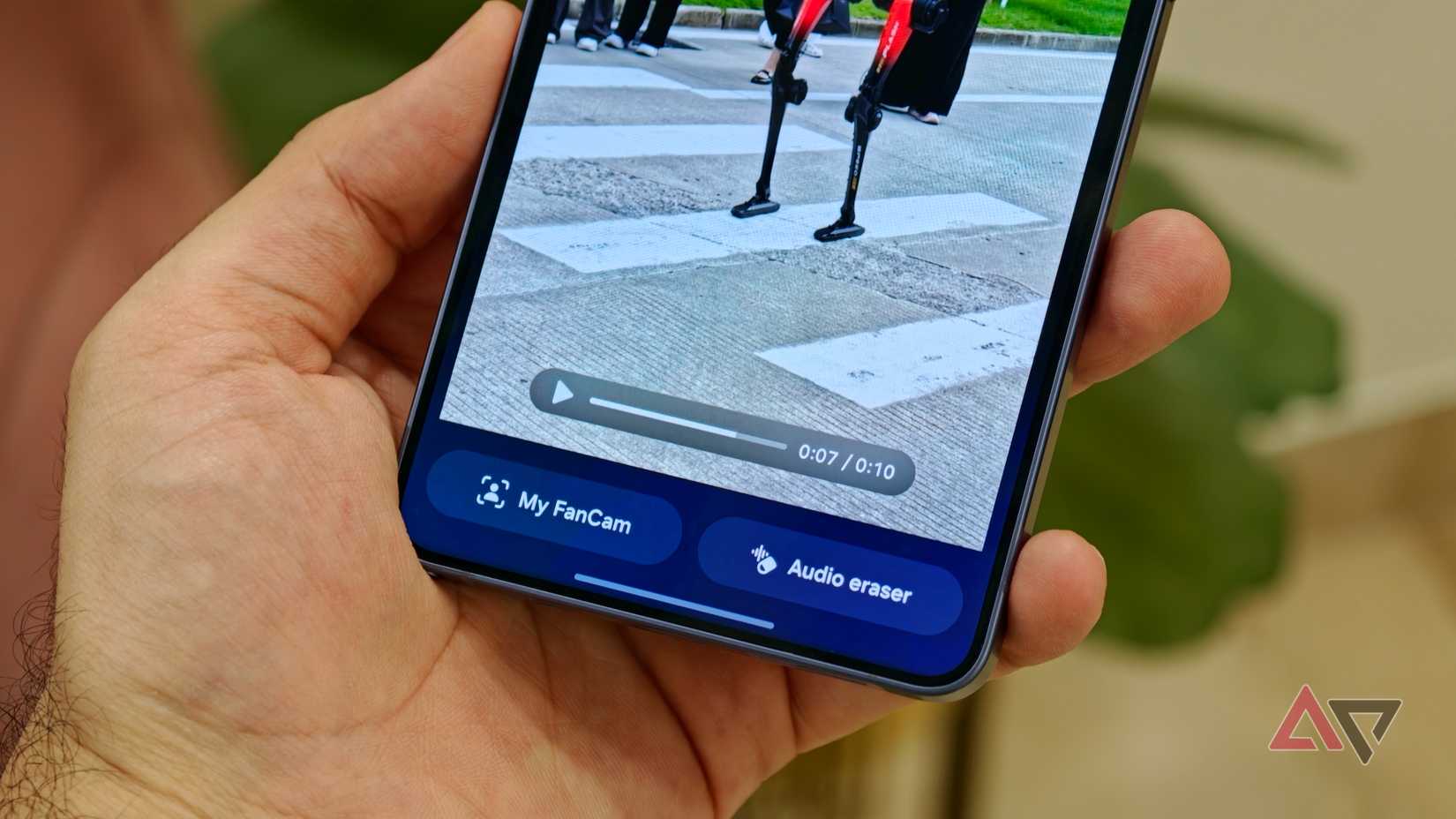
I started by reading a short script with a fan running close by. I then ran Audio Eraser, which detected wind and noise.
I selected the Auto feature, and it reduced wind to -100 and noise to -90. My voice was noticeably clearer, and I didn’t hear any artifacts.
Next, I recorded in a spot with loud crowd chatter, and Audio Eraser found two background sounds: crowd and noise. This time, I manually moved the sliders to -100.
My voice sounded slightly muffled, but you could hear every word clearly.
Recording in traffic gave a similar result. Audio Eraser picked up wind, crowd, and noise. Removing them made my voice clearer.
The only side effect was slightly sharper S and T sounds.
I wasn’t surprised that it labeled the fan noise as wind. Samsung warns that the tool may mistake one sound for a similar one. It didn’t affect the results, so it’s fine.
It struggles with sounds that blend into one another
Sudden noises, really loud sounds, multiple speakers
For this test, I dropped a plastic chair while reading my text. When I reduced the noise to -100, it removed the crash but also removed the words I said when the chair hit the floor.
The problem was that the chair and my voice overlapped, and the impact was loud enough to overshadow my voice, so Audio Eraser treated them as one sound.
I also asked someone to talk over me. Audio Eraser removed the background noise but kept both voices, which were clear and easy to tell apart.
That’s good if you want both people in the clip, but there’s no way to keep only one voice and remove the other.
The Auto feature is better than maxing out the sliders
It hardly reduces sounds to -100
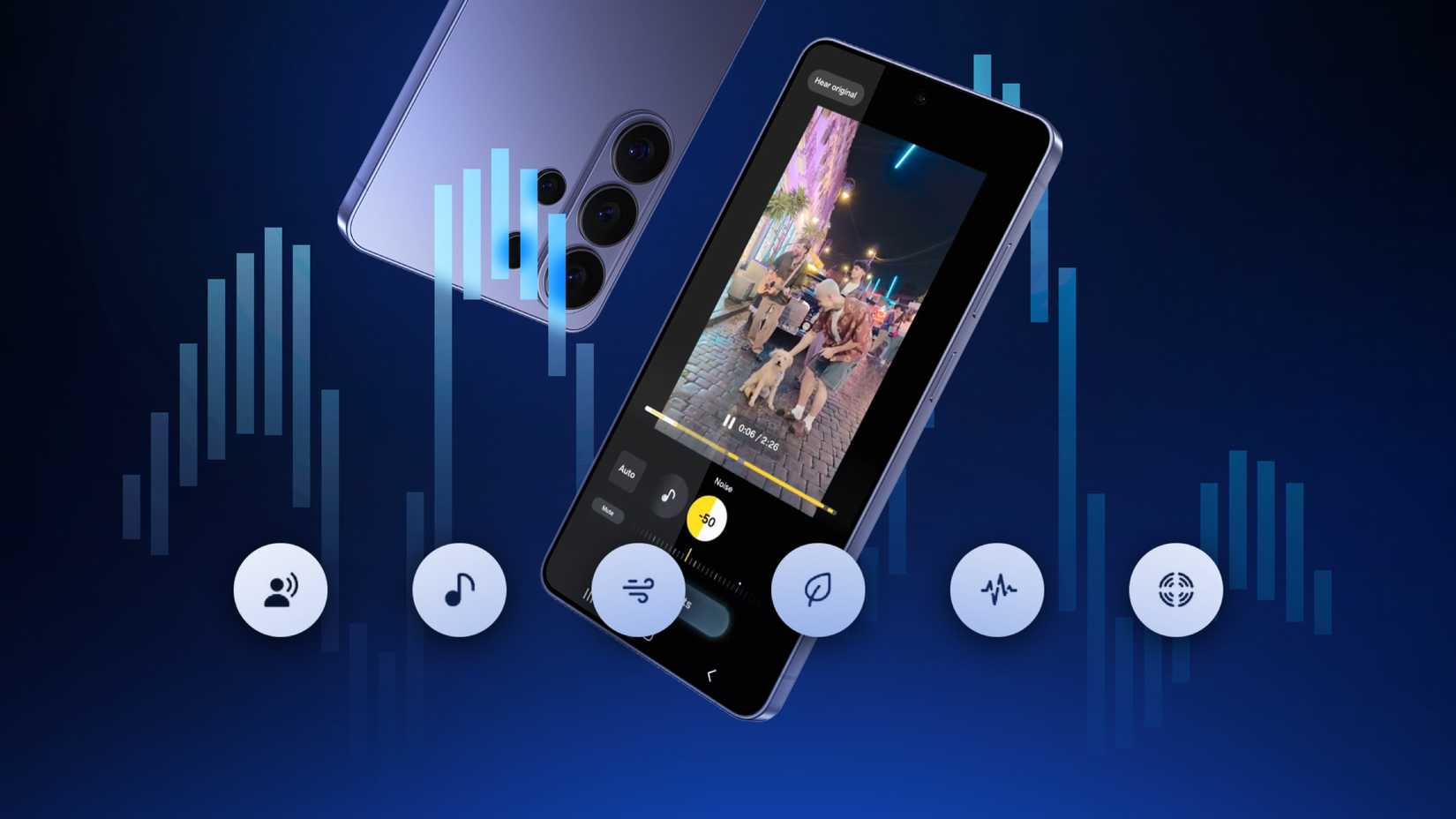
Credit: Lucas Gouveia / Android Police | Samsung
In all my tests, I used the Auto feature first, then manually adjusted the sliders.
I noticed a consistent pattern: Audio Eraser reduces wind to -100 and keeps all other sliders, like noise and crowd, at -90.
I experimented with -100 a few times and realized that while it removes more background noise, it doesn’t always do it cleanly. Some noise may slip through, causing syllables that overlap with loud noise to get wiped out.
In these situations, the result may sound somewhat choppy.
But at -90, you can still hear some of the background, so your voice stays natural throughout. For this reason, the Auto feature’s habit of setting wind to -100 isn’t always the right call.
In my traffic clip, Audio Eraser detected wind in only one section of the video, and setting it to -100 made that part noticeably quieter than the rest. That would make for a poor listening experience in actual use.
You can use Audio Eraser in several apps
Gallery, Notes, Voice Recorder, YouTube, and so on
You can only access the full tool (where you can see the different sounds, including your voice, and adjust their volumes) from the Samsung Gallery.
Here’s how:
- Open Gallery and select a video.
-
Tap the AI icon on the bottom toolbar and select Audio Eraser on
One UI 9
. On older versions, tap the Edit (pencil) icon, tap the Audio icon, and select Audio Eraser.
In most other locations, you only get the Auto feature, which automatically detects background noise and reduces the volume. You can turn it on or off, but you can’t manually edit what it changes.
This version is present in Voice Recorder, Samsung Notes’ voice recorder tool, and Samsung’s Video Player.
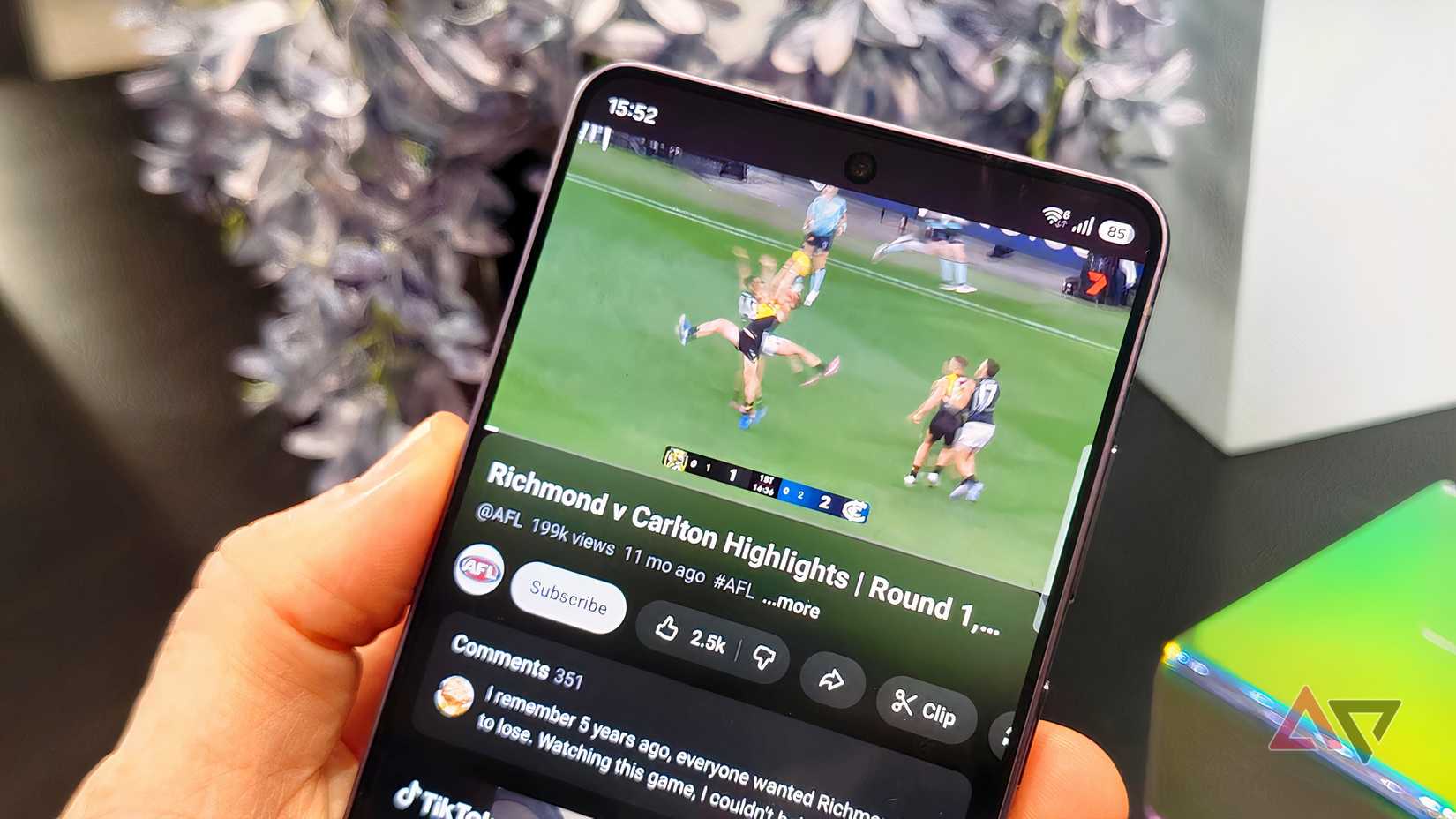
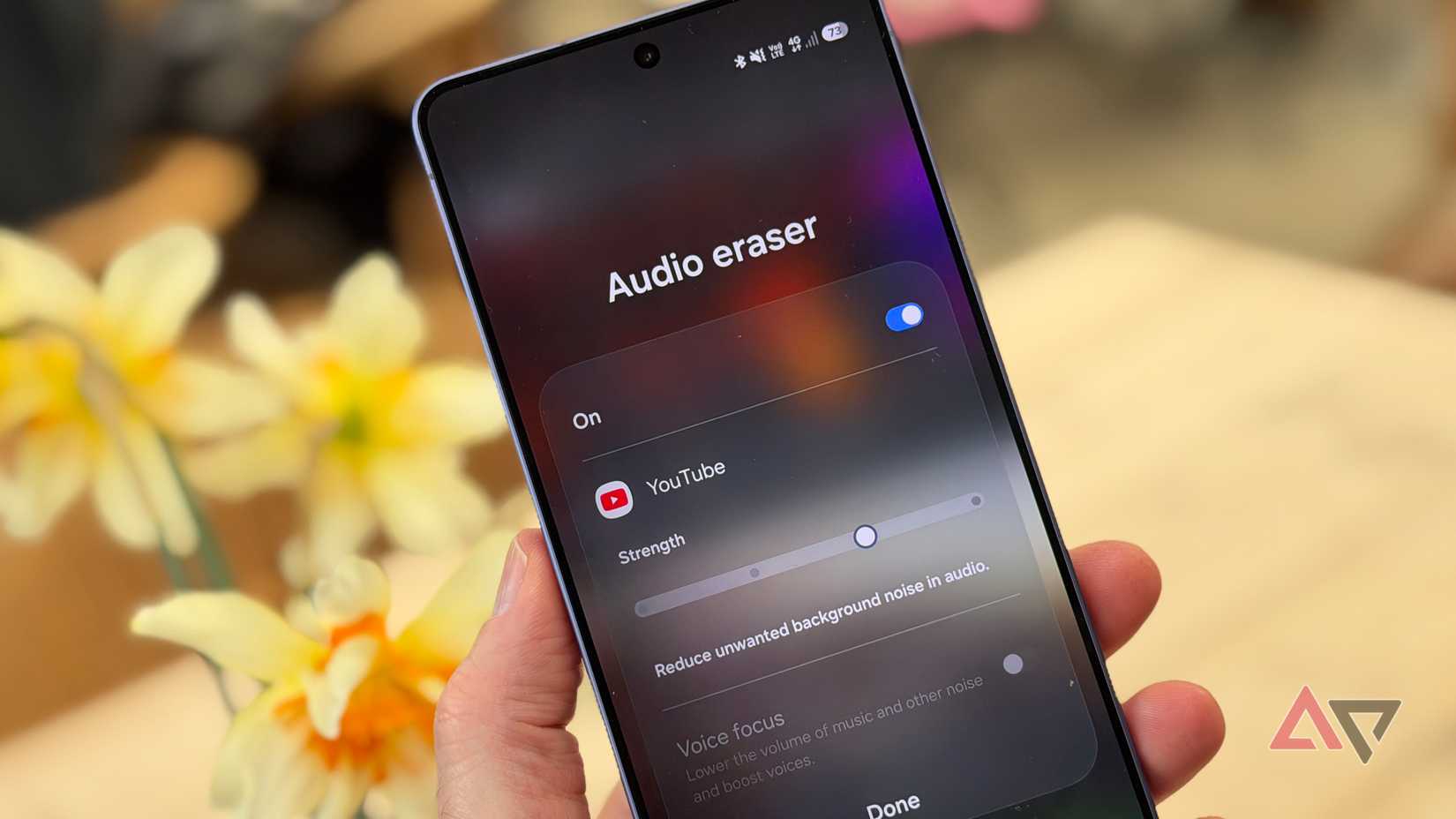
After updating to One UI 9, I found an Audio Eraser tile in the Quick panel that works with YouTube. It appears after you start playing a video.
Turn it on while a video plays, and you get a Strength slider to control how much background noise it cuts.
Audio Eraser works on videos you didn’t record yourself, like clips you download online.
If you can hear the difference, so can Audio Eraser

After several tests with Audio Eraser, one thing became clear: if you can easily tell your voice apart from the noise, Audio Eraser probably can too.
However, if your voice blends into the noise, it won’t do a good job, and turning the sliders all the way down will remove some of your words.
If you edit a lot of videos in Gallery, you might want to check out Samsung Gallery’s hidden tricks.