
I thought I had exhausted what I could do with emojis. I had my usual favorites, and the same few options I reached for whenever I wanted to add a little personality to a message. Then I discovered Emoji Kitchen hiding inside Gboard.
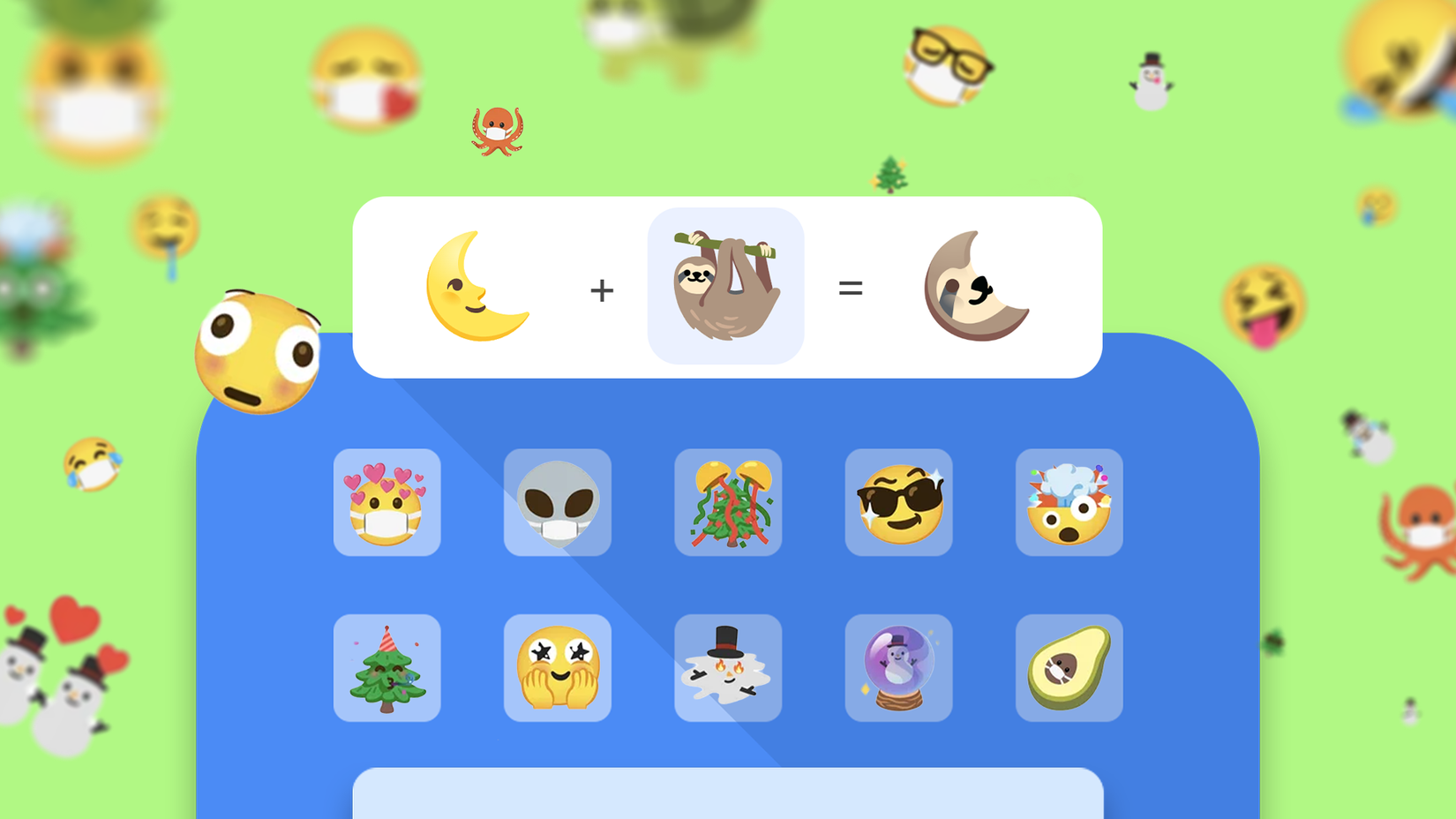
It doesn’t only provide a giant list of emojis. I can combine emojis into new stickers, so I can create reactions that feel more specific than anything in the standard emoji picker.
Now, whenever a regular emoji doesn’t capture what I want to say, I check Emoji Kitchen.
Gboard can turn two emojis into something completely different
This hidden emoji trick is way more fun than I expected
Credit: Lucas Gouveia / Android Police
I started using Emoji Kitchen because I thought the combinations were funny. Then my friends started noticing them.
A few asked where I got these weird little stickers, and after I showed them Emoji Kitchen, they started experimenting with it. Before long, I got random combinations in our chats, sometimes ones I’d never thought about trying.
The fun part is that I don’t have to know exactly what I’m looking for. I can pick an emoji that roughly matches my mood, then see what Gboard suggests when I pair it with another one.
To use it, open any app where you can type, bring up Gboard, and tap the emoji button next to the space bar. Select an emoji and look at the Emoji Kitchen suggestions that appear. Tapping a suggestion inserts it as a sticker.
You can also experiment by picking another emoji to see what Gboard shows.
You can also browse the library, save combinations as favorites, and explore suggestions, so you don’t have to remember which two emojis produced a specific combination.
If Emoji Kitchen doesn’t show up when you tap an emoji, tap the Settings icon on Gboard and select Emojis, Stickers & GIFs.
Under the Emoji Kitchen section, toggle on Show stickers and explore options on emoji key tap.
I started combining emojis I wouldn’t normally put together
These random emoji combinations are surprisingly entertaining
After I figured out I could combine emojis, I started throwing together reactions that had no business being next to each other just to see what Emoji Kitchen would make.
Some combinations are surprisingly logical, while others are wonderfully silly.
For example, combining 😂 with 🔥 gives me a pretty fitting reaction to something ridiculously funny.
And if I’m feeling particularly dramatic, I can throw 💀 into the mix and see what kind of disaster Gboard comes up with.
Some combinations are funny precisely because they’re so unnecessary. Try mixing 🦈 with 🥳, 🐸 with 👑, or 🌮 with 🐻.
Another trick is to combine an emoji with itself. Instead of sending two copies of the same emoji, Emoji Kitchen can sometimes turn the pair into a new variation.
Tap 🤔 twice to produce an exaggerated thinking expression or combine 🤣 with itself for an even more over-the-top result.
Not every combination works, though. Emoji Kitchen doesn’t generate a new sticker on the fly every time I tap two random emojis together.
You can still access Emoji Kitchen without Gboard
It also works on PC, iPhone, and Mac
The best part about Emoji Kitchen is that you don’t need Gboard to play with it. Google brought Emoji Kitchen to Search so you can open it in a browser on your Android phone, iPhone, PC, or Mac.
To try it, open Google Search, type emoji kitchen, and tap or click Get cooking. That opens the Emoji Kitchen mixer, where you can choose two emojis and see what Gboard’s designers created from the combination.
You can also use the Explore tab to pick an emoji and browse the combinations available for it.
After finding one you like, you can copy the resulting sticker as an image and paste it into a message or anywhere else that accepts images.
However, there’s one reason I’d still use Gboard on Android when I can: the keyboard experience gives me access to more of the Emoji Kitchen library than the web version.
The Search version is a convenient way to make and copy combinations when I don’t have Gboard available.
If you use Samsung Keyboard, Apple’s keyboard, or another third-party keyboard, you don’t have to switch keyboards to use Emoji Kitchen. You can use the web version to make the combination, copy it, and send it as an image or sticker.
I don’t think I’ll ever use emojis the same way again
Emoji Kitchen is not a replacement for the regular emoji picker, and I certainly don’t use it for every message. But when a normal emoji feels too boring or doesn’t quite capture what I’m trying to say, I now have another option.
And considering you can use the web version without Gboard, there’s no reason not to play around with it.