
My Boox Palma 2 Pro does a lot. I use it as a screensaver, note-taker, camera, fact-checker, and an e-reader. However, it’s not the fastest E Ink device around, so performing all these actions can feel tedious.
The Boox Palma 2 sports an extra button called the Smart Button. Not that smart out of the box (the Palma 2, not me), I remapped all its functions to my most-used actions. While I’m only saving a second or so with each action, they add up, turning the device from frustrating to enjoyable again.
I skipped the slowest action by mapping the short-press function
Returning home no longer feels like a chore
To return home on the Boox Palma 2 by default, swipe up on the screen. It makes sense in theory, as that’s how the swipe function works on all Android phones.
However, the Palma 2’s E Ink display makes this process slow and tedious. Swipe controls are slow and unresponsive, so you have to wait for the system to register the swipe, then for the screen to refresh to the home screen.
There’s not much I can do about the screen refresh rate, but I can do something about the swipe controls. The versatility of the Palma 2 means I’m returning to the home screen more than I would on a Kindle or Kobo device, so that action needs to be as fast as possible.
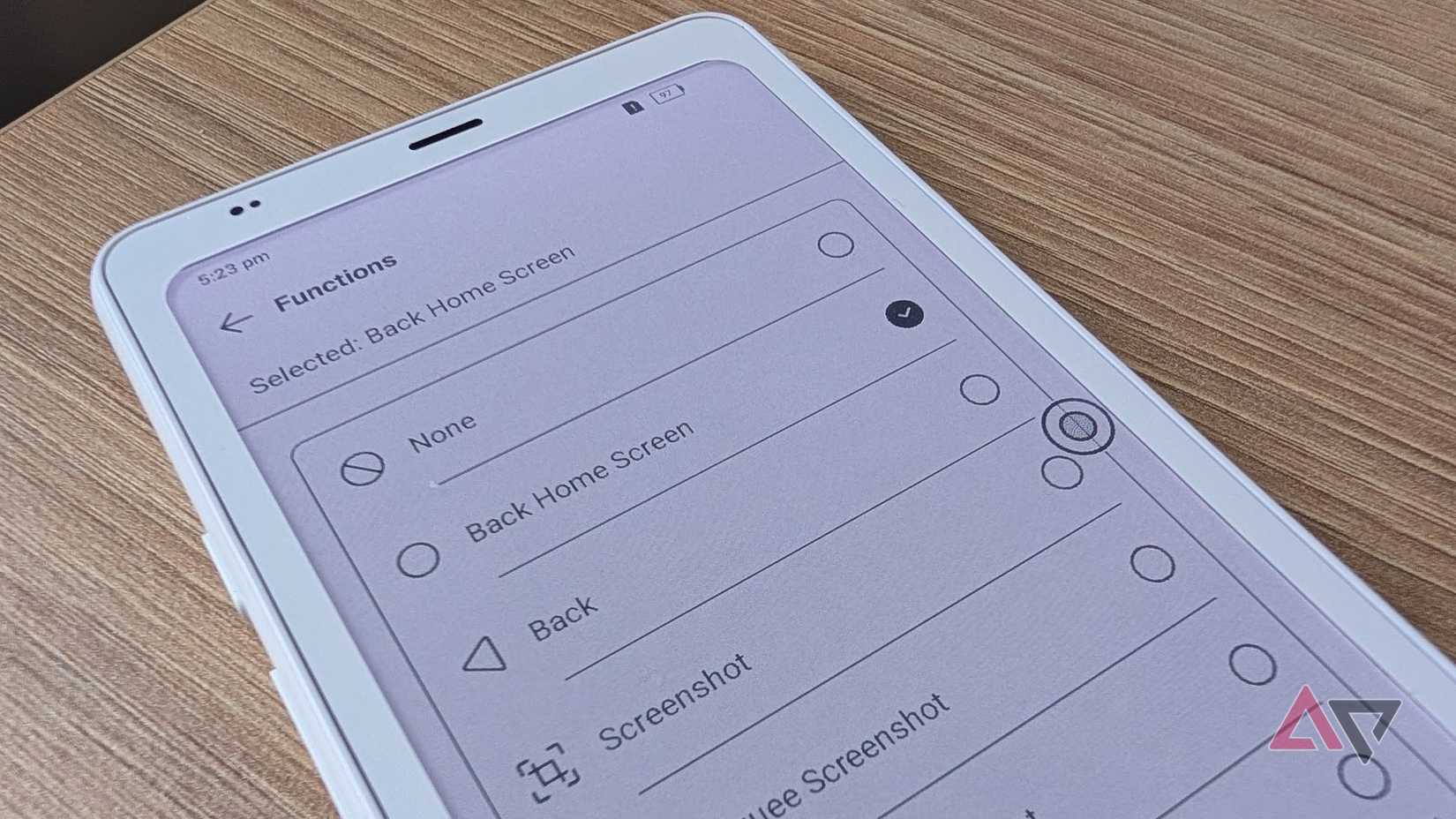
By mapping the Smart Button to return to the home screen, what previously took around two seconds now takes less than a second. Two seconds isn’t a lot in the grand scheme of things, but it adds up quickly.
By default, the short-press function on the Smart Button refreshes the screen. That’s useful, but I don’t need to do it as often as return home. Besides, that refreshes the screen just as well.
Best of all, I can program the Smart Button to do other things that speed up the device even more.
A double-click now opens my most-used app
Now I can start reading immediately
The double-click function on the Palma 2 is mapped to the device’s AI Assistant. I’ve used the Palma 2 Pro for a year now, and I’ve never used the assistant once.
So rather than never using the function, I mapped it to an app I use every day. Indeed, the app that I use the most.
At the end of the day, the Palma 2 Pro is for reading books. So I mapped the double-click function to open Google Play Books, where I store most of my digital books.
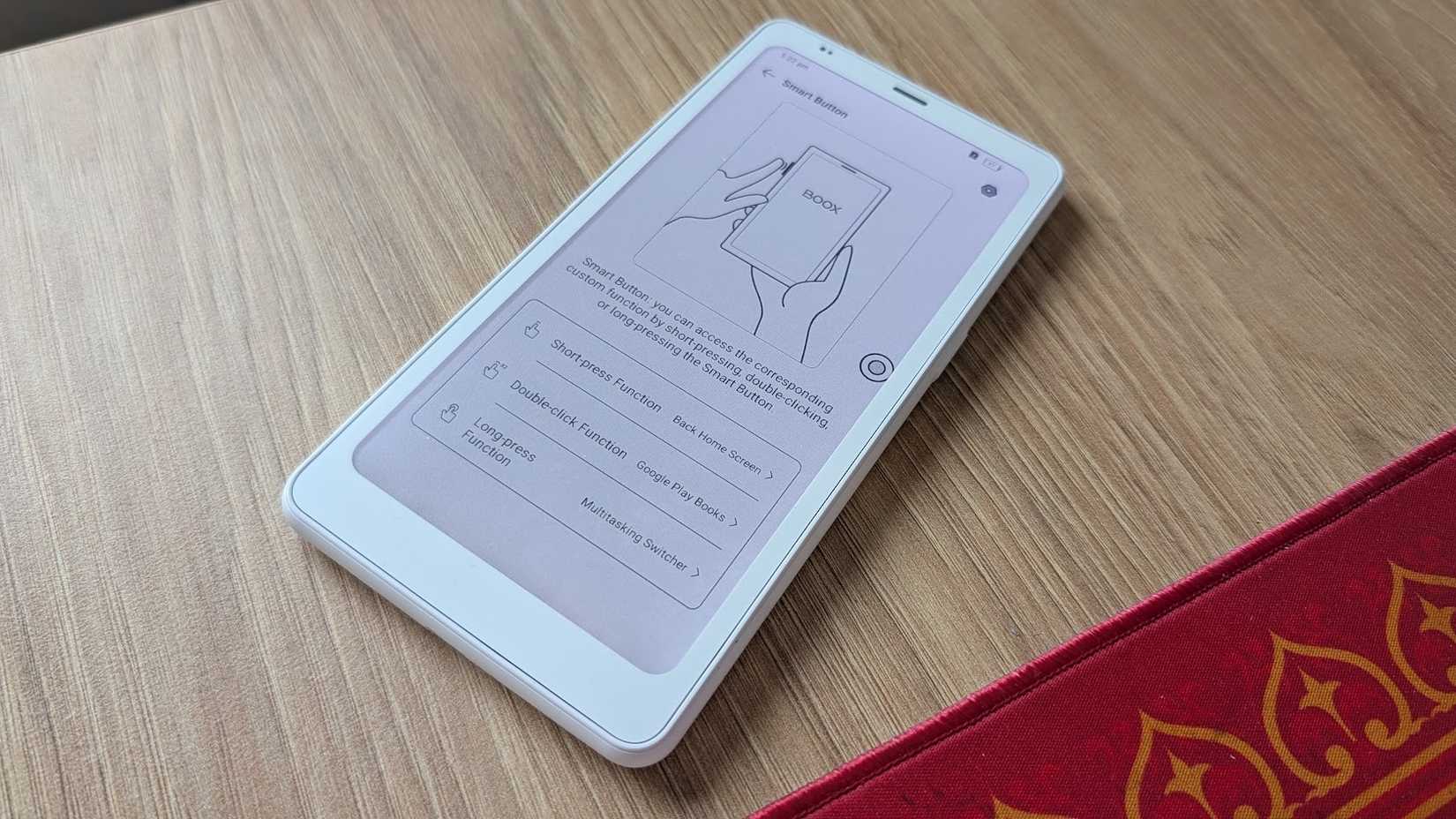
Opening Play Books, or any other app for that matter, is slow and relies on the unresponsive nature of E Ink swipes.
Now, instead of an awkward fumble and waiting on my Palma 2’s home screen, I can start reading my novel within a second of picking up the device.
If I have another app open, I don’t even have to use my nifty method of returning to the home screen first. Instead, I just double-click, and my book is open.
I debated about assigning it to the single-click option, but it makes more sense for that to return me home, as Play Books isn’t the only app I use. But even for most of those apps, I don’t return home.
I can finally use the app switcher now
It’s bizarre that it’s disabled by default
While I use Play Books most, I also rely on other apps. But rather than returning to the home screen every time, I use the Palma 2’s app switcher.
The problem is that the app switcher, like everything else, is slow to use. It’s also impossible to open by default without using navigation buttons. What is this, 2012?
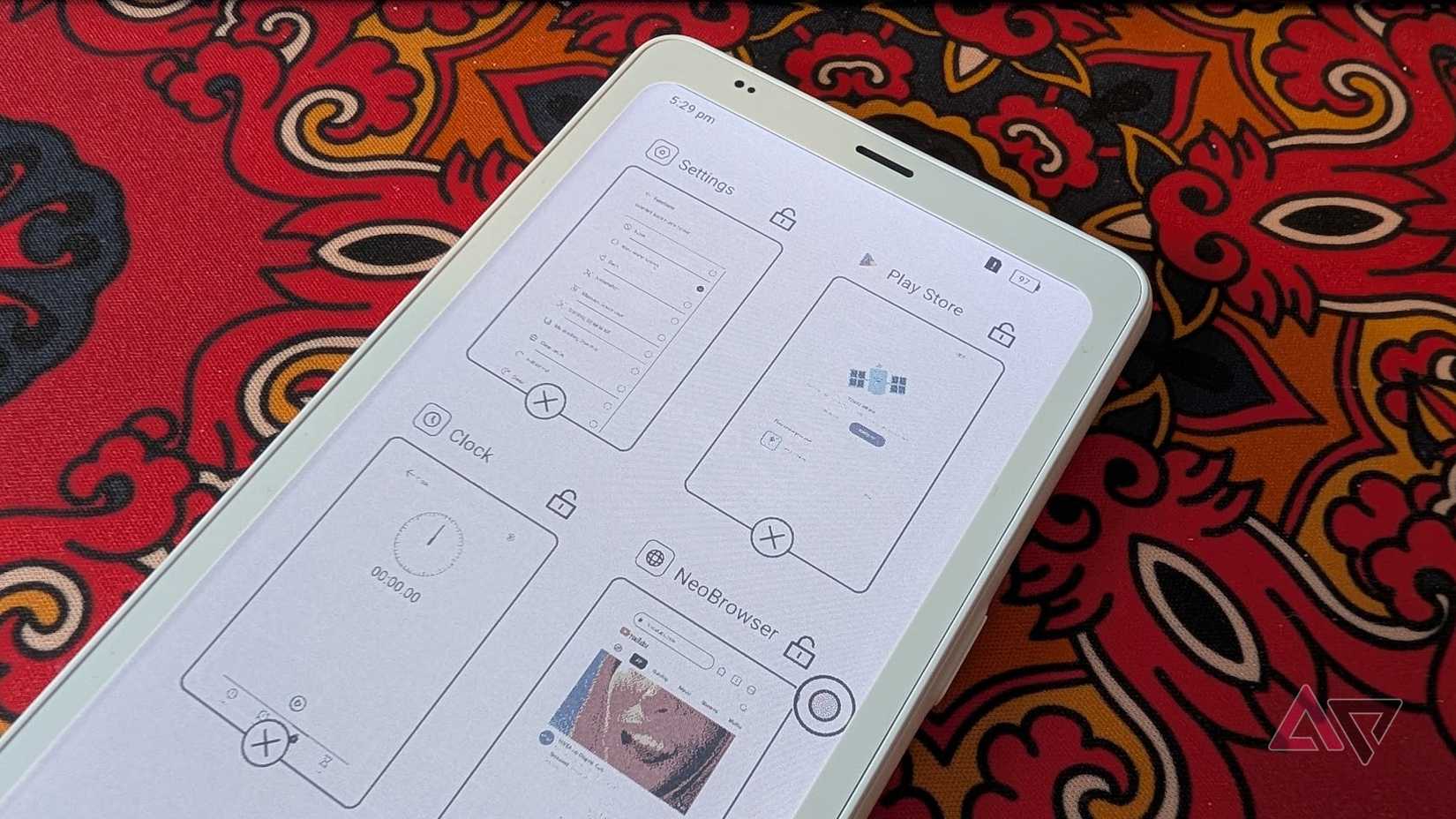
I mapped the long-press function of the Smart Button to open the app switcher. This not only lets me use the feature, but it’s also the fastest way to switch between recent apps.
My only wish is that I could decrease the time I need to press the Smart Button for it to register a long press. To me, it should be less than one second, but it usually takes longer.
I also have to release the button for it to trigger this action. If I release it too soon, it thinks I clicked it. Too late, and I’m wasting time.
Nevertheless, it’s still the best way I’ve found to switch between apps.
My Boox Palma 2 Pro is much more enjoyable to use now
I still think the Palma 2 Pro is overdesigned. I appreciate Boox’s ambition, but the result is a product that tries too hard and suffers as a result.
Nevertheless, thanks to these tweaks, I’m using it more than ever. And hey, it’s still a brilliant bedside clock.
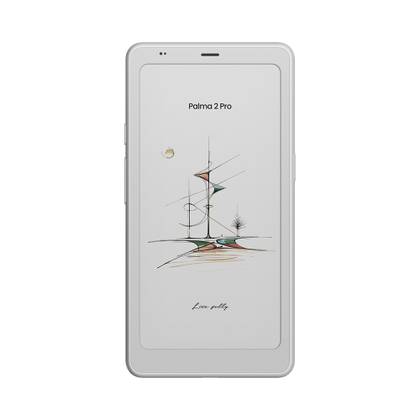
Boox Palma 2 Pro

- Resolution
-
B/W: 1648 x 824 (300ppi), Color: 412 x 824 (150ppi)
- Storage
-
128GB
- Screen Size
-
6.13″
- Processor
-
Snapdragon 750G