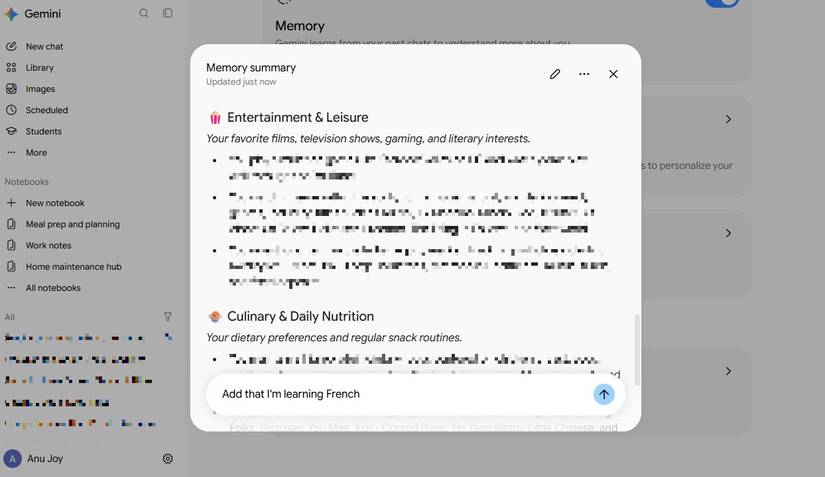
Google now has a Memory summary feature that lets you see the information Gemini picked up from your conversations, all in one place. You can review what it knows, correct inaccurate details, and remove anything you don’t want it to remember.
Here’s how to find your Memory summary and take control of what Gemini knows about you.
Is Gemini’s Memory summary available to everyone?
Here’s who can access it
Not everyone can access Gemini’s Memory summary yet. According to Google’s support documentation, the feature is currently limited to users in the US with an active Google AI plan.
You must also be at least 18 years old, use a personal Google account, have Keep Activity enabled, and turn on Memory. The feature supports English and is accessible through the Gemini website and mobile app.
However, my experience was a little different. Even though I used a free Google account from outside the US, I could access the feature on Gemini’s website. But I couldn’t find the option in the mobile app.
That means Memory summary may be accessible to some users outside Google’s officially stated eligibility requirements. If you don’t see it in the app, you can check Gemini’s web version to see whether the option is available there.
To check if you have it, open Gemini, click Settings in the lower-left corner, select Personal Intelligence, and choose Memory summary.
Find out what Gemini remembers about you
Look inside its memory
After you open Memory summary, you’ll find that Gemini organizes what it knows about you into several categories.
For me, these include The Essentials, Tech, Software & Hardware, Balcony Gardening & Craft Projects, Culinary & Daily Nutrition, and Fitness & Personal Routines.
Each category contains bullet points highlighting information Gemini picked up from your previous conversations, such as your background, interests, work, preferences, and relationships.
Some details might be things you’ve explicitly asked it to remember, while others reflect information you’ve shared during earlier conversations. You can open each category to review the individual details and see whether Gemini has understood them correctly.
You don’t have to manually browse your old conversations to see what Gemini remembers, either. You can ask it, “What do you know about me?” to get an overview.
Correct things Gemini has misunderstood
Update inaccurate or outdated details
Gemini won’t always get everything right, especially when it builds a picture of you from details scattered across multiple conversations. It might remember an outdated preference, misunderstand something you’ve mentioned, or get a personal detail wrong.
You don’t have to live with these inaccuracies or start over with a fresh memory.
You can correct them from the Memory summary page. Open Settings > Personal Intelligence > Memory summary, then use the prompt box to tell Gemini what to change.
For example, you could say, “I no longer work at that company. Update my current workplace to [company name],” or “I prefer working out in the evening, not in the morning.” Gemini will update the relevant information and may ask follow-up questions if your instructions aren’t clear enough.
You can also add details that Gemini has missed or remove information you no longer want it to retain.
You don’t have to wait for Gemini to pick up details about you from your conversations. You can also tell it exactly what you want it to remember.
To add something, open Memory summary and use the text box to enter your request.
Check Memory history to see what changed
Track all the changes
If you’re curious about when Gemini learned something about you, the Memory summary includes a Memory history option. It gives you a chronological record of changes it made to your saved information, helping you see when details were added or modified.
To access it, open Memory summary in Gemini. Click the Memory history option in the upper-right corner to see the list of changes.
Take control of what Gemini knows about you
Gemini’s Memory summary lets you review the information it collected, correct misunderstandings, add missing details, and remove anything you no longer want it to retain. You can even check Memory history to see how that information has changed over time.
It’s a good idea to review your Memory summary occasionally if your preferences, work, or any other details have changed.