
Recording phone calls can help recall important details for various situations. For example, it can help relay directions and contact information, as well as remember dates and times for events and your replies.
Samsung offers a built-in call-recording function. Whether you use the latest Samsung Galaxy S25 Ultra or one of our favorite Samsung phones, you can record calls natively without using third-party software.
The downside is that you can only record calls if your region or carrier supports the feature.
If the feature is available, we review how to record mobile calls on your Galaxy phone.
What you should know about Samsung’s call recording feature
Samsung only allows the call recording function in regions that permit it. If you don’t see the option on your Android device, it’s a legal requirement that Samsung follows.
Also, Samsung’s call recording does not work on Wi-Fi calls.
In regions like India, the One UI Phone app records calls without the recipient’s consent. Meanwhile, European countries and certain US states require all parties to consent to the recording.
Though the Phone app also makes an announcement so that everyone knows they are on a recorded call.
Comparatively, Apple supports call recording on iPhones (iOS 18 and iOS 26) in select countries.
How to record a call on a Samsung Galaxy phone
The record call function only appears on an active call. You can check if the feature is enabled by dialing your voicemail or a trusted contact.
Otherwise, proceed to the steps below to record a call on your Samsung Galaxy phone.
The contact may receive a request to record the call. If the contact accepts, a voiced notification will let you know that the call is now being recorded.
- Open the Phone app and make a call.
- In an active conversation, tap Record call icon above the call menu. Some phones may require tapping the three-dot icon in the upper-right corner.
- A red dot indicates the active call recording status and time. The Record call icon will also be green-colored.
- Disconnect the call or tap the same button or menu to stop call recording.
The system saves the recording to the internal storage and sends you a notification.
Swipe down from the top or upper-left corner to open the Notification Center. Tap the Call recorded notification to listen to the recording.
After ending the call, a small mic icon appears next to the contact’s name (or number) in the Phone app’s Recents menu.
How to record a call on a Samsung Galaxy phone using Google Voice
You can use Google Voice to make or receive calls on your Galaxy phone. Fortunately, recording calls while using Google Voice still works.
Here’s how to do it:
- Open the Google Voice app.
- Select the Hamburger menu in the upper-left corner and go to Settings.
- Turn on Incoming call options.
- When you answer a call on your Google Voice number, open the keypad and tap 4 to start recording.
All participants hear an announcement that the call recording has started.
Tap 4 to stop recording. You’ll find the voice clip in the Voicemail tab.
How to automatically record calls on a Samsung Galaxy phone
Depending on whether the feature is available, you can automate call recording using the Samsung phone app. The auto-record calls feature records every incoming and outgoing call on your phone.
A typical call recording clip takes a small amount of storage (in kilobytes) on your Galaxy phone. Even though you record all voice calls on your Galaxy phone, it doesn’t significantly impact your phone’s storage space.
Samsung also offers an option to auto-record calls from selected contacts or unsaved phone numbers.
The feature may not be available to you if your country or carrier doesn’t allow it. But if it is, here’s how to enable it:
- Launch the Samsung Phone app and go to the Keypad menu.
- Tap the three-dot menu at the top and open Settings.
- Open the Record calls menu.
- Turn on the Auto record calls toggle.
The default option automatically records all calls (including unknown numbers) on your smartphone.
You can also change it to record unsaved or specific numbers from your contact list.
- Open the Record calls menu in the Phone app (refer to the steps above).
- Tap Auto record calls.
- Tap Calls with unsaved numbers or Calls with specific numbers.
- When you select Calls with specific numbers, tap the Numbers to auto record option.
- Add the numbers or select the contacts you want to record calls automatically.
How to find and share a recorded call
After recording your call, you can find a list of recorded calls within your phone settings. You can add it to another folder, copy it, rename it, and even share it.
Here’s how to find and share the saved call recordings with others.
- Open Phone settings on your Samsung phone (check the screenshots above).
- Select Record calls.
- Tap Recorded calls.
- Check the list of recorded calls filtered by Name. You can also filter the list by date, type, and size.
- Long tap a recording to move it to another folder, copy, rename, delete, or share the clip over an IM (instant messaging) app.
Can I record WhatsApp, Telegram, or Messenger calls on a Samsung phone?
With the soaring popularity of instant messaging (IM) apps, many prefer apps like WhatsApp, Telegram, or Messenger to place voice calls (VoIP). These apps use their own dialers and don’t offer call recording.
If you receive calls from messaging apps, you must use a dedicated call recorder device to save conversations.
You can only record your normal voice calls on your Samsung Galaxy device.
Can I record calls using third-party apps on a Samsung phone?
So far, we have discussed the built-in method for recording calls on a Samsung phone. What about third-party call recording apps from the Play Store?
Third-party call recording apps utilize accessibility APIs to record calls without obtaining consent from all parties involved. The practice is illegal in different parts of the world.
Google announced a policy change to prevent third-party call-recording apps from using accessibility APIs. The change came into effect on May 11, 2022.
We tried a couple of call recording apps on our Samsung Galaxy S23 (running Android 13, based on One UI 5.1), but couldn’t hear the other party on the recordings.
Even now, the policy remains unchanged in 2026. It doesn’t work on Android 14, Android 15, and Android 16.
Still, depending on your OS version and location circumstances, a few workarounds exist that can let you bypass these restrictions.
Record your conversations on the go
While the road to third-party recording apps has mostly hit a regulatory dead end, Samsung’s built-in tool remains a straightforward option.
More importantly, keep in mind that the legality of recording calls varies from country to country, or even by state. We recommend obtaining consent before recording a call.
Otherwise, if you consistently get the green light, you can always use Samsung’s AI option to assist with call recording. That way, you don’t miss a beat the next time you’re on a call.
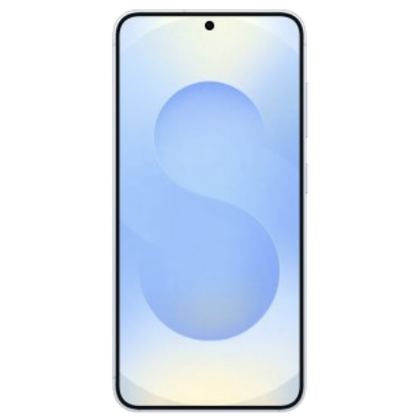
Samsung’s Galaxy S25 keeps things small without sacrificing power. With a Snapdragon 8 Elite processor, 12GB of RAM, and all sorts of tools courtesy of Galaxy AI, this is everything you expect from a modern flagship squeezed into a relatively svelte chassis.
- Display dimensions
-
6.2″
- Display resolution
-
2340 x 1080
- RAM
-
12GB
- Storage
-
128GB, 256GB, 512GB
- Battery
-
4,000mAh
- Charge speed
-
25W
- Charge options
-
USB-C Wired, Qi wireless
- Ports
-
USB-C
- Operating System
-
Android 15 and One UI 7
- Front camera
-
12MP f/2.2
- Rear camera
-
50MP f/1.8 main, 12MP f/2.2 ultrawide, 10MP f/2.4 3x telephoto
- Cellular connectivity
-
Sub-6 & mmWave 5G
- Wi-Fi connectivity
-
Wi-Fi 7
- Connectivity
-
NFC
- Bluetooth
-
Bluetooth 5.4
- Dimensions
-
146.9 x 70.5 x 7.2 mm
- Weight
-
162g
- IP Rating
-
IP68
- Colors
-
Silver Shadow, Navy, Icy Blue, Mint
- Stylus
-
No
- Price
-
$800