
Learn how to make FaceTime or regular non-FaceTime audio calls from your new Apple HomeView device, even to people with an Android phone.
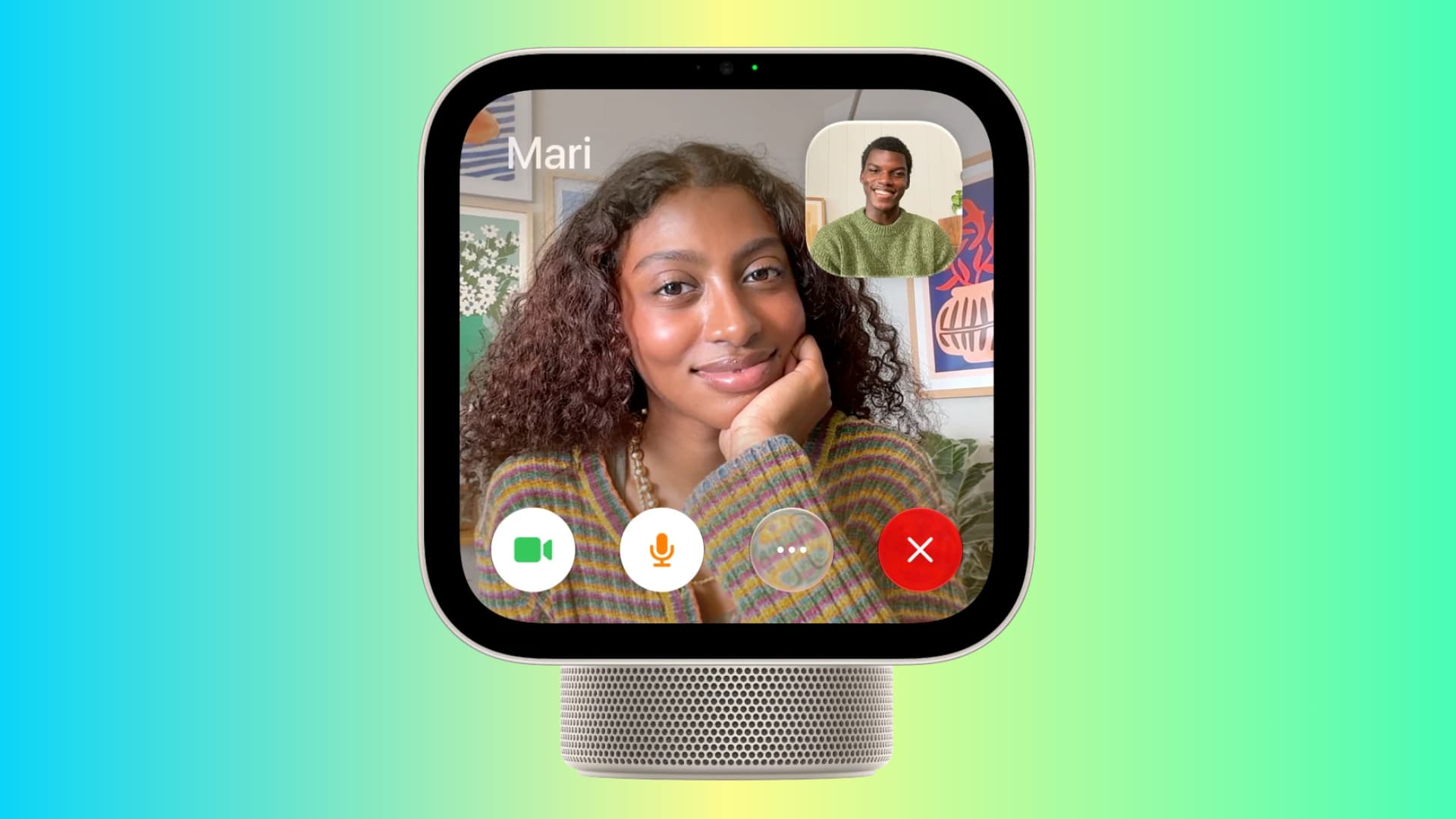
HomeView doesn’t have an App Store, so you cannot install third-party calling apps like WhatsApp or Zoom. Plus, these apps don’t show up on HomeView right now, even though they support CarPlay (and third-party HomeView app support is CarPlay-based).
That said, FaceTime comes pre-installed on HomeView, and you can use it to make FaceTime video and audio calls, as well as normal phone calls.
The setup and process are fundamentally similar to making cellular phone calls using the FaceTime app on Mac and iPad (before Apple added a dedicated Phone app in OS 26).
These calls piggyback on your iPhone’s cellular connection. They are useful at times like when your iPhone is charging at a distance and HomeView is within reach, or when HomeView is in the living room and the whole family wants to talk.
Ask Siri to make a call
Simply say “Siri, call Sebastien” or “Siri FaceTime Sebastien” and hope that Siri on HomeView (not your other nearby Apple devices) acts on your request.
Remember, HomeView is a Siri smart Home device, but it doesn’t have a physical button to invoke Siri; very thoughtful of Apple! You’re always at the mercy of HomeView gods reading your mind when you say the ‘Siri’ or ‘Hey Siri’ hotword.
Handoff phone call from iPhone
Hold your iPhone near your HomeView during a call, and tap the green transfer button to hand off the ongoing call from your phone to the HomeView without disconnection.
Cool Handoff exchange and animation aside, at its core, this is similar to how you can transfer calls from iPhone to Apple Watch, iPad, Mac, and Apple TV.


Make cellular phone calls from HomeView using the FaceTime app
1) Set up your HomeView using your iPhone. This ensures both devices have the same Apple Account. Also, turn on Personal Content, because without that, your personal calls and FaceTime account can’t be used on the HomeView.
2) Next, make sure your iPhone is connected to the same Wi-Fi network as your HomeView. Also, turn on Bluetooth.
3) Open the FaceTime app on your HomeView.

4) Your recent iPhone calls should appear there as big tiles. Tap the phone icon to call a recent entry.

5) To call someone who’s not on the Recents list, tap the green plus button, then type the contact’s name and select from suggestions. Then, tap the Phone icon to start a call.
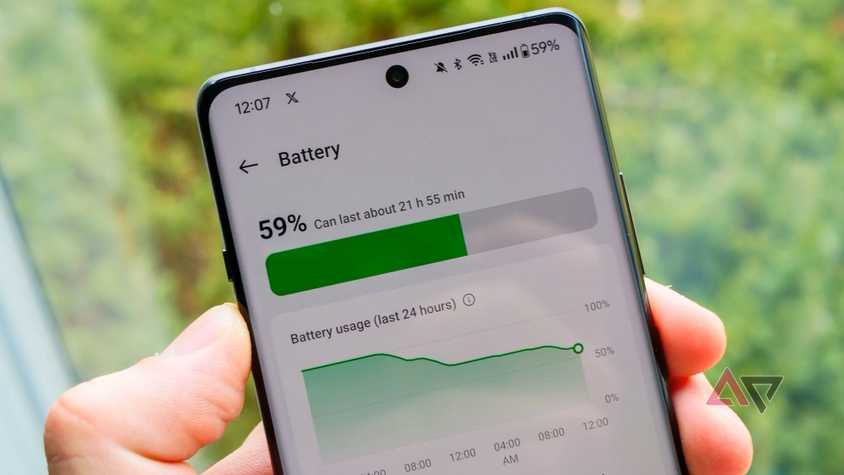
If the selected user is on FaceTime, you’ll see a big FaceTime video call button in the center with a FaceTime audio call button on the left side.
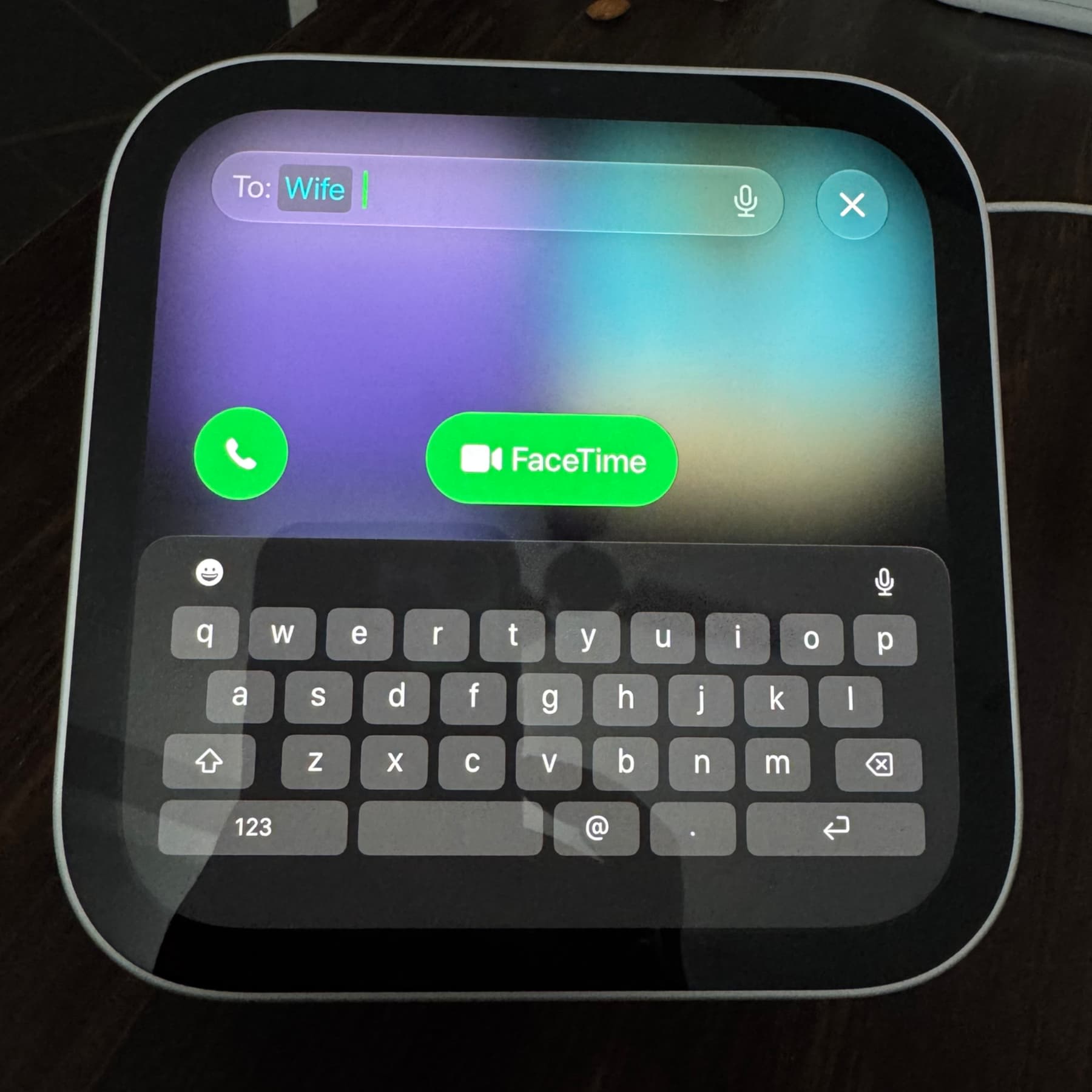
To call a phone number not in your contacts, type the number in the search bar and then tap the curved arrow icon in the bottom right of the HomeView keyboard. Next, tap the Phone icon to call this new number.
Calling on HomeView can be frustrating…
HomeView is a lackluster and incompetent device that can’t do much, at least in my five-day experience. Even basic things like changing the volume are a chore, and the new Siri, though better than the old one, is still slow and clumsy.
But my other gripes aside, here are some FaceTime issues I found in my tests:
- Not all recent iPhone calls show up in the FaceTime app on HomeView, which seems like an annoying bug. For instance, I made 10+ calls today, some to unsaved numbers, but not all of them appear in the FaceTime app on HomeView.
- If a contact has FaceTime, there doesn’t seem to be a way to make normal cellular phone calls to them. Tapping the green phone icon makes a FaceTime audio call. And touching and holding the phone icon on their contact view screen does not show a popup to make a normal call.

- You cannot delete recent calls from the FaceTime app on HomeView. You’ll have to delete it from the Phone or FaceTime apps on your iPhone, which also removes it from the FaceTime app on HomeView. But this sync doesn’t always happen in real time.
- You cannot record phone calls on HomeView.
- The call screen often freezes initially when making a FaceTime audio call, and the red hang-up button is grayed out and untappable. It takes about 5 seconds to become active, which is highly annoying.

- At times, calls fail to go through. This happened even when I tried calling my wife on FaceTime audio with her iPhone connected to the same Wi-Fi as the HomeView and near it.

- Calls drop randomly because HomeView thinks it has disconnected from your iPhone, even when it hasn’t.
- If you leave the HomeView frame, it may drop the call and ask for your re-recognition to continue using FaceTime.

How has been your HomeView experience so far?
Also, check out: How to lock iPhone Duo when you fold the screen in iOS 27.3