
I’ve used Google Calendar for years, but for a long time, I treated it like a digital wall calendar. I would add appointments, birthdays, meetings, and anything else I couldn’t afford to forget. If an event had a specific date or time, I’d add it to my calendar.
Recently, I’ve started exploring features that go beyond the basic calendar view. Many of these have become part of my daily routine, whether I’m blocking out time to focus on work, tracking tasks, or understanding how I’m spending my time.
Google Calendar can do more than remind me of meetings. Here are some of the underrated features I now use regularly.
 Quiz
Quiz
Google Calendar trivia
Trivia challenge
From smart scheduling to hidden features — how well do you really know
Google Calendar?
History
In what year did Google Calendar officially launch to the public?
a period of invite-only beta testing. It was part of Google’s broader push to build a full suite of
productivity web apps during that era.
as an invite-only beta before opening to everyone on April 13 of that year, joining Gmail and Google
Docs in Google’s growing productivity lineup.
Features
What is the name of the Google Calendar feature that uses AI to automatically find a
meeting time that works for all invitees?
the calendars of all invited guests and highlights time slots where everyone is available. It’s a huge
time-saver when coordinating across busy teams.
availability of all invitees and highlights open slots directly in the scheduling interface, making it
much easier to book meetings without endless back-and-forth emails.
Integration
Which Google product automatically creates calendar events from booking
confirmations and travel itineraries found in your email?
reservations, and restaurant confirmations in your inbox and add them to Google Calendar as events. This
integration between the two apps saves users a lot of manual entry.
structured data like travel itineraries and bookings, and it can automatically populate Google Calendar
with those details — a seamless integration most users don’t even realize is happening.
Settings
In Google Calendar, what does enabling ‘World Clock’ in settings allow you to do?
sidebar panel showing the current time in multiple cities or time zones of your choosing. It’s
especially useful for teams working across international locations.
multiple time zones in the sidebar. You can pick specific cities to monitor, which is incredibly helpful
if you collaborate with colleagues or clients across different parts of the globe.
Features
Which view type is NOT natively available in Google Calendar?
— but there is no Decade view. The Year view, added more recently, is about as broad as the native
options get for visualizing your schedule at a glance.
app does offer Day, Week, Month, Year, and Agenda views, with the Year view being the broadest
perspective you can get on your schedule natively.
Productivity
What Google Calendar feature allows users to signal when they are available for
others to book time with them directly?
Slots) lets you define windows of availability and share a booking link. Other people can then claim a
slot without any back-and-forth, similar to tools like Calendly but built right into Google Calendar.
available time slots via a shareable link, so others can book directly into your calendar. It’s Google
Calendar’s answer to third-party scheduling tools, and it’s available to Google Workspace users.
History
Google Calendar was built on top of technology acquired from which company?
and the technology informed parts of Google Calendar’s development. Kiko had been building an Ajax-based
calendar app and struggled to compete once Google Calendar launched.
online calendar but famously sold itself on eBay after Google Calendar launched and undercut its
prospects. Google acquired Kiko’s technology and put it to use in its own calendar product.
Integration
Which of the following file formats does Google Calendar use to import and export
calendar data for compatibility with other calendar apps?
iCalendar. This is a universal standard supported by virtually all major calendar applications including
Apple Calendar, Microsoft Outlook, and many others, making cross-platform sharing straightforward.
supported across calendar apps like Apple Calendar and Microsoft Outlook, meaning you can export your
Google Calendar data and import it elsewhere — or vice versa — with minimal friction.
Your Score
Thanks for playing!
I started putting tasks directly on my calendar
My to-do list finally has a time and place
Google Calendar lets me create tasks directly from the calendar. I can give a task a date and time, and it appears alongside my other calendar events.
Tasks created in the Google Tasks app with dates also show up in Calendar. I can edit, complete, or delete them from there.
For example, if I need to submit something on Friday, I can add it as a task rather than leaving it on an endless to-do list. If I know I want to work on it Thursday afternoon, I can set a start time.
On Android, you can create one by opening Calendar, tapping an empty time slot, and choosing Task. Alternatively, you can also tap Add (plus icon) > Task, enter the details, and save it.
I use Calendar’s daily agenda to start the day
My mornings now start with my daily schedule
I don’t always want to open Google Calendar first thing in the morning to figure out what’s coming up. Instead, I have Calendar send me a daily agenda email, so my schedule is in my inbox when I start the day.
Google Calendar can send this each morning, showing the day’s schedule for the calendar you’ve enabled it on.
I find this useful because it’s a quick way to get the shape of my day without opening another app. I can see if I have meetings, appointments, or blocks of time coming up and get a sense of how much room I have before I start working.
To set it up, open the desktop version of Google Calendar, go to Settings, and select a calendar under Settings for my calendars. Click Other notifications and change Daily agenda from None to Email.
I use recurring events for things I keep forgetting
Set it and forget it
I often forget certain tasks because they are easy to postpone.
Checking something once a month, renewing a subscription, backing up my data, or remembering a routine task can disappear from my mind when there’s no immediate reason to think about it.
That’s where recurring events have become useful. Instead of relying on myself to remember that something needs to happen again next month, I put it on Google Calendar as a recurring event.
I can set an event to repeat daily, weekly, monthly, yearly, or on a custom schedule.
I like using this for reminders that don’t necessarily belong on my everyday to-do list. For example, if I need to check on something the first weekend of every month, I can create it once and set it to repeat.
To set one up on the app, create an event, choose the date and time, tap Does not repeat, and select how often you want it to repeat. I can also choose when the series should end.
I stopped letting important emails disappear in my inbox
Turn them into calendar reminders
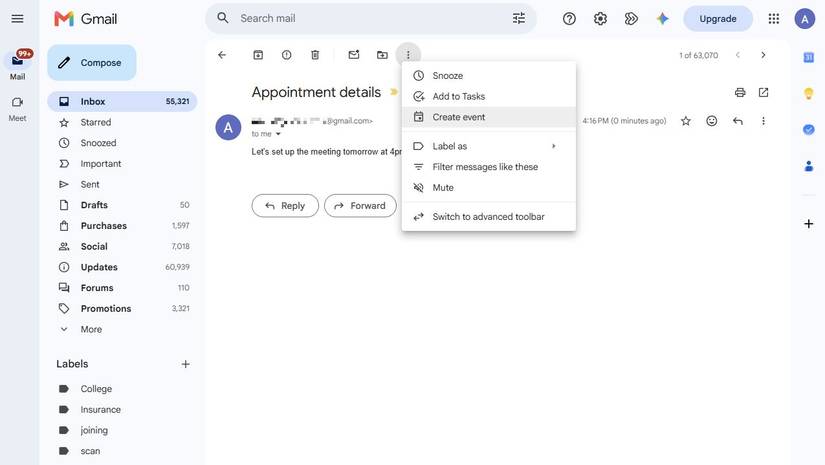
I used to leave emails in my inbox when they contained something I needed to remember later, whether it was a reservation, an appointment, a deadline, or something I needed to follow up on.
The problem was that an inbox isn’t a very good reminder system. An email can sit there for days while newer messages push it further down.
Now, when an email contains something that needs to happen at a particular time, I put it on my calendar instead. To add an event, open the email, click the three-dot menu icon, and select Create event.
It carries over the email’s subject and message text, and you can add the people on the email as invitees.
Google can also automatically add certain events from Gmail, including flights, hotel and restaurant reservations, and ticketed events, to Calendar. Those events stay updated if the reservation details change.
I stopped playing email ping-pong to schedule events
No more back and forth
I used to waste way too much time on messages like, “What time works for you?” followed by “How about Thursday?” and then another round when Thursday didn’t work. Google Calendar’s appointment schedule has an easier way to handle that.
I can create a booking page with the days and times I’m available, then send someone the link. They see the available slots and choose one themselves.
After they book, the appointment is added to my calendar, and Calendar can block off times when I’m busy so people don’t book over another event.
Setting one up requires the desktop version of Google Calendar. I click Create > Appointment schedule, name it, choose the appointment length, and set the days and times I’m willing to accept bookings.
You can also set a scheduling window, add a buffer time between appointments, and choose whether Calendar should check other calendars for conflicts.
After the schedule is ready, Calendar creates a booking page that you can share as a link.
I use Calendar to make my schedule work for me
These features are useful because I don’t have to remember every task, deadline, recurring chore, or appointment.
Calendar can put a task on my schedule, remind me about something I need to do again, turn an important email into an event, or let someone book a time without a long email exchange.
Now I can look at my calendar and have a better idea of what needs my attention and when I have time to do it.