Even though I picked the Amazon Fire TV Stick 4K Max for its larger 16GB onboard storage, that usable capacity evaporates in the blink of an eye after you start installing apps and games.
It forced me to do spring-cleaning on my apps and regularly clear the app cache, which I always balk at because it’s so frustratingly tedious.
I thought I was stuck with the same recurring, aggressive storage optimization and cache clearing unless I upgraded to a newer streamer with larger capacity.
Thankfully, I found a simple trick I wish I had learned sooner, and one that ended my storage woes without spending money on a new device.
And surprisingly, it involves only a $5 accessory and gave my Fire TV Stick an extra 30GB of room.
Fire Sticks have a major storage restriction
But there’s a cheap workaround
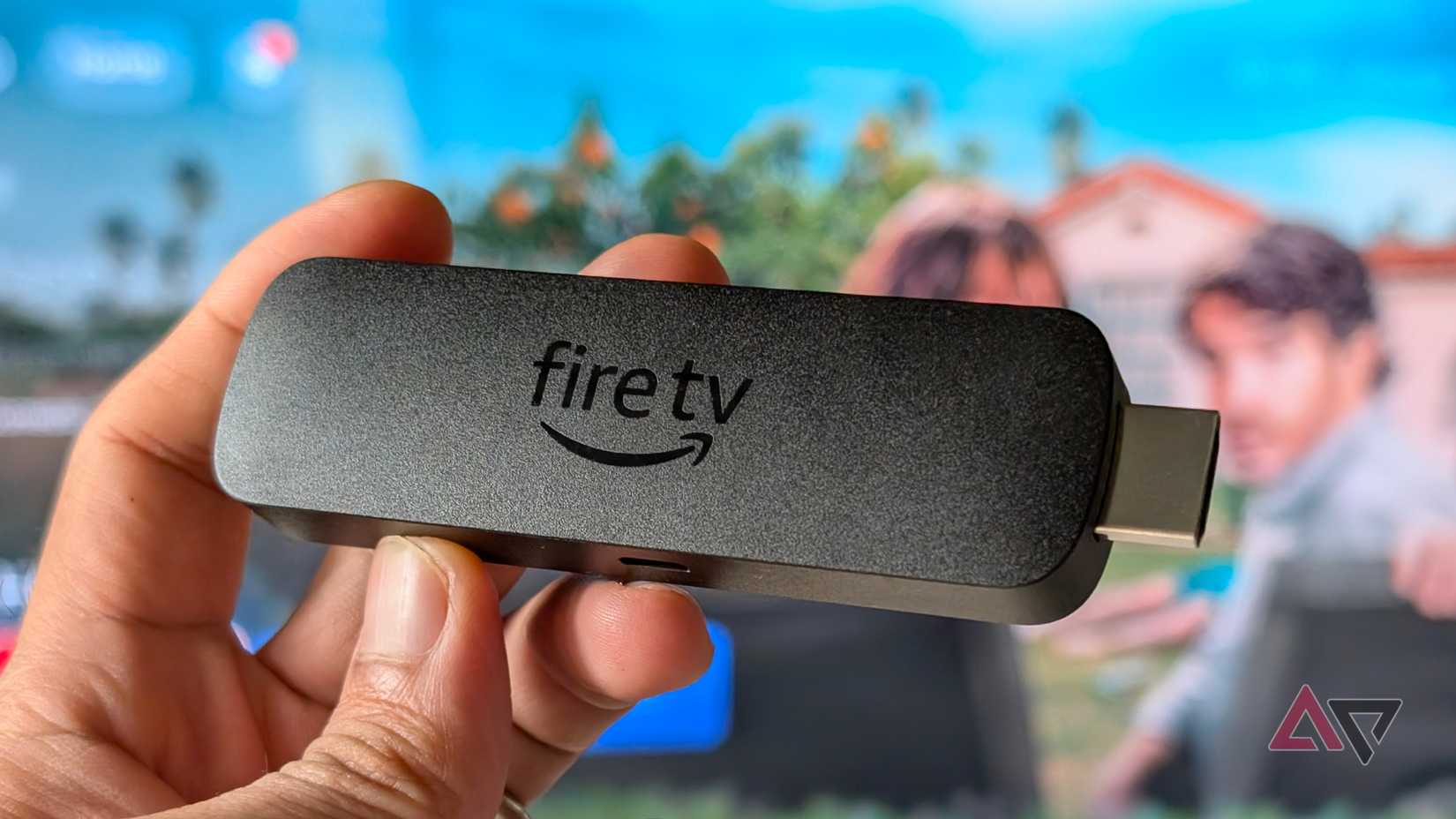
Unlike my Google TV Streamer, which has 32GB of storage, the Fire TV Stick 4K Max has a 16GB ceiling, which leaves me with about 13GB of usable space.
I know that’s more than many Fire Sticks, especially older generations, which are still stuck at 8GB.
Even in my case, though, that available room is already a chokehold.
A few months after setting up my Fire Stick in the living room, I unexpectedly hit the low storage alert. And this has happened twice since I’ve owned the dongle.
While I can blame my usage and habits, it’s also because Amazon has ignored giving the Fire Stick easy memory expansion through a dedicated microSD card slot or even higher-capacity variants for years.
At one point, I considered ditching the Fire TV Stick 4K Max for the Google TV Streamer, even though I prefer the former as my primary streaming device.
However, there was a saving grace after an unexpected suggestion from my colleague taught me that there’s a way to expand my Fire TV Stick’s capacity.
I thought it would be complicated and require both hardware and software tweaks, but it wasn’t. A $5 USB splitter solved it.
Grab a cheap USB Y-splitter
Connecting my flash drive without losing power
While I knew Fire Sticks supported memory expansion before, I thought it was only for accessing media files, not for extra room for my apps and games.
Surprisingly, it also proved that it can effectively give my Fire TV Stick a semi-permanent capacity increase.
The trick is to use a $5 USB Y-splitter with two ends: a female microUSB and a male microUSB port.
They connect to a junction leading to a female USB-A port, which you then connect to your thumb drive.
I got a generic one for just over $4, though I searched Amazon and eBay and found you can get one for $5 to $10, depending on the cable length.
Alternatively, if you have a USB-C hub collecting dust in a drawer, you can use it instead.
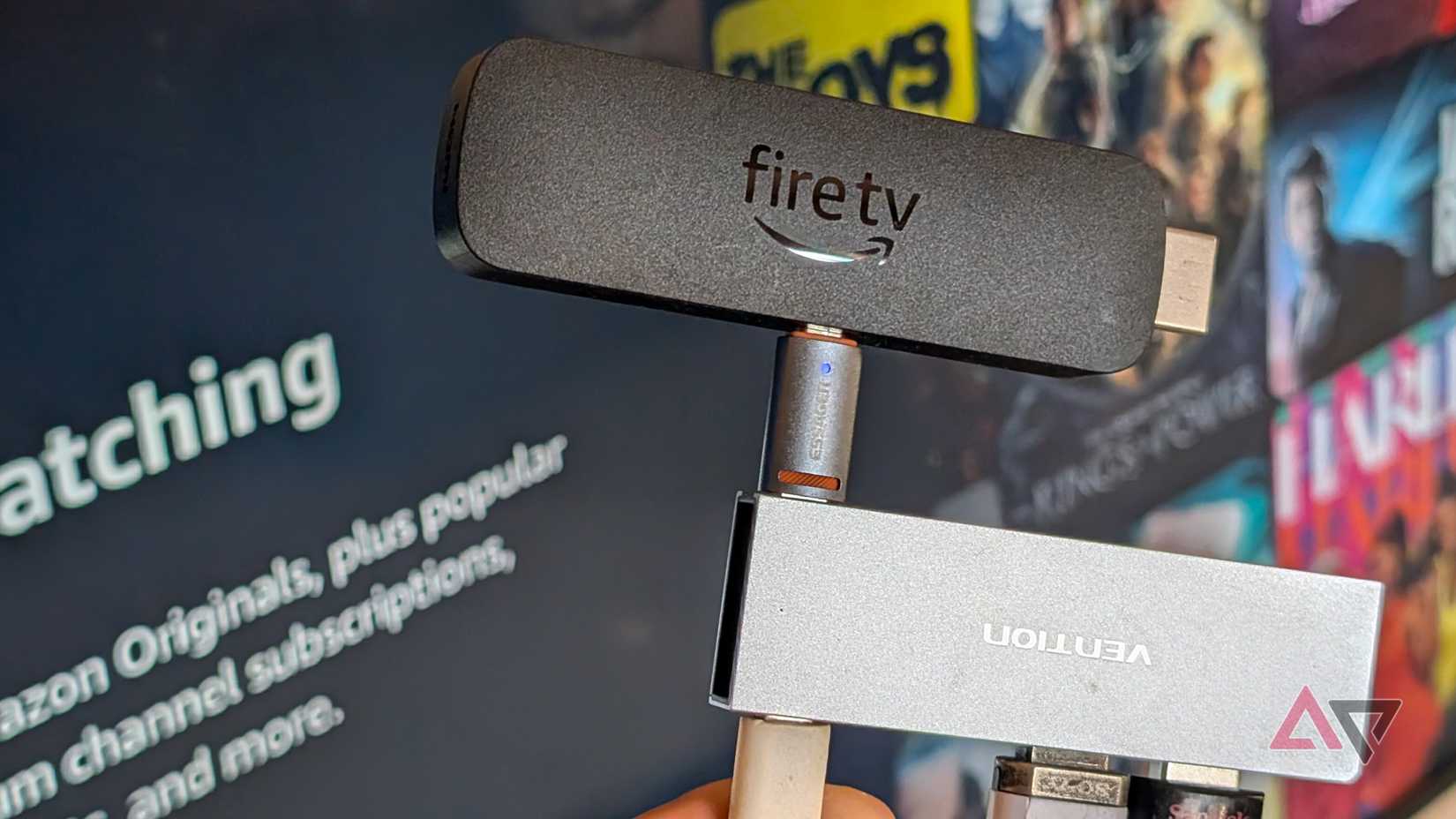
You just need a microUSB-to-USB-C adapter, which you can grab for even less.
After you acquire the accessory, use a spare USB flash drive of any size, up to 2TB. In my case, I used a 32GB SanDisk stick that I found sitting in a drawer.
Formatting the drive for Fire TV OS
Set up the USB drive as Fire Stick’s device storage
Next, I plug my flash drive into the splitter and connect the rest of the cables as usual.
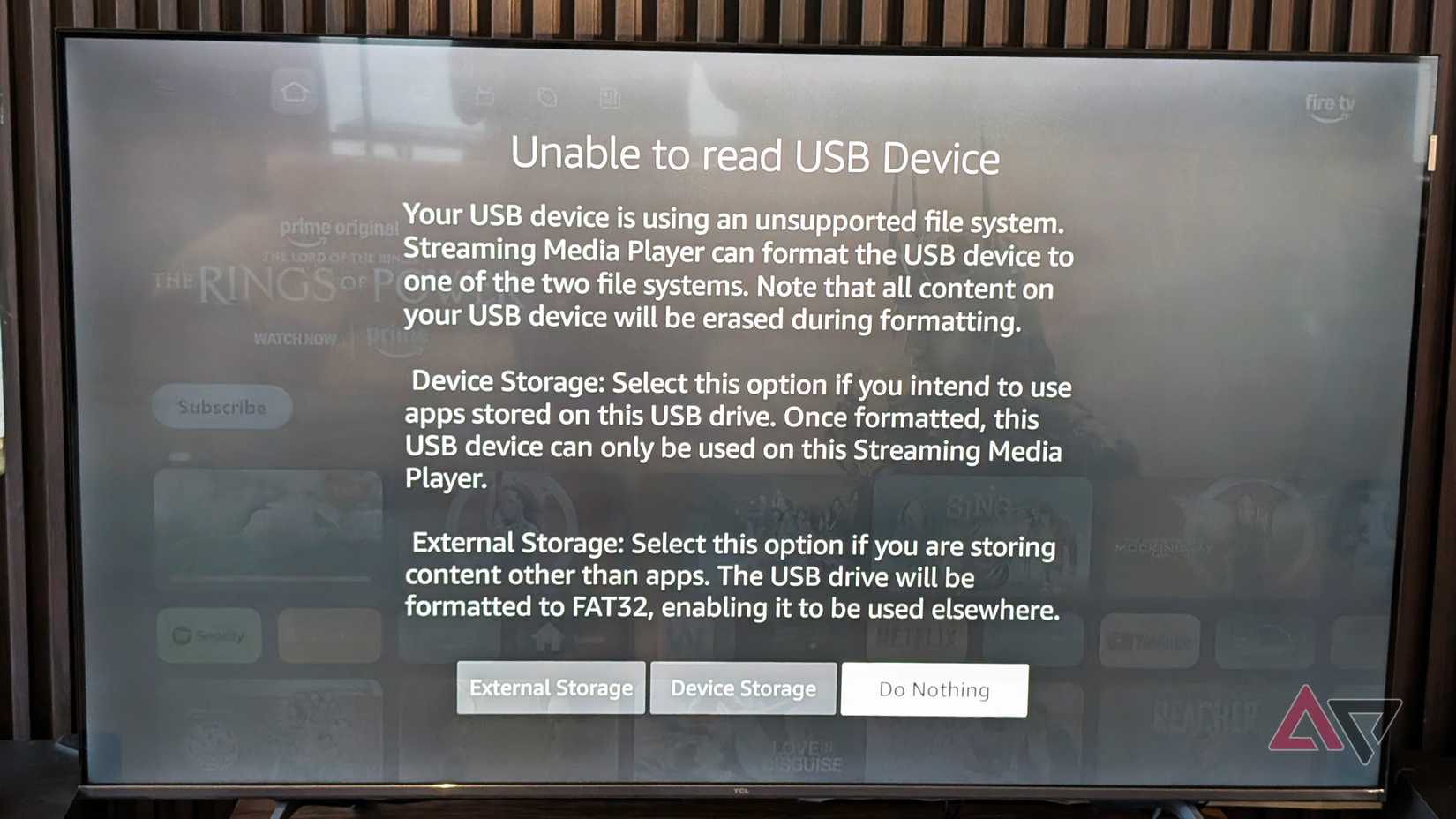
If you are using an older thumb drive, you’ll likely see it register as external storage, which works for drives formatted using FAT32.
For exFAT and NTFS disks, however, you’re likely to be prompted that your Fire TV isn’t recognizing the drive and needs you to choose whether to format it as external storage or internal device storage.
Since I’m going to use this for storing apps and game data, I chose device storage. After that, it took a minute or so to format my 32GB drive.
Plugging the flash drive into a Windows PC or Mac won’t work, since it’s encrypted and can only be used with the Fire TV you used to format it.
After setting it up, I quickly saw my new capacity appearing in the Fire TV OS under Manage Applications.
It starts completely clean, so I got about 29GB of usable space, which is more than double my onboard usable space and now gives me over 40GB of total room.
Installing and migrating apps
Moving heavy games off to the expanded drive
Because it is formatted as device storage, this means it supports most app and game installations.
There’s even a built-in Fire TV OS feature that lets me transfer already installed apps and games over to the secondary drive I created.
Keep in mind that not all apps and games support this migration, as it still depends on the developer.
If you have a diverse library installed, though, you’ll likely be able to transfer most of these apps to your new drive.
That also works similarly when downloading new apps and games from the Amazon Appstore, as some titles go to the new device storage, while others still install in the main memory.
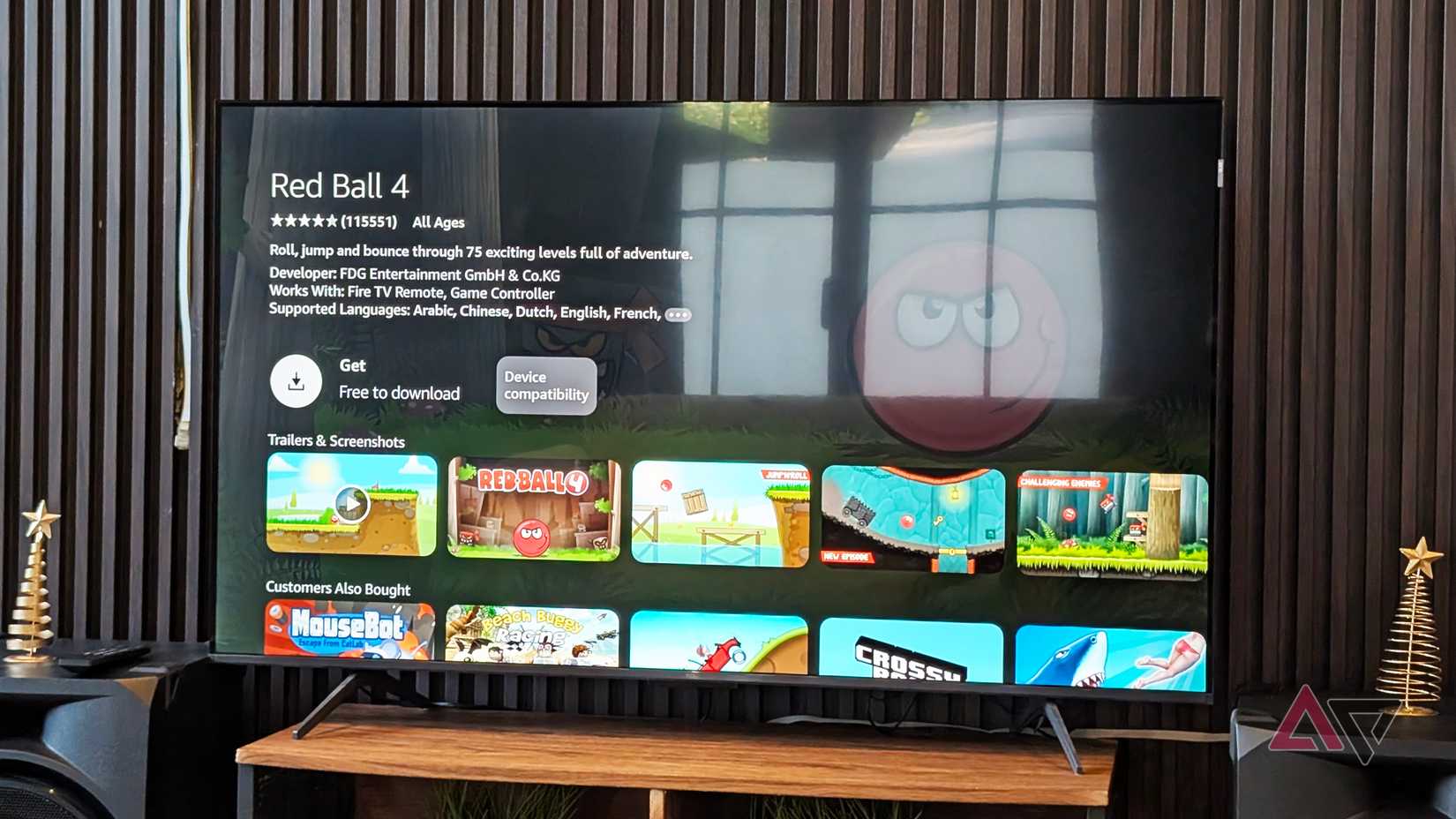
However, I found that many of the games I downloaded occupied my new USB drive instead of the onboard chip.
That means I can save a massive chunk of space, since these file types are usually the biggest space offenders.
I also didn’t notice a performance difference when accessing apps and games installed on the USB drive compared with the onboard chip. If there is, the difference should be negligible.
I haven’t fully migrated all my apps and games to my new drive yet, but I’ll likely free up about 3GB to 5GB after transferring everything over.
That leaves plenty of extra room on my primary memory for the core streaming apps I prioritize.
Practical way to maximize my Fire TV Stick
While you can easily blame the Fire TV Stick’s limited memory, this flexibility in Fire OS is a redeeming feature I wish I had discovered earlier.
But it would also be nice if Amazon stopped shipping modern streamers with 2015 storage limits in the first place.
For anyone struggling with their Fire TV Stick’s storage, this cheap trick is an excellent way to fix those storage woes without paying for a hardware upgrade.

- Operating System
-
Fire OS
- Downloadable Apps
-
Yes
- Resolution
-
Up to 4K
- Ports
-
MicroUSB, HDMI
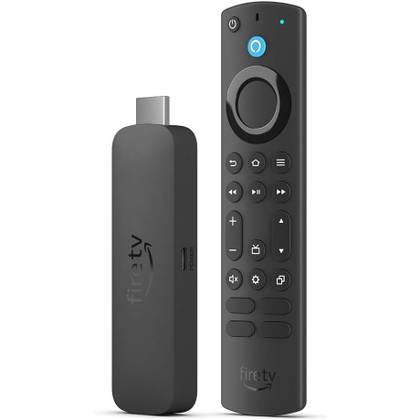
The Amazon Fire TV Stick 4K Max (2nd generation) features more storage and RAM. See the latest offers on the streaming device.