
Learn how to stop all incoming calls from showing on HomeView if you have privacy concerns that somebody else may see who’s calling you.
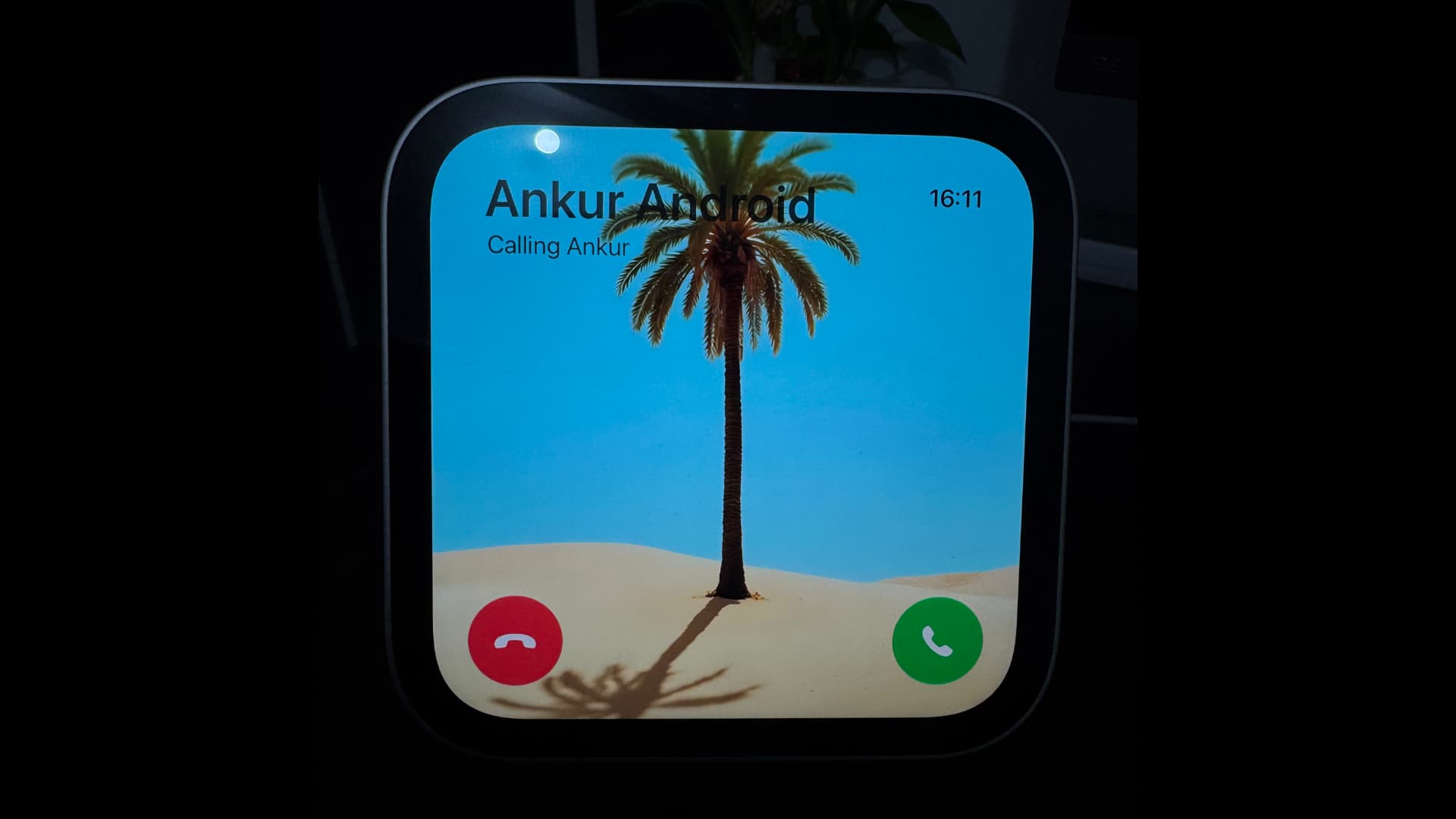
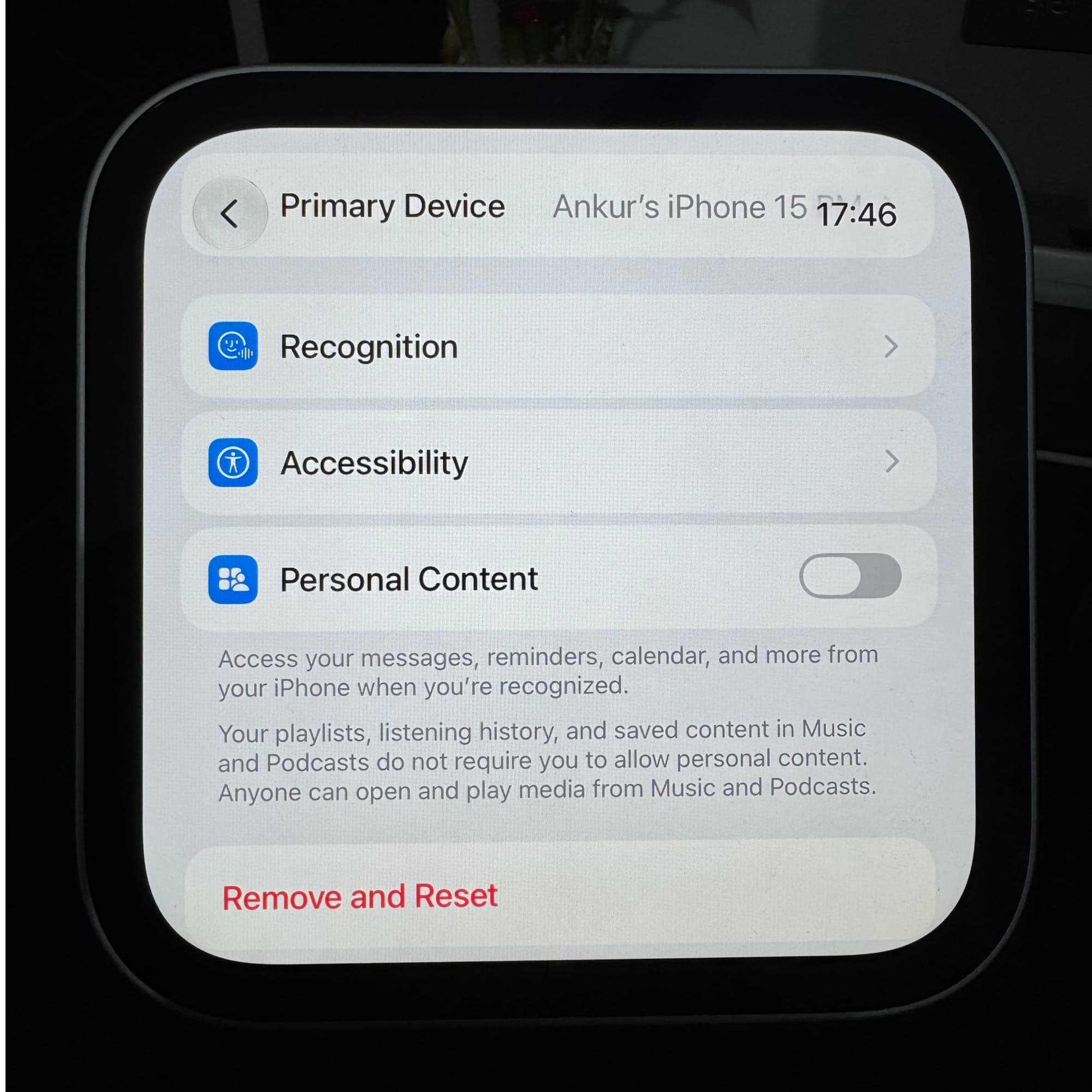
When you set up your Apple HomeView smart device, you’re prompted to enable Personal Content so your call logs, texts, calendar events, and other individual items can appear in HomeView’s FaceTime, Messages, Calendar, and other relevant apps.
HomeView isn’t a simple mirroring screen for your iPhone, so not all your calls will show up on it. Instead, Apple has added some checks, and your incoming iPhone calls will only show up on HomeView when all the following conditions are fulfilled:
- Your iPhone is nearby and connected to the same Wi-Fi network as your HomeView. This isn’t new and is in line with how iPhone calls show on Mac, iPad, and Apple TV.
- You have enabled Personal Content on HomeView.
- Your user profile is selected on HomeView.
- Importantly, HomeView can see your face and make sure you’re around it.
The above safeguards ensure nobody at home can see who’s calling you when you’re away at the office or elsewhere. Apple has taken these steps to ensure privacy even from people who are family.
That said, if your HomeView is on your work desk or living room table and you’re sitting there when someone calls, it will show up on the 7-inch display, and people standing behind you may see who’s calling. If you don’t want this and need an ultra level of privacy, HomeView software includes an option to disable all incoming calls from showing on its screen.

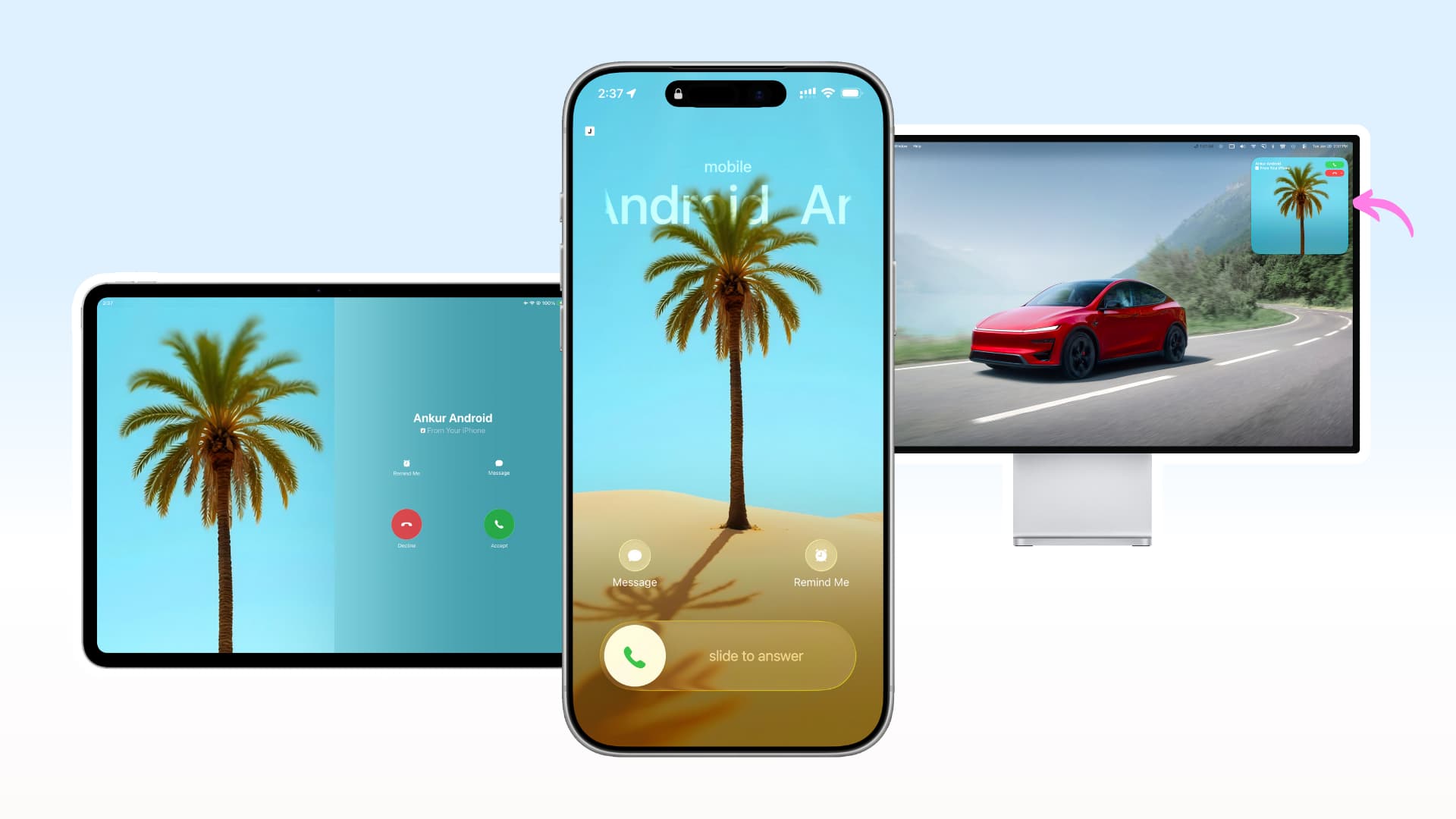
Unlike iPad, Mac, and Apple TV, you cannot manage this from your iPhone, since HomeView still doesn’t appear as a potential device under iOS Settings > Apps > Phone > Calls on Other Devices.
So, go to HomeView settings to make this change and permanently block incoming calls from showing up there.
Block incoming calls on HomeView
1) Swipe up on the HomeView clock face to bring up the app drawer and make sure you see your profile icon in the top right corner. Then, open the Settings app.
2) Tap your name at the top.

3) Scroll down and turn off Incoming Calls.

Moving forward, incoming calls will be confined to your iPhone (and iPad, Mac, and Apple TV if you have enabled them), but not your HomeView.
If you can’t access your HomeView now
In case you can’t access your HomeView for any reason, just turn off Wi-Fi on your iPhone. Or, turn off Personal Content by following these steps.
- Open the Home app on your iPhone.
- Touch and hold the HomeView tile and select Accessory Settings.
- Scroll down and tap Personal Content.
- Turn off the switch next to your HomeView.

This tip works even if your iPhone isn’t connected to the same Wi-Fi as your HomeView, as long as both devices have Internet connectivity via any Wi-Fi network or cellular data.
What’s your reason for turning off incoming calls on HomeView, if you don’t mind sharing?
More on HomeView: