Please provide your email address to finish creating your account.
<!–
Create an account
–>
*Required: 8 chars, 1 capital letter, 1 number
or
By creating an account, you agree to our Terms of Use and Privacy Policy.
You also agree to receive our newsletters; you can unsubscribe any time.
Browsing articles, PDFs, and long emails quickly became frustrating. The text often felt cramped, the screen was too bright or too dim, and after a while, my eyes started to feel tired.
If something looked like it required focus, I saved it for later and read it on my computer instead.
After exploring my device’s settings, I found a handful of small tweaks that made a surprisingly big difference.
No more wondering where you put your reading glasses
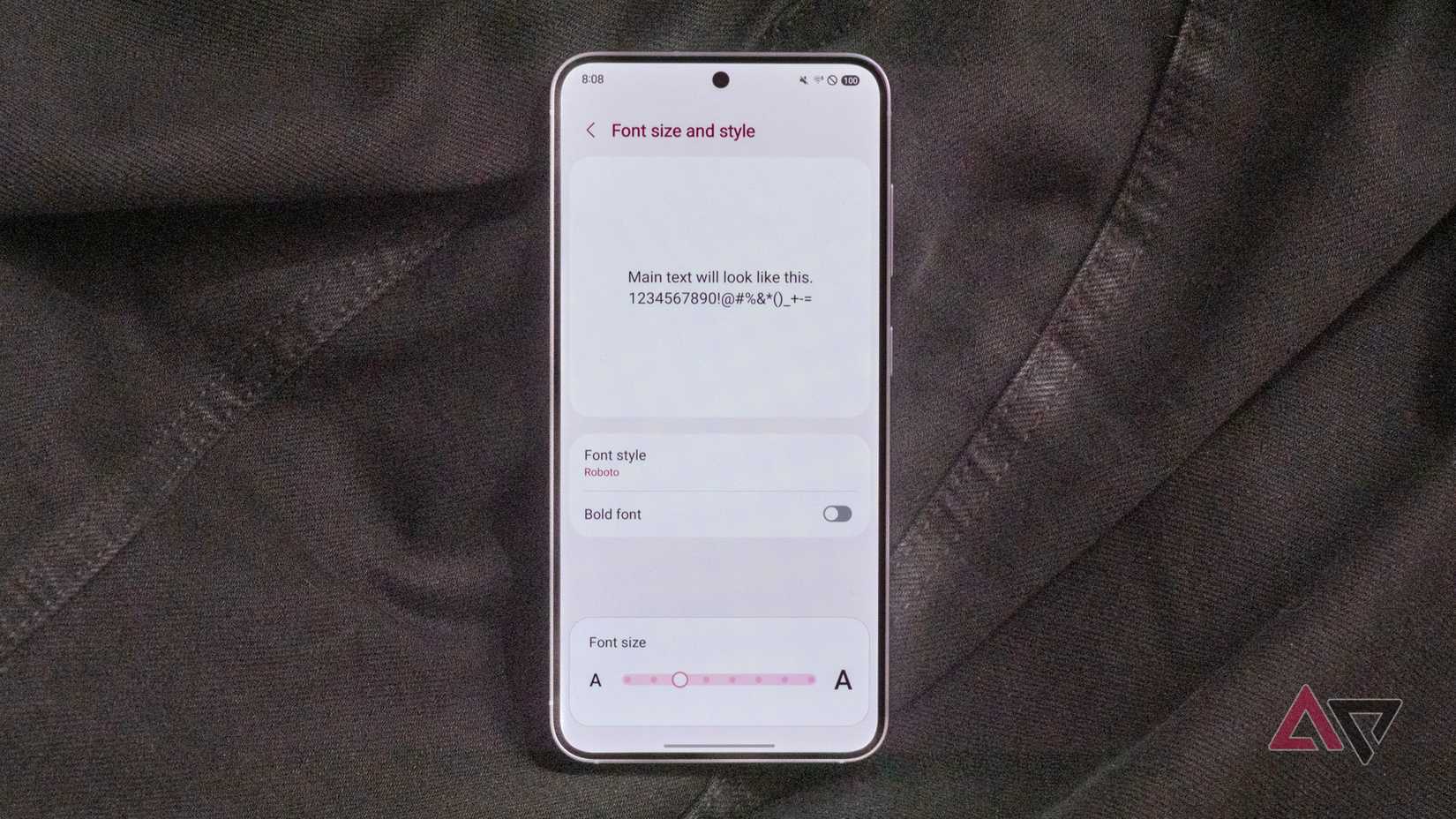
One of the easiest ways to make reading on your phone more comfortable is simply increasing the text size.
Many phones use fairly small default fonts, which can make long articles or documents harder to read.
A slightly larger font reduces eye strain and makes it easier to follow lines of text without constantly squinting or zooming in. Even a small adjustment can make paragraphs feel much less cramped.
Here’s how to change the text size:
Open the Settings app.
Type font size in the search bar, then select it.
Move the slider left or right to adjust the text size until it feels comfortable.
You can also adjust Display size in the same way. This changes the scaling of elements on the screen, including buttons, menus, and app layouts.
In most cases, apps automatically follow the system font size you choose, so you don’t need to adjust them individually.
However, not every app respects the system font size. Some apps use fixed layouts or their own text controls, which means the change may be less noticeable.
Still, for everyday reading in browsers, messages, and many apps, increasing the font size makes a clear difference.
Switch to a warmer screen tone
Reduce the blue light coming from your screen
Another setting that made reading on my phone much more comfortable was switching to a warmer screen tone.
Most phones use a fairly cool color temperature by default, which gives the display a slightly bluish tint. While that can make colors look vibrant, it’s not always ideal for long reading sessions.
Warmer tones reduce the amount of blue light coming from the screen, which can make text feel easier on the eyes, especially when you’re reading at night or in low-light environments.
The screen takes on a slightly yellow or amber tint, but after a few minutes, it starts to feel much more natural.
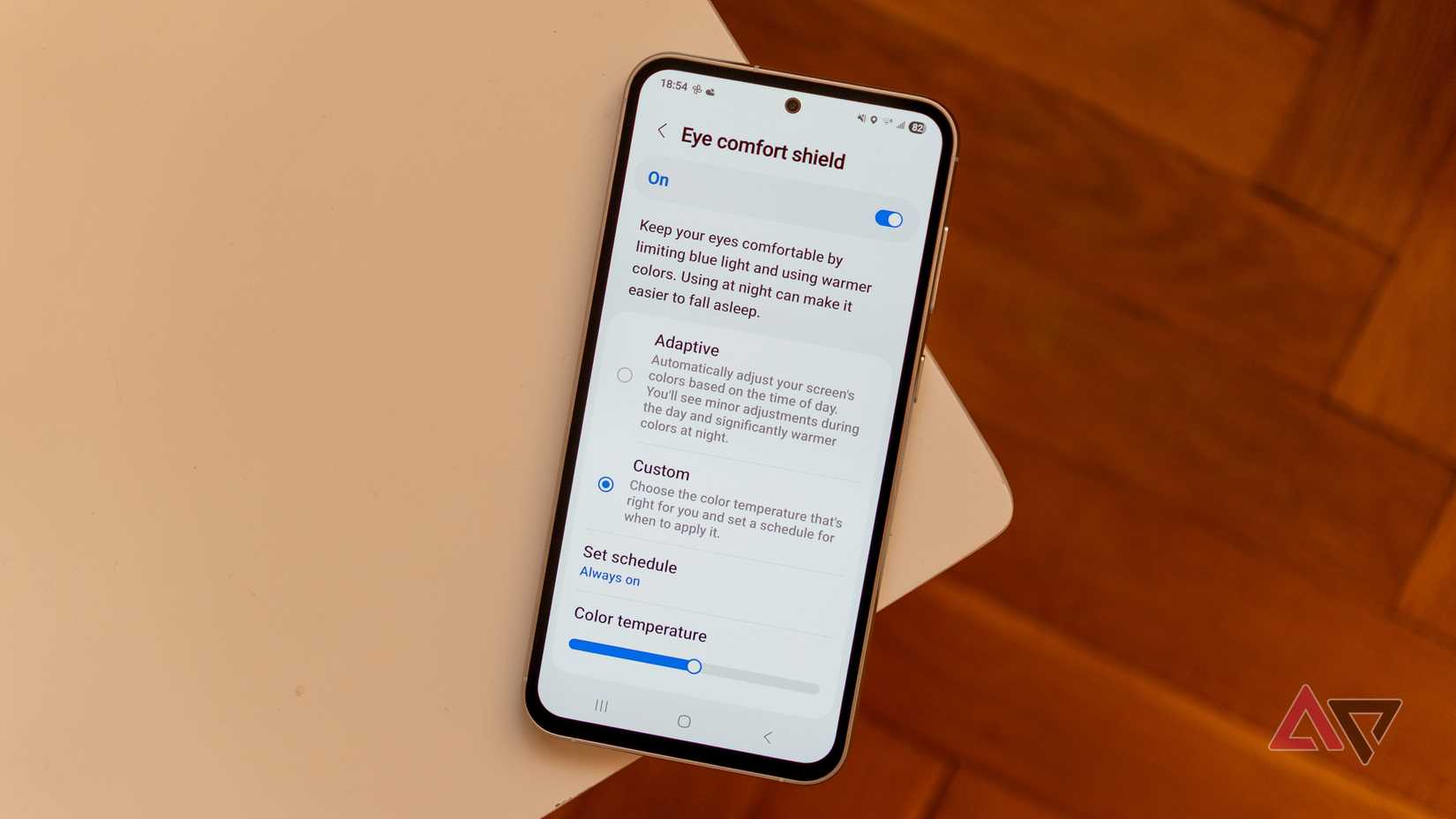
You can enable this using the Eye Comfort or Night Light feature. Here’s how to turn it on:
Open the Settings app.
Go to Display.
Tap Night Light or Eye Comfort (the name varies by phone).
Turn on the feature and adjust the intensity slider to choose how warm the screen should look.
You can also schedule it to turn on automatically in the evening and switch off in the morning. That way, your screen becomes warmer when you’re more likely to be reading in dim lighting.
It might look slightly unusual at first, but after you get used to it, the warmer tone makes extended reading sessions more comfortable.
Use dark mode or sepia backgrounds
It’s easier on the eyes in low-light environments
Bright white backgrounds are one of the biggest reasons reading on phones feels unpleasant. Staring at a glowing white screen for long periods can cause eye fatigue.
Switching to dark mode helped a lot. Instead of black text on a white background, the screen shows light text on a dark background, which feels easier on the eyes in low-light environments.
Some reading apps also offer sepia backgrounds, which mimic the slightly warm tone of paper. I found this particularly comfortable during daytime reading.
The best option depends on lighting conditions. Dark mode works well at night, while sepia or slightly off-white backgrounds are great during the day.
Either way, avoiding that harsh white screen makes reading sessions far more pleasant.
Lock the screen orientation
Shifting screens are distracting
Credit: Lucas Gouveia / Android Police
Another small change that made reading on my phone less frustrating was locking the screen orientation. By default, most phones automatically rotate the screen when you tilt the device.
If you’re lying down, leaning back, or holding your phone at a slight angle, the screen can suddenly switch between portrait and landscape mode.
When that happens, the page reloads or shifts, and you lose your place in the text. That constant shifting can be annoying while reading.
Locking the orientation prevents the screen from rotating unless you change it. You can toggle off Auto-rotate from the Quick Settings panel.
Locking the screen in portrait orientation keeps the text stable. The layout stays consistent, and you don’t accidentally rotate the screen while adjusting your grip.
Adjust the screen brightness
Change the screen brightness to match your surroundings
Screen brightness plays a big role in how comfortable it feels to read on your phone. If the screen is too bright, the glare can cause eye strain. If it’s too dim, you may find yourself squinting or moving the phone closer to your face.
Finding the right brightness level makes reading noticeably easier. The ideal setting usually depends on your surroundings.
In bright daylight, you may need a higher brightness level to keep the text clear, while in dim environments, a lower setting feels more comfortable.
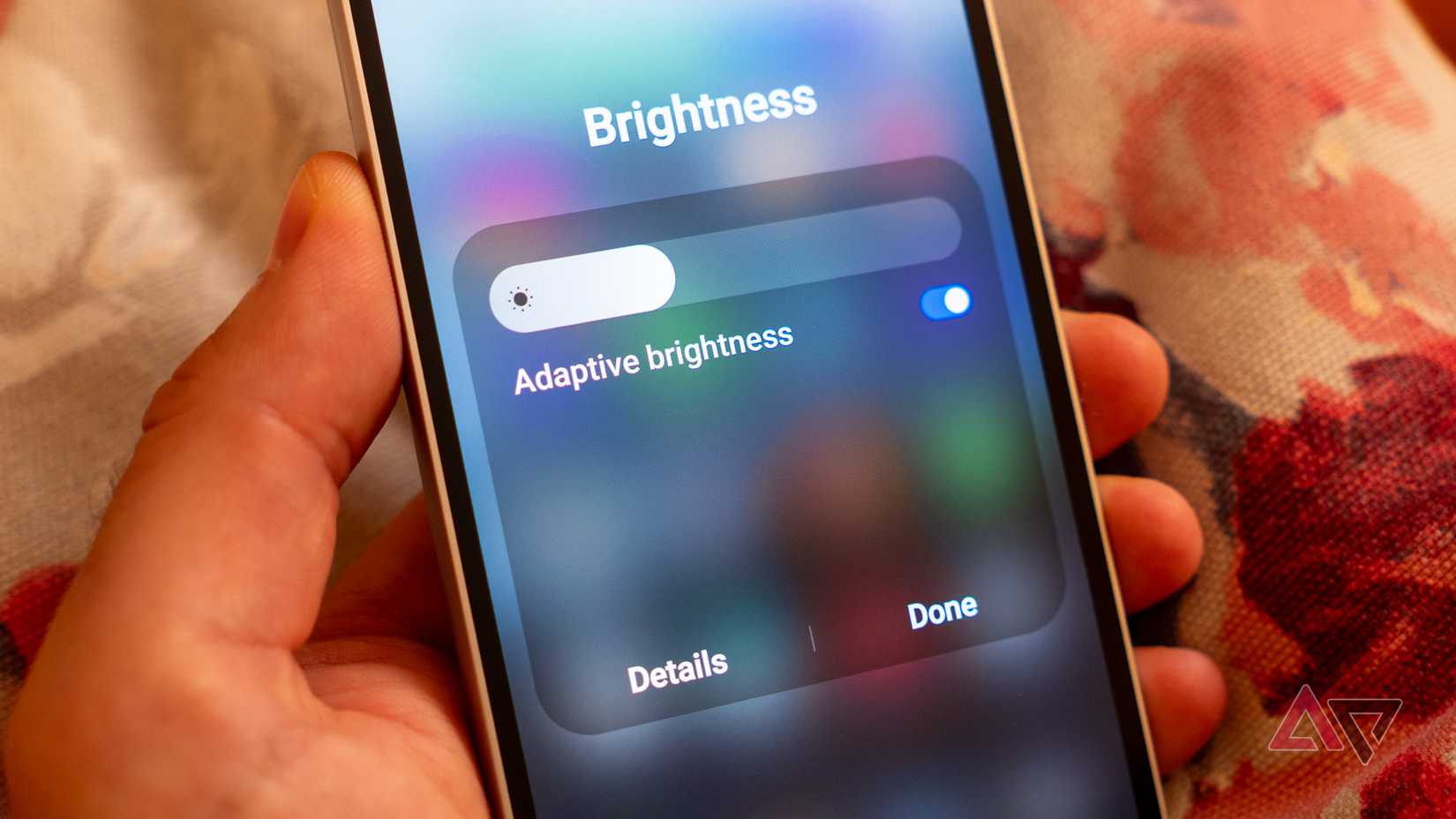
Most Android phones also offer Adaptive brightness, which automatically adjusts the screen based on your lighting conditions. You can enable this in Settings > Display > Adaptive brightness.
While automatic adjustments can be helpful, I still occasionally tweak the brightness manually when reading for extended periods.
A slightly dimmer screen often feels much easier on the eyes, especially in the evening.
My reading experience feels completely different now
Before making these changes, reading on my phone felt like a compromise.
I often avoided reading longer articles or documents unless I had access to a larger screen because the display seemed too small or the text too cramped.
Tweaks like increasing the text size, switching to a warmer screen tone, using dark mode, and locking the screen orientation made a bigger difference than I expected.