


Google Chat has always felt a little too open. Unknown users currently have the option to send you a message, and all they need is your email address. Google finally understands that this can be a headache for users that don’t want to entertain message requests, and that’s precisely why it is now giving users the option to block messages from unknown senders.
This comes soon after the platform gained message scheduling.

Highlighted by the tech giant in a new Workspace Updates post, in addition to 1:1 conversations, the control extends to spaces as well.
It’s worth noting that the default behavior still remains the same. The default setting still allows invitations from anyone, but users now have the option to restrict incoming requests to known senders only.
This restriction can be done for 1:1 conversations, spaces, or both.
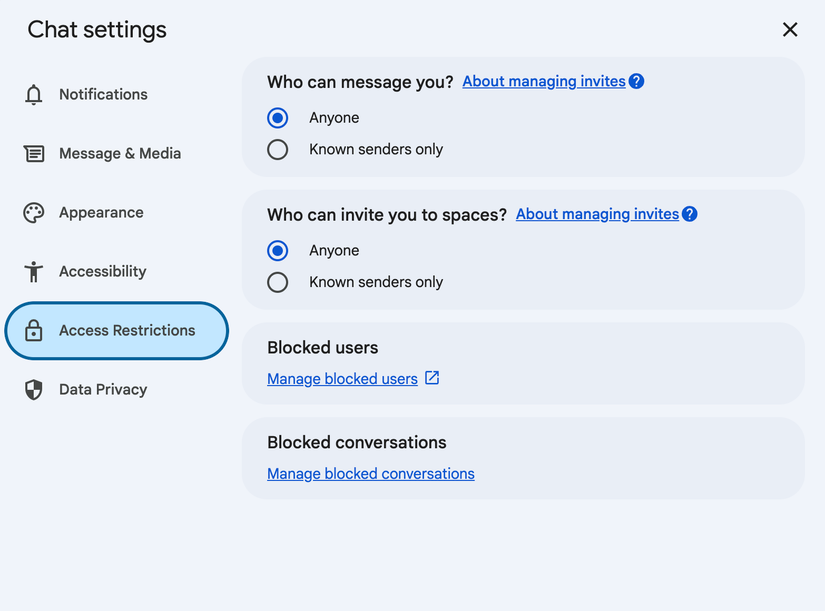
Credit: Google
As seen in the image above, you’ll soon have the option to toggle message and space requests to “Known senders only.” Once restricted, users can only be contacted by someone outside their organization if they’ve previously interacted with that person or if the person is in their contacts.
Google indicates that all other invitations from unknown users will be sent to spam. There’s one important distinction, though. The feature is smart enough to recognize your company’s domain (if applicable).
“This setting has no impact on messages between users of the same domain; these invitations will not be sent to spam regardless of whether the users have had prior conversations,” said the tech giant. This means that any new hires that haven’t sent you a message previously will still be able to reach you directly.
Here’s how you can lock down Google Chat
Desktop
- Open Google Chat.
- At the top right, click Settings.
- Under 1:1 conversations and “Who can message you?,” select Known senders only.
- Under Spaces and “Who can invite you to spaces?,” select Known senders only.
Android
- Open the Google Chat app.
- At the top left, tap Menu and then Settings.
- Head to Manage invites.
- Under 1:1 conversations and “Who can message you?,” select Known senders only.
- Under Spaces and “Who can invite you to spaces?,” select Known senders only.
The new message restrictions are rolling out now. Expect the feature to be widely visible by early next week.











