


After using Samsung’s One UI, Oppo’s ColorOS, and Vivo’s Origin OS, I have to admit that there is a specific kind of magic in the Google Pixel experience.
However, you shouldn’t settle for the defaults or obvious social media apps on your Google Pixel.
The Google Play Store is packed with millions of apps, and among them, I have found the six must-have apps that make my Pixel feel complete.

Solid Explorer
I have used plenty of file managers over the years, but Solid Explorer is the one that finally made me stop looking.
If you are building a complex Pixel setup, this is the app that fills the massive gap left by the basic Files app.
The first thing that hooked me was the Dual-Pane layout.
On my Pixel, I can just flip the phone into landscape mode and have two windows open. It makes moving files from my Downloads folder to my Work directory a simple drag-and-drop affair.
Since I’m constantly juggling files between my phone and my server, I love that it doesn’t just look at my local storage.
I have connected my Google Drive, OneDrive, and even my SFTP server directly into the sidebar.
It treats my cloud storage exactly like a local folder, which is essential for the way I manage my blog assets.
Solid Explorer handles ZIP, 7ZIP, and RAR files natively, which is perfect for when I download technical resources for a post.
When my Pixel starts getting full, I use the built-in tool to see exactly which ghost files or large videos are eating up my space.
Spendee
Most finance apps are ugly or overwhelming, but Spendee’s interface is beautiful. It uses these clean, colorful infographics that give me an instant pulse on my spending.
I don’t have to export a file and open it in a spreadsheet. I can just see a clear breakdown of where my money is going, whether it’s for my home lab gear or the morning coffee run.
The killer feature for me is the Bank sync. I synced my local HDFC bank with the app so that I can glance over all the transactions right within the app.
I don’t need to rely on a clumsy netbanking app to get the job done.
Spendee has a Shared Wallets feature that is a total game-changer.
My wife and I can both see and contribute to a joint ‘Household’ wallet in real-time. If one of us picks up groceries, the other sees it instantly.
It keeps us on the same page without a single ‘How much did we spend?’ argument.
I have all my subscriptions (like my Docker server hosting, Proton VPN, and Netflix Premium) mapped out so I can see exactly how much is ‘spoken for’ before I even start my month.
Easy Fire Tools
Easy Fire Tools is the must-have app for Fire TV Stick users like me. The main reason is how it handles apps that aren’t available in the Amazon App Store.
I can grab any APK file and send it over to my Fire TV Stick 4K with a couple of taps.
When I’m writing a tutorial about a Fire TV Stick app, I use the screenshot function to take high-quality screenshots of the TV interface directly to my Pixel’s gallery.
Fire TV Sticks are infamous for running out of space. Instead of digging through the slow ‘manage installed applications’ menu on the TV, I just open Easy Fire Tools on my phone.
I can see a list of every app on my Fire TV Stick, check how much space they are eating, and uninstall them with a single tap.
Syncthing
If you are like me, and you bounce between an Android phone and a Windows PC all day, you know the struggle with file transfers.
Then I found Syncthing, and it’s become the ultimate hero of my workflow.
What I love most about Syncthing is that it’s not a cloud service — it’s a direct, encrypted tunnel between my devices.
I set it up to automatically sync my WhatsApp media and screenshot folders from my Pixel 8 to my HP Spectre.
The second I snap a screenshot for a blog post, it’s already waiting for me in a folder on my PC.
If you are going to set this up, here’s the one thing you must do: Some Android skins are aggressive with battery management. So make sure to exclude Syncthing from the list.
Focus Friend
The biggest threat to your productivity isn’t a lack of time. It’s the infinite scroll. I have tried Google’s native Focus mode, but it’s too easy to bypass.
Focus Friend is different because it feels like a game you actually want to win.
After I start a session, it doesn’t just ask me to stay away. It creates a barrier between me and the apps that usually derail my morning, like X or Reddit.
Focus Friend is a well-designed app, and the Bean Skins and overall UI look great on my Pixel’s display.
Check out my separate post where I talk in depth about Focus Friend.
Musicolet
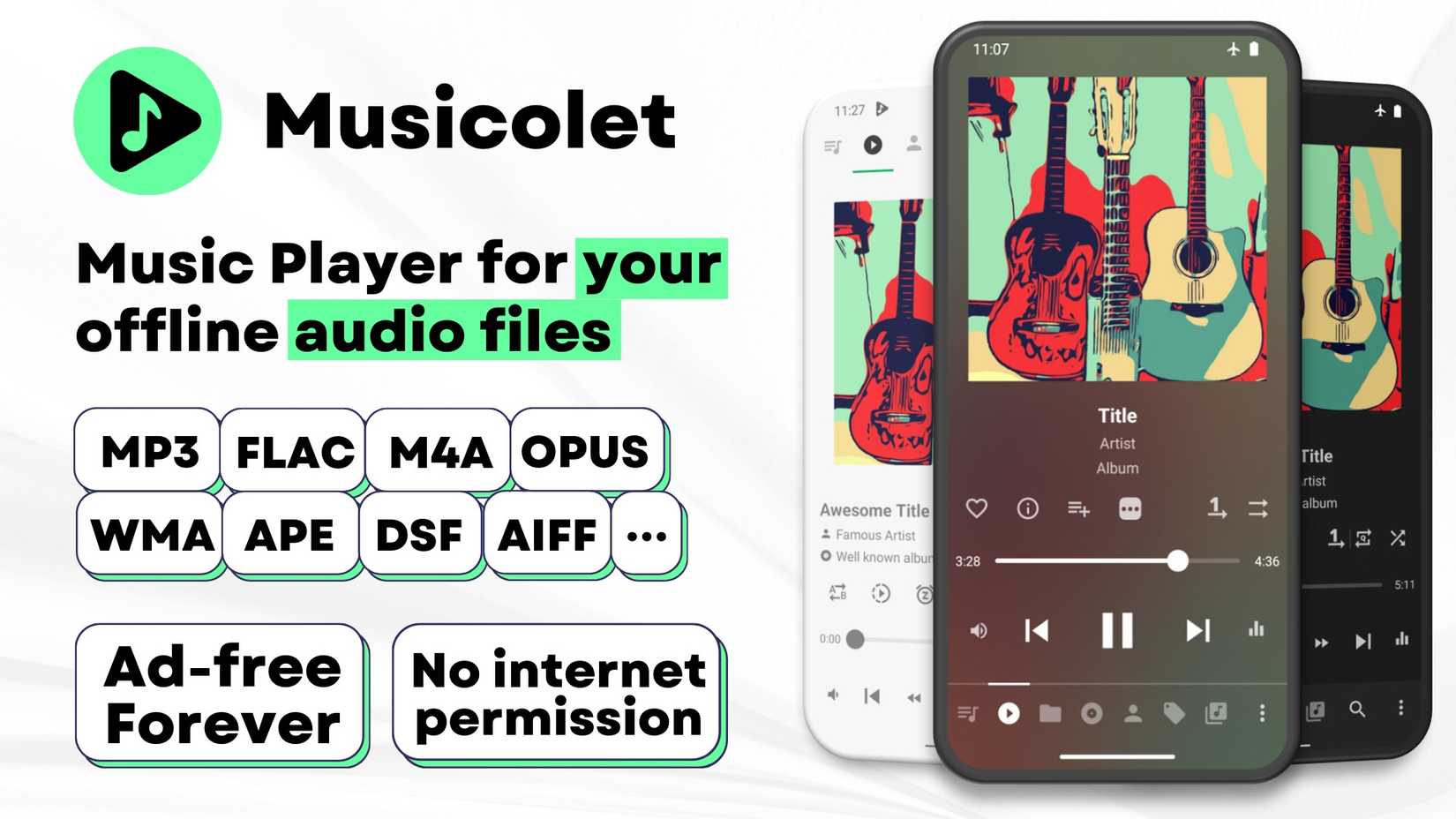
In a world where every app wants to be a streaming service, Musicolet feels like a breath of fresh air.
It just sits on my Pixel and plays my local FLAC and MP3 files without breaking a sweat.
Musicolet lets you have multiple queues — up to 20 of them.
I can have a Work queue, a Gym queue, and a Sunday Morning queue all loaded at the same time.
The list of features continues with the widget and notification control, tag editor, embedded lyrics, and sleep timer.
The developers have also nailed the user interface. It looks polished and beautiful.
My Pixel’s secret sauce
Overall, the Pixel’s greatest strength isn’t just the software Google gives you. It’s the flexibility to make that software work harder for you.
Whether it’s about managing local and cloud files with Solid Explorer, sharing them using Syncthing, or tackling your expenses with Spendee, these tools are what transform the phone from a passive screen into a proactive assistant.
You don’t need a hardware upgrade to get the job done. Sometimes you just need the right set of apps on your home screen.
These are my personal recommendations based on the current devices I have (like the Fire TV Stick). Don’t be afraid to explore more apps and tools from the Play Store.











