


As the year winds down, it’s common to take stock of what’s working and what isn’t. For me, the revelation came not from my to-do list or calendar, but from my phone.
By the end of the year, my device had become cluttered with apps I no longer used and habits that constantly pulled my attention away from work, hobbies, and even sleep.
That’s when I decided to do a year-end phone cleanout. My goal was to reclaim my focus and regain control of my phone, which had gradually become a source of distraction.
Here’s how I approached it, and how it helped me regain mental clarity.

Audit every application on my phone
The first step was clearing the clutter. Instead of opening my app drawer and scrolling through pages of icons, I started with Android’s built-in tools that make this process surprisingly painless.
The Digital Wellbeing dashboard is where I began. You’ll find it in the Settings app. I tapped View app activity details to see which apps I really use. The results are always surprising.
Apps I swear I need for work often showed zero minutes of screen time. Meanwhile, apps I didn’t even consider part of my routine ranked near the top.
Even apps I still used went under scrutiny. If something stressed me out, encouraged impulse spending, or constantly demanded attention, I replaced it with better alternatives or moved it off the home screen.
Within a few minutes, I can remove 10 to 20 apps. It’s the fastest way to reclaim mental space, storage, and battery life.
Remove unnecessary notifications
Credit: Lucas Gouveia / Android Police
Even apps that I kept were still vying for attention. My phone buzzed constantly, and I realized that notifications were the real culprit behind my scattered focus.
Android makes it easy to customize notifications. I went into Settings > Notifications > App notifications and turned off non-essential alerts. I also silenced social media updates, promotional emails, and low-priority apps.
Another trick helped even more.
When a notification popped up that annoyed me, I didn’t swipe it away. I long-pressed it and tapped Turn off notifications for that category right there.
The difference was immediate: Without constant pings, I could concentrate longer.
Tackle media clutter using Google Files
After I finished dealing with apps and notifications, I turned to the biggest, messiest corner of my digital life: media.
Screenshots, videos, and duplicate images from messaging apps were eating up my phone’s storage.
Google Files made this part of the cleanup surprisingly painless. Instead of manually scrolling through thousands of images, the app automatically surfaces clutter I wouldn’t have spotted on my own.
I tapped the menu icon and went to the Clean tab to delete unnecessary photos and files. I scrolled down to the Delete old screenshots section and selected all the items.
Before deleting everything, I quickly browsed through it to check if there was anything important. Then, I tapped the trash can icon to delete them.
I organized the screenshots I needed by moving them into a dedicated folder for easy reference.
The app also identifies large files, making it easy to spot what’s hogging storage. Deleting a few old screen recordings, videos, and unused downloads freed up gigabytes I didn’t realize I was missing.
Now, instead of doing a complete media purge once a year, I spend a few minutes each month organizing documents in Google Files.
Simplify my phone’s home screen
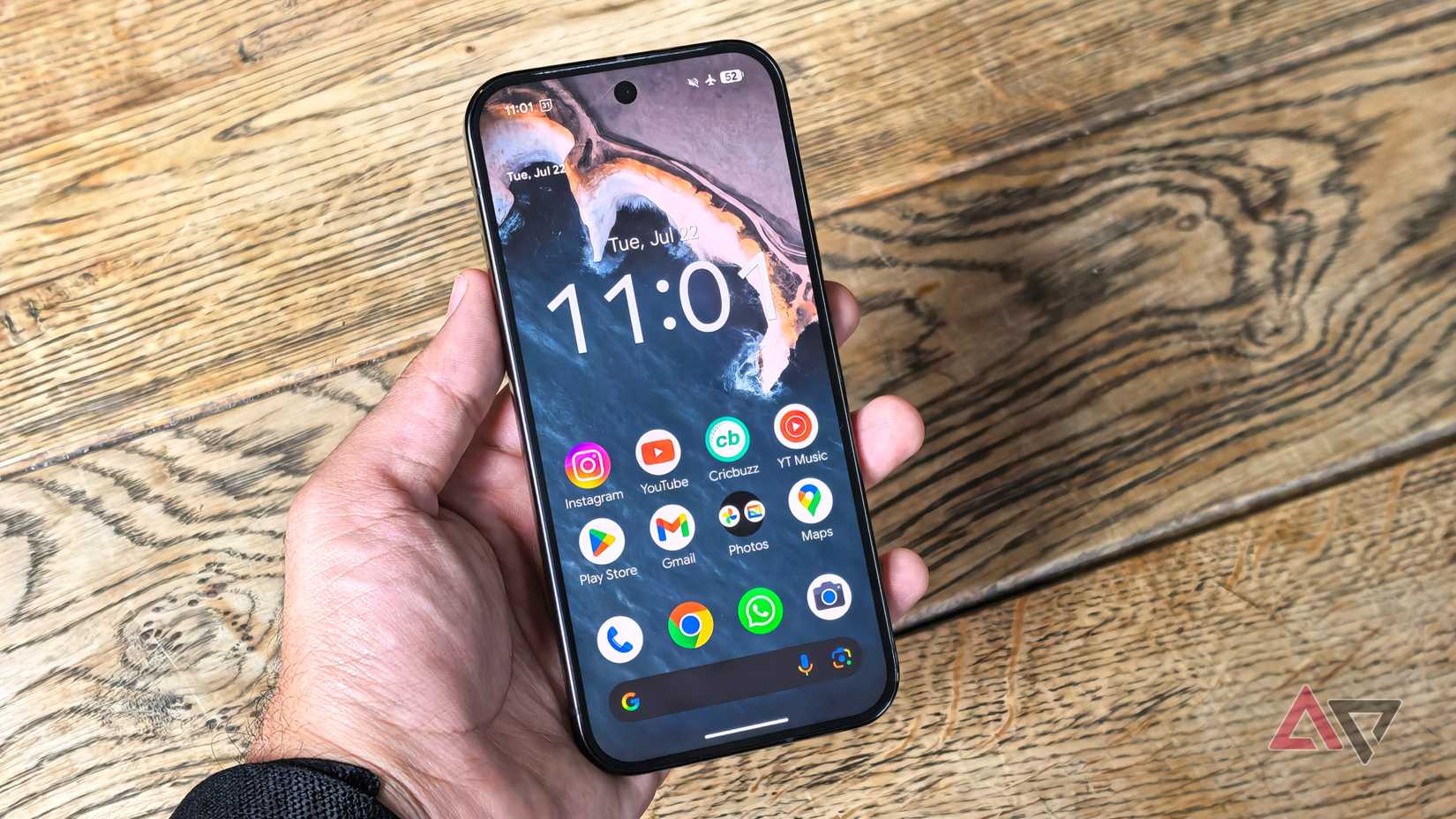
A cluttered home screen can be very distracting. I removed unnecessary widgets and shortcuts, keeping only the apps I needed.
My home screen is now a minimal dashboard featuring my calendar, task manager, notes, and messaging apps.
For the apps I still wanted but didn’t need constant access to, I moved them into folders or hid them in the app drawer.
This small change decreased the urge to open apps mindlessly while waiting in line or during breaks.
Audit subscriptions and recurring payments
Credit: Lucas Gouveia/Android Police | Frogella/Shutterstock
The final part of my year-end phone cleanout was also the one that saved me the most money: auditing my subscriptions.
Android makes it easy to track them. I opened the Google Play Store app and tapped my profile icon. I navigated to Payments & subscriptions > Subscriptions.
Then, I canceled services I no longer use or find redundant, like streaming apps, cloud storage, and in-app purchases.
Beyond saving money, this step reduced the mental clutter of knowing I was paying for things I never used.
The year-end reset I’m carrying into the new year
Going through my phone at the end of the year was all about setting myself up for a calmer, more focused year ahead. By the time I wrapped up my year-end phone cleanout, the difference was instant.
My home screen felt calmer, and my notifications stopped vying for attention. Using Android’s built-in tools, especially Google Files, made the whole process feel less like a chore.
Cleaning up your phone might seem tedious at first, but the benefits are definitely worth the effort.










