


I have an unlimited high-speed broadband connection at home, so I don’t mind sharing it with my guests.
Android makes this even easier for me, because it offers the easiest way to get people connected to your network.
Not only does Android make it easier for the host, but it also makes it simple for the recipients to connect to the network. However, your Android phone must connect to your Wi-Fi for this to work.
The underrated Wi-Fi sharing trick is a core part of the modern Android experience, so you can use it on any Android phone, provided that it isn’t an ancient model.
I love using it to bring them online, not only because it’s easy, but also because I enjoy the reactions of some of my less tech-savvy guests when they realize how seamless it is.
Here is how I use a little-known Wi-Fi sharing trick to get my guests online in seconds.
The fastest Wi-Fi sharing trick I use to get my guests online
Credit: Lucas Gouveia / Android Police
I started using Android phones when spelling out the password was the only way to share a Wi-Fi connection.
Old habits die hard, so I continued using the same ancient way, even until a few years ago.
I don’t recall where or from whom I learned it first, but I have never looked back since then. I now use QR code Wi-Fi sharing to get my guests online.
I know the passwords for my broadband connection, but since all my Android phones are connected to it through Wi-Fi, sharing via QR code is just more convenient.
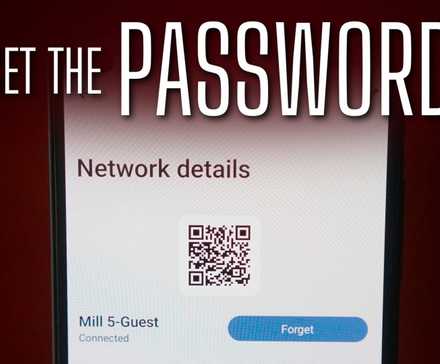
Android can create a QR code of the Wi-Fi network your Android phone is connected to. This allows you to share the QR code with your guests or anyone you want.
However, to open the QR code, you’ll need to verify your identity using a biometric or passcode. This means if you hand over your phone to anyone, they won’t be able to share the QR code with someone else.
I love this little privacy feature.
If you are one of the guests, all you do is open the camera and scan the code to get online. You don’t need to unlock your phone in this case because you can open the camera from the lock screen.
However, if you are a host, depending on the Android skin, you might have to dig deep into the settings to show the QR code to your guests.
The worst part of this, if there is any, is that there is no way to bypass the steps if you want to use your phone every time you need to share the QR code.
Where to find the QR code Wi-Fi sharing on Android
I use both Android and iOS, but my primary phone is the Galaxy S21. I love some aspects of my iPhone, but I prefer the freedom and convenience over anything else.
I feel this every time I use the QR code Wi-Fi sharing on my Android phone. I can use my iPhone 16e to generate a QR code for my Wi-Fi connection, but it’s certainly not as easy as Android.
It’s easier with Android because it offers built-in solutions in the Settings. Unlike iOS, you don’t need a third-party app to generate the code for sharing with someone.
On Android phones, running Android 10 or later, you’ll find the option to show the QR code on the Wi-Fi page in Android’s Settings app.
The QR code option hides behind the gear icon that appears right beside the name of the Wi-Fi network your Android phone is connected to.
On my Galaxy S21 running One UI 7, the QR code option is available under Settings > Connections > Wi-Fi > gear icon. But that’s not how I do it.
Instead, I long-press the Wi-Fi icon in the Quick Settings, select Details, and then tap the gear icon.
On Pixel devices, you’ll find the option on the Network & Internet page in the Settings.
One UI also has an option to save the QR code as an image on your device.
I usually take a print of that and stick it somewhere in my house whenever I throw a party to avoid unlocking my phone every time someone asks for the password.
I don’t spell out passwords anymore
I have long moved on from sharing my Wi-Fi passwords with people, because it’s always a challenge to remember every character and their casing.
Even if you do remember or show your password to the other person, they might find it hard to find all the characters on their keyboard apps, especially if they are not tech-savvy.
Typing a password also takes time, even if you remember it and the other person correctly enters it in the password field.
It’s also embarrassing to spell out the names if you have set something weird as your password, or something you wouldn’t want to say out loud.
The QR code Wi-Fi sharing protects you from situations like these.
I don’t spell out passwords, not because I’m anxious about it, but because I have found something better in the form of QR code Wi-Fi sharing.











