


No matter which Android smartphone you buy, whether it is the Google Pixel 10 Pro, Samsung Galaxy S25 Ultra, or the Honor Magic 8 Pro, one thing almost every Android user eventually runs into is running out of storage on their phone.
The solutions most people turn to are buying cloud storage, offloading files to an external drive, or buying a phone with more internal storage the next time around.
However, these options are not always practical. I recently found myself in the same situation.
I’ve only owned my Pixel 10 Pro for about six months, and I was already close to using 100GB of storage. This was surprising because I don’t have many apps installed, and Google Photos backup is enabled.
Curious to see what was actually eating up space on my phone, I decided to dig deeper.
While doing so, I came across a few underrated Android apps that clearly show what is hogging your storage and, more importantly, how you can free up space without randomly deleting things.

Disky is the simplest storage analyzer you can install
It quickly shows what is eating space without clutter
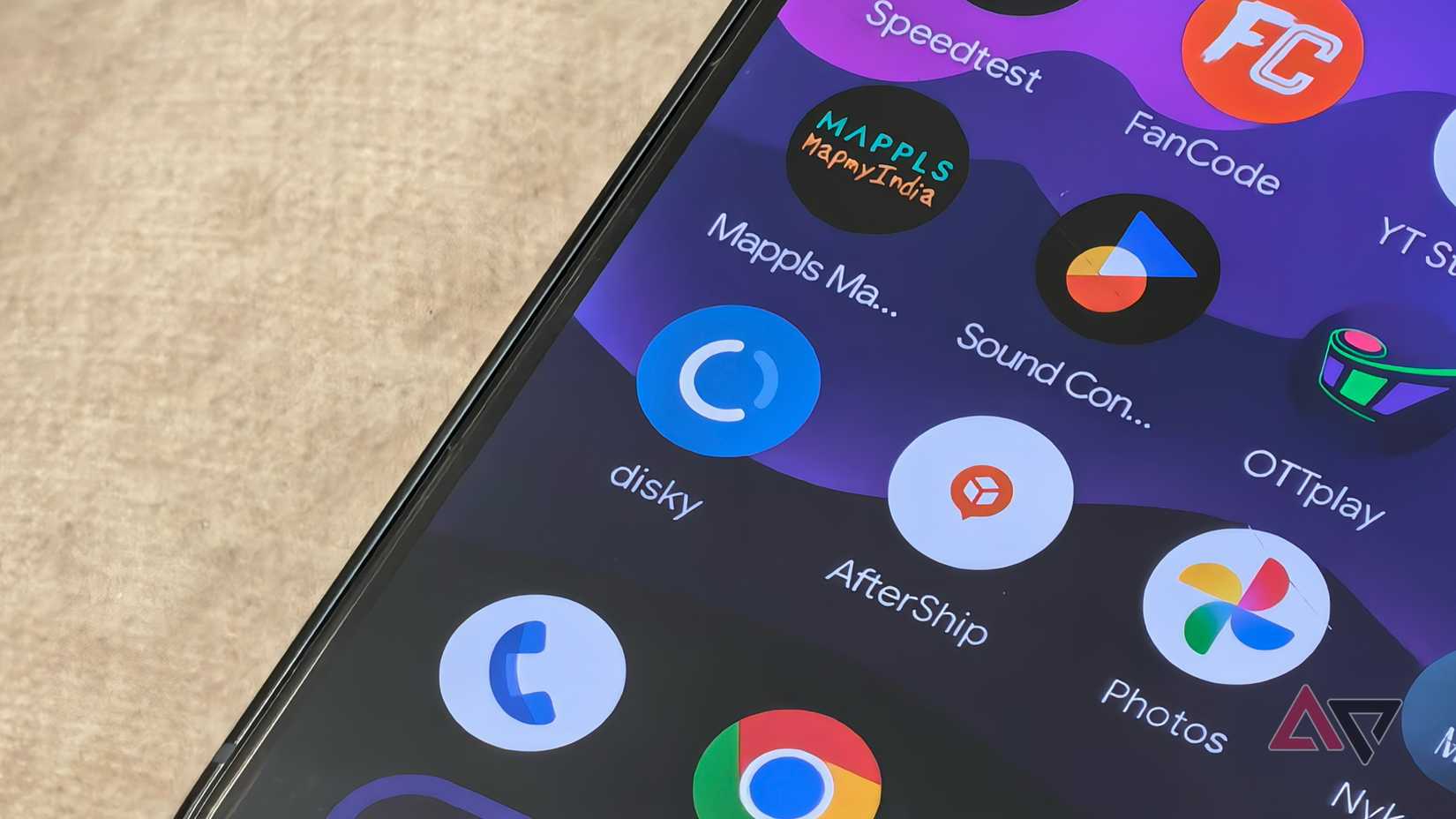
One of the most annoying things about storage analyzer and cleaner apps on Android is how clunky and unintuitive their UIs are.
For example, even on my mom’s Galaxy S24 FE, she has to call me to see what’s hogging storage because most of these apps aren’t very user-friendly (and they’re usually filled with ads and other phishy things).
While searching for the perfect storage analyzer app, I stumbled upon an app called Disky. It’s not available on the Google Play Store and is only available via the F-Droid app store, but the app has such an easy-to-use interface that it’s simple enough for anyone to figure out.
Opening up Disky, it asks for a bunch of permissions, like access to manage all files and access to app usage data, which is obviously required by these apps, along with other permissions like notifications.
On the first run, it starts analyzing all the storage on your phone almost immediately.
After it’s done, Disky presents a very simple UI that shows what’s hogging the most storage on your phone.
At the top, the app displays a pie chart showing used storage and available free space. Below that, it lists items in descending order based on how much storage they take up.
You can change the order to view everything alphabetically if you want, but it defaults to sorting by size.
You can also refresh the analysis at any time by tapping the refresh button in the top bar.
For me, the biggest storage hog on my Pixel 10 Pro was apps, which were taking up nearly 45 GB of space.
Even with Google Photos backup turned on, the DCIM folder still occupied about 17.5 GB, while Downloads accounted for roughly 11.5 GB.
You can drill down into subfolders to see exactly what’s taking up the most storage in each section. The downside, however, is that you can’t delete files directly from this app.
You’ll need to use other file manager apps to remove the data, since Disky only shows what’s using storage space.
There’s another app worth mentioning
It gives a different view if you want slightly more detail
If you find Disky too minimal or not particularly useful, there’s another app worth checking out called SD Maid 2/SE.
Unlike Disky, SD Maid 2/SE can help you clean not just internal storage but also cache files, and it lets you dig much deeper if you want.
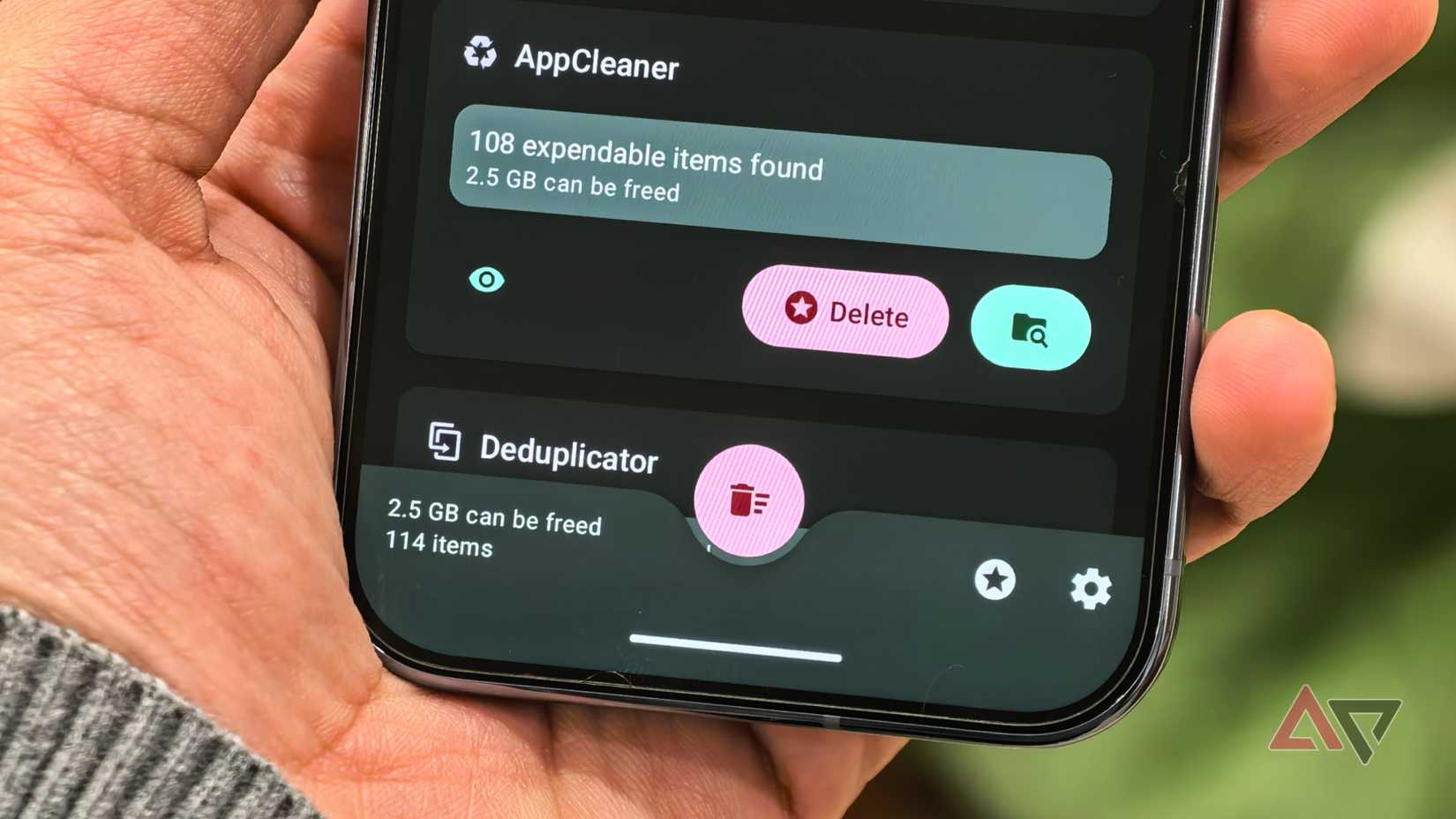
The app offers a clean interface with a delete button at the bottom that helps you free up space with a single tap. The bottom bar also shows how much space can be freed up instantly.
In terms of features, SD Maid 2/SE offers quite a few tools, including CorpseFinder, which lets you find and delete leftover files and directories from apps that have already been uninstalled.
Similarly, the SystemCleaner feature helps remove junk files, while the Deduplicator tool helps you get rid of duplicate files on your phone.
Similar to Disky, you can see which apps and files are taking up the most storage on your phone through the StorageAnalyzer feature.
Unlike Disky, this app takes you directly to the app settings, where you can clear cache files and user data if needed.
The main downside of SD Maid 2/SE is that most of its features, including the Scheduler that can automatically run tools like the app cleaner, are locked behind a paid subscription.
If you just want to see what’s taking up space and manually free up storage, I found Disky to be the better option.
Cleaning your Android phone’s storage is not that difficult
On the whole, though, it’s safe to say that freeing up your phone’s storage isn’t as hard as it should be.
If you own a Samsung Galaxy smartphone, there are plenty of other tricks you can try first to free up space on your phone.










