


For most of us, Android Auto is a double-edged sword: it’s the most powerful tool in our car, yet it’s often the biggest digital clutter while we are behind the wheel.
After months of trial and error, I finally decided to strip back the noise and rebuild my Android Auto experience from the ground up.
My goal wasn’t just to make it look better, but to create a Zen mode for the road — a setup that provides exactly what I need for navigation and audio without ever taking my eyes off the road.
Here is how I configured the ultimate distraction-free Android Auto setup for a safer, more intentional commute.
Download playlists for offline use
There is nothing that kills a focused drive faster than a song buffering in a dead zone or a map failing to load because you are between cell towers.
It’s an instant distraction that usually leads to me fiddling with the screen — exactly what I’m trying to avoid.
Now, I treat my car setup like I’m preparing for a flight. I make sure my Driving playlist on Spotify and my latest podcast queue are fully downloaded to my Google Pixel 8.
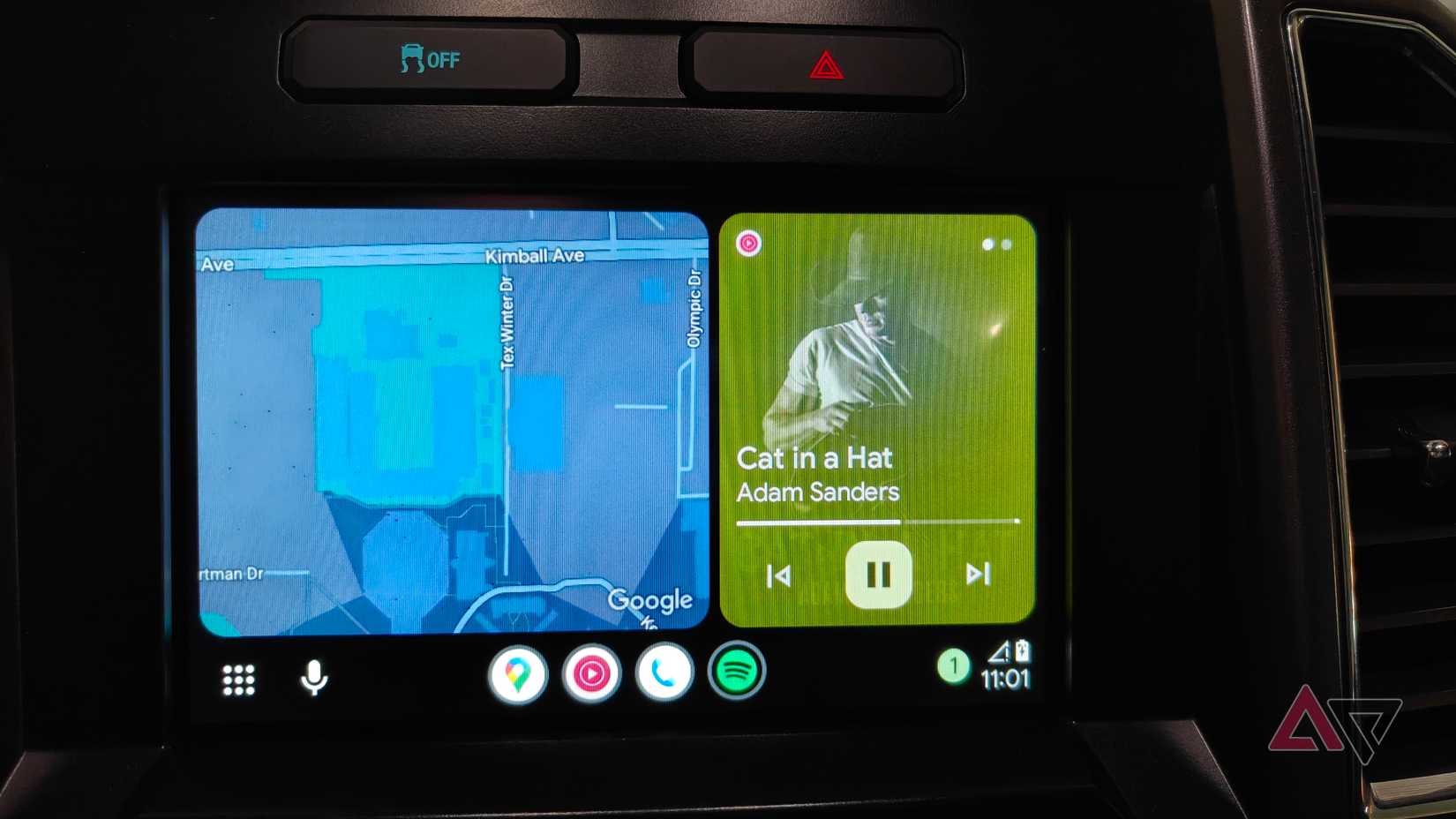
I have noticed the Android Auto interface feels significantly snappier. There is zero lag when skipping tracks, and I never have to deal with that awkward silence when the signal drops in a tunnel.
I take the same approach with Google Maps. I have downloaded offline maps for my entire area and the frequent routes I take out of town.
This way, even if my phone is struggling to find a signal, the turn-by-turn directions stay crisp and responsive.
Save addresses in Google Maps
My rule is simple: if I go to a place more than once a week, it needs to be a single-tap action on my dashboard.
I have spent time pinning my most frequent destinations — Home, Work, and my kid’s school — directly into Google Maps as saved places.
By labeling these specifically, they don’t just sit in a list; they actually show up as dedicated shortcut chips at the top of the Google Maps interface in Android Auto the moment I plug in my phone.
But I take it one step further with Assistant Routines. I have set up a Heading Home routine that I can trigger with a single icon on my launcher.
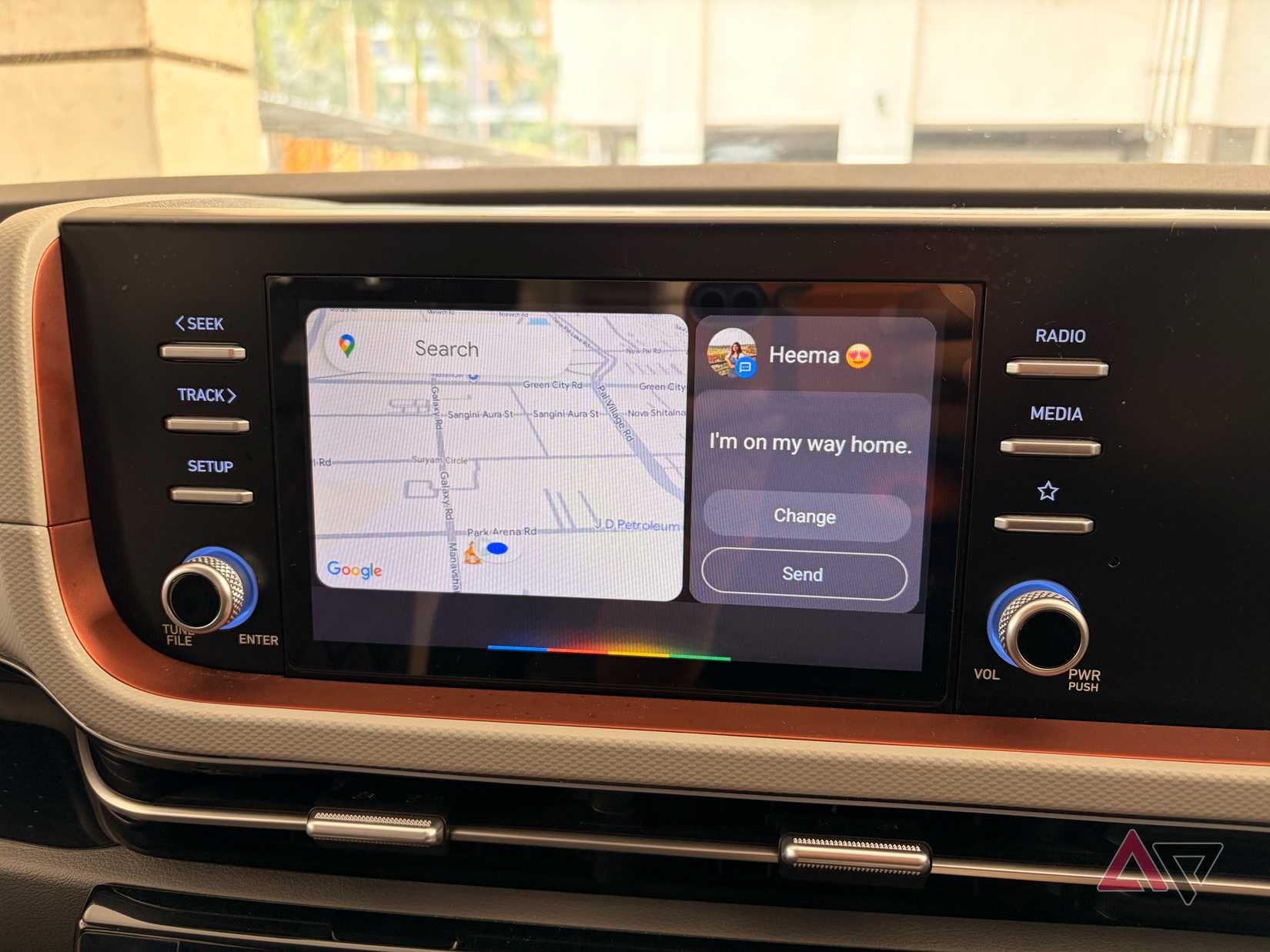
With one tap, Android Auto starts the navigation to my house and sends a quick text to my wife letting her know my ETA.
Add frequently used contacts on the launcher
One of the most underrated features in my setup, and the one that saves me the most frustration, is the ability to turn a phone call into a physical button on my dashboard.
I used to rely entirely on voice commands to call home or check in with my parents. But Google Assistant isn’t accurate every time with voice commands, especially with my little one making noise in the background.
To fix this, I used the Contact Shortcut feature within the Android Auto settings on my phone. I added my most-dialed people — my wife, parents, and best friend — directly to the app launcher.
Now, these contacts sit right there on the screen as their dedicated icons, complete with their profile photos.

Enable taskbar widgets
The taskbar is the command center of my dashboard, and after I figured out how to use it for more than just switching apps, it completely changed how I interact with the UI.
I used to hate leaving my navigation screen just to pause a podcast or check a message notification (after all, my car has a small 8-inch infotainment unit).
Every time I toggled between apps, my eyes were off the road for a second too long. To fix this, I enabled taskbar widgets in Android Auto settings.
Now, instead of a static bar, the bottom of my screen is dynamic. When I’m following a map, a mini-player for my music or podcast pops up right in the taskbar.
Manage notifications like a pro
One of the most distracting parts of the default Android Auto experience is the way it handles incoming messages.
The very first thing I did was dive into the settings on my Pixel 8 and toggled off Show first line of conversations. Now, when a message reaches my dashboard, I get a subtle alert that I have a notification, but the actual content remains hidden.
Go beyond default
Building a distraction-free environment in your car isn’t about losing features; it’s about gaining peace of mind.
By moving away from the default Android Auto setup to a focused one, my daily commute is way better now.
When you find that perfect balance of automation and minimalism, you will find that the best part of Android Auto isn’t the screen at all — it’s the road ahead.
Meanwhile, check out our dedicated post to learn about the top Android Auto apps.










