


Katarina Glamoslija
Updated on: January 7, 2026
Fact-checked by Kate Davidson
-
🥇 Norton
. Better than Windows Defender in every way. It has higher virus detection rates, better web protection, additional security features, a more intuitive interface, and coverage for more platforms and operating systems.
Windows Defender is the default security tool on every Windows PC. But how does it compare to premium antiviruses offered by third parties? I’ll look at the costs and benefits of using Windows Defender over a paid antivirus.
For some people, Windows Defender is indeed good enough. It’s simple to use and blocks the vast majority of malware. As many techies will tell you, Windows Defender keeps millions of PCs safe.
But Windows Defender is lacking in extra features, including some essential for enhancing privacy, like effective web protections. This stands in stark contrast to paid options like Norton or Bitdefender, which provide heaps of extras. The free version of Defender also lacks a VPN, which even some free antiviruses (like Panda and Avira) include.
In short, Windows Defender might well be good enough for some, but it certainly isn’t the best, especially compared to brands like Norton that offer more effective malware scanners, more intuitive Windows apps, and more advanced cybersecurity protections.
Try Norton (60 Days Risk-Free)
April 2025 update: We updated this article to reflect changes in the features, layout, and pricing of some of the listed antivirus software.
Note: Windows Defender was rebranded as Windows Security years ago. In this article, I’ll follow common practice and keep calling it Windows Defender. Some of the paid plans, meanwhile, are now branded as Microsoft Defender.
So, Is Windows Defender Antivirus Good Enough?
There are many reasons to like Windows Defender — especially as Microsoft has worked really hard to improve it over the last few years. It now offers:
- Real-time threat detection.
- Firewall & network protection.
- SmartScreen (web protection).
- System performance reports.
- Hardware security.
- Parental controls.
- Ransomware protection.
Microsoft Defender is pretty good at detecting malware files, blocking exploits and network-based attacks, and flagging phishing sites. It even includes simple PC performance tools and health reports, as well as parental controls with content filtering, usage limitations, and location tracking.
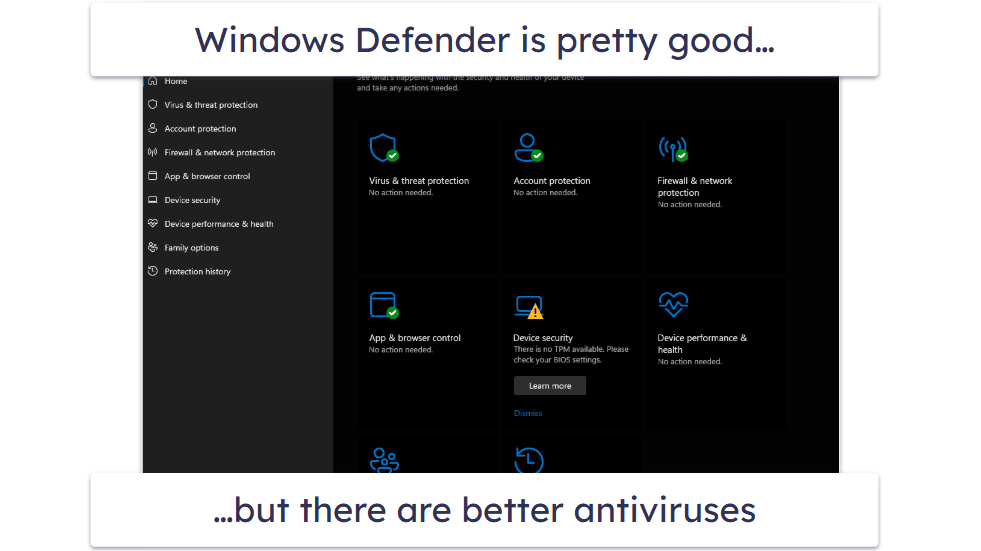
I ran Defender through rigorous tests (the same I use for all third-party antivirus products) to see if it’s good enough to keep you protected. I downloaded around 1,000 malware files — including viruses, trojans, ransomware, adware, cryptojackers, keyloggers, and rootkits — in order to test its scanner and real-time protection functions. It caught most threats, but when I ran the same test without an internet connection, the results were noticeably worse.
In the end, I found some issues with Windows Defender — here are my main complaints.
Defender’s Scanner Isn’t as Good as Top Competitors
Though it detected most threats in my tests, a few slipped through when I relied on Windows Defender to keep my PC safe. This won’t always be a problem, but it does mean using Defender is taking a risk because there are antiviruses out there that did block 100% of threats in my tests.
The Web Protections Are Bad (& Mostly Limited to Edge)
In most cases, Defender will only protect you online if you use the Edge browser. This is a big problem considering how much more popular Chrome is. Microsoft does have a Chrome extension that blocks some dangerous sites, but it never tells you about it. I imagine most users don’t even know it exists. Additionally, you’ll only get DNS protection in Edge.
Even if you do use Edge, the phishing protections are pretty bad. I could access tons of phishing pages and other dangerous sites with the protection enabled. It did block a few, but third-party online safety tools just do better.
You Have to Pay to Get Some Features (& Others Are Being Cut)
Though often touted as a free antivirus, not all of Microsoft’s security features are 100% free. If you want cloud storage, you’ll need to pay. In my opinion, the price is pretty high considering many better and more feature-rich third-party options come with cloud storage, too. And though Defender has improved in many ways, in others it’s gotten worse (they recently removed the option to get a VPN as a paid add-on).
It’s Pretty Bad at Blocking Potentially Unwanted Programs (PUPs)
In my experience, Defender is way too lenient when it comes to PUPs. While not as dangerous as things like ransomware, PUPs can be seriously annoying and often invade your privacy. I don’t want my system affected by annoying browser hijackers that return sketchy search results, distracting toolbars full of useless information, and adware, so I prefer an antivirus that’s strong against PUPs.
There’s No Webcam & Microphone Protection
I’d like to have more than just a piece of tape to keep me from being spied on through my webcam, but unfortunately, Defender doesn’t offer anything. You should get a notification whenever your webcam or microphone turns on, but this can be circumvented. This is why Bitdefender and many other antiviruses come with special tools offering webcam and microphone protection.
You Can’t Really Customize Defender
Though I’ll acknowledge this won’t be an issue for many users, it does annoy me that Windows Defender isn’t really customizable. The scan options are pretty basic, as is the firewall. And don’t even think about trying to set up scheduled scans unless you’re prepared to read a convoluted guide about the Windows task scheduler. It doesn’t generate reports after scans, either.
Hackers Actively Try to Beat It
Because it’s the most widely used antivirus, many hackers put in tons of effort to make sure their code can get around Windows Defender. Every security system has flaws, but when a way to exploit Defender is found, it tends to spread like wildfire. For example, after the CVE-2024-21412 exploit was discovered, dozens of hackers were identified as using it within weeks.
The way Defender issues updates can also be exploited. Again, as the most widely used security tool, these updates don’t exactly fly under the radar. So when a Defender update is pushed, hackers are more likely to spring into action than, say, when Norton is updated.

What Features Are Missing From Windows Defender?
The latest version of Windows Defender is missing some fairly standard security features. It handles basics okay, but when you line it up against premium third-party antiviruses, the contrast is pretty stark. Here’s a short list of key features that Windows Defender lacks:
VPN
The lack of a VPN is a huge disappointment for me. A VPN protects your online privacy from trackers and allows you to access public networks securely. Top antiviruses like Norton, Bitdefender, and other brands on my list offer fully featured VPNs with kill switches, split-tunneling, and support for torrenting. If you care about your privacy online, using a VPN is your best bet.
The worst part is that Windows used to sell a premium VPN, but has since discontinued it!
Password Manager
If you rely on Windows Defender, you’ll need to get a password manager from another vendor. There are great standalone options, but some users prefer to get a password manager bundled with their antivirus.
Password managers are great for security and convenience, so I highly recommend getting one.
System Optimization Tools
Defender offers a basic PC health report, but it can’t speed up your PC. Competitors like Norton, Bitdefender, and TotalAV include features that can make your computer run quicker, such as cleaning up junk, temporary, and duplicate files. Windows does come with a defragging tool, but in most cases, it isn’t useful (and it can be bad for your PC if it runs on an SSD).
Parental Controls
By default, Windows has only the most basic parental controls. I don’t even recommend getting the upgraded version as it’s likewise unimpressive. In contrast, top antiviruses offer software that can monitor all kinds of devices and include advanced features like YouTube monitoring, geofencing, and more.
Identity Theft Protections
Beyond blocking malware, Defender won’t protect your identity or alert you to dark web leaks. Microsoft does offer a paid tool which is decent, but I still prefer the protections included with many antivirus bundles. For example, Norton’s top LifeLock can pay out up to $3 million in the event of identity theft. You can also initiate a credit freeze, get data brokers to stop selling your information, and more.
Best Alternatives to Microsoft Defender in 2026





300+ people found the right antivirus today
🥇1. Norton 360 — Best Antivirus Alternative to Microsoft’s Windows Defender in 2026
Approved by our experts

Norton 360 is better than Windows Defender in every aspect — it has higher malware detection rates (online and offline), better internet security protections, more additional features, and coverage for more platforms.
In my head-to-head malware test, Norton caught way more malware files than Defender — it scored a perfect 100% malware detection rate, blocking several tricky spyware and ransomware files that Defender missed. It offers far more scanning options and, unlike Defender, Norton’s full ransomware protections are on by default.
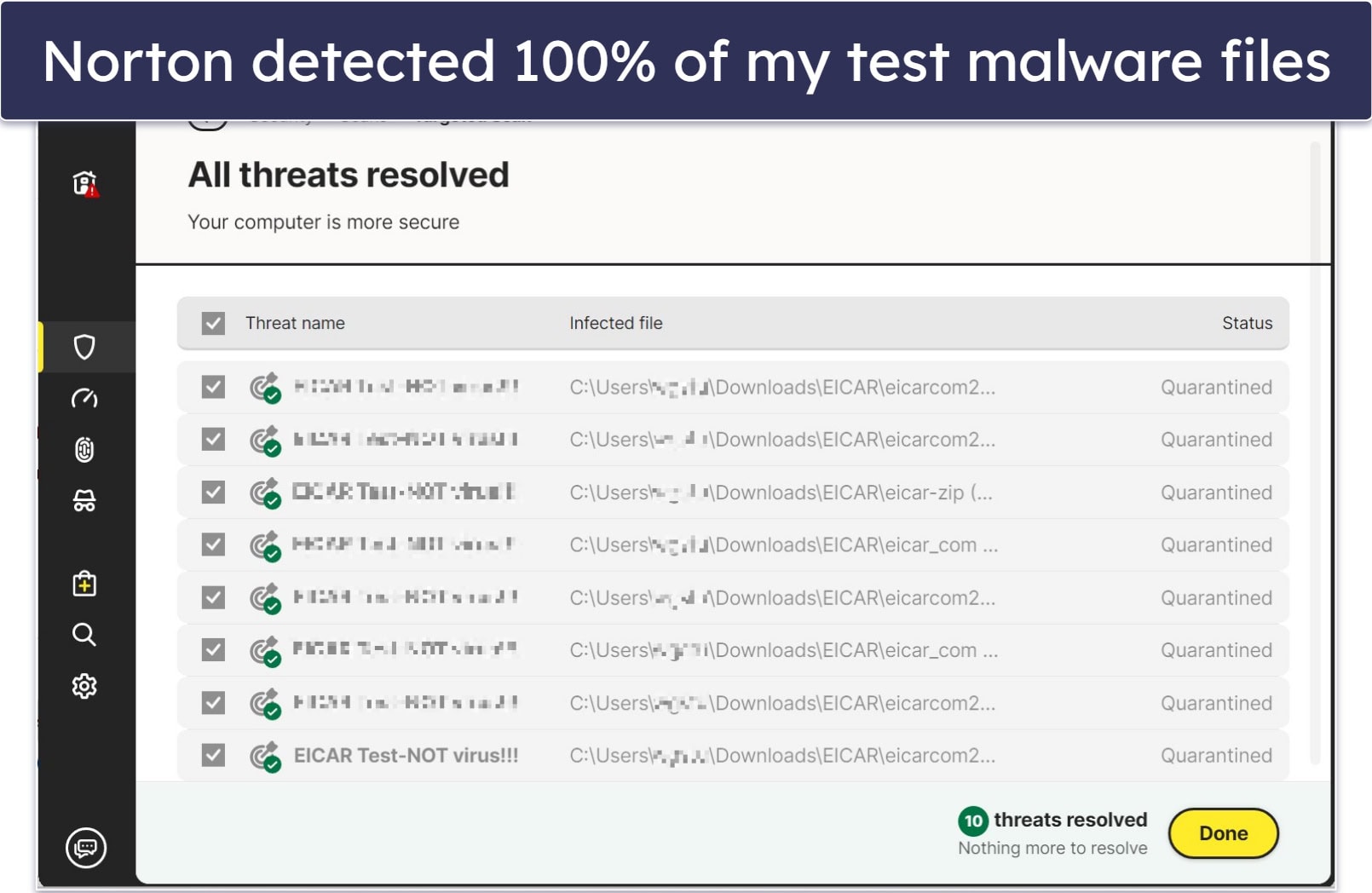
When it comes to internet security tools, Defender just can’t compete. Norton 360 includes:
- Secure browser and web protections.
- More complete parental controls.
- Unlimited-data VPN.
- Password manager.
- Identity theft protections.
- And a lot more…
Norton’s anti-phishing protections are among the best around. They caught a significantly larger number of suspicious websites in my tests than Defender — including malicious links in emails and text messages. Norton’s web defenses build on top of Microsoft’s, so you get two layers of protection (and Norton’s layer is quite a bit stronger).
Beyond that, Norton 360 has a wide range of features that Windows Defender doesn’t have — including an excellent unlimited-data VPN that provides encrypted access to servers in 29 countries around the globe, and advanced dark web monitoring. You’ll also get a really good password manager with all of the essentials, like auto-saving, auto-filling, and biometric login.

Plus, Norton offers far superior parental controls, which are some of the best on the market. For example, you get web filtering (you can monitor the sites your kid visits and even block them) for Chrome, Firefox, and Edge — Windows’s web filters only work with Edge. Norton also conveniently displays 45+ website categories that you can monitor and block, like alcohol, crime, and pornography. Another thing I really like about Norton is that it logs all of the videos your kid watches on YouTube and provides information about each video, such as the name of the video and a link to it.
At £29.99 / year, Norton 360 Deluxe is the best-value package — it covers 5 devices and has most of Norton’s excellent extras. Starting at £51.82 / year, Norton’s LifeLock (available in select countries) plans add up to $3 million in identity theft insurance. There’s also a specialized plan for PC gamers that has an advanced game booster and performance optimizer for improved gameplay. All plans come with a generous 60-day money-back guarantee.
Bottom Line:
Norton 360 is the best Windows security suite on the market — it provides a substantial improvement on all of Defender’s protections and offers a ton of extras that Microsoft doesn’t include with its built-in antivirus. Even if you have plenty of common sense, Norton offers better protection than Windows Defender. It has plans for every budget and offers a generous 60-day money-back guarantee.
Read the full Norton review here >
🥈2. Bitdefender — Better Cloud-Based Scanning Engine (With Excellent Additional Features)


Bitdefender is fast and lightweight, with a scanner that outperforms Windows Defender. It had a much smaller impact on my system than Defender did, all while catching every piece of malware in my tests. Unlike Defender, it scored just as well when I tested it while offline. Even other top antiviruses like McAfee slowed down my system during scans.
Bitdefender is also more hands-off than Defender. A lot of users don’t want to upgrade to a third-party antivirus because they think it will be more complicated than Windows Defender’s automatic security protections — but you don’t have to worry about this with Bitdefender. Its “Autopilot” feature automatically analyzes your files, your network, and your online activity to create a set of default protections that run seamlessly in the background. And unlike Defender’s finicky anti-ransomware tool, Bitdefender’s works automatically.
Here are some of Bitdefender’s additional security features:
- Web protection.
- Parental controls.
- VPN.
- Password manager.
- Webcam protection.
- PC tune-up tools.
- And more…
Bitdefender has some of the strongest web protection of any antivirus on the market. It prevented me from visiting phishing sites, as well as sites that contain downloadable malware. Windows’s web protection isn’t nearly as good, but it does stay on when you install Bitdefender, meaning users can enjoy multiple layers of protection. Another cool feature is Bitdefender’s secure browser, Safepay, which has robust tools to keep your online financial information safe during banking sessions or when you make online purchases (Windows Defender doesn’t have this feature).
You also get microphone and webcam protection, something Windows fails to offer. It will alert you if any unauthorized app attempts to access your webcam or microphone, and you can decide whether to block the app. You can also set up a list of safe websites that are allowed to access both tools, such as Zoom, WhatsApp, and Skype.
Its VPN is extremely fast, providing better connection speeds than a lot of standalone VPNs. The parental controls are also excellent — they provide app usage limits, online content filtering, and even geo-fencing which alerts you when your children’s devices leave a safe area.
Bitdefender’s premium Total Security plan includes more features than almost any antivirus, for only £40.00 / year. Users on a budget can also check out Bitdefender’s less advanced antivirus package, which is £19.99 / year — it’s cheaper than most competitors and still offers huge improvements over Windows Defender. And users who want all of Bitdefender’s premium features, plus the unlimited-data VPN and a fully-featured password manager, should check out Bitdefender’s top-tier Premium Security suite (£49.99 / year). Bitdefender’s plans are covered by a 30-day money-back guarantee.
Bottom Line:
Bitdefender has a powerful cloud-based anti-malware scanner with perfect detection rates as well as a ton of really good internet security features that expand on Microsoft’s basic protections. It has anti-phishing, a VPN, parental controls, a password manager, system tuneup tools, microphone and webcam protections, and lots more, all inside a well-laid-out and intuitive dashboard. All of its plans come with a 30-day money-back guarantee.
Read the full Bitdefender review here >
🥉3. TotalAV — Easier to Use (With Great Performance Optimization Tools)

TotalAV has better detection rates and is much easier to use than Windows Defender. Its malware engine is lightweight, fast, and constantly updated to detect the latest malware threats. In my tests, it identified and removed more than 99% of the malware samples I downloaded to my virtual PC, including sophisticated malware files like ransomware and cryptojackers that Windows Defender missed.
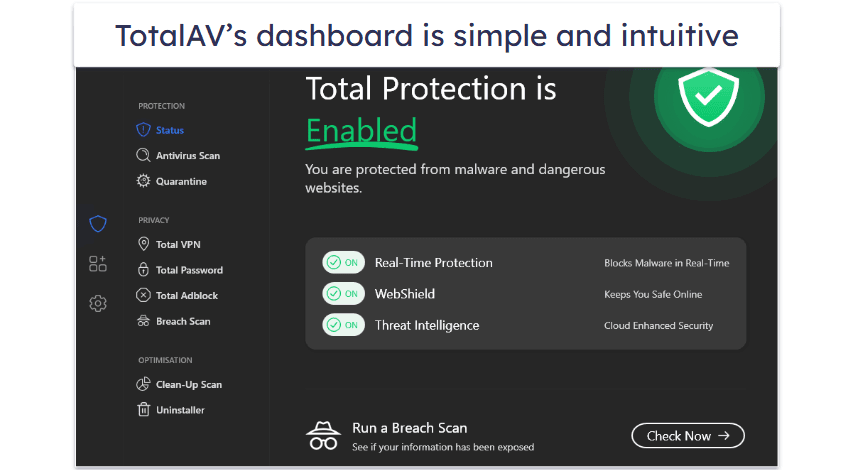
I also found it very easy to access and use all of TotalAV’s features — the dashboard is more intuitive, simpler to navigate, and better designed than Windows Defender, making TotalAV a particularly good choice for non-tech-savvy users.
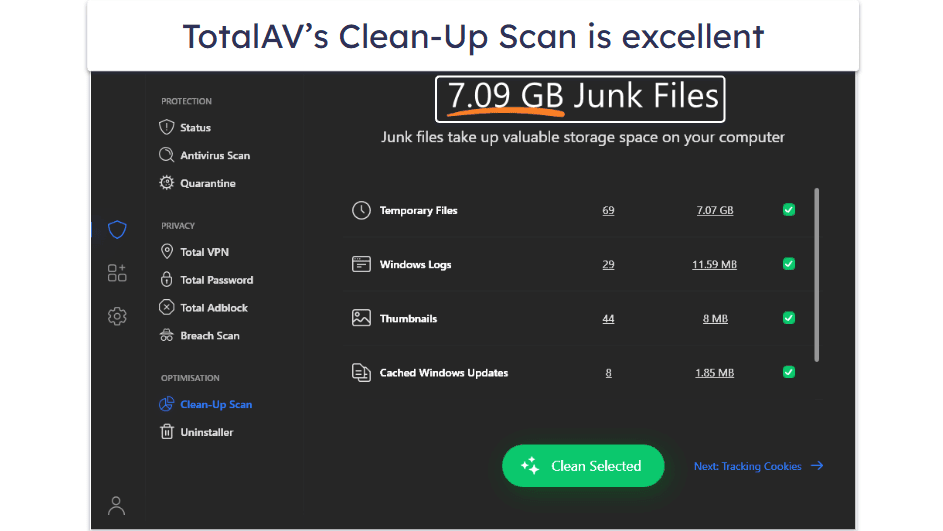
The system cleanup tools are some of the best on the market, and they include a ton of useful features, like a junk cleaner, application uninstaller, startup manager, and browser cleanup. Unlike Windows’s native tools, all of these features are located in the same space, so you can get your PC optimized quite quickly.
TotalAV’s VPN, called Safe Browsing VPN, is the best VPN offered by an antivirus. It has unlimited data (so you can surf, stream, and torrent as much as you want), all of the industry-standard VPN security features (like bank-grade encryption and a kill switch), and very fast speeds. It also works with top streaming services, including Netflix, and allows torrenting on all servers.
The identity theft protection is very good, too, but it only covers US users. That said, the protections are quite extensive, with victims earning up to $1 million in compensation. Defender doesn’t offer anything of the kind.
My favorite TotalAV plan is Total Security, which costs £49.00 and includes all of TotalAV’s features — but users looking for a more affordable option can opt for TotalAV Premium (£19.00 / year) and Internet Security (£39.00 / year), which both offer a good set of features at an affordable price. All TotalAV plans come with a 30-day money-back guarantee.
Bottom Line:
TotalAV is much easier to use than Windows Defender and comes with good malware protection, great PC optimization tools to enhance device performance, and a top-notch VPN. I like TotalAV’s premium identity theft protection as well, but it’s only available on the Total Security plan. If you’re interested, you can try TotalAV with a 30-day money-back guarantee.
Read the full TotalAV review here >
4. McAfee — Better Web Protection (With Data Cleanup Tools)

McAfee is an excellent internet security suite with much better web protection and network safeguards than Windows Defender. Its web protection caught 100% of the phishing sites I tried to access — far better than Microsoft SmartScreen and Edge’s built-in browser protection (though both work effectively alongside McAfee). Its malware scanner is also one of the best on the market, outperforming Windows’s antivirus and catching all 1,000 malware files on my PC.
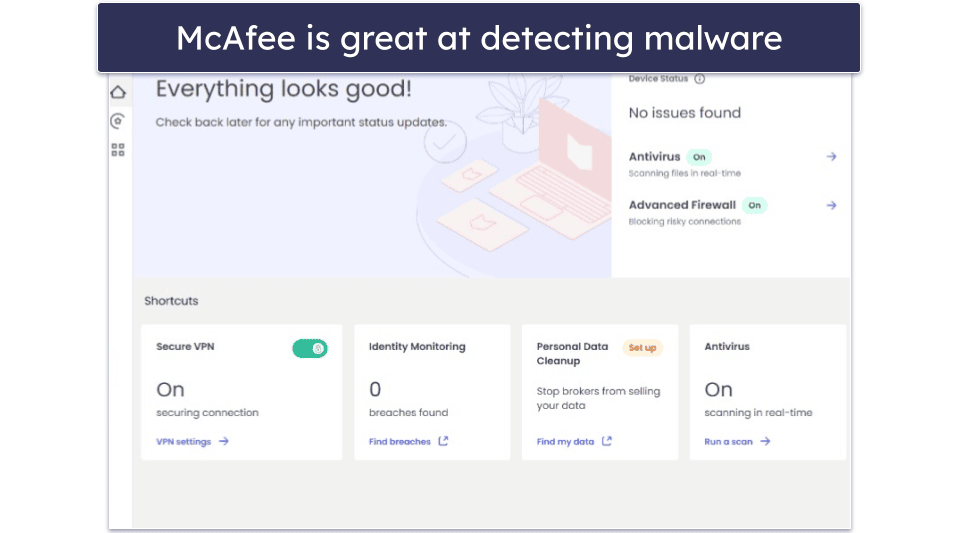
McAfee offers a huge improvement over Windows 11’s built-in protections. Among other features, it includes:
- Firewall.
- VPN.
- Parental controls.
- System optimization.
- Personal data cleanup tool.
- Identity theft protection.
The firewall is meant to be used in tandem with the one provided by Windows Defender. I found that it provided greater protection than Windows Defender did by itself. It’s also easy to manage suspicious applications that the firewall blocks. That said, it isn’t the most advanced firewall out there. Some users will be disappointed by the fact that you can’t manage your ports like you can with Norton. Still, it’s an effective tool that works well with Windows Defender.
Safe Family, McAfee’s parental control app, has way more functionality than Windows’s default parental controls, letting you set time limits, create and manage content filters, and set up geographical restrictions for your kids via the mobile app.
McAfee also provides a personal data cleanup service, which guides you on removing your personal data from data brokerages that are selling your details for profit — even many top antiviruses don’t offer this feature, let alone Windows Defender.
There’s also identity theft protection, which monitors the dark web in real time and alerts you if any of your personally identifying information is leaked. I used it to keep tabs on a wide range of information, including email addresses, credit card numbers, my social security number, and more. I also like how McAfee provides steps to fix a breach and gives you tips on avoiding one in the future.
McAfee Advanced is priced at £66.63 / year and comes with $1 million in identity theft insurance. It also includes assistance with canceling and replacing IDs and credit cards in case of a lost or stolen wallet, and the ability to initiate a security freeze. Identity theft protection is available in over 20 countries, including the US, UK, Japan, South Africa, India, and Australia.
Most McAfee plans can cover unlimited devices, but users on a budget can get 5 licenses for £29.99 / year under the Essential plan. All plans are covered by a risk-free 30-day money-back guarantee.
Bottom Line:
McAfee provides an excellent anti-malware engine — it has lots of internet security extras that Windows Defender doesn’t have. The parental controls, firewall, VPN, and anti-phishing protections are all significantly better than Microsoft’s built-in tools. All these tools come together to make McAfee a much better alternative to Windows Defender. All of McAfee’s plans are available with a 30-day money-back guarantee.
Read the full McAfee review here >
5. Panda — More Extras (and Flexible Pricing)


Panda Dome is a good anti-malware program that has high malware detection rates, decent extra features, and a rich set of customization options. In my testing, it detected malware about as accurately as Windows Defender, catching the majority of the malware files on my test PC, but it missed some newer adware and ransomware files that competitors like Norton caught.
Panda’s packages come with extra features that Windows’s free antivirus doesn’t offer, including a VPN — it uses Hotspot Shield’s VPN to provide fast and encrypted web access to servers in 20+ countries around the globe. Panda also includes:
- Virtual keyboard.
- File shredder.
- File encryption.
- PC cleanup tools.
- Anti-theft tools (for Windows, Android, and iOS devices).
- Bootable antivirus.
I’m a huge fan of Panda’s Rescue Kit, which is a bootable version of Panda you can save to a USB thumb drive. If a really bad malware infection occurs, the Rescue Kit can be the difference between a fixed device and a total loss. There is no bootable version of Defender, so it’s nice to have this tool on hand.

Panda is one of the few antiviruses that offer file encryption and file shredding, two features that Defender doesn’t offer. I encrypted some of my most sensitive files (like health records) so they were completely unreadable to a hacker or even someone else who may borrow my computer.
Panda offers 5 different packages, including a free plan for users on a budget. The paid plans start at £14.99 / year, and they all offer monthly, yearly, 2-year, and 3-year subscription options for 1, 3, 5, 10, or an unlimited number of devices. There’s a 30-day money-back guarantee on all plans.
Bottom Line:
Panda Dome has a good antivirus scanner with an intuitive interface, decent additional features, and flexible payment options. It offers 5 different packages, monthly, annual, 2-year, and 3-year subscription options, and a 30-day money-back guarantee.
Read the full Panda review here >
6. Malwarebytes — Good Anti-Malware Protection for Budget Users

Malwarebytes offers advanced protection against a wide range of malware threats, including zero-day attacks and ransomware. Its scanning engine isn’t quite on the level of top competitors like Norton, but it still caught a majority of threats in my tests.
I found Malwarebytes easier to use than Defender. This is to be expected, though — Malwarebytes doesn’t really have any extra features, besides an automatic anti-phishing filter (that works far better than Microsoft’s built-in protections).

Another area where Malwarebytes is superior to Defender is scheduling system scans. Malwarebytes has an easy-to-find Scanner tab, where it’s simple to start a quick scan, configure a custom scan, or schedule a scan. Defender, on the other hand, forces you to meander through annoying steps via the Task Scheduler app to schedule a scan. Inexperienced users may find this process difficult and confusing.
Malwarebytes’s VPN is pretty good — users looking for an additional layer of online privacy will be happy with it. The VPN provides encrypted access to servers around the globe. However, it wasn’t as fast as Bitdefender’s VPN in my testing, and it doesn’t work with most streaming sites.
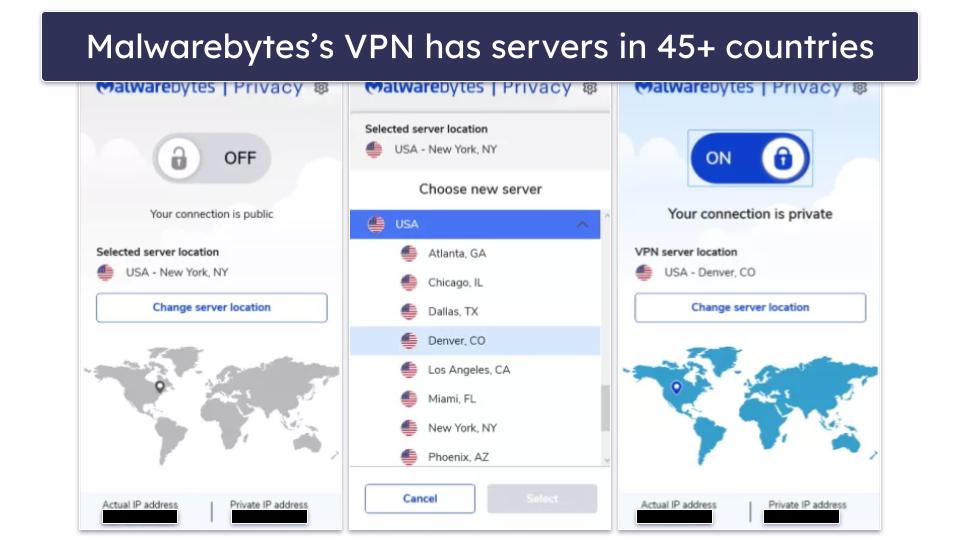
Malwarebytes Plus offers malware protection and a secure VPN for £29.61 / year. There’s also Malwarebytes Standard, which only costs £22.20 / year, but it’s just a malware scanner with real-time protections and little else. Malwarebytes offers a 60-day money-back guarantee on both plans.
Bottom Line:
Though somewhat minimalistic, Malwarebytes is an improvement on Defender. It provides excellent malware protection and anti-phishing controls with a user-friendly dashboard, but not much else. Its scanning engine is as accurate as Norton, and the bundled VPN is also pretty good. Malwarebytes comes with a 60-day money-back guarantee.
Read the full Malwarebytes review here >
7. Avira — More (and Better) Free Features


Avira Free Security for Windows provides strong anti-malware scanning and tons of high-quality extra features inside its free version — it’s one of the best free Windows antiviruses on the market. Its cloud-based malware scanner performed really well during my tests, detecting 100% of the malware sample files on my device — and, unlike Defender, the offline detection rate is only slightly lower.
Avira’s free antivirus includes features that Windows’s free antivirus doesn’t provide, such as:
- Safe Shopping browser extension.
- Free VPN (1 GB/month with registration).
- Optimization tools.
- Basic password manager.
I really like the Safe Shopping browser extension, which blocks web trackers, intrusive advertisements, and phishing sites — outperforming Windows’s SmartScreen in terms of security and convenience. The extension also finds the best shopping deals, but this feature didn’t always work as intended during my tests.
Like TotalAV, Avira also comes with excellent system optimization tools that can significantly improve a slow or old computer’s performance — but only basic cleanup tools are available on the free version. The premium plans include the driver updater, which Defender doesn’t have.
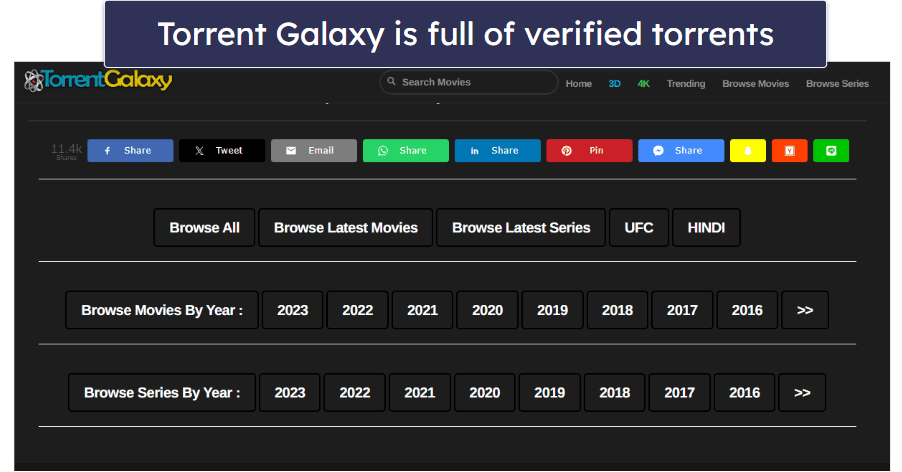
Avira also has a feature-rich free password manager, which is one of the best that you’ll find bundled with an antivirus package. The free version is missing some features, but it still uses uncrackable 256-bit AES encryption, and the auto-fill/auto-save functions worked perfectly in my tests.
Avira Prime is the best package (and the only one that includes an unlimited-data VPN). At just £51.99 / year, it offers all of Avira’s features and coverage for up to 5 devices across all operating systems. All Avira plans include a generous 60-day money-back guarantee.
Bottom Line:
Avira is one of the better free alternatives to Microsoft Defender — its real-time detection and malware-scanning engine performed much better than Defender in my tests. Avira’s paid plans are really good, too, especially Avira Prime, which offers a VPN with unlimited data, a password manager, advanced system tuneup tools, and more. Avira Prime comes with a 60-day money-back guarantee.
Read the full Avira review here >
8. Avast — Excellent Malware Protection + Useful Extra Features

Avast provides a meaningful upgrade over Windows Defender, offering improved malware detection, stronger online protection, and helpful system maintenance tools that help maintain smooth performance.
In my malware detection tests, Avast achieved a perfect 100% rate, successfully identifying and blocking a wide range of threats, including viruses, trojans, and ransomware — many of which evaded Defender during offline simulations. Scans completed efficiently in under 50 minutes on my test system with minimal impact, though it’s a bit slower than Norton and Bitdefender. Its boot-time scanning option effectively addressed persistent infections that Defender handled less reliably.
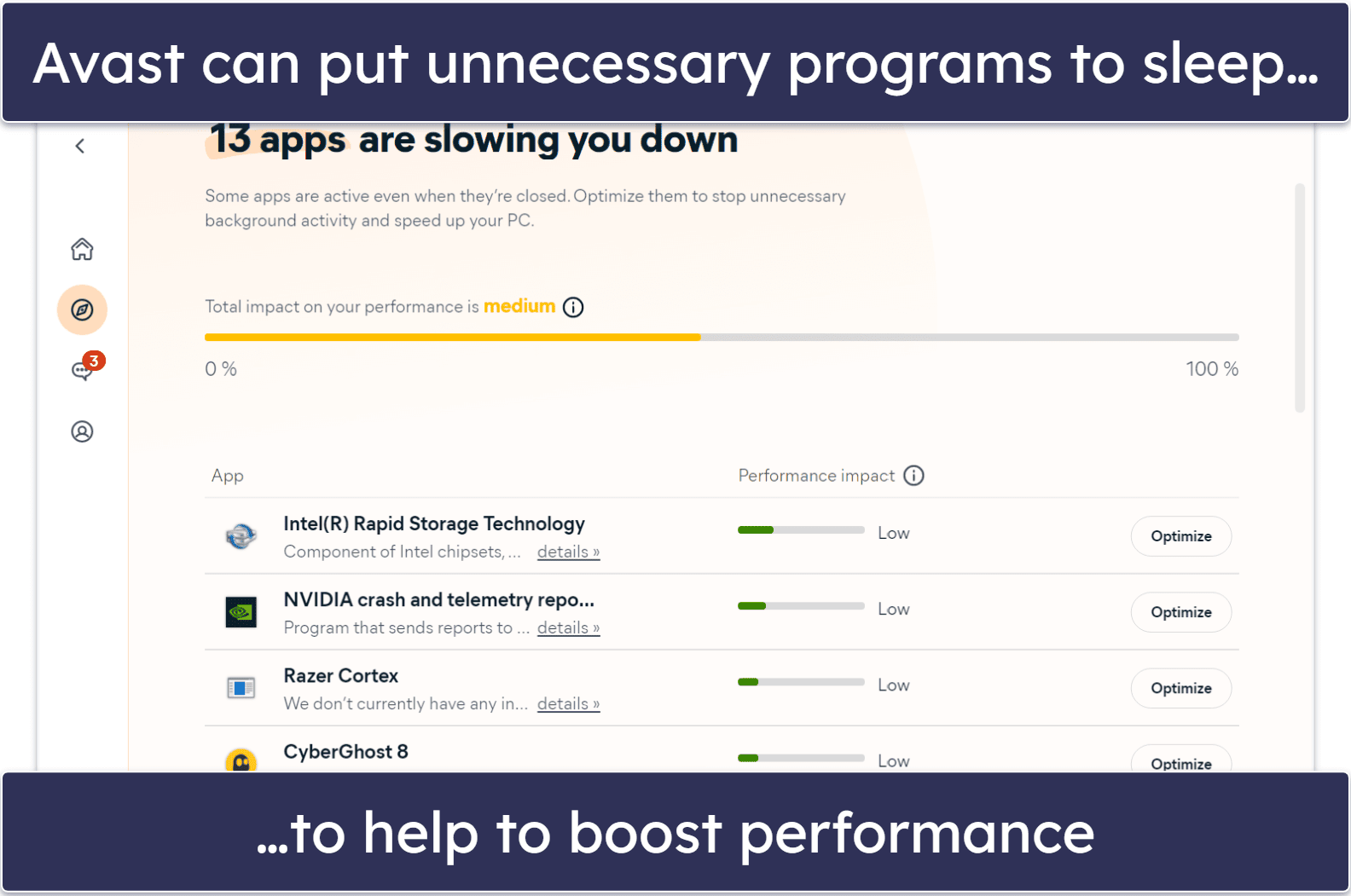
Avast’s suite includes:
- Real-time web scanning and download protection.
- AI-based scam detection for messages and chats.
- Unlimited VPN for secure browsing.
- Data breach monitoring.
- Webcam and microphone safeguards.
- And much more…
Avast also includes practical tools to optimize your device, such as cleaners for temporary files and duplicates that freed up 2GB of space on my test laptop in a single pass, along with automatic driver and software updates and a focus mode to reduce interruptions — resulting in a noticeable 15% improvement in benchmarks that Defender’s tools cannot replicate.
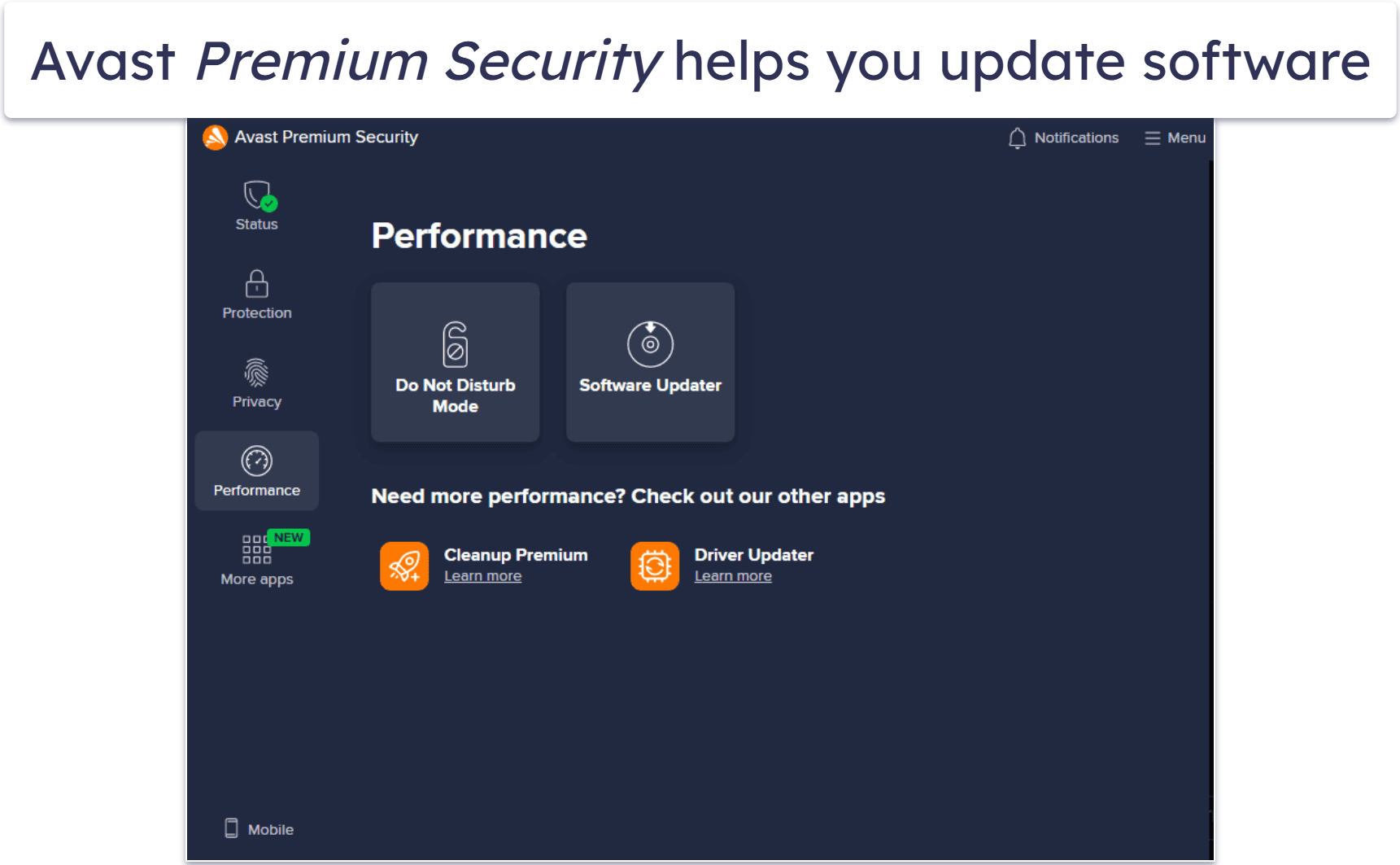
You can begin with the free version, which provides essential scanning for one device, or upgrade to Premium Security at £19.50, covering up to 10 devices with advanced firewall and Wi-Fi security. For complete coverage, Avast Ultimate also covers up to 10 devices, but adds the unlimited VPN, cleanup tools, and anti-tracking. All plans include a 30-day money-back guarantee for peace of mind.
Bottom Line:
Avast enhances Windows Defender with excellent scanning performance that excelled in my tests, effective web protection, and useful optimization features — all presented in an intuitive interface. It’s an excellent choice for reliable security with practical additions, supported by a straightforward 30-day trial period.
Read the full Avast review here >
9. Trend Micro — Good Phishing Protection


Trend Micro offers some notable improvements over Microsoft’s built-in protections. Its antivirus scanner performed well in my testing, outperforming Defender by catching 97% of threats. It didn’t generate many false positives, the scans were faster, and its real-time protection uses fewer resources.
I also really like Trend Micro’s anti-phishing protection, which provides color-coded rankings for Google searches and automatically blocks unsafe links from emails, texts, and pop-up ads.
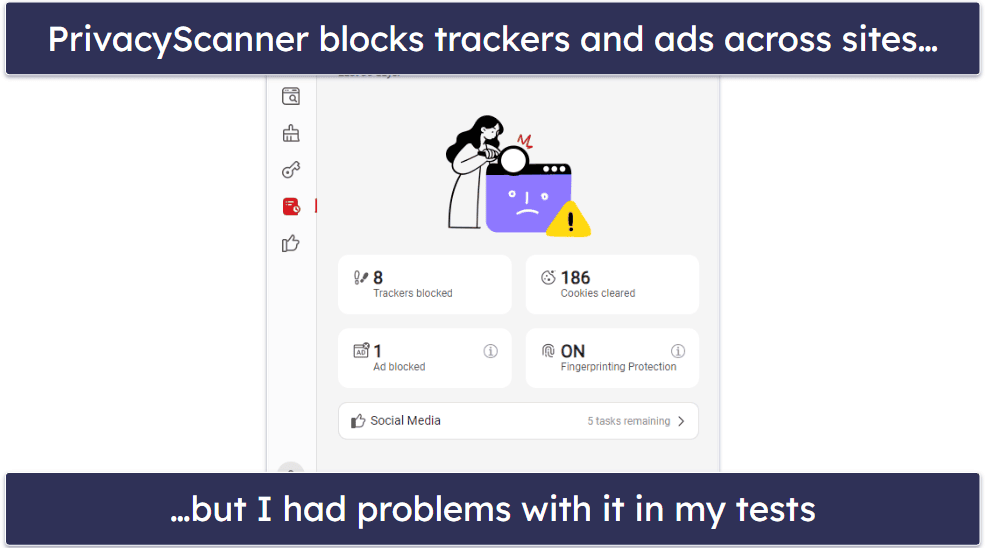
I’m not a fan of Trend Micro’s parental controls, privacy scanner, or VPN. They’re ok, but they’re not nearly as good as the offerings from competitors like Norton and McAfee. The parental controls offer very basic features like web and app filtering and setting time limits for devices, but there’s no geofencing and the reports are lacking in detail. The VPN is missing a kill switch but is otherwise pretty good.
Trend Micro offers a few other good features that Defender lacks, including Pay Guard and Secure Erase. Pay Guard is Trend Micro’s secure browser for online transactions and is similar to Bitdefender’s Safepay browser and Avira’s Safe Shopping browser extension — but not nearly as good. Secure Erase permanently wipes a file from your system. It’s much better than Windows’s Recycle Bin. On the other hand, there’s a tool called PrivacyScanner that’s supposed to optimize your browser and social media settings for privacy, but it didn’t work in my tests.
Trend Micro offers 4 different plans. If you just want something basic that can outshine Defender, Antivirus+ Security is affordable (£14.77 / year) and includes real-time protection, anti-phishing, and web protections for 1 PC. My favorite plan is Maximum Security (£36.98 / year) which includes a password manager for 5 PCs, Androids, iOS, or macOS devices. You get a 30-day money-back guarantee with all plans.
Bottom Line:
Trend Micro offers good malware detection rates and excellent anti-phishing protection, but its additional features are hit or miss. It’s definitely an improvement over Microsoft’s Windows Defender, but I wasn’t impressed with its parental controls or VPN. There is a 30-day money-back guarantee for all of Trend Micro’s plans.
Read the full Trend Micro review here >
10. ESET — Advanced Malware Detection & Anti-Theft Tools


ESET includes a very advanced anti-malware engine that thoroughly scans Windows systems. While its scan took longer than Defender’s during my tests, ESET detected malware samples that Defender missed. That said, it’s not quite as good as competitors like Norton and Bitdefender.

ESET’s anti-theft feature also worked well — I set it up on my Windows HP laptop, and I was able to remotely lock my device, track it via ESET’s online dashboard, display messages on the screen, and capture images of the thieves via my laptop’s built-in webcam. This is another feature that Windows lacks entirely.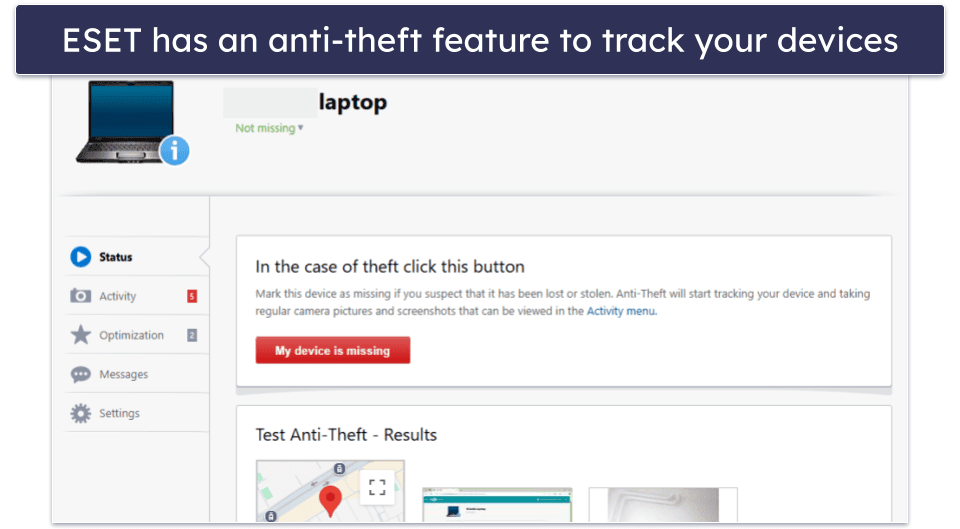
Unique features aside, ESET’s firewall is more customizable than Windows’s, and it has a Network Inspector that will scan your network and list all the devices connected to it. Finally, its SysInspector tool creates a detailed Windows system snapshot to help you diagnose any issues.
ESET’s Premium plan is a decent value for the price. Coverage for 1 device starts at £31.09 / year, but adding extra devices is relatively cheap. ESET comes with a 30-day money-back guarantee.
Bottom Line:
ESET provides advanced malware protection, near-perfect detection rates, and a great anti-theft feature. It also has a highly customizable firewall, a network monitor, a folder guard, and extras such as a VPN and a well-functioning password manager. The Premium plan is a good value and comes with a 30-day money-back guarantee.
Read the full ESET review here >
Quick Comparison Table
Testing Methodology: Comparison & Ranking Criteria
To gauge the quality of the antiviruses listed above and determine how they measure up to Windows Defender, I used our thorough testing criteria. Using this system, I considered things like malware detection and removal capabilities, extra features, and ease of use. Here are some of the things I did to reach my conclusion:
- I tested malware detection and removal rates. I added a dataset of over 1,000 pieces of malware to various devices and then ran each antivirus to see how many threats it could detect and neutralize. Every antivirus on this list detected most malware (including Defender), but there was a big spread, with some antiviruses detecting every single threat and others falling a little short. I tested each antivirus with an internet connection active and while offline. Windows Defender did far worse while offline, but with the best products, the difference was negligible to non-existent.
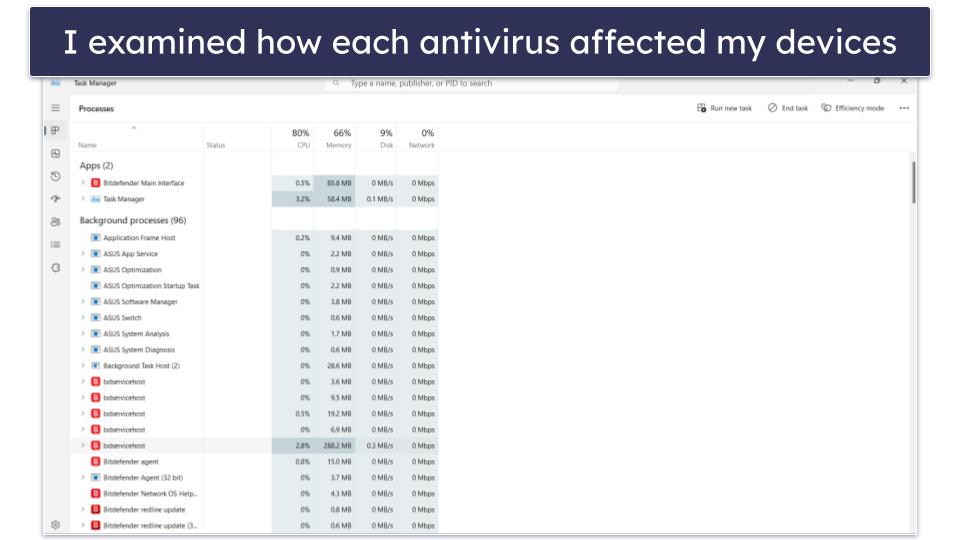
- I dug into the impact on performance. I evaluated the impact of each antivirus on system performance by monitoring CPU and memory usage during various activities, including full system scans, quick scans, and regular operation. Every antivirus on this list had a limited impact. Bitdefender stood out for using very few resources, even on older devices. Defender came out on the bottom. What’s more, many premium options come with system optimization tools.

- I examined any and all extra features. Every antivirus on this list comes with extra features that the free version of Microsoft Defender lacks entirely. Many come with VPNs, optimization tools, advanced parental controls, identity theft protections, and more. I considered the value each of these features brings and then tested them to make sure they do the job as promised. Norton comes out on top when it comes to extras, but all the products on my list bring something useful to the table.
- I tested each product on every supported device type. The free version of Defender only works on Windows devices, but that isn’t true of its premium competitors. Every antivirus on this list works on multiple operating systems. Most have apps for Macs, iPhones, and Androids in addition to PCs — a few even work on Chromebooks. Naturally, I tested how well these non-Windows apps worked against malware and examined the extra features too. I was satisfied with every product that made it onto this list.
Is Windows Defender Better Than Free Antivirus Software?
Windows Defender, Microsoft’s built-in antivirus tool, offers a decent level of protection, especially for users who want a no-fuss, no-cost solution. However, while it provides basic real-time protection, cloud-based scanning, and external drive scanning, it suffers from a much lower offline detection rate, so I can’t recommend it if your device isn’t usually connected to the internet. But the biggest drawback is the lack of advanced features.
If you’re determined to use a free antivirus, Avira’s free plan is a decent choice because it comes with real-time protection and other features that you rarely see in free products, such as a password manager and a Safe Shopping browser extension. Avira is better at detecting threats than Windows Defender and has additional features such as a free VPN and device optimization tools.
In conclusion, Windows Defender is a decent choice for basic protection, but it’s not the best option when compared to other free antivirus software. The best free standalone antivirus products offer more advanced features, higher malware detection rates, and additional functionalities that Windows Defender lacks.
That said, all free antiviruses are somewhat limited in their features, so for comprehensive protection, I recommend always going for an affordable premium suite if you can. Norton’s plans start at a very reasonable £19.99 / year.
Top Brands That Didn’t Make the Cut
- Webroot. Webroot is a fast and very lightweight antivirus, but it’s very poor when it comes to ransomware detection, which is more than a little concerning. It comes with a decent range of extras, but unfortunately, the included password manager is LastPass, which has a history of data breaches.
- Quick Heal. Quick Heal is a pretty decent program. Its virus protection capabilities are comparable to Windows Defender, and it’s got a wide range of internet security packages to choose from. That said, I think these packages are overpriced for what they offer, and all of the products on this list offer a better value.
- PC Matic. PC Matic offers decent malware protection, as well as some good system optimization tools, but its approach to malware protection is quite different — it whitelists known programs and blocks everything else. This approach is okay, but I prefer antivirus software with advanced anti-malware engines that use AI and machine learning to detect advanced threats.
Frequently Asked Questions
Is Windows Defender enough to stay protected?
It depends on what you mean by “enough”. Windows Defender offers some decent cybersecurity protection, but it’s nowhere near as good as most premium antivirus software.
Windows Defender is fine if you’re just looking for basic cybersecurity protection. But if you have a lot of sensitive information on your device which might attract hackers — banking info, login details, private files — then no, it’s not “enough”. Windows’s antivirus has some serious problems in terms of online security, multi-device protection, poor-quality updates, and malware protection. You can read more about my analysis of Defender’s security offerings here.
What is Windows Defender SmartScreen? Should I disable it?
SmartScreen is Microsoft Defender’s real-time phishing protection. If you try to download a malicious file or visit a dangerous website, SmartScreen will stop the download or prevent you from opening the site. It does a pretty good job, but third-party tools work better in my experience. It also only works with Edge and Internet Explorer, which is a shame. Luckily SmartScreen is compatible with most antiviruses, so installing one gets you a second, generally stronger line of defense against web-based threats.
Can Windows Defender remove malware?
Yes. If Windows Defender detects malware, it will remove it from your PC. However, Microsoft’s behavior-based detection isn’t as reliable as others, meaning you’re more vulnerable to zero-day threats if you’re solely relying on Defender. It also has lower overall detection rates, especially while working offline, which does concern me a bit.
While there are better free antiviruses out there, no free antivirus can offer the kind of guaranteed malware protection that the best anti-malware software can. If you’re looking for the best malware protection and internet security tools, a premium antivirus like Norton is much more capable.
Does Windows have built-in phishing protection?
Mostly, yes. Microsoft’s SmartScreen is designed to protect Microsoft Edge users from a wide range of online cybersecurity threats, including phishing emails and malicious sites which attempt to steal your personal information.
However, if you’re using a different browser, like Chrome or Firefox, the SmartScreen browser extension honestly isn’t worth installing — it doesn’t detect phishing sites as accurately as Google and Mozilla’s built-in detection.
If you’re looking to improve your web security, McAfee provides superior phishing detection for all major browsers, as well as a “Smart Firewall” and a fast VPN to keep your browsing 100% anonymous.
Is Windows Defender free?
Yes. Windows Defender is automatically installed for free on all PCs that have Windows 7, Windows 8.1, Windows 10, or Windows 11. You can also upgrade to Microsoft 365 Personal or Family to extend your protection to Mac, iOS, or Android — but it’s honestly not worth doing.
Again, there are better free Windows antiviruses out there, and again, no free antivirus is going to provide the kind of protection that you will get with a full-featured premium antivirus.
Should I replace Windows Defender with another antivirus?
Microsoft’s Windows Defender just isn’t good enough, though I’ll acknowledge that it’s better than it used to be. In terms of malware detection, it often ranks below top antivirus competitors. In terms of system performance, Defender’s scans take longer and cause more slowdown than most third-party antiviruses. And finally, in terms of essential security features, Defender is severely lacking.
Using Windows Defender as a standalone antivirus is much better than not using any antivirus at all. But it still leaves you vulnerable to ransomware, spyware, and advanced forms of malware that can leave you devastated in the event of an attack.
I recommend one of the following options:
- Option 1: Choose a better free antivirus to replace Windows Defender. If you’re on a really tight budget and you can’t afford a paid antivirus, there are a few free antivirus products that are significantly better than Defender. I like Bitdefender’s free antivirus the best. But it’s important to remember that all free antiviruses have limitations that premium antiviruses don’t have.
- Option 2: Optimize your PC’s protection with a premium antivirus. No free antivirus will offer you 100% protection, and Windows Defender has repeatedly shown to be vulnerable to malware, ransomware, and spyware. It doesn’t cost a lot of money to keep you and your PC safe, so investing a few bucks a month in a premium internet security suite is hands-down the best way of protecting yourself and guaranteeing your cybersecurity.
Can I use Windows Defender with another antivirus?
You can, but I wouldn’t recommend it. Windows Defender’s protections can conflict with third-party antivirus software, inhibiting the software’s ability to scan and detect malware. Using Windows Defender in combination with another antivirus program can act as an extra layer of protection, but my advice is to choose a reliable antivirus that offers complete Windows protection and disable Windows Defender’s malware scanning modules to prevent any conflicts.
Note that in most cases, when installing a third-party antivirus on your PC, Windows will automatically disable Windows Defender — either putting it into passive mode or disabling its protections entirely. But it’s always best to make sure that Windows Defender’s protections are correctly disabled after you’ve installed a third-party antivirus, like Norton.
How to disable Windows Defender?
To ensure your new antivirus is running properly, you’ll need to disable Windows Defender to avoid any conflicts between the two scanning engines.
- Step 1: Click the Start button and use the search bar on Windows 11 to look up Windows Security, or select the Windows Security tab and then click on Virus & threat protection if you’re on an older version of Windows.
- Step 2: Locate and select Manage settings (found underneath the Virus & threat protection settings heading).
- Step 3: Turn off real-time protection by clicking the toggle to Off. A message will appear saying “Real-time protection is off, leaving your device vulnerable” — it’s fine to ignore this message if you have installed a trusted alternative antivirus with real-time protection activated.
Windows Defender will now be deactivated. You’ll also see other options, including Cloud-delivered protection and Automatic sample submission — you can also switch these to Off, but these settings won’t impact the performance of your new antivirus software as Windows Defender’s real-time protection has already been deactivated.
How to scan for malware using Windows Defender?
Scanning for malware with Windows Defender is easy. Here’s how to perform a scan on the latest versions of Windows:
- Open Windows Security: Click the Start button, go to Settings > Privacy & Security > Windows Security, and select Virus & threat protection.
- Choose a scan type: Under “Current threats”, you can choose from a quick scan, full scan, or custom scan. A quick scan targets common areas in your system where malware might hide, a full scan checks your entire system, and a custom scan lets you pick a specific file or folder to check for malware.
- Start the scan: Click the Scan now button. Note: If you’ve chosen a full or custom scan, follow the on-screen instructions here to initiate the scan.
- Review results: Once the scan is complete, Windows Defender will display the results. If threats are found, you’ll be guided on how to remove or quarantine them. However, I recommend getting a premium antivirus like Norton for full protection. If you have a premium antivirus, these instructions still apply, but from Virus & threat protection, you’ll be instructed to open up your premium antivirus app.














