


Smartphones have become bottomless pits of data and information in 2026.
Between lengthy settings menus, vast media libraries, and titanic app folders, it’s a wonder anyone is able to find anything on their device in a timely manner.
That used to be the case for random downloads on your device, with all your files, images, and videos wandering off to some folder you’d be lucky to find on your sharpest of days.
Now, though, the process is a lot easier, with Files by Google getting an upgrade with Android 16 that made my recent digital archeology dig infinitely more fruitful.
The download location mystery
Seriously, why is this so hard?
Just a few short years ago, downloading something on Android didn’t necessarily mean you were going to have access to it in the way you were hoping.
On more than one occasion, I found myself trying to download an image off a search engine or a website, and upon opening my media library, it would be gone.
I would eventually discover that the image, for whatever reason, had been downloaded to an obscure folder in the depths of my device, one that apparently doesn’t show up on basic media library interfaces.
Even worse, it was unusually difficult to track down these obscure folders.
The dedicated file downloader app, Files by Google (formerly Files Go), wasn’t super easy to access. You had to hope that a file was still downloading, so you could click the progress bar notification.
Luckily, though, those days are behind us.
Files by Google is where your downloads are
Let the dig begin
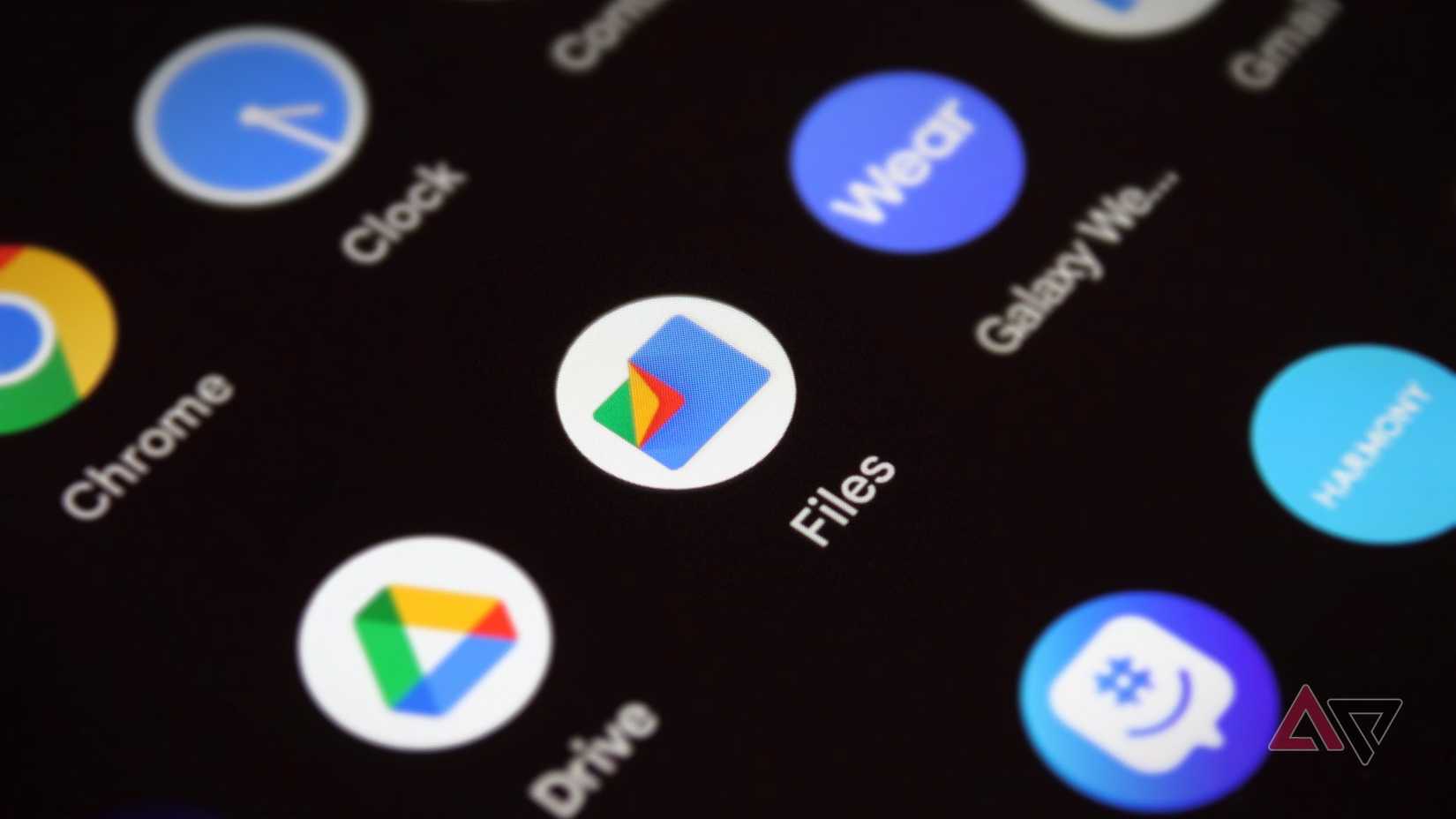
In 2026, you do not have to hope or pray that you’ll be able to find a particular download, because Files by Google has it all.
The once hard-to-find tool is a readily available app that you can not only find by searching for it, but also by simply scrolling through your app folder. The world seems brighter now.
In the Files by Google app, you’ll notice it’s a lot easier to find downloads in general.
There are clearly labeled folders, a Recents carousel for quick access, and a search bar to quickly find what you’re looking for.
Tabs upon tabs are available throughout to help ease the navigation through the many, many downloads on your device.
With these tools, I was able to find old headshots from shows, audio messages I forgot I saved, and weird pictures I sent to myself via Quick Share for an Android Police article a few months ago.
This, my friends, is where your missing downloads have been hiding.
Files by Google rocks now
An interface I can get behind
The file downloader tool for Android has been nothing to write home about since launching in 2018.
The basic, almost-outdated interface looked like Google Drive from a decade ago, with boring lists and a noticeable lack of color.
Fortunately, Google eventually took a fine-toothed comb to the Files app in the Android 16 update.
More specifically, the Material 3 theme improvements made Files by Google a lot more intuitive, somewhat replicating the Google Photos interface that is less cluttered and more accessible.
Even better, the Files by Google has quick access buttons for Quick Share and the document scanning functionality on the bottom of the display, so you can quickly share and scan more files onto your device when necessary.
How to use Files by Google
Start your own dig today
If you’ve been wondering where those missing downloads wandered off to, taking a stroll through the Files by Google app probably wouldn’t hurt.
Luckily, this doesn’t require much instruction, but it never hurts to give a little anyway.
Head on over to your app folder and find the Files app, denoted with a blue folder sporting some of Google’s classic colorful accents.
Then, start looking through your various folders, like Downloads, Images, Videos, and Documents to see if you’ve missed anything.
You can also use the Recents carousel at the top to scroll through and preview some recently accessed files like images and PDFs.
There’s also the Clean feature, which you can access with the hamburger icon in the upper-left corner. This gives you actionable suggestions for making more room on your device for storage, including deleting blurry images, old screenshots, and larger files.
Exploring the depths of your device
There’s a lot in there
With smartphones being such a staple of everyday life in 2026, it’s easy to forget that these are high-powered devices with a lot to offer.
Whether it’s changing niche settings or exploring new apps, the reality is that the average user hasn’t scratched the surface of what their phones can actually do.
So, I implore you to spend some time exploring your devices at some point in the new year. Because you never know what you might find.











