


Thanks to its easy-to-use interface and excellent mobile apps, Google Keep has been my go-to for taking quick notes.
On the flip side, it’s also a place where my good ideas went to die.
It was a digital junk drawer of half-finished grocery lists, unsorted screenshots, and random thoughts that I could never find when I needed them.
At one point, I was convinced I needed a more complex app with deep folders and endless hierarchies, but the truth was simpler: I was using a brilliant tool the wrong way.
After a complete overhaul of how I label, pin, and archive, I have finally landed on a setup that turns this simple note-taker into the most reliable part of my daily workflow.
My previous workflow with Google Keep
I was my own worst enemy when it came to Google Keep. I treated the app as a digital dumping ground for anything and everything that didn’t have a clear home.
If I saw a cool link, I would share it to Keep. If I had a fleeting thought while walking the dog, I would record a voice note.
The problem wasn’t capturing; it was the total lack of an exit strategy.
I was using the app like a temporary scratchpad, but I never actually went back to clean the slate.
Within weeks, my Keep home screen was a mess of fifty different colorful tiles.
Instead of leaning into Keep’s lightning-fast search and labeling, I just let the notes pile up like old newspapers.
The philosophy of the new setup
The turning point for me was realizing that Google Keep isn’t a digital filing cabinet. I shifted my mindset to a strict ‘Active Workspace’ philosophy.
If a note isn’t something I’m actively working on, thinking about, or needing within the next 48 hours, it has no business being on my main screen.
I stopped viewing the Archive button as a ‘trash can’ and started viewing it as a ‘completed’ shelf.
By keeping the main interface nearly empty, I have eliminated the visual noise that used to trigger me.
Just last week, I was working on a deep-dive post about Nginx Proxy Manager.
In the old days, I would have had five different notes: one for terminal commands, a screenshot of a config error, a link to a GitHub repo, and a couple of half-baked intro paragraphs.
They would have stayed on my home screen for weeks, buried under grocery lists and random reminders.
With a new philosophy, I created a master note for the NPM post and pinned it. As I gathered commands and links, I added them to that one note.
The moment I finished the draft and moved it into my CMS, I tapped Archive.
Because I only had three other pins, that NPM note was staring me in the face every time I opened my phone.
It stayed top-of-mind because it wasn’t competing with hundreds of other posts.

Advanced pro integration
The real magic happens when you treat Keep as the entry point and let Google Tasks and Workspace integration do the heavy lifting of organization and retrieval.
I can turn any Keep note into a task and view the same right from the Google Tasks app.
However, the biggest win was Google Keep’s integration with Gemini via Google Workspace.
Since I linked Gemini to my Workspace, I don’t even bother with manual scrolling or searching through labels anymore.
If I’m in the middle of a draft and remember I saved a specific terminal command or a snippet of feedback three months ago, I don’t go digging through the Keep archive. I just ask Gemini.
I fire up Gemini on mobile or the web and say, ‘Find that Keep note about the Nginx Proxy Manager error from November,’ or ‘Get me the list of open source browser alternatives.’
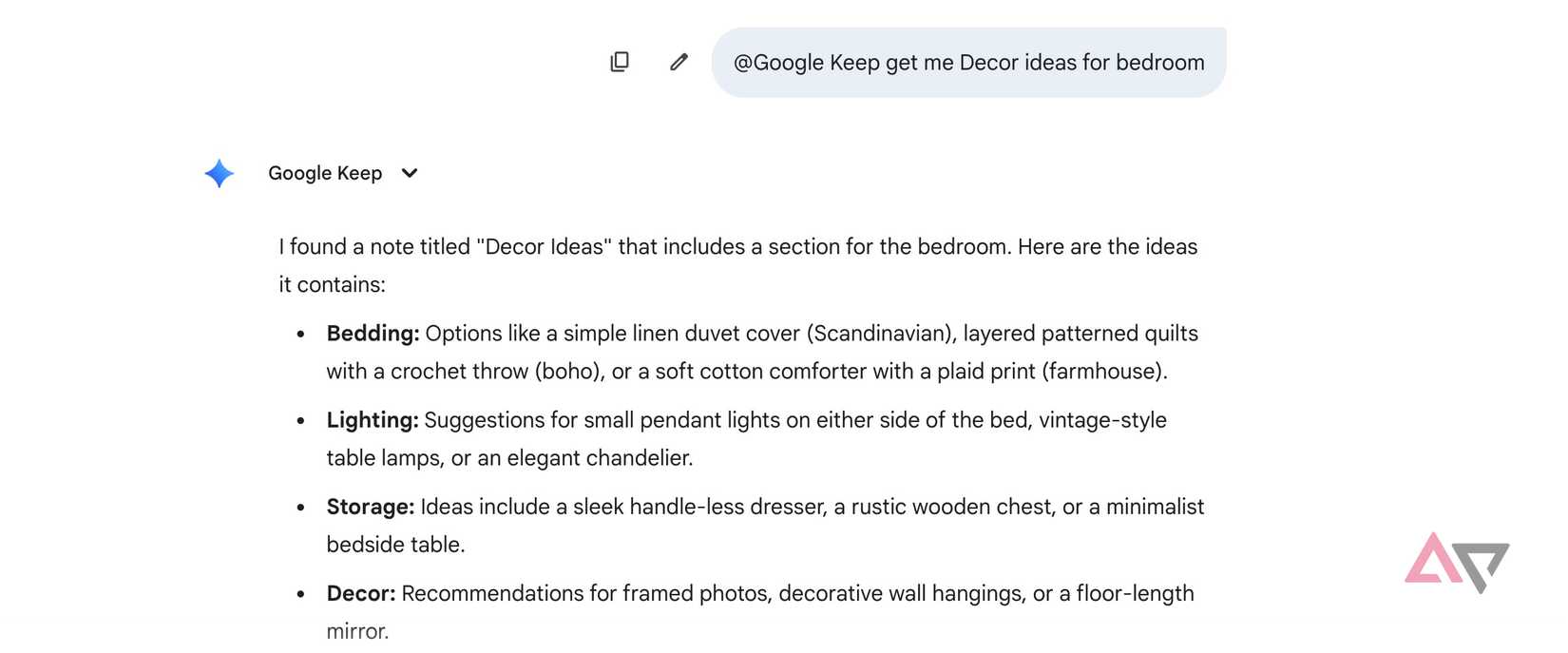
It pulls relevant information directly from my Keep account.
If I have a list of valuable items in Keep, I can simply ask ‘Get me my item list from Bedroom 1’ and it does the job without breaking a sweat.
It’s that perfect balance of high-speed capture on the front end and AI-powered retrieval on the back end.
It means I can be as messy as I want during the ‘brain dump’ phase, as the Workspace integration will help me make sense of it later.
Now, I no longer worry about where a note lives. I trust my new system and the Gemini integration so much that I hit the Archive button with zero hesitation.
From chaos to clarity
If your Keep looks more like a junk drawer than a productivity hub, now is the time to give it a major overhaul.
My setup is proof that you don’t always need a heavy-duty database or a complex hierarchy to stay productive – you just need a system that stays out of your way.
Go ahead, try this setup for a week and unlock a powerful productivity upgrade in no time.
While you are at it, don’t forget to explore Google Keep’s Tasks integration to stay on top of your to-do list.









