

If you’ve been following the Android news lately, Google has begun full-throttle development of Aluminium OS, the platform that’s expected to eventually replace ChromeOS and power upcoming Android PCs.
While that future is still some distance away, it made me excited about how far Google has already come with Android’s desktop mode.
For years, Google has offered a desktop mode on Android, but with later versions of Android 16, the company finally opened up the ability to turn your phone into a PC by simply connecting it to an external display and pairing a keyboard and mouse.
Having never tried Samsung DeX before, I didn’t know what to expect. But after using it for a few days, though, I can see why it could eventually replace my Mac, or at least serve as a solid alternative for light computing on the go.
Here’s what it’s like using Android’s desktop mode today, and how you can recreate a similar setup using just your phone.

How to enable Android desktop mode on your phone
You only need a compatible phone and cable/dock to start using it
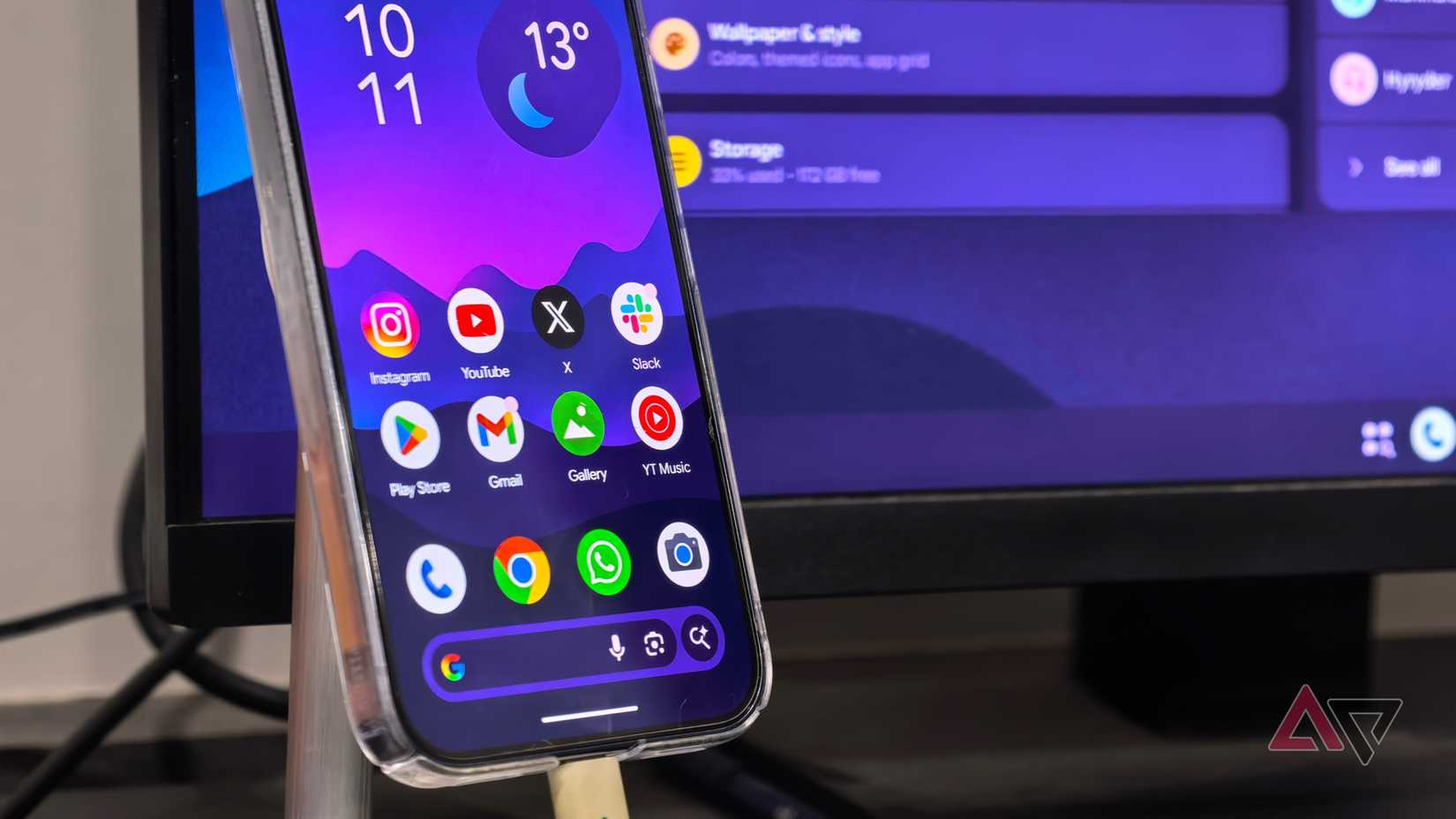
If you’re reading this, chances are you’re interested in trying Android’s desktop mode yourself. Here’s how you can get started and experience it on your own device.
Before diving into the settings, it’s worth noting that this feature is currently limited to Google Pixel devices, specifically the Pixel 8 and newer models that support display output over USB-C.
If you don’t have a newer Pixel phone like the Pixel 10, or if you are using a non-Pixel device, you will not be able to use this feature right now.
If you do have a compatible Pixel phone, and it is updated to the latest version of Android, you can try Android’s desktop mode by enabling a few settings first:
- Open the Settings app, go to About phone, and tap Build number seven times to enable Developer options.
- When enabled, head back to Settings and go to System > Developer options.
- In Developer options, scroll down to the Window management section.
- Enable three toggles for Force activities to be resizable, Enable non-resizable in multi-window, and Enable desktop experience features.
- After enabling the final toggle, you will be prompted to reboot your device.
That’s it. Android desktop mode is now enabled on your device.
You can connect your phone to an external monitor using a USB-C to HDMI cable, or an HDMI cable paired with a USB-C hub, and start using Android’s desktop mode.
When connected, your phone will show a prompt asking whether you want to connect to the external display as Desktop or Mirror. Select Desktop, and you’ll see the desktop interface appear on the external screen.
For the full experience, I recommend pairing your phone with a wireless keyboard and mouse. This makes it much easier to control the desktop interface and use it like a proper PC-style computing setup.
If you have a newer Pixel device like a Pixel 10 series phone, you can charge your device using a compatible Qi2 charger while it is plugged in.
This allows the phone to power Android desktop mode, letting you enjoy the full desktop experience without worrying about battery drain.
Using Android desktop mode feels better than I expected
Using apps in windows and multitasking feel closer to a real computer
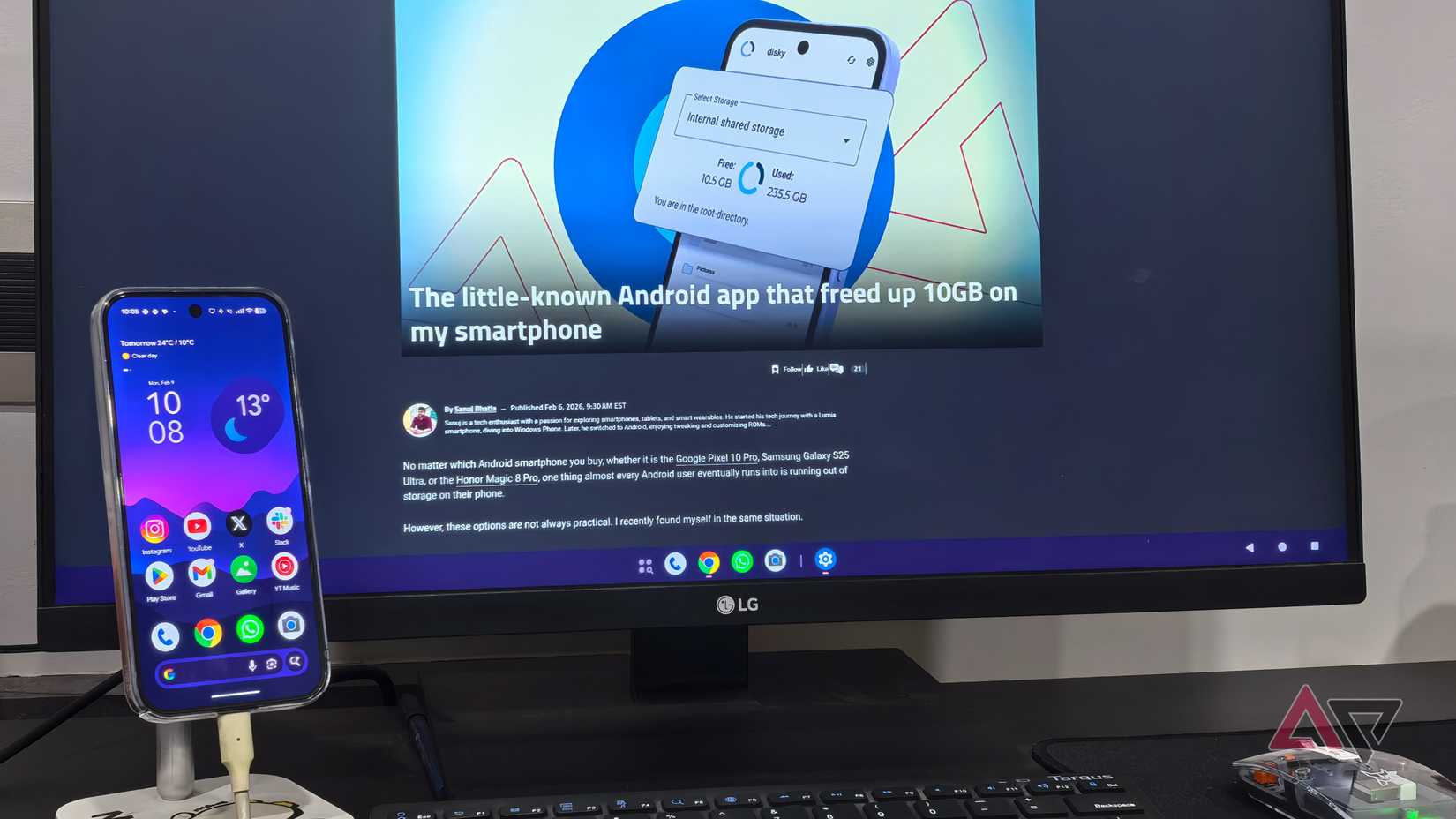
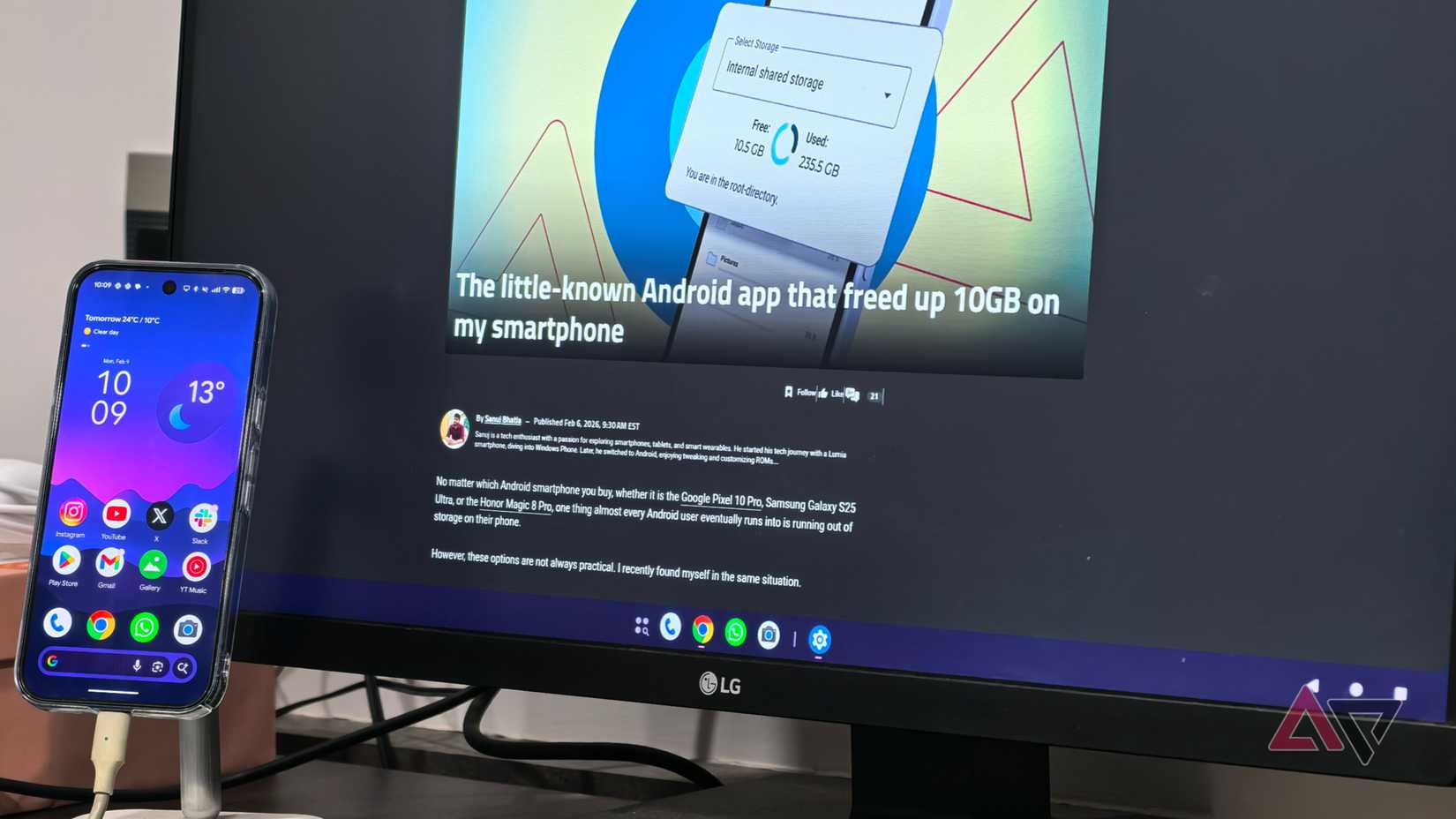
As soon as you connect your Pixel to an external monitor and select Desktop mode, you are greeted with a completely new Android experience on the larger screen, one that feels very different from anything you have seen on a phone before.
At the bottom of the screen, there is a Windows-like taskbar with icons to open the app drawer and your Pixel’s docked apps from the home screen already pinned in place.
As you open more apps, they appear next to the dock separator, similar to how running apps show up on macOS and Windows.
In the lower-right corner of the display, you will find the familiar three-button navigation controls for Back, Home, and Recents.
In the upper-right corner, Android’s status bar shows icons for battery, Wi-Fi, cellular signal, Bluetooth, and an indicator confirming the phone is connected to an external display.
In the upper-left corner, you can see the time along with live activity chips for things like screen recording or a running stopwatch.
If you click and drag down on an empty area of the desktop while holding the left mouse button, Android reveals a tablet-style layout with Quick Settings on the left and notifications on the right.
Like a traditional desktop operating system, you can interact with the interface using a mouse cursor and type into text fields using a physical keyboard.
There is also an option to bring up an on-screen keyboard if you prefer, although it is not particularly convenient when using a non-touch external display.
What immediately feels new when you start using this setup is how different apps look and behave on a large screen.
Every app opens in its own resizable window, much like it would on a laptop, instead of taking over the entire screen as it does on an Android tablet.
You can minimize, maximize, or close an app using the three window controls in the upper-right corner of each app window.
You also get access to app-level menus by clicking the app icon in the upper-left corner of the window. Apps that are properly optimized for large screens feel surprisingly native in this mode.
Google Chrome, for example, opens with a desktop-like interface, complete with a horizontal tab bar at the top, a full address bar with bookmark shortcuts, and the familiar Chrome homepage layout.
Websites load in desktop view by default, and you can even open multiple Chrome windows by right-clicking the app icon in the taskbar.
The only real limitation here is that Chrome extensions are not supported, which is expected.
Other Google apps behave exactly how you would expect them to on a larger display. Apps like Google Photos, Calendar, and Drive are well optimized for this layout, while Gmail also feels mostly desktop-ready, aside from a few minor quirks.
You can freely open multiple apps in separate windows and use them side by side, and there is even a setting that lets you move the mouse cursor seamlessly between your phone screen and the external monitor.
What you do not get, however, is a traditional desktop with files and folders that you can pin or interact with directly, like on macOS or Windows.
Still, this is the closest Android has ever come to offering a true desktop-like experience.
That said, this experience is not meant to replace a Mac or a Windows PC entirely.
Still, I can see where people would plug their phones into external monitors for light computing tasks, especially workflows that rely heavily on web-based tools or productivity apps like Google Docs and Sheets.
On the whole, though, what surprised me the most was how all of this ran smoothly through my Pixel 10 Pro while driving a 27-inch LG monitor without heating up, which was genuinely impressive.
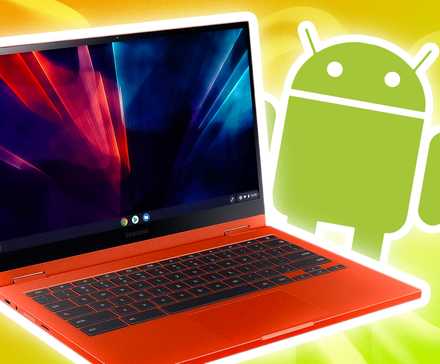
So what exactly is Aluminum OS, and how is it different from Android desktop mode?
It’ll build on desktop mode with a more polished desktop experience
You might be wondering how this Android desktop mode is different from Aluminium OS, the platform Google is developing for Android PCs and laptops.
In simple terms, Android’s desktop mode is something Google has been working on for years, while Aluminium OS is the next step in that evolution.
Aluminium OS is meant to merge ChromeOS and Android into a single, unified operating system, and it is clearly Google’s long-term attempt to compete more directly with Windows and macOS as a full desktop platform.
Unlike Android desktop mode, Aluminium OS devices will run independently on laptop or PC hardware without needing your phone connected at all.
These devices are expected to offer a much more powerful experience, including a full desktop version of Chrome with extension support and, as we saw recently, Gemini deeply baked into the system.
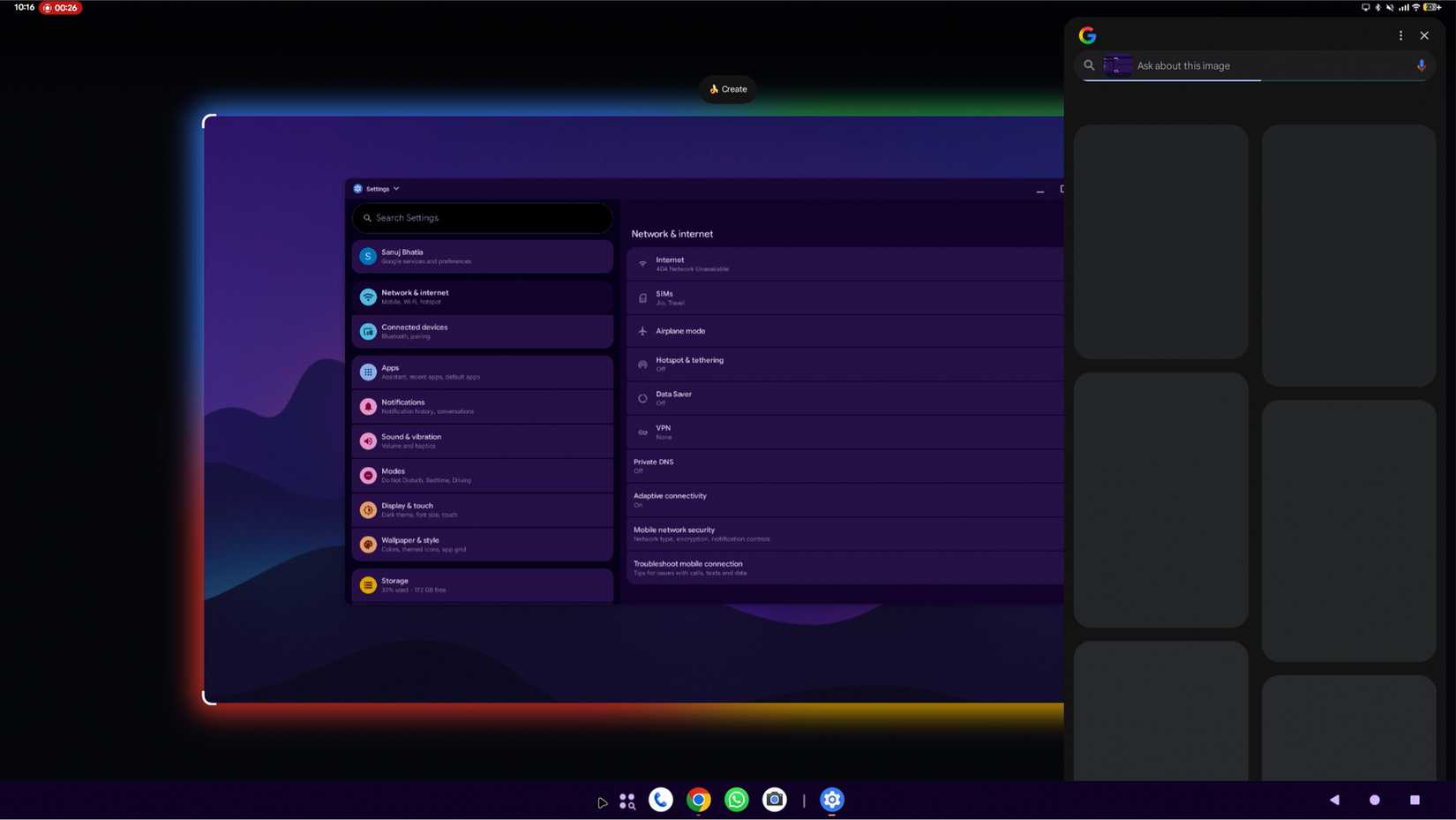
While the current Android desktop mode already includes some AI features like Circle to Search, Aluminium OS feels like it is being designed for full agentic behavior, where Gemini can actively control apps and workflows.
It could also be Google’s vision of true continuity, where you start working on your phone and seamlessly continue the same task on a larger screen running Aluminium OS.
Android desktop mode has me hyped up
This early look at Android’s desktop mode made me realize how far smartphones have come.
A phone can now power a desktop-like computing experience on an external monitor, with very few glitches, and it still feels impressive.
Samsung DeX has been doing this for years, but actually trying it out for the first time has made it click for me just how viable this approach has become.
Moreover, using Android’s desktop mode has already turned me into a believer in Aluminium OS.









