


I didn’t realize how much low-level stress notifications were causing until I kept missing the important ones. Sometimes I’d miss banking alerts or accidentally clear a delivery update without thinking.
After a notification is gone from the shade, it feels permanent, and digging through apps to find it again isn’t always quick.
When you rely on your phone for work, deliveries, two-factor codes, and time-sensitive updates, missing a notification isn’t just annoying. It can mean delayed replies or unnecessary panic.
That’s when I remembered Android has a notification history feature.
It’s been there for years, hidden in the settings, and turning it on completely changed how I handle missed alerts.
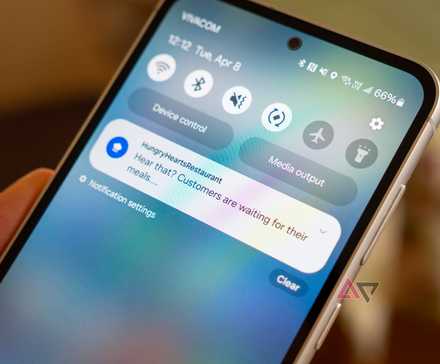
Android’s built-in notification log
Your phone already keeps a record of alerts
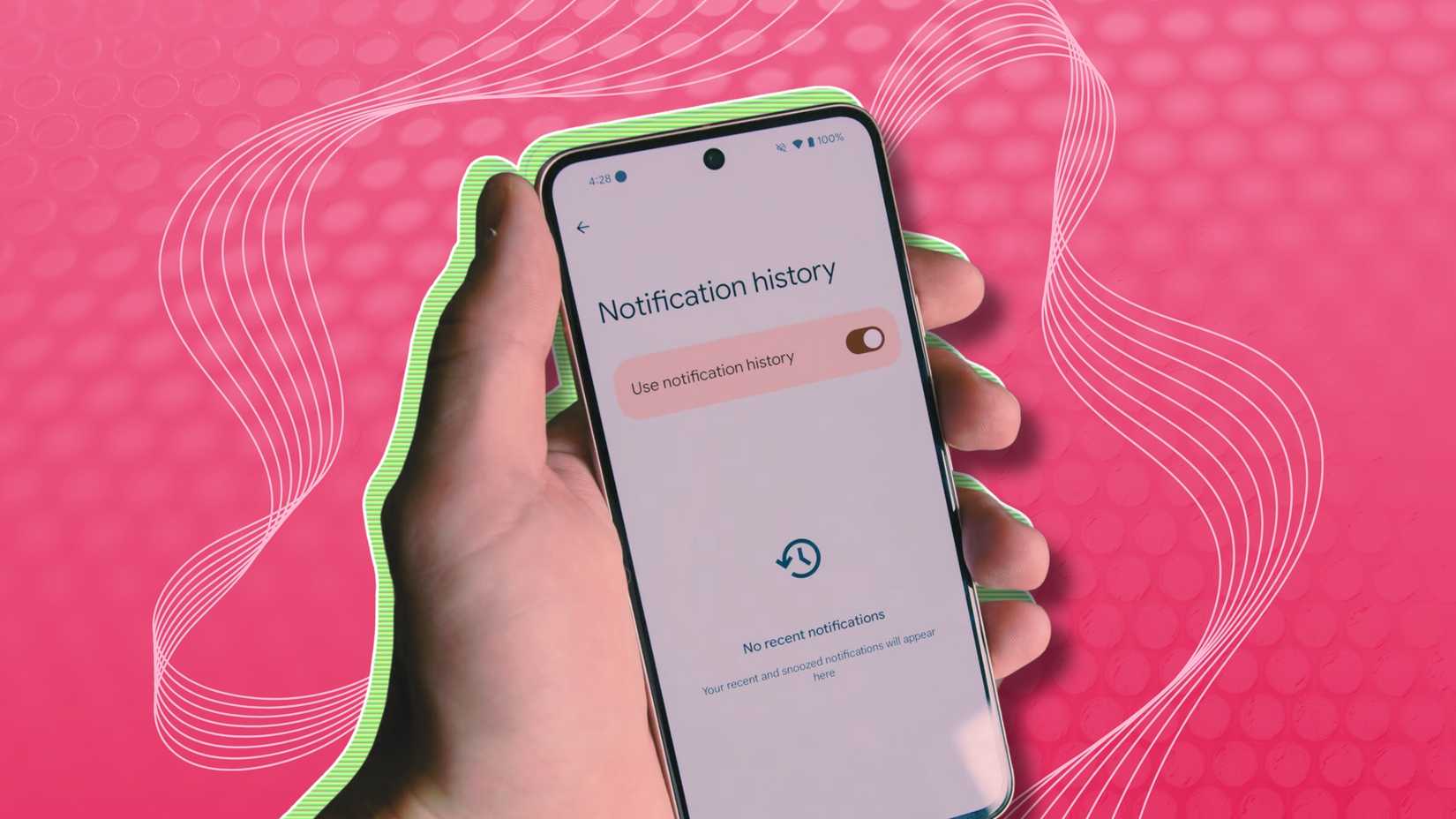
Android includes a feature called notification history that keeps a log of recently dismissed alerts. It isn’t active by default, which is probably why many people never use it.
When activated, your phone starts keeping a chronological list of notifications you’ve received, even those you swipe away. Instead of reopening every app to figure out what you missed, you can check the notification history.
It’s not a full backup system. It won’t restore action buttons, and it only records notifications from the moment you enable it. Still, it shows you what popped up, when it arrived, and which app sent it.
Now, if something disappears, you can check the record instead of guessing.
How to enable notification history
Retrieve missed alerts with ease
Notification history is off by default, so you’ll need to switch it on manually.
To activate notification history on your phone, follow these steps:
- Open the Settings app.
- Tap Notifications.
- Select Notification history.
- Toggle on the option for Notification history.
The exact steps may vary slightly depending on your device. For Samsung phones, you can find it under Settings > Notifications > Advanced settings. On other devices, it may still be located within the main Notifications section but might have a different label.
When notification history is active, your phone will begin logging incoming notifications from that point onward.
It’s worth noting that it won’t recover alerts you dismissed before turning it on.
You can return to the same menu at any time to view a chronological list of your recently received and dismissed notifications.
If you don’t see the option right away, use the search bar at the top of the Settings app and type Notification history.
Customizing it to your workflow
Pair it with Android’s notification management tools
Credit: Lucas Gouveia / Android Police
Turning on notification history is only the first step. The real benefit comes from adjusting your notification settings.
For example, I still clear my notification shade aggressively. I don’t hesitate to swipe away promos, social alerts, or completed tasks.
The difference now is that I’m not worried about accidental swipes. If I dismiss something too quickly, I can check the history instead of reopening my apps.
It also pairs well with notification categories. If an app sends too many unnecessary alerts, I’ll turn off notifications for them so that the history isn’t cluttered.
That way, when I check the log, it’s mostly important items such as banking alerts, OTP codes, work messages, or delivery updates.
The unexpected benefits of notification history
More useful than it sounds

Credit: Lucas Gouveia / Android Police | Dragana Gordic / Shutterstock
Enabling Notification History has provided me with more than just a backup for missed alerts. I no longer hesitate to clear notifications.
In the past, I would let them accumulate because I was worried I might need one later. Now, I clear them without overthinking. If something is truly important, it remains in the log.
This feature has also made me more aware of which apps send unnecessary notifications. By viewing a chronological list of all incoming alerts, it becomes easy to spot patterns.
Some apps send far more notifications than you realize, making it simpler to adjust notification settings or completely turn off certain alerts.
Another advantage is troubleshooting. If a notification flashes briefly and then disappears, or if you hear a buzz without seeing anything, the history can help identify what triggered it.
It saves you from having to open every recently used app in an attempt to figure it out.
A few simple tweaks go a long way
Notifications aren’t going anywhere. If anything, they’re increasing. But there are a few built-in strategies that make the chaos more manageable.
By enabling notification history, I regained control over my time and attention. I no longer felt anxious about missing messages and alerts.
If you are using Android 16, the Notification Organizer makes things even easier. Instead of being bombarded with a constant stream of unrelated notifications, it groups alerts from specific apps into categories.
This way, you can open a particular group, such as promotions, news, or social updates, rather than having to scan through a cluttered list.









