


I’ve never been convinced that a cold-turkey approach is best for reducing our dependence on phones.
Sure, ditching all social media apps, only picking up your phone when you need it, and switching to a minimalist launcher can improve your mental health and habits, but I find these methods too disruptive.
I’d rather use my phone just as often, but in a healthier way. It’s why I organized my phone to encourage reading and creative activities instead of doomscrolling, and why I don’t leave my phone in another room when I go to sleep.
We’ve all been there. Doomscrolling until 3 am. Watching YouTube in a pitch-black room. Playing mobile games while tucked up in bed.
It’ll be no news to you that smartphones disrupt our sleep, but you’ve also probably built an uneasy equilibrium between your phone and your bed.
Solutions depend on your needs, but I’ve found the ideal balance that lets me use my phone late at night without feeling guilty.
Automatically mute notifications at night, and manually enable them in the morning
Don’t distract yourself before you sleep
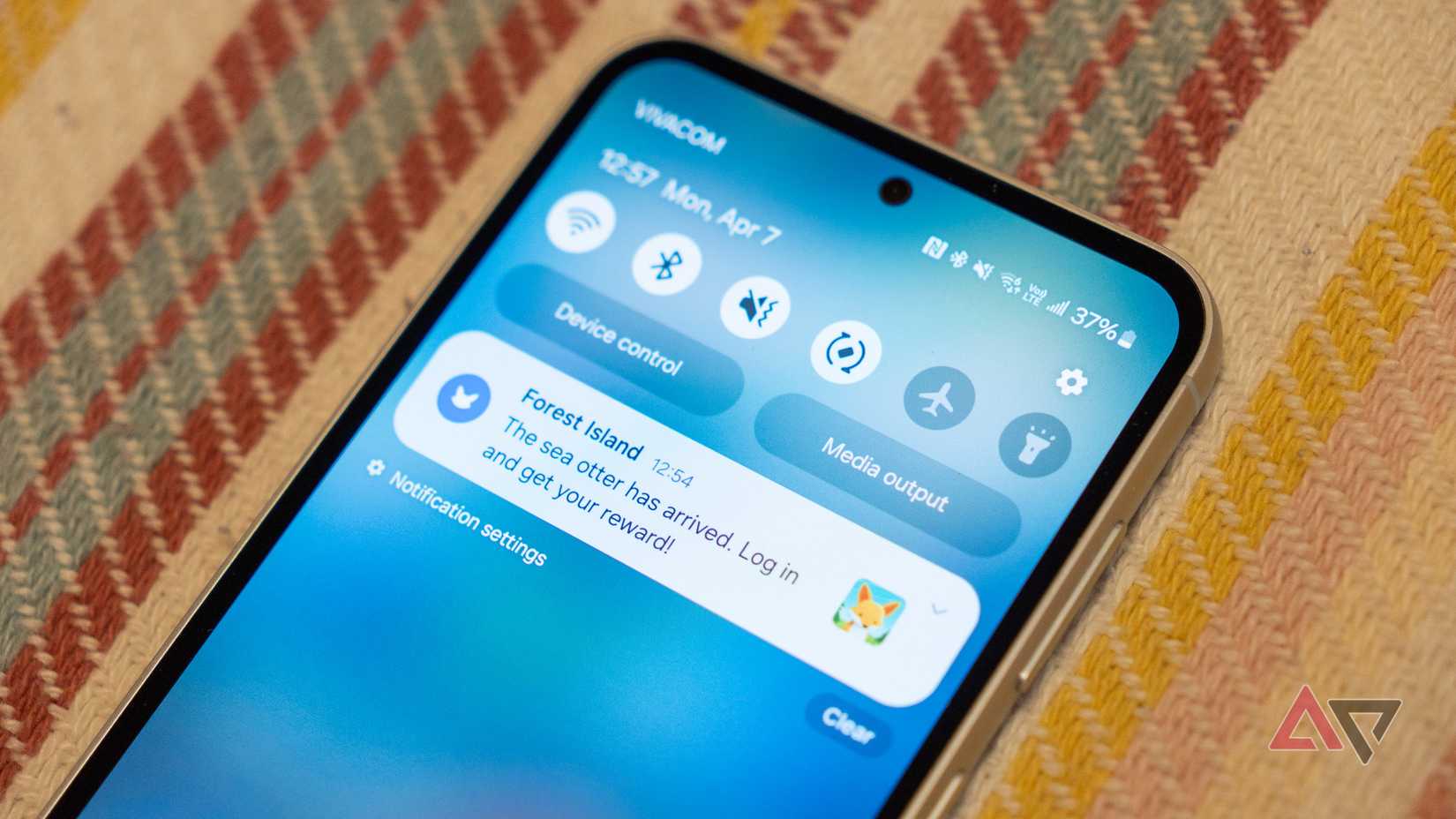
I often wind down at night by reading on my phone.
When set up correctly (more on this later), it doesn’t disrupt my sleep pattern at all. If I open one of my e-reader apps, chances are that I’ll fall asleep half an hour later.
However, a notification ruins this routine by disrupting the relaxed state of mind I’m in while reading.
I didn’t like the idea of muting my notifications at first, so I experimented with different settings.
I tried muting notifications for non-essential apps and games, and I used the Notification organizer feature on my Pixel to group and silence low-priority notifications.
However, none of these methods solved the problem. Eventually, I had to resort to muting notifications entirely.
Bedtime mode on my Pixel phone mutes notifications on an opt-out basis. By default, some apps will interrupt (such as, Clock for alarms), but most other apps are muted.
Bizarrely, some notifications, like Google Play Services’ alert for local Wi-Fi, were enabled, but I was easily able to turn them off.
The exact way this feature works depends on your device, but always set it to turn on automatically at a preset time. You can always manually adjust it if you’re out late or going to bed earlier.
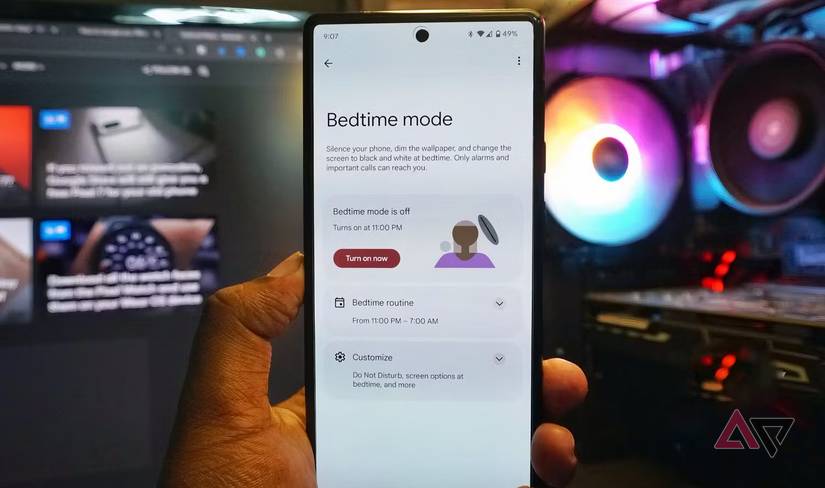
Enabling Bedtime mode is a start, but it didn’t fully resolve the problem for me.
One of my worst phone habits was picking it up and scrolling through notifications when I woke up.
Bedtime mode is set by default to turn off when your alarm goes off, but this meant I was immediately greeted with a flood of notifications when I turned off my alarm.
Therefore, I set Bedtime mode, so I had to turn it off manually.
I’ll discuss healthier ways I use my phone, but I want to make it clear that managing my notifications had the most significant positive effect on my sleep.
If you don’t do anything else, set up Bedtime mode and stop it from re-enabling notifications when your alarm goes off.
Build a collection of sleep-friendly apps
There are plenty of apps that are easy on the eyes
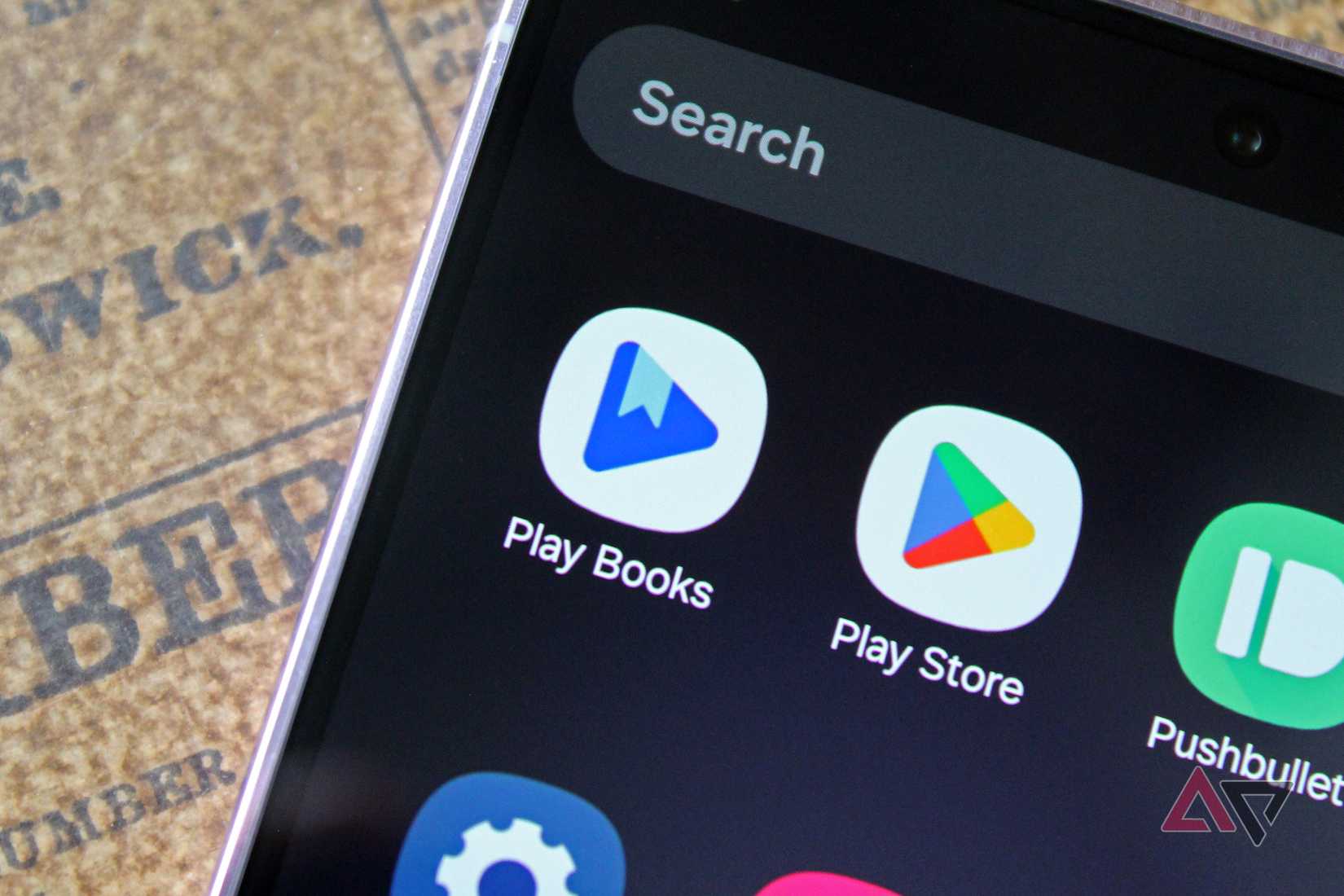
I mentioned earlier in this article how I read on my phone before I go to sleep.
Most e-reader apps are built with blue-light filters, dark modes, and other night-time-friendly features.
They’re the perfect way to wind down before you go to sleep, but if reading isn’t your thing, there are other apps you can use instead.
Find apps and games that don’t rely on color to work.
I’m a big fan of the NYT Games app, so I’ll occasionally wind down with a puzzle before bed.
Audiobook apps are also helpful, as I can set them to stop playing automatically.
Otherwise, I might jot down a few creative ideas in a notes app or play with a pixel art app for a bit.
Playing relaxing games might seem like the best way to wind down, but they will often expose you to more blue light, which can disrupt your sleep.
It’s why I tend not to use color-based games as part of my nighttime routine.
Regardless of which apps you choose, place them on your home screen and move the others to the app drawer or another screen.
I found myself automatically tapping on social media apps, but after moving them to other parts of my screen, my use of them has dropped drastically at night.
Using your phone in the right way at night is an important step to kicking the habit altogether
When I tried leaving my phone outside of arm’s reach or in another room, I found myself unable to sleep. I couldn’t stop thinking about what I was missing out on.
I recognized this as irrational behavior, so I used the methods described above to reduce my dependence on my phone.
After months of only reading or playing lightweight games before I sleep, I’ve found that I no longer feel anxious when I forget to bring my phone to bed.
So if you’re struggling to reduce your screen time at night, try taking smaller steps like I did.
There are plenty of great ways to read more on your phone, and even a step as simple as moving social media apps to another screen can help.











