


I used to consider myself a Google Sheets power user, but that usually meant spending 40 minutes scouring forums for the right nested formula or manually cleaning thousands of rows of messy data.
That changed last week. Since I started using Gemini directly within my spreadsheets, the friction has completely vanished.
What used to be a tedious afternoon of data organization and complex Lookups is now handled in seconds with simple prompts.
If you are still managing spreadsheets the old way, you are working harder than you need to.
Here is why Gemini’s integration in Google Sheets is the ultimate game-changer for anyone who lives in cells and columns.

Unlock Gemini in Google Sheets
Before I go over the specific details, let’s discuss the basics.
Unlike Google Workspace apps, Gemini is a paid add-on. There is a free Gemini version, but to unlock the same in Google Workspace apps, you need to subscribe to Google AI Pro.
The pricing is set at $20 per month, and the plan also offers 2TB of Google Drive storage.
After you subscribe to a relevant plan, the Gemini icon should appear in the upper-right corner of Google Sheets.
Explore Gemini in Google Sheets
When I first started using Gemini in Sheets, I thought it was just going to be a fancy Help button. I was wrong.
It’s more like having a junior data analyst living inside my sidebar who never gets tired of my questions.
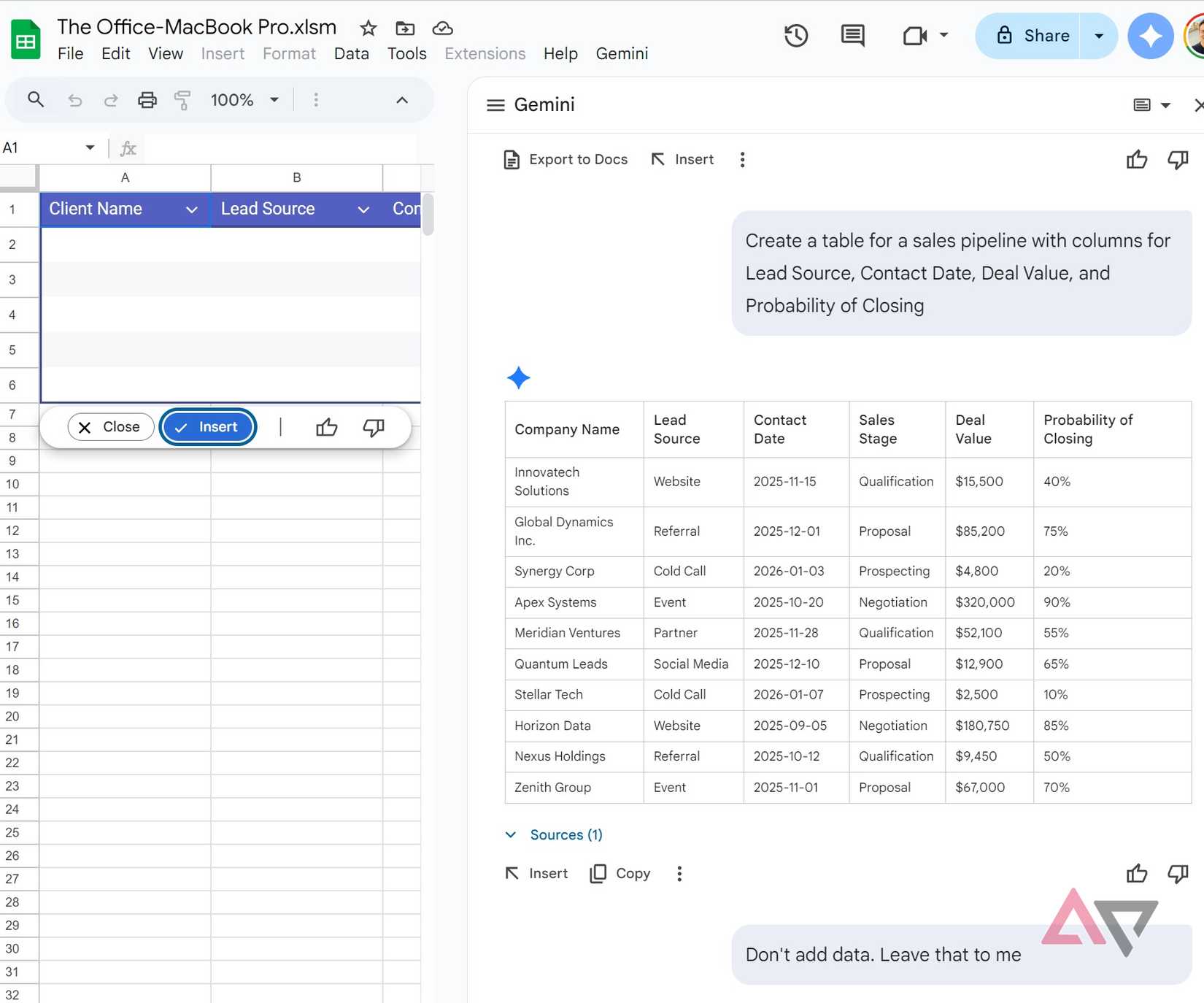
If I need to track something new, like a 12-week lead-gen campaign, I don’t manually type headers anymore. I just prompt:
Create a table for a sales pipeline with columns for Lead Source, Contact Date, Deal Value, and Probability of Closing.
It builds the entire structure in seconds. In my case, Gemini even filled cells with random information. I had to ask it to leave those cells empty.
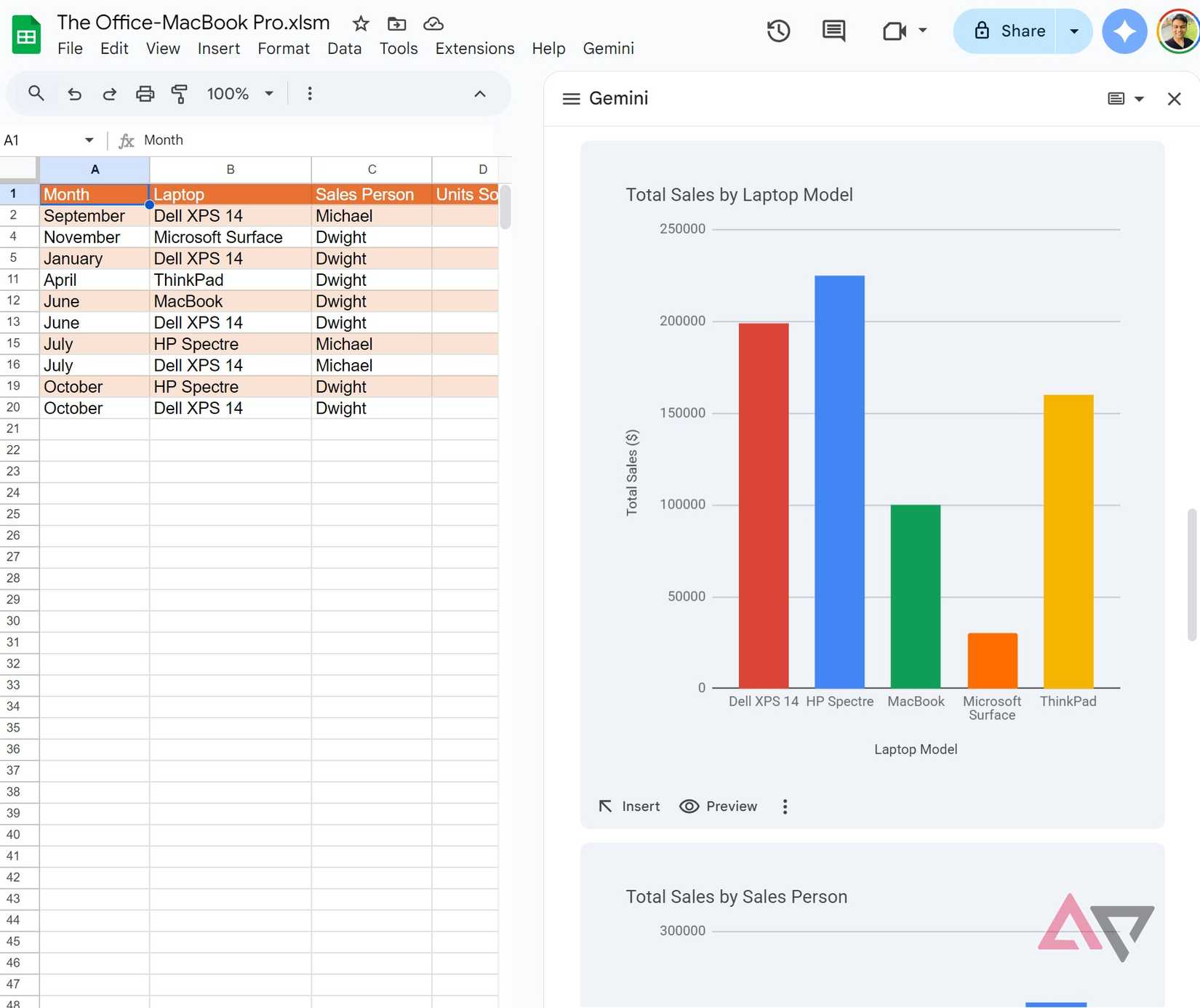
I can even highlight my sales table and ask:
What are the top three trends in this data?
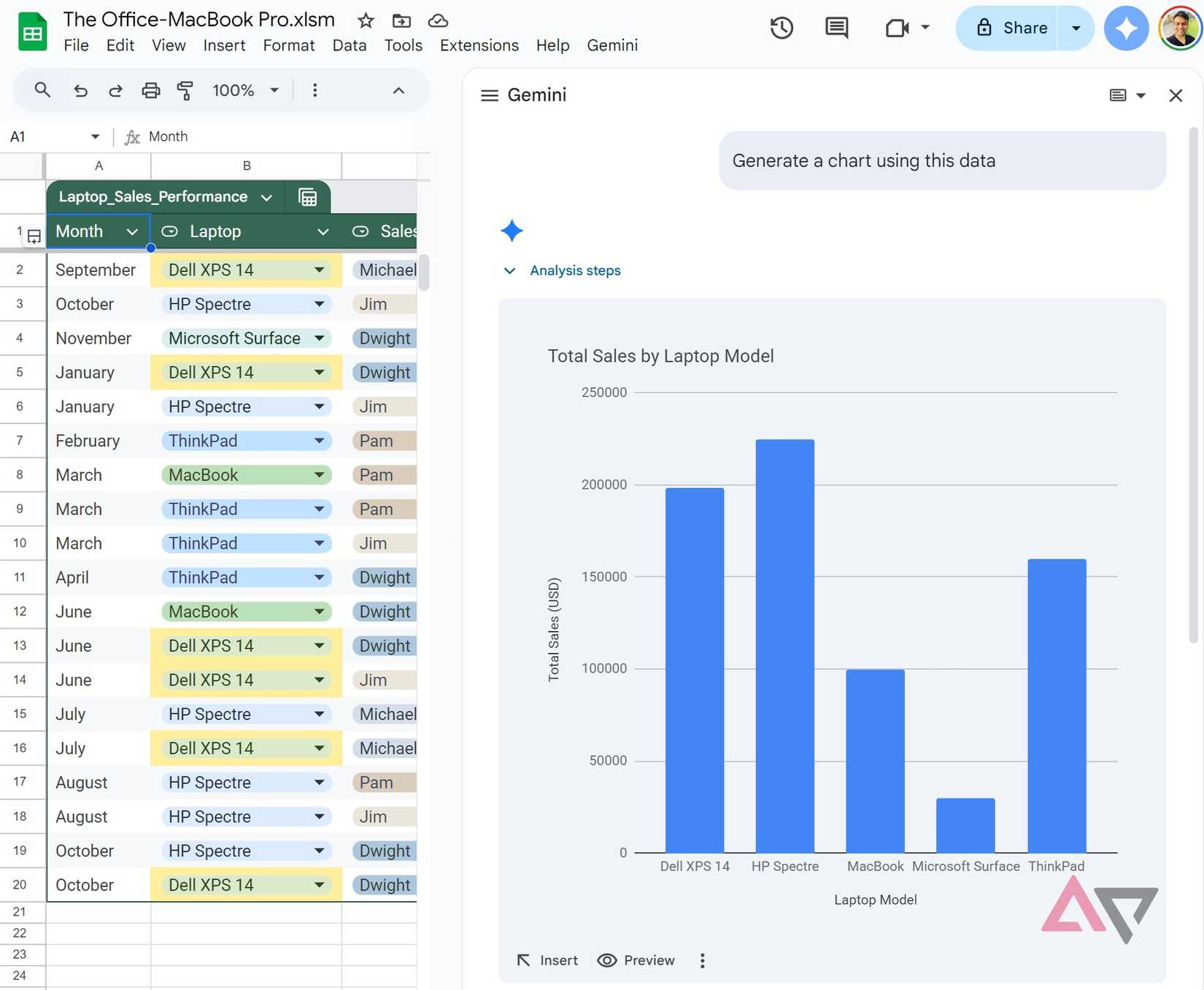
Gemini not only gives me answers but also generates relevant charts to back up those claims.
Before exploring Gemini, I used to spend way too much time fiddling with the Chart Editor.
Now, I just say the following to create a clean, formatted chart
Create a bar chart showing revenue by sales rep for last month.
I can even ask for analysis steps to see exactly how it calculated the date before I insert it.
Since I have my historical sales data there, I have started using it for ‘What if?’ planning. I will ask:
Based on this table, what is my projected net income for next quarter if sales grow by 10%?
It doesn’t just do the math; it explains the logic behind the forecast.
Summarizing data using Gemini
One of my favorite productivity hacks with Gemini in Sheets is using it to prep for meetings.
Instead of spending 20 minutes scanning columns to figure out what I need to tell my team, I let the AI do the heavy lifting.
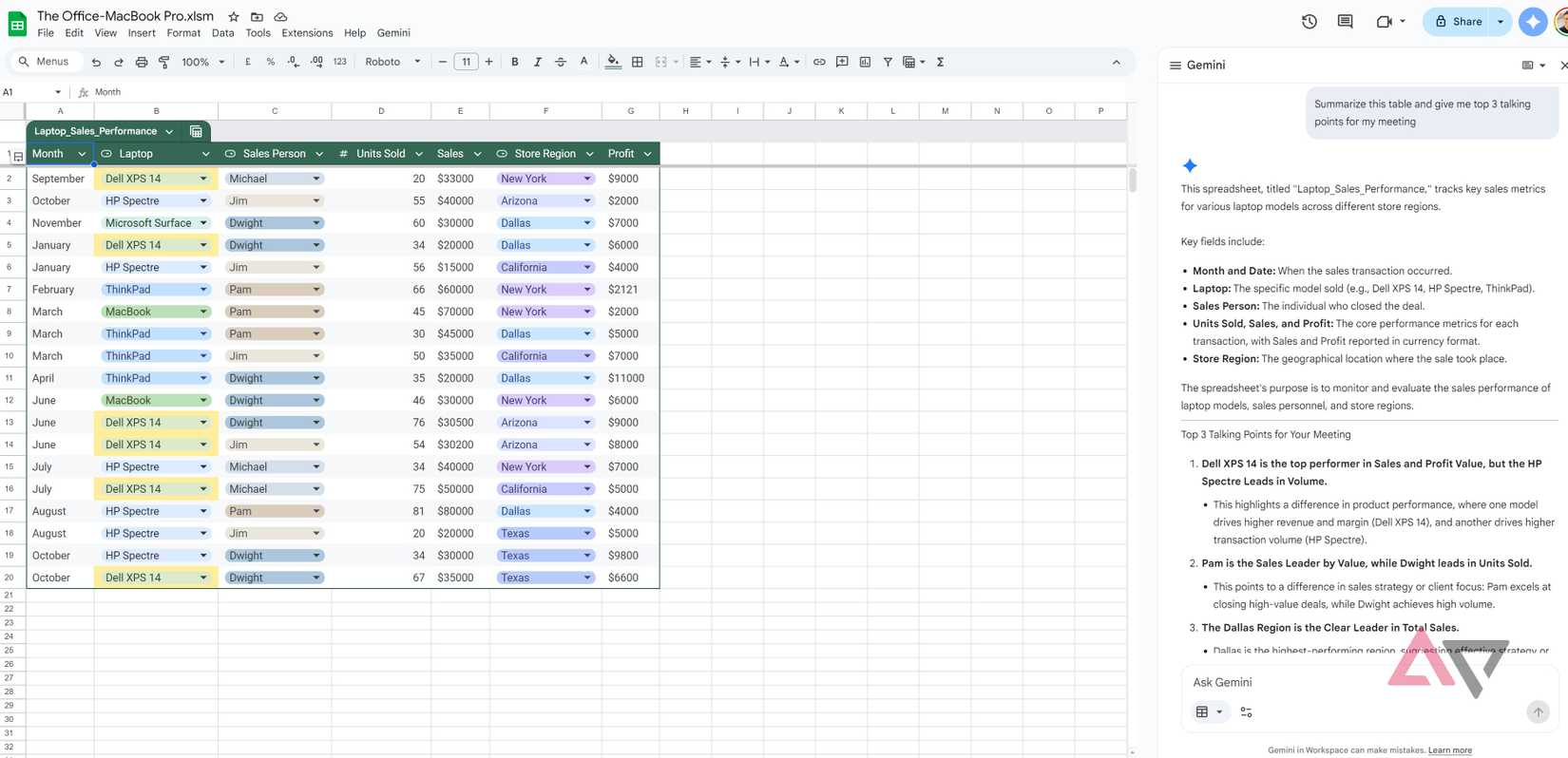
I simply open the Ask Gemini side panel and type:
Summarize this table and give me the top three talking points for my meeting.
Within seconds, it gives me a high-level overview of what the data actually represents.
I had a laptop sales performance table with columns like laptop model, salesperson, store region, profit, and sales.
It showed me which laptop was the highest-selling model, who led the sales numbers, and which region had the best revenue.
Sometimes I inherit a massive, complex sheet from a colleague. I will ask Gemini:
Explain what this sheet is doing and how the calculations work in simple terms.
It breaks down the logic of the tabs and formulas so I can speak confidently about the data.
Asking Gemini to get details from Google Sheets
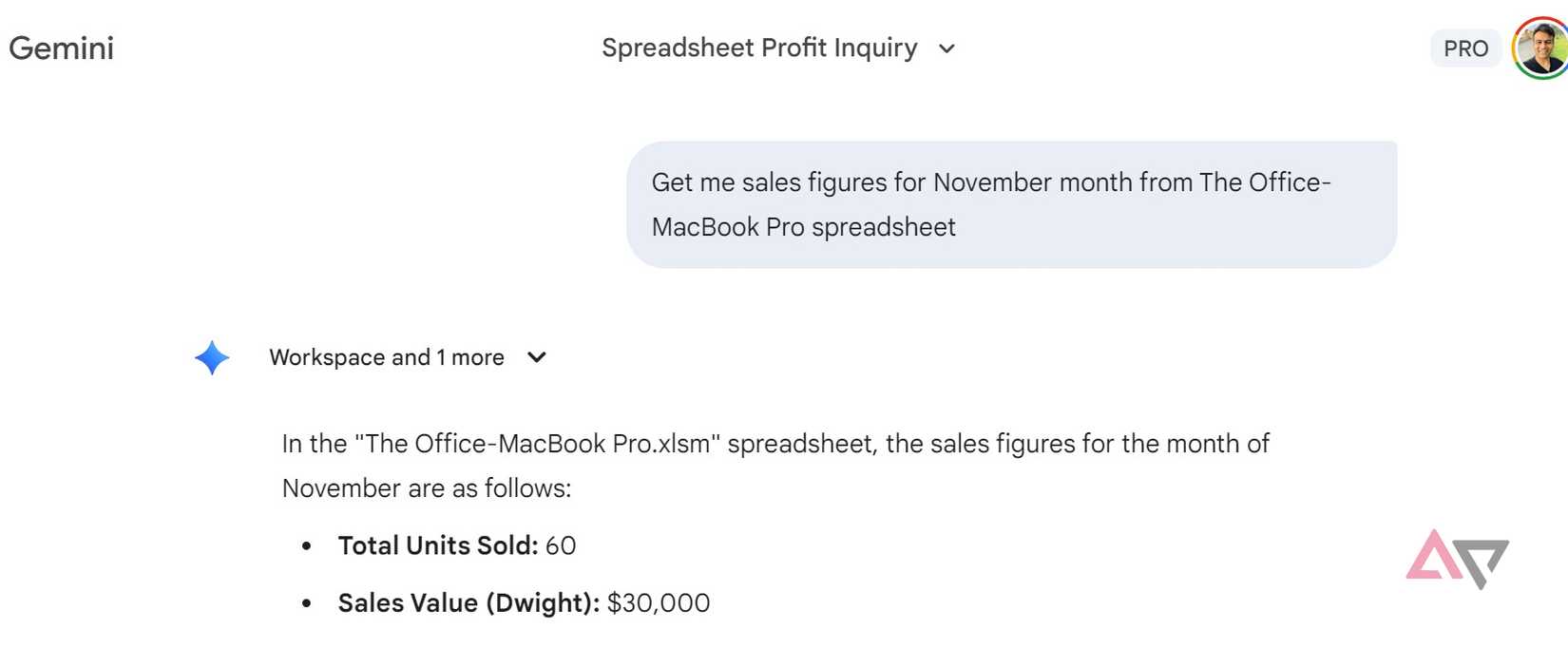
The real magic happened for me when I realized I didn’t even need to have Google Sheets open to get answers.
By enabling the Google Workspace extension toggle in my Gemini settings, the Gemini web and mobile apps gained the ability to read my entire Drive.
Now, if I’m on the go and need a specific data point, I just open the Gemini app and ask:
Get me the total sales figure for November from the Office-MacBook Pro spreadsheet.
In seconds, it scans my file, finds the right sheet, and pulls the exact number without me ever having to squint at a tiny spreadsheet on my phone.
It’s like having a voice-activated shortcut to every cell I have ever typed. It’s just one of the examples. The possibilities are endless here.
From hours to seconds
If you are on the fence, here is my takeaway: Gemini for Google Sheets is the upgrade I didn’t know I was waiting for.
It’s faster, smarter, and makes working in spreadsheets actually fun again.
If you are still dealing with complex syntax or manual cleanup, this is your sign to give it a try.
Aside from Google Sheets, Gemini works quite well with other apps as well. I recently started using it to create slides in Google Slides and came away impressed.











