


Most of the time, I unlock my phone to check an email, turn on the hotspot, or reply to a message. Nothing that should take more than a few seconds.
But the moment my home screen appears, things go sideways.
A familiar app icon catches my eye, and before I know it, I’m scrolling through Reddit, checking group chats, or tapping through apps I didn’t plan to open.
Minutes pass, and then it hits me: I never checked that email in the first place.
The pattern repeated often enough that I started looking for ways to do small tasks without landing on my home screen at all.
That’s when I began using Quick Settings more intentionally. One swipe down meant getting things done without my home screen hijacking my attention.
How I set up Quick Settings to avoid the home screen

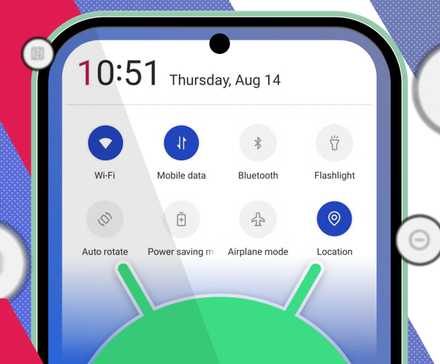
When you swipe down from the top of your Android screen, you see your notifications, and just above them, a row of tiles for Wi-Fi, Bluetooth, flashlight, and more.
These are called Quick Settings tiles, and they turned out to be the cleanest way for me to use my phone without constantly navigating to the home screen.
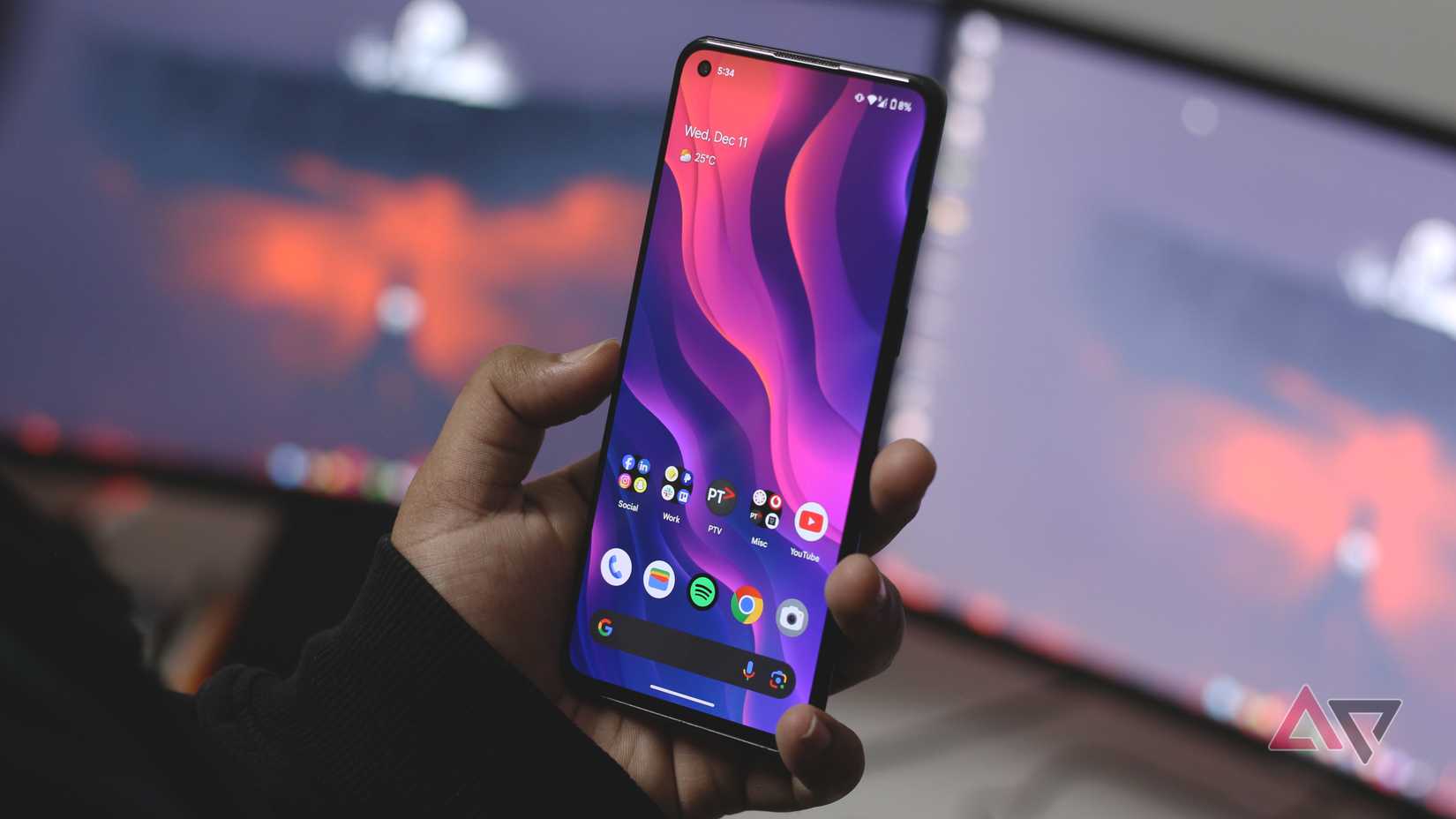
The first step was a slightly drastic one: I deleted all the apps from my home screen.
That sounds extreme, but it forced a simple habit change.
If I want to open an app, I go to the app drawer and type the first few letters of its name. It’s fast, predictable, and most importantly, there are no apps on my home screen to distract me.
At the bottom, though, I kept the home screen dock with just four essentials: calls, messages, my browser, and the camera. That way, if I ever needed one of these core apps, it was still a single tap away.
Quick Settings became the new default entry point. Things I check or toggle frequently live there: connectivity, focus modes, system tools, and a couple of actions I use daily.
Depending on your phone and Android version, you can rearrange these tiles, remove the ones you never use, and even add custom tiles from third-party apps.
Some tiles jump straight into specific app sections, trigger automations, or handle one-off actions.
After I set things up this way, using my phone started to feel more intentional. And surprisingly, I didn’t miss the home screen at all.
Cleaning up Quick Settings so it stops getting in the way
By default, Quick Settings gets crowded with toggles, making it harder to find the ones you use.
So, I opened the full Quick Settings panel, tapped the edit button (represented by the pen icon), and removed anything that wasn’t part of my routine. I removed Quick Share, NFC, hotspot, screen recorder, and screencast.
Instead of scanning a grid every time, my eyes now land on the same few controls every day.
Do Not Disturb, Flashlight, and Power Saving are always in the same spots, which means I don’t have to think about where they are.
Turning Quick Settings into a one-tap control center
When the clutter was gone, I started adding tiles I would use.
Android lets applications add their own Quick Settings tiles, and a surprising number of the apps I already use support this.
I thought about what I reach for repeatedly and how many of those actions I could reduce to one tap.
That’s how I ended up with an Obsidian Daily Note tile that jumps straight into a new note, and a Google TV Remote tile.
If an app doesn’t offer its own Quick Settings tile, you can create a custom one that launches the app.
I also added a few MacroDroid triggers. One tile launches my custom Work Mode, which turns on Do Not Disturb and opens Obsidian. You can set up similar routines using Tasker.
Setup may take a few minutes, but it pays off quickly.
I stopped unlocking my phone ‘just to check one thing’
Most of my phone sessions used to start with a clear goal.
I’d unlock it to reply to a message, and then a social media app would pull me in. A minute later, I realized I never actually did the thing I picked up my phone for.
It reminded me of the doorway effect: that feeling you get when you walk into another room and forget why you went there. Unlocking my phone and landing on the home screen had the same effect.
Quick Settings helped me avoid that detour.
A few details make it even easier to stick to the task.
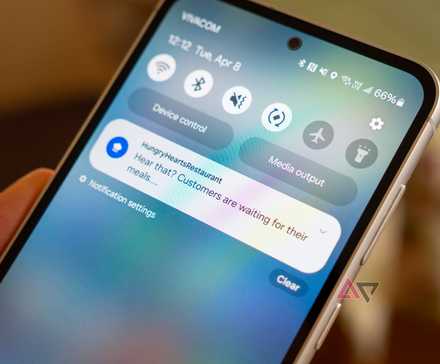
The Quick Settings panel is in grayscale, which makes it visually less enticing than colorful app icons.
Even small choices, such as placing the tiles I use most at the top of the panel and keeping distracting controls out of reach, reinforce the habit.
Now, there’s less chance of getting sidetracked. I wasn’t seeing app icons, unread badges, or anything tempting me to stay longer than I needed to.
My home screen slowly became irrelevant
I was surprised by how Quick Settings changed my scrolling habits.
By using it for my frequently used actions, I stopped going to the home screen by default. That meant fewer app launches and fewer distractions.
Quick Settings became the fastest way in and out. After that happened, the home screen stopped being a trap.










