


NotebookLM works strictly with the sources you give it, whether they are PDFs, Google Docs, or notes, and helps you reason within that material.
That constraint is what makes NotebookLM feel trustworthy. However, it’s also what exposes its biggest limitation. Each notebook exists in isolation, with no way to cross-reference the other.
If I had financial documents in one notebook and long-term goals in another, there was no way to ask questions about both.
And that’s where Gemini comes in. With Gemini’s ability to reference multiple NotebookLM notebooks in a single chat, that wall finally came down.
After I started using them together, NotebookLM felt far more powerful than before.

NotebookLM’s biggest strength is also its biggest weakness
The limitation that kept showing up
Credit: Lucas Gouveia / Android Police
NotebookLM only works with the sources you give it. It doesn’t pull in outside information, and it doesn’t try to fill gaps with guesses. That makes its answers feel grounded.
When it points out a pattern or summarizes an idea, you can trace it back to a document you uploaded.
However, each notebook is isolated from the others. To connect ideas effectively, you must manually combine documents into a single notebook.
Notes I write today often relate to documents I uploaded months ago in an entirely different notebook. So, the moment I tried to connect those dots, everything broke down.
Pairing NotebookLM with Gemini
How Gemini changes the equation
With Gemini’s ability to add multiple NotebookLM notebooks into a single conversation, I no longer have to merge everything into one massive notebook.
Using it is straightforward. First, open the Gemini website on a browser. Click the + icon in the message box and select NotebookLM. From there, you can choose multiple notebooks and select Add.
After the notebooks are attached, you can ask Gemini questions about all of them at once, just like you would in a normal conversation.
Now, Gemini acts as a connective layer, allowing insights to flow between notebooks that were never designed to communicate with one another.
That means I can keep my notebooks laser-focused, while Gemini handles the cross-referencing.
Currently, NotebookLM notebooks do not appear as selectable sources within the Gemini mobile app.
To add a notebook as a source, you’ll need to open Gemini on the web, either on a desktop or a mobile browser.
How I use this pairing in everyday situations
Where the NotebookLM and Gemini combination shines
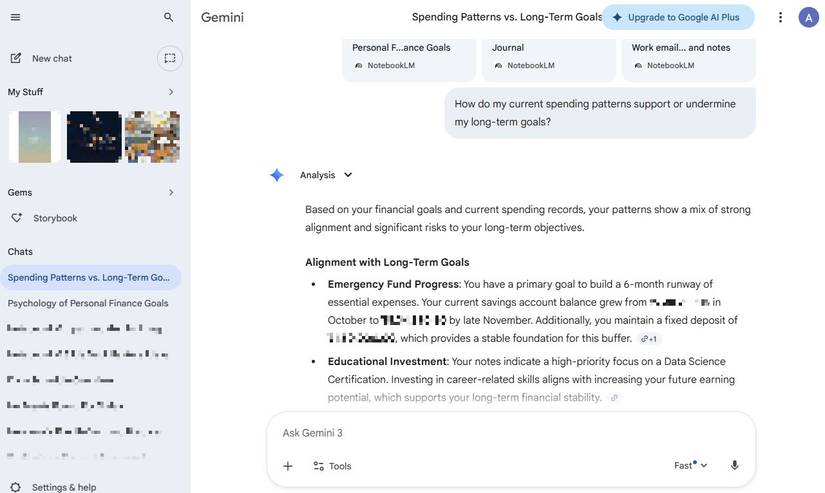
The true benefit of using NotebookLM with Gemini is evident in daily scenarios, particularly when your data is distributed across various notebooks and formats.
If I’m working on a long-term project, such as a move, budget planning, or a big work assignment, my information is rarely available in one place.
I know that multiple notebooks have information I want to reference, so I add them all to a single Gemini chat. I might add notebooks with my personal finance goals, journal entries, and a third with relevant work emails and message threads.
With Gemini pulling them into a single conversation, I can finally ask questions that span all three.
For instance, whether my goals are realistic given current expenses, or how a work deadline clashes with something I’ve already flagged as important in my journal.
Gemini pulls context from all the notebooks at once, and I can finally get answers that reflect the full picture.
Turning notebooks into a better learning system
My notes finally feel connected
Before pairing NotebookLM with Gemini, most of my old notebooks were effectively archives.
I would put effort into organizing sources and extracting summaries, but when a project ended, I rarely used those notes again.
Cross-referencing notebooks through Gemini changes that dynamic.
When I add multiple notebooks to a Gemini chat, older material suddenly becomes relevant again, because it connects to something I’m working on now.
A question about a current problem might surface insights from a notebook I hadn’t opened in months.
The best part is that I don’t need to reorganize or rewrite anything. Gemini does the connective work, pulling context from across notebooks only when it’s needed.
As a result, I’m more comfortable keeping notebooks focused, knowing they won’t become dead ends.
Even rough or incomplete sources feel worth saving, because they can still contribute later when viewed alongside other notebooks.
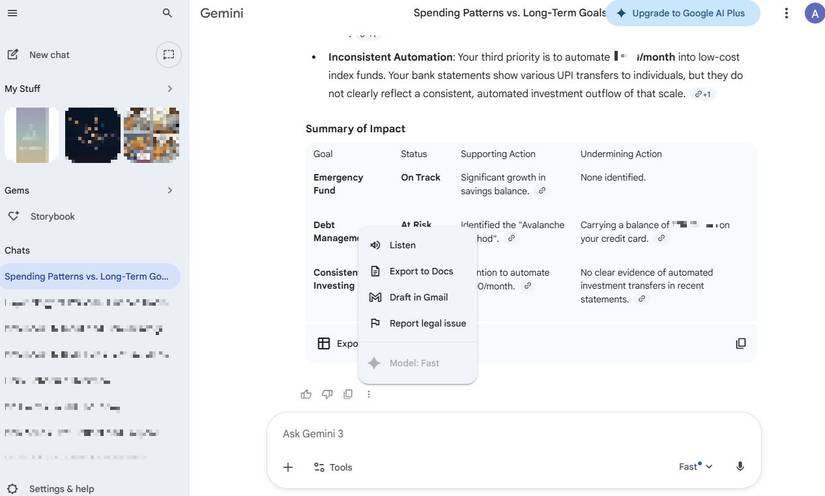
A bonus is that I can easily export the conversation directly to Google Docs. All it takes is clicking the three-dot menu icon below the chat and selecting Export to Docs.
Exporting conversations instantly turns cross-notebook insights into a document I can edit or share.

The unlikely pairing that upgraded my NotebookLM experience
NotebookLM is still where I make sense of lengthy PDFs, articles, emails, and documents.
Using it with Gemini instantly supercharges the experience by letting me reference multiple notebooks at a time.
The most significant difference is that I no longer feel pressured to over-organize or predict future use cases.
I can keep notebooks focused and even a little messy, knowing they won’t become dead ends.
When I need to make sense of something, whether it’s learning across subjects, scattered notes, or revisiting old ideas, Gemini gives me a way to analyze more than one notebook.









