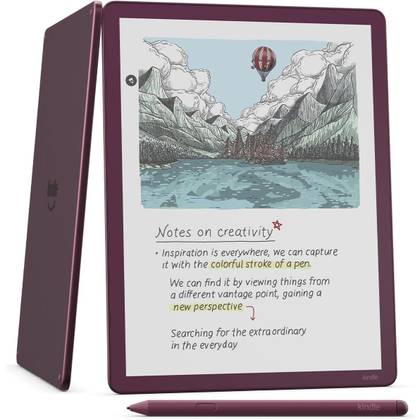
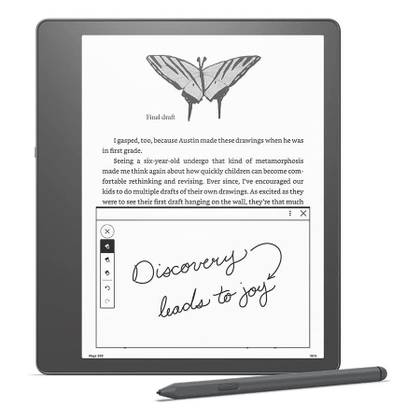
The new Kindle Scribe range is finally available, and as usual, it’s the most tempting proposition I’ve had to buy one since, well, the last Scribe.
The images promise a Scribe that will supercharge my efficiency, allowing me to make beautifully written notes, complete with diagrams, informative images, and more.
We’re all suckers for supposed productivity boosts, and the Kindle Scribe’s marketing plays off that like nobody else.
And I’m tempted. I’m always tempted. Even though I’ve been here before, many times, and I know that note-taking on a tablet sucks.
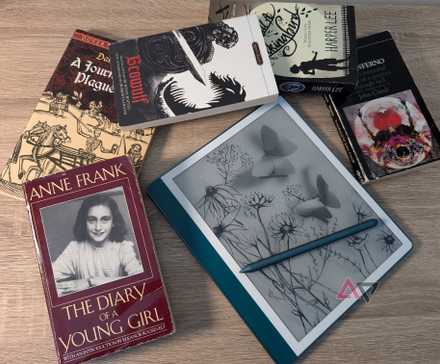
The stylus and tablet are long-time friends
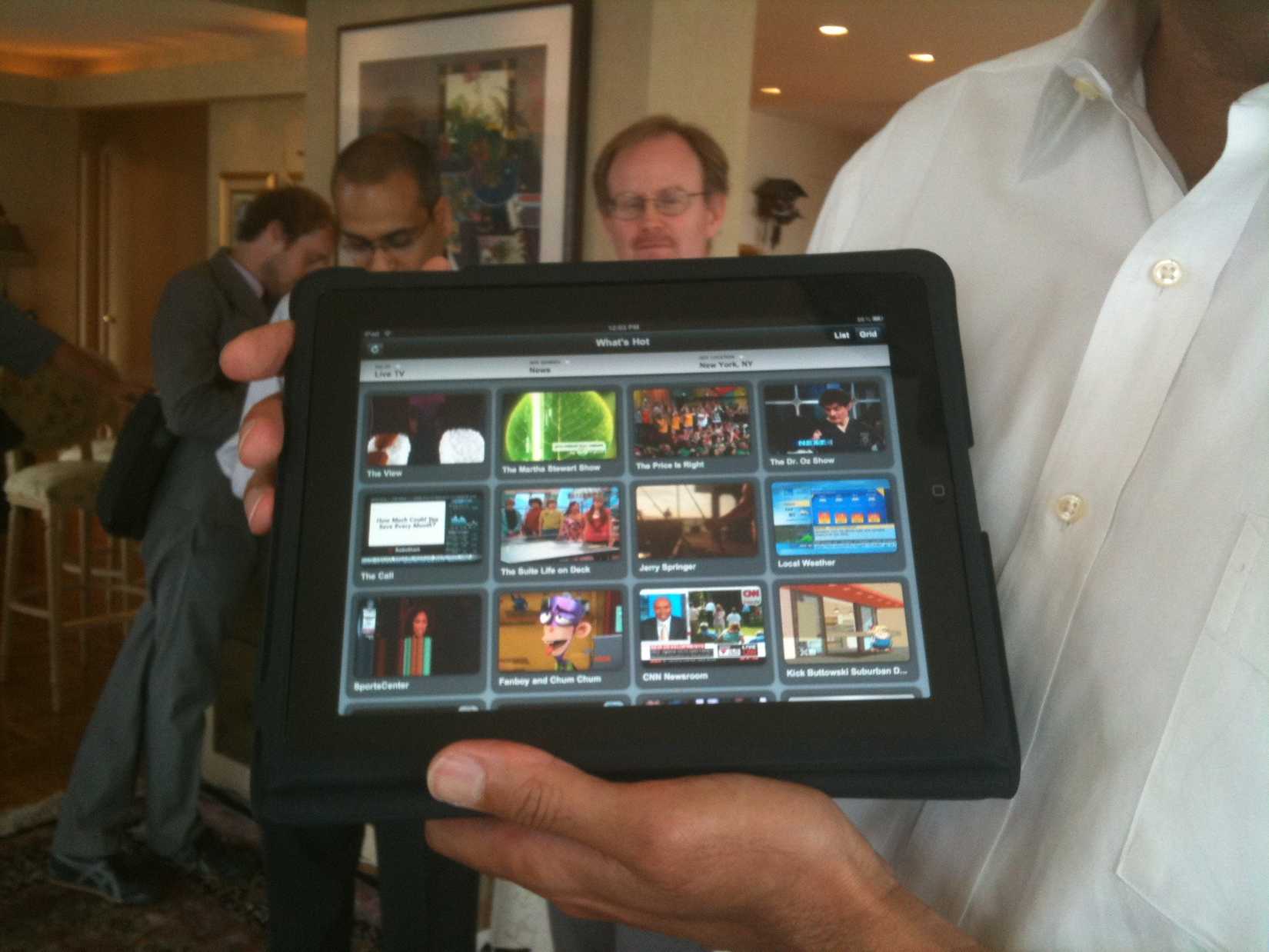
Styluses and tablets go together extremely well. It’s no surprise that the first real tablet PC line, the Microsoft Tablet PCs, came with a stylus.
But the stylus was kicked to the curb when the Apple iPad was introduced.
Apple’s tablet has dominated the tablet scene since it arrived, and we saw the influence of the stylus over the tablet wane as a result.
That was, until the introduction of the Apple Pencil.
Debuting alongside the Apple iPad Pro, the implication was obvious: The iPad Pro is a serious tablet for serious work. And if you want to be productive, you need a stylus.
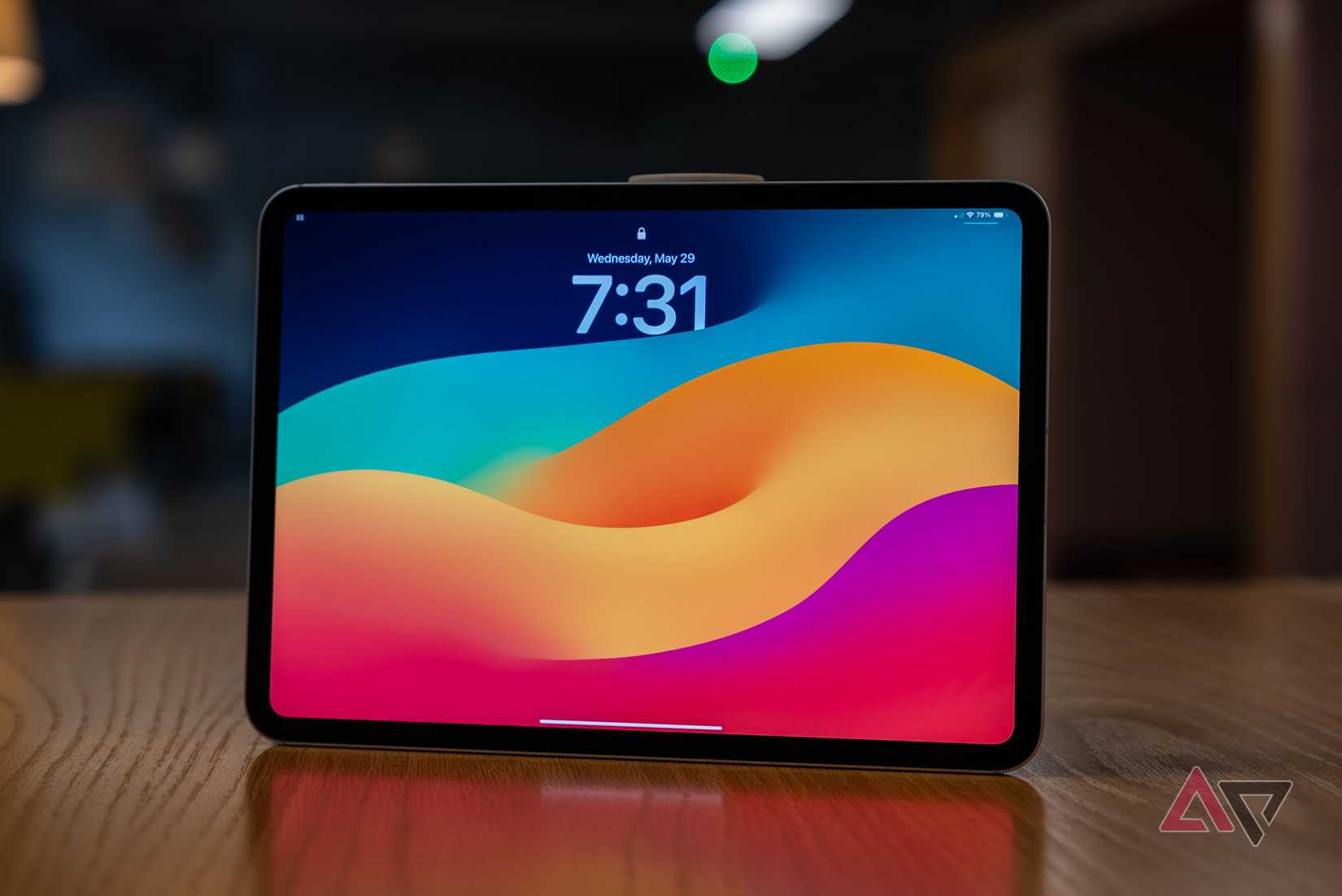
It’s not that styluses ever really went away, because they didn’t — but the introduction of an Apple-branded stylus opened the floodgates.
These days, styluses are everywhere.
While you sometimes have to buy them separately, you get them with certain e-ink tablets, with Samsung’s Galaxy Tab devices, and even on phones like the Galaxy S25 Ultra.
The idea that they’re key to productivity is most likely related to their shape and use — they’re basically a pen or a pencil, so it makes sense they’d be perfect for anything you’d use a pen or pencil for. Right?
Well, not really.
Some people like them. But I’ve found them to be, universally, a bit rubbish.
It feels nothing at all like paper
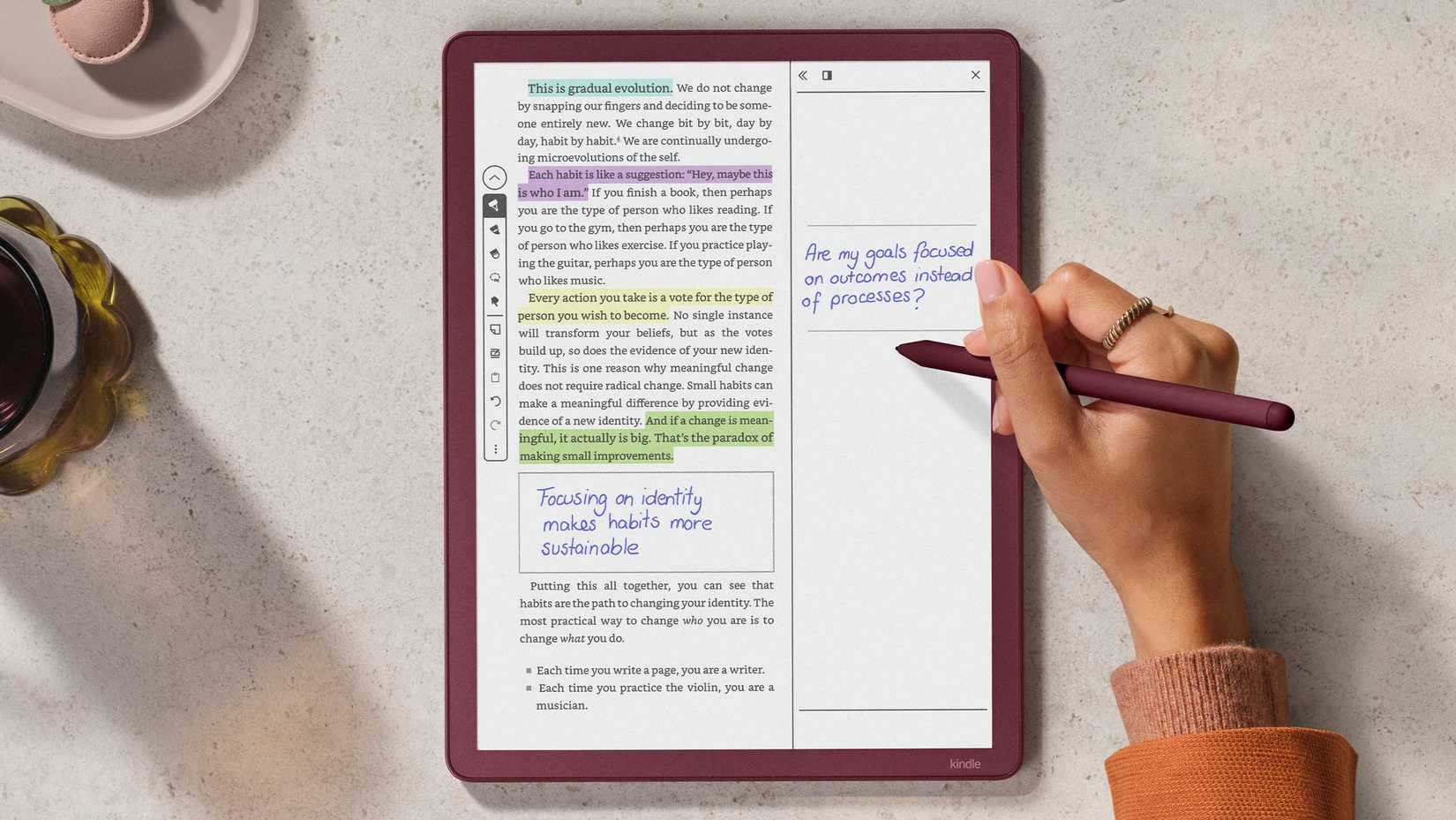
Writing on paper is something all of us have done for years. It feels natural, it feels right.
When you write on something else, like cardboard or glass, you can feel the difference. You can do it, but often, you wouldn’t want to keep doing it.
So it’s important that a tablet screen feels like glass when a stylus is used on it.
Most manufacturers will boast of having a “paper-like” feel, but I can tell you that over my years of testing several tablets, none have ever truly nailed that feeling.
The closest are, happily for Amazon, E Ink devices. But even then, there are subtle tells that something isn’t right, like lag while writing, or not quite picking up exactly what you’ve written.
It’s like the uncanny valley, but for writers.
As much as I want to embrace futuristic technology, I can never shake off the feeling that the tablet is wearing the paper version of a skinsuit.
None of the features help
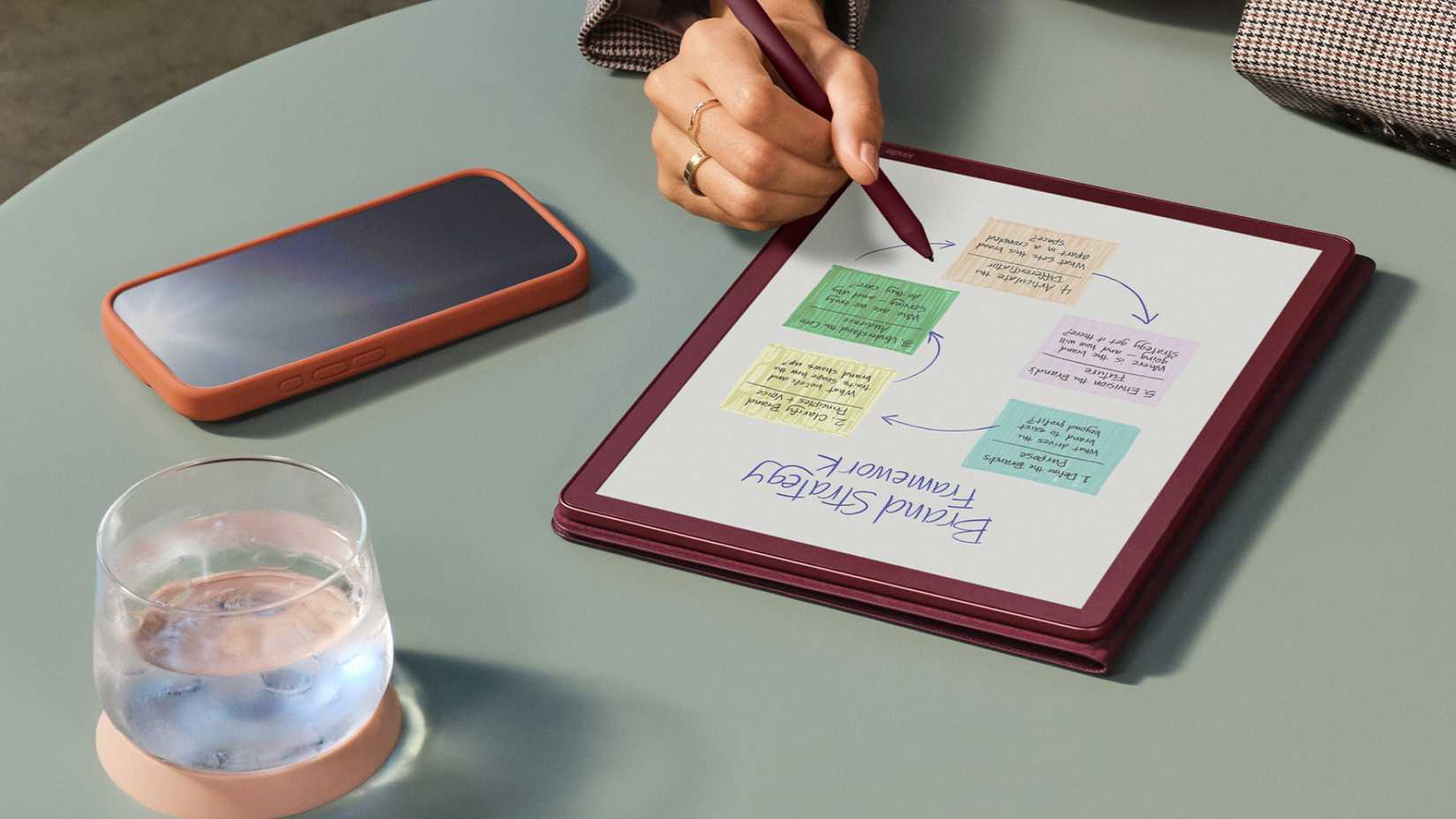
Most tablets these days have a feature that turns your borderline-illegible scrawl into neatly formatted text. And honestly, this was the feature I was excited to try.
Changing my embarrassingly bad handwriting into type is better for my ego and for anyone trying to read it.
That would be the dream.
In practice, this system works one of two ways, and while one is better than the other, neither is particularly helpful. It’s either manually triggered or it works automatically.
Automatic conversion sounds ideal. All you have to do is write, and the function cleans up after you.
In practice, it was the most panic-driven writing experience of my life.
I write in stop-start bursts, and I often take small pauses to think about what I want to say next, or reformulate what I’ve just said to fit my next sentence better.
But the tablet would take those small pauses as a chance to convert what I’d just said, which was no good if I wanted to change it or, frankly, keep writing in the same sentence.
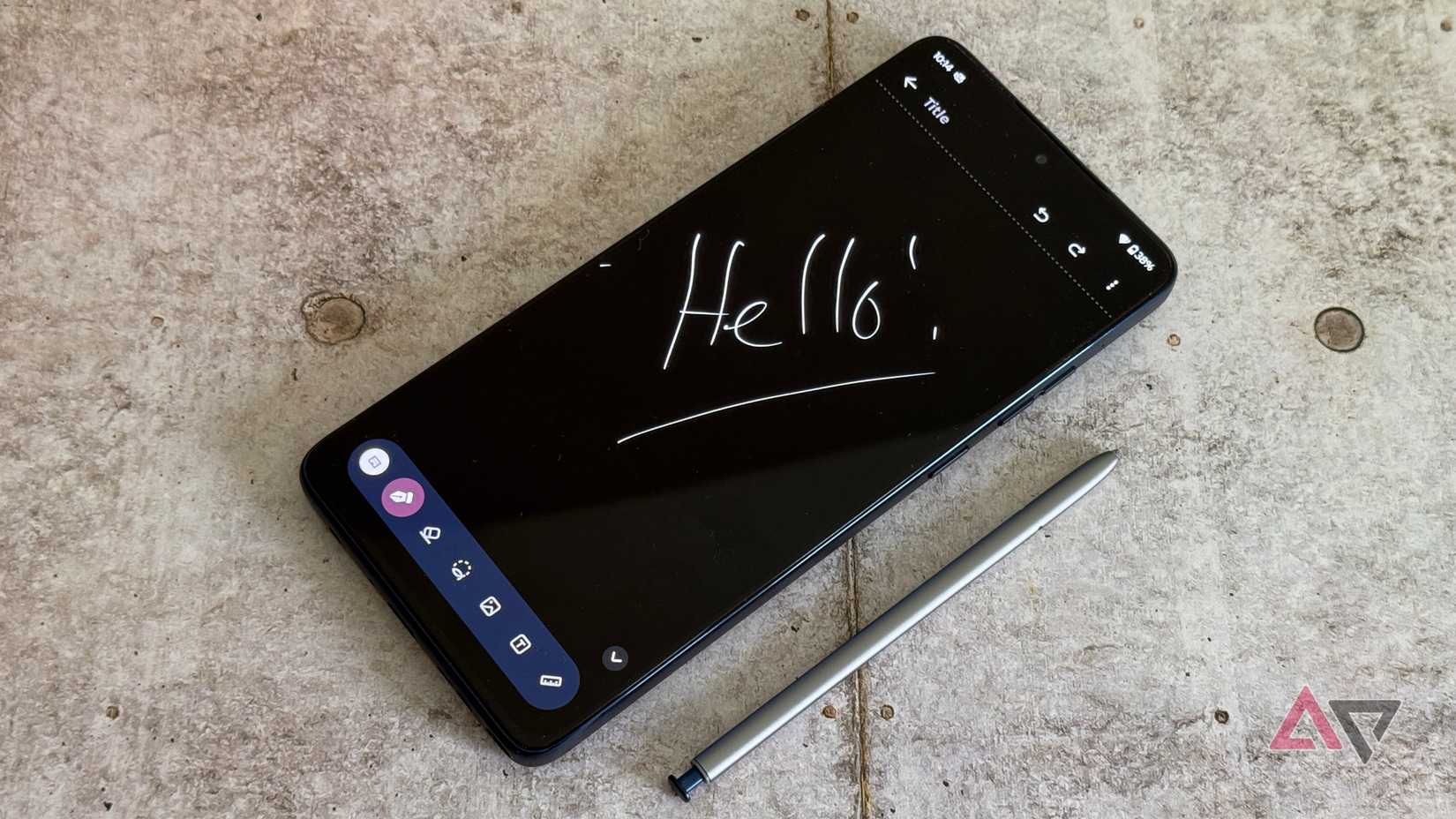
In short, it was a painful experience that made everything harder, rather than simpler.
Manual transcription is better, but I still have minor complaints that tend to stop me from using it.
For a start, it formats your writing weirdly. Because it doesn’t understand the difference between you reaching the end of the page and a line break, it just sticks a line break in there.
So, your paragraphs start looking more like haiku than anything else. Yes, that’s easy to fix, but it’s a pain having to do it every time.
This isn’t a deal-breaker by any means, but it makes my notes look a bit naff, and the extra time needed to sort it out is time that’s better spent elsewhere.
A stylus is a useful tool — just not for writing
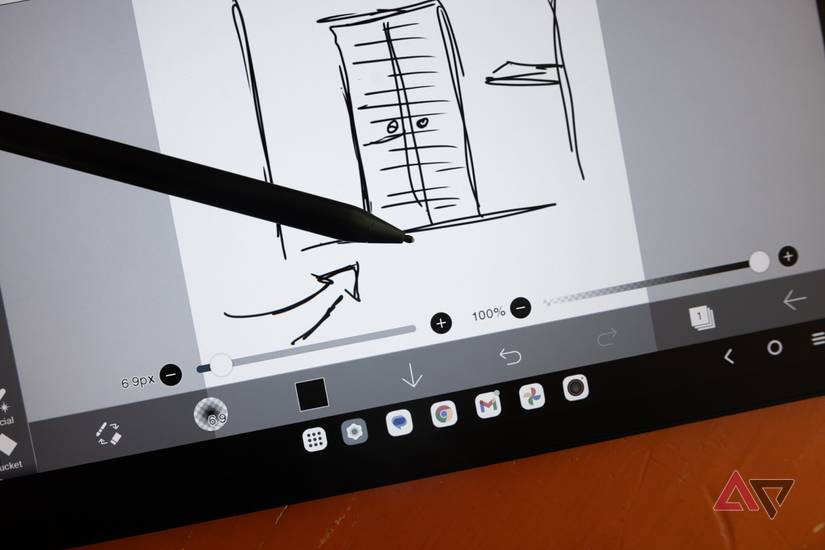
I hate writing this because I love a good stylus. They’re useful tools to have and they have their own dedicated fans who love them.
Yet, as useful as they are for drawing or for fine detail work, they’re still just not good enough as writing implements.
It’s worth pointing out that using a stylus and tablet as a note-taking device does work. It’s functional and could work in the right circumstances.
But the key point here is that it doesn’t work well enough to be a good replacement for the humble pen and paper.
Functionally, it is, but the little headaches that I’ve described detract from the experience enough that I wonder why I’m bothering in the first place.
The advantages, such as they are, aren’t enough to tip the balance in my eyes.
Spend your money wisely
So if you’re planning on dropping some serious cash on the Kindle Scribe Colorsoft or something similar for its note-taking ability. Maybe think twice. Save yourself a lot of money and buy a pad of paper and a pen instead.
-

Amazon Kindle Scribe Colorsoft
- Screen
-
11″ glare-free with color display
- Resolution
-
300 ppi (black & white), 150 ppi (color)
- Storage
-
32 GB or 64 GB
- Front Light
-
Yes
- Battery Life
-
Up to 8 weeks of reading. Up to 2 weeks of writing
With the Scribe finally available in color, nothing will hold you back as you take notes, draw, and read your Kindle collection.
-
Source: Amazon Amazon Kindle Scribe
- Screen Size
-
10.2″, Paperwhite
- Resolution
-
1872 x 1404
- Storage
-
16, 32, or 64GB
- Supported formats
-
AZW3, AZW, TXT, PDF, MOBI, PRC, PDF, DOCX, DOC, HTML, EPUB, TXT, RTF, JPEG, GIF, PNG, BMP, AAX
- Connections
-
USB-C
- Battery
-
3,000mAh
The new Amazon Kindle Scribe takes e-readers to the next level with a basic and premium stylus meant for pristine handwritten note-taking. It’s the first Kindle that allows you to take your own notes from scratch — and append your favorite books or important paperwork. The secret behind this fantastic writing capability is an E Ink Carta 1200 e-paper display with a WACOM layer for exceptional precision and responsiveness. It’s also outfitted with a slate of high-end features such as adjustable warm light, auto-adjusting brightness, backlights for consistent imaging, and high-speed dual-band wireless connectivity. Due to its metal body and flush front, the Kindle Scribe e-reader looks and feels like a high-end piece of equipment, and if you can afford the high cost, there’s almost no reason not to consider it. Compared to other models, the new Scribe’s only real drawbacks are the lack of waterproofing and no physical page-turn buttons.