


Texting should be the easiest thing I do on my phone. And yet, my Google Messages inbox had slowly turned into a source of background stress.
I realized I was spending more time managing my messages by scrolling endlessly, re-reading threads, and mentally bookmarking things I didn’t want to forget.
So, I did what I usually do when an app starts to feel overwhelming: I went looking for shortcuts, hidden settings, and features most people ignore.
Here’s how a few gestures and overlooked tools made texting on my phone feel faster.

Pinning conversations so the important chats never get buried
The most crucial improvement came from pinning conversations.
Google Messages lets you pin a few chats at the top of your inbox, which means the people and threads that matter don’t get pushed down by OTPs, delivery alerts, or one-off conversations.
Long-pressing a chat and tapping the pin icon brings it to the top. After I did this, I stopped treating every incoming message as equally important.
Family, close friends, and work threads stayed visible. Meanwhile, everything else naturally drifted down.
Now, instead of everything competing for attention, there’s a clear hierarchy.
Sending texts from your desktop without picking up your phone
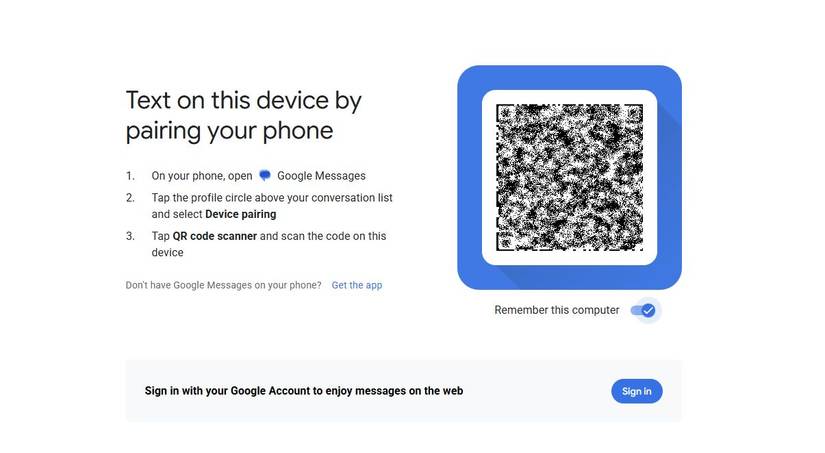
Another feature that genuinely lowered my messaging stress is the ability to send and receive texts from my computer using Google Messages for web.
Instead of constantly reaching for my phone while working, I can keep conversations going from the same screen I’m already using.
To set it up, open Google Messages on your phone and tap the profile icon in the upper-right corner. Select Device pairing, then scan the QR code shown at messages.google.com/web on your computer.
When paired, your conversations appear instantly in the browser, and you can start texting right away.
After you set it up, your messages sync in real time. New texts appear in the browser, you can reply with a proper keyboard, and longer messages stop feeling like a chore.
It’s useful during work hours, and quick confirmations, delivery updates, or ongoing chats don’t break my focus the way phone notifications usually do.
When I’m deep into writing or research, responding from my desktop keeps me in the same mental flow rather than switching devices.
Swipe actions that speed up texting
Swipe gestures in Google Messages are easy to miss, but after you start using them, they make organizing your texts a breeze.
Instead of long-pressing or hunting through menus, a quick swipe lets you deal with conversations in seconds.
By default, swiping a conversation lets you archive it. It is perfect for one-time OTPs, delivery updates, or customer support chats you’ve read but don’t want to delete.
Your inbox remains organized without losing those messages permanently, and archived threads are always easily accessible later.
What makes this feature helpful is that swipe actions are customizable. To choose what a swipe does, tap the profile icon and go to Messages settings > Swipe actions. Tap Customize to modify the action.
I set swipe left to archive and swipe right to delete. Archiving is something I do far more often, and it’s reversible if I change my mind. Deleting, on the other hand, is intentional and final.
Making archiving the easier gesture means I can clear my inbox quickly without the anxiety of accidentally losing a conversation.
Now, I deal with messages as they come in and clean things up in seconds without overthinking.
Scheduling messages removed the pressure to reply immediately
One of the most underrated features in Google Messages is message scheduling. Instead of relying on memory, or worse, sending a text at the wrong time, you can write it once and pick a time.
I use this when I think of something at an inconvenient moment, whether it’s late at night or too early in the morning.
Rather than saving a draft or mentally tracking everything, I schedule the message and move on.
To use it, type your message as usual, then long-press the Send button. Google Messages will offer a few suggested times (like tomorrow morning) or let you choose a custom date and time.
When scheduled, the message sits in the chat until it gets sent automatically.
Now, I no longer need reminders for follow-ups, worry about forgetting birthdays, or hesitate before sending a message due to timing.

Texting without the mental clutter
After exploring Google Messages more deeply, I was surprised by how much smoother texting started to feel when I used them together.
Pinning crucial conversations, sending messages from my desktop, using swipe actions intentionally, and scheduling texts reduced the tiny decisions that usually pile up while messaging.
Instead of responding to every notification immediately, I now have a system where relevant conversations remain visible and routine replies no longer disrupt my day just because my phone is buzzing.











