


Kamso Oguejiofor
Updated on: November 29, 2025
Fact-checked by Kate Davidson
Short on time? Here’s how to set parental controls on Google Play Store:
- Get a reliable parental control app. I recommend Qustodio — it provides comprehensive coverage across Google Play Store content, including apps and videos.
- Download the app onto your device. Create an account and add a profile for your child.
- Set up the app on your kid’s device. Accept the necessary permissions, allowing you to supervise your child’s activities through the app.
- Define rules and limits. You are now prepared to monitor your child’s use of the Google Play Store effectively!
Google Play Store comes equipped with built-in parental control features that allow you to impose restrictions on your child’s account. However, while these native features are ok, they don’t offer full protection. By pairing the Play Store’s features with a quality parental control app, you’re equipping your kid’s device with a formidable line of defense.
I tested several of the leading parental control apps on the market, and Qustodio emerged as the top contender for Google Play Store. Its features enable you to monitor and limit your child’s activities easily and effectively. Plus, it provides a user-friendly app for Android devices and a risk-free 30-day money-back guarantee.
Are Google Play Store’s Built-In Parental Controls Good Enough in 2025?
Google Play Store’s built-in parental controls are pretty good. They allow you to restrict access to apps and games based on age ratings, filter explicit music and book content, and even prevent in-app purchases, which can keep unexpected costs at bay. These controls are straightforward to set up and apply directly to your child’s account.
However, they have their limitations. These controls are solely confined to the Google Play Store and don’t cover the broader scope of your child’s online activity. For instance, they do not offer web filtering, time management, location tracking, or social media monitoring. Plus, they don’t offer the granularity that some parents desire. They limit the content based on preset age categories, which may not perfectly align with the individual maturity of your child. The best parental control apps come with all of these features and allow for much greater customization.
Overall, third-party parental control apps offer a comprehensive range of controls and monitoring features that extend beyond the scope of Google Play Store. These apps can be customized more extensively and provide a holistic view of your child’s digital behavior, making them a more effective solution for most parents in 2025.
Quick Summary of the Best Parental Controls for Google Play Store



How to Set Parental Controls on Google Play Store (Directly on the Play Store App)
Preliminary Step: Create a Google Account For Your Child
To set parental controls for your child on Google Play, your child needs to have a Google account. If your child doesn’t have an account yet, you can create one through the Google Play Store app. Open the app and tap on Sign in > Create account.
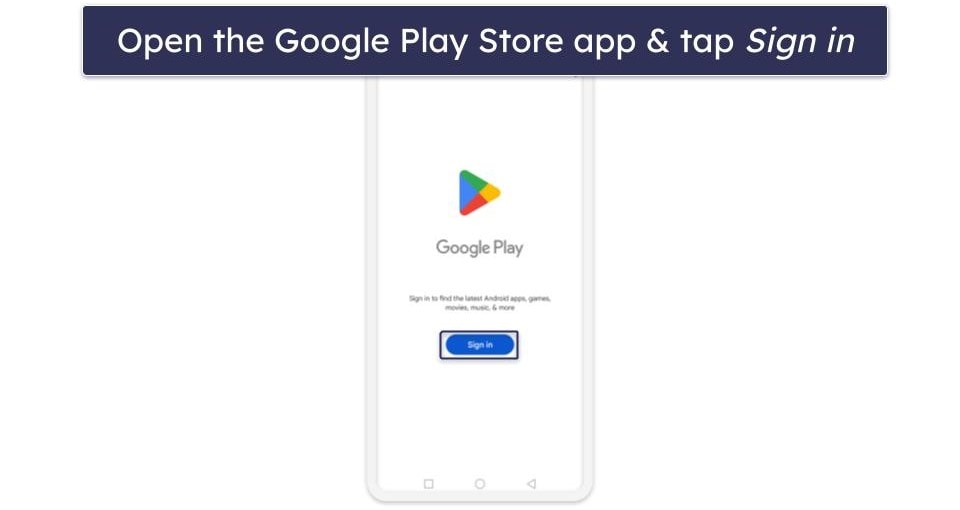
Step 1. Open the Google Play Store App on Your Child’s Device
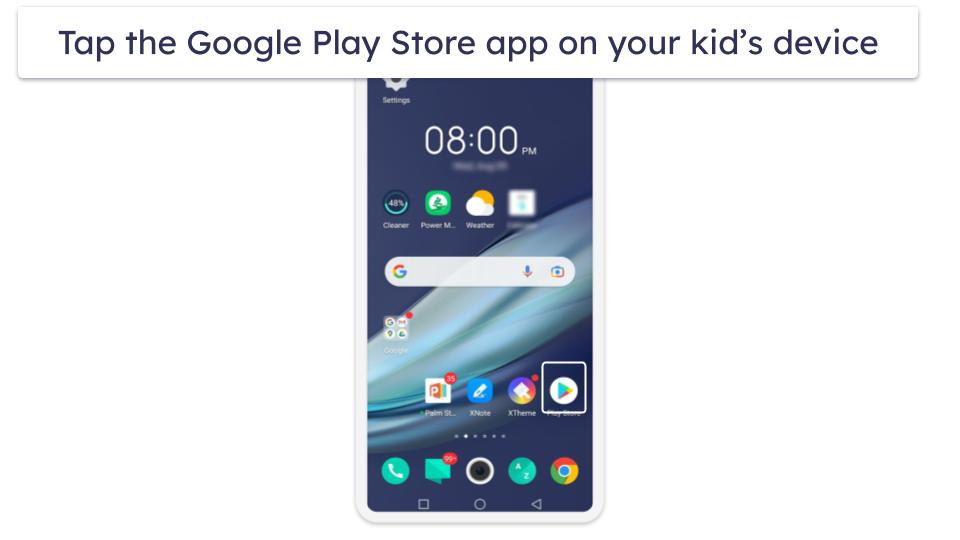
Launch the Google Play Store application on your child’s Android device. You can find its icon, which typically resembles a colorful play button on a white background, either in the device’s app drawer or prominently on the home screen.
Step 2. Tap on Your Child’s Profile Icon at the Top Right
At the top right of the Google Play Store’s main screen, you’ll find your child’s profile icon. This is a representation of your child’s Google account and might show the first letter of their email address or their profile picture if they’ve set one.
Step 3. Navigate to the Parental Controls
Once you’re in the profile section, scroll down to Settings. Within Settings, you’ll find the Family drop-down category. Tapping it reveals the Parental Controls option.
Step 4. Turn On Parental Controls
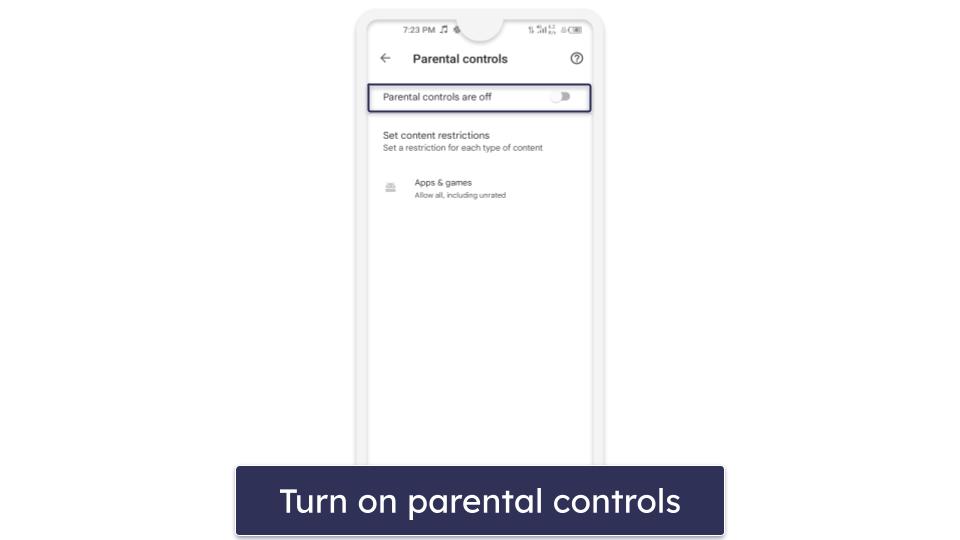
Within the Parental Controls section, there’s a toggle. Switching this on activates the feature, allowing you to set up restrictions for content on the Play Store.
Step 5. Set a PIN That Your Child Is Not Aware of to Protect These Settings
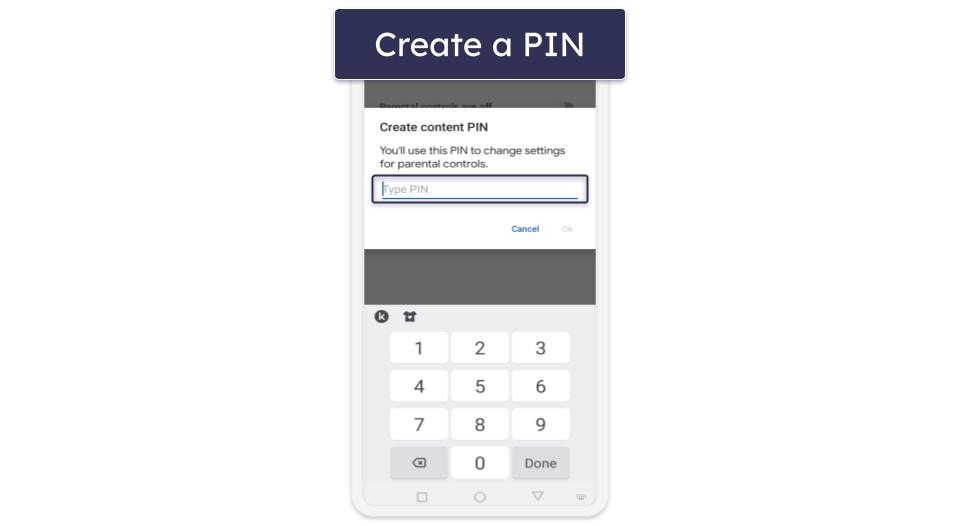
Google Play will prompt you to set a protective PIN to help prevent unauthorized changes to these settings, especially by tech-savvy kids. Make sure this PIN is something your child can’t easily guess.
Step 6. Choose the Category of Content You Wish to Filter
You’re presented with various content categories, including apps, games, movies, and books. Select which categories you want to impose restrictions on for your child.
Step 7. Select How You Want to Filter or Restrict Access

For each chosen category, Google Play allows you to define access levels. These can be based on age ratings or specific content warnings, allowing for granular control over what’s accessible.
How to Set Parental Controls on Google Play Store Via Google Family Link
Preliminary Step: Set Up Google Family Link
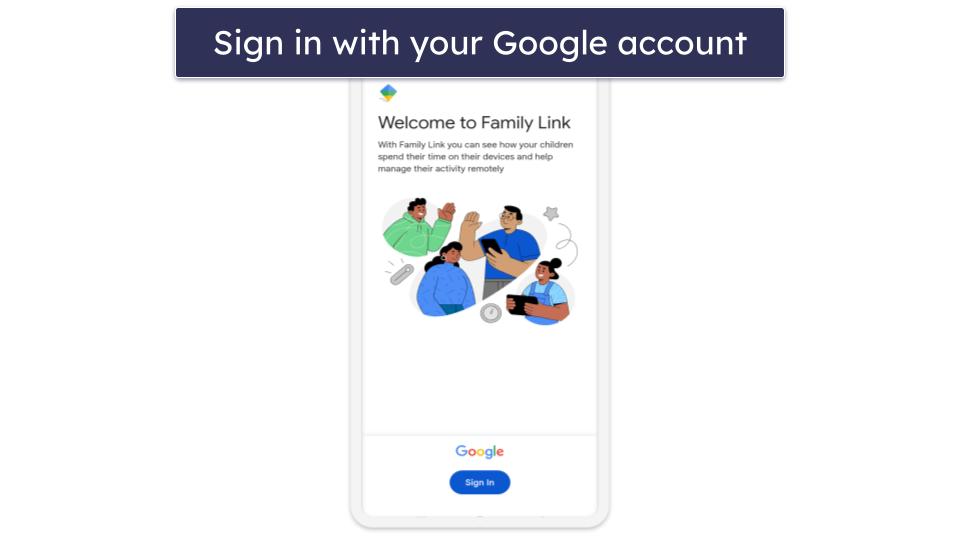
First, download and install the Google Family Link app on your device. Then open the app and log in with your Google account.
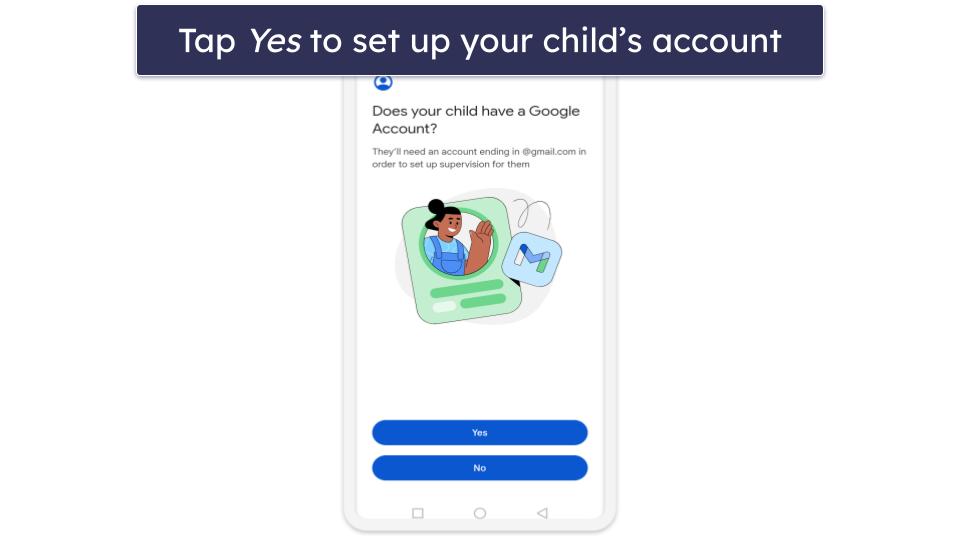
Next, you’ll be asked if your child has a Google account. If they don’t, tap on No and create one for them. If they do, tap on Yes, and you’ll be directed to a page with setup instructions. Follow the instructions to link your child’s device/Google account to your Family Link app.
Step 1. Open the Family Link App on Your Device

Open the Google Family Link application on your device. This separate app by Google offers enhanced parental control features and will integrate with your child’s device.
Step 2. Select Your Child’s Profile and Navigate to the Google Play Controls
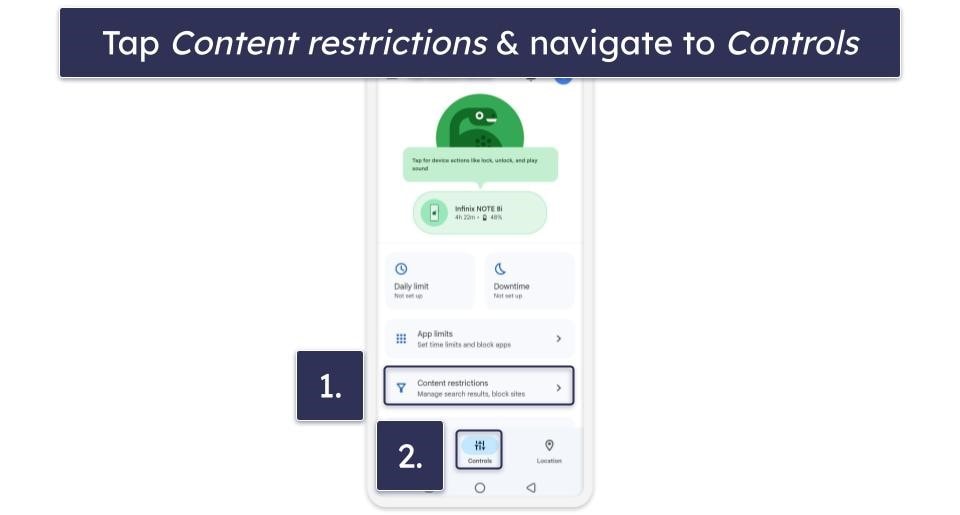
Upon launching, the app shows all child profiles linked to your main Google account. Pick the profile of the child for whom you wish to set or adjust controls. Within the chosen child’s profile, navigate to the Controls section. Here, you’ll find an array of control options, including Content Restrictions. Within the Content Restrictions category, select the Google Play option.

Step 3. Select the Type of Content You Wish to Filter
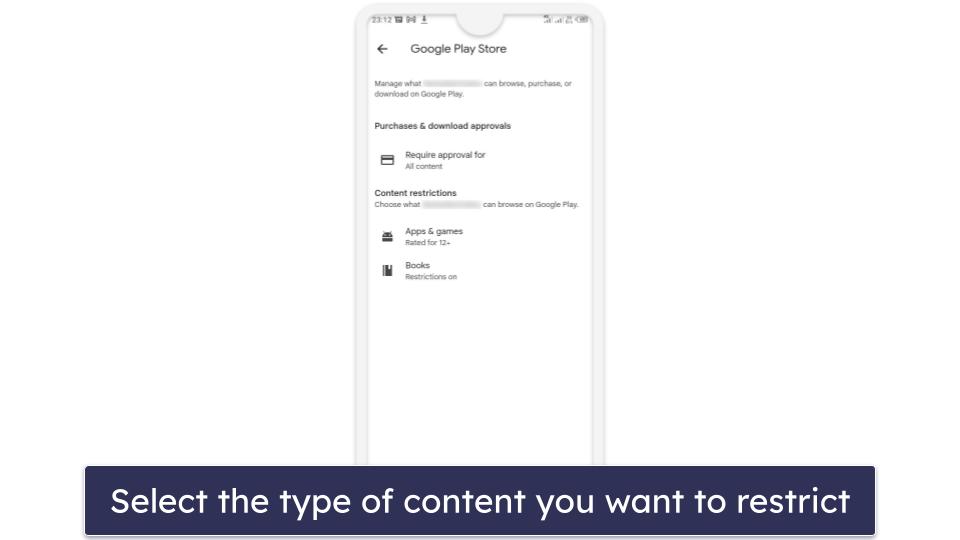
Similar to the native Google Play controls, Family Link presents you with a list of content types. Depending on your child’s age and your preferences, choose the content type you intend to filter.
Step 4. Set How You Want to Filter or Restrict Access
Once you’ve opted for a specific content type, the app will give you filtering options. Whether it’s age-appropriate ratings or specific content flags, select the ones that align with your parental concerns. Once you’ve done this, those restrictions will automatically be placed on your child’s Google Play Store activity.
Tried Setting Up Google Play Store Parental Controls, But They’re Not Working? Try These Troubleshooting Steps
1. Verify your PIN. Ensure you’re entering the correct parental control PIN. If you’ve forgotten it, you may have to clear the Google Play Store’s data from your device’s settings. Remember, this will also clear your app preferences and settings.
2. Check your child’s account type. Confirm that the Google account your child is using is indeed set up for a minor. Google Play Store may not enforce parental controls for accounts that are not recognized as belonging to minors.
3. Review your filters. Make sure you have selected the correct content categories and filtering options. A minor misstep here could leave some content unfiltered.
4. Check the app is installed correctly. For third-party parental control apps like Qustodio, ensure the app is installed correctly on both your device and your child’s device. If not, uninstall and reinstall the app.
5. Grant necessary permissions. Check that you’ve granted all necessary permissions to the third-party parental control app. These apps require various permissions to function correctly.
6. Update your software. Ensure your device’s operating system and the Google Play Store app are both up-to-date. Outdated software could interfere with the functionality of parental controls.
Can Kids Get Past Parental Controls on Google Play Store?
Parental controls on Google Play Store are a powerful tool for maintaining control over the content your child consumes; however, it’s not uncommon for tech-savvy kids to find workarounds. Here are a few ways kids may attempt to bypass these controls:
1. Using a VPN. Tech-savvy kids can use VPNs to get around parental controls and hide their online activities.
2. Using a different device. Children can access unfiltered content by using a device that doesn’t have parental controls enabled.
3. Creating a new account. They might create a new Google account and access the Play Store with it. This new account wouldn’t be subject to the parental controls applied to their primary account.
4. Downloading apps from unofficial sources. Google Play Store is not the only place to download apps. Some children might attempt to install apps from third-party sources, thereby bypassing Play Store restrictions.
This is where third-party parental control apps like Qustodio come in handy. Qustodio monitors and restricts a wide array of activities, not just those within the Google Play Store.
For instance, it offers cross-platform compatibility, preventing kids from simply switching devices to bypass controls. It also monitors social media activity and tracks the device’s location. What’s more, while tech-savvy kids may attempt to circumvent Qustodio’s web filtering using a VPN, in my tests, even top VPNs like ExpressVPN and Private Internet Access couldn’t get around Qustodio’s web filtering.
Editor’s Note: Intego, Private Internet Access, CyberGhost and ExpressVPN are owned by Kape Technologies, our parent company
Frequently Asked Questions
Can you set up parental controls on the Google Play Store?
Yes, you can. The Google Play Store provides a built-in parental control feature that helps parents monitor and manage their children’s activities and access on the platform. By enabling parental controls, you can restrict access to certain categories of content such as apps, games, movies, TV, and music. In addition, parental controls on Google Play Store can help you prevent unauthorized or accidental in-app purchases by requiring authentication for these purchases. While these controls provide an initial layer of protection, for more comprehensive oversight you should consider a parental control app like Qustodio.
How do I set parental controls on Google Play?
First, open the Google Play Store app on your device. Next, tap the profile icon at the top right corner of your screen. Then, navigate through Settings > Family > Parental Controls. Here, you’ll see an option to turn on parental controls. You’ll be asked to create a PIN that your child doesn’t know. Once you’ve created and confirmed your PIN, you can select the type of content you want to filter and choose how to filter or restrict access.
How do I stop my child from downloading apps on Google Play?
You can prevent this by using the platform’s parental control settings. Within the parental controls, you can select the “Apps & games” category and choose the appropriate age rating for your child. Once this setting is enabled, any apps or games outside of this chosen age rating will require your approval (through the PIN you set up) to be downloaded. For more control, consider using a third-party parental control app like Qustodio, which allows you to monitor app downloads, app use, and much more.
How to remove parental control on Google Play?
To remove parental controls on Google Play, go back to your Google Play Store app and tap on the profile icon at the top right corner. Navigate to Settings > Family > Parental Controls. Here, you’ll need to enter the PIN you set up when you turned on parental controls. After entering your PIN, you can simply toggle the parental controls option off. Please note that turning off the parental controls will remove any content restrictions in place, and you should do this only if it’s necessary or if you’re planning to set up a more comprehensive parental control system like Qustodio.










