
Updated on: February 5, 2026
Fact-checked by Kate Davidson
Google Password Manager is a free and user-friendly password manager that lets you manage your saved passwords in Google Chrome. It’s built into Chromebooks, and you can also access it on Windows, Mac, Linux, Android, and iOS by simply downloading the Chrome browser.
In this guide, I’ll teach you all you need to know about managing passwords in Chrome — including how to view, edit, delete, or export saved passwords, and more.
That said, Google Password Manager lacks important features like password sharing and emergency access, and its dark web monitoring is very basic — these are features that the best password managers in 2026 all provide. I highly recommend RoboForm for managing your passwords, as it offers excellent security and some of the most accurate form-filling I’ve ever tested. Plus, it integrates nicely with Google.
How to Access Saved Passwords in Chrome on Any Device
PC, Mac, or Chromebook
It’s pretty fast and simple to find saved passwords in Chrome on Windows, Mac, or Chromebook. Here’s how:
- Click on the 3 vertical dots on the top right of the window.
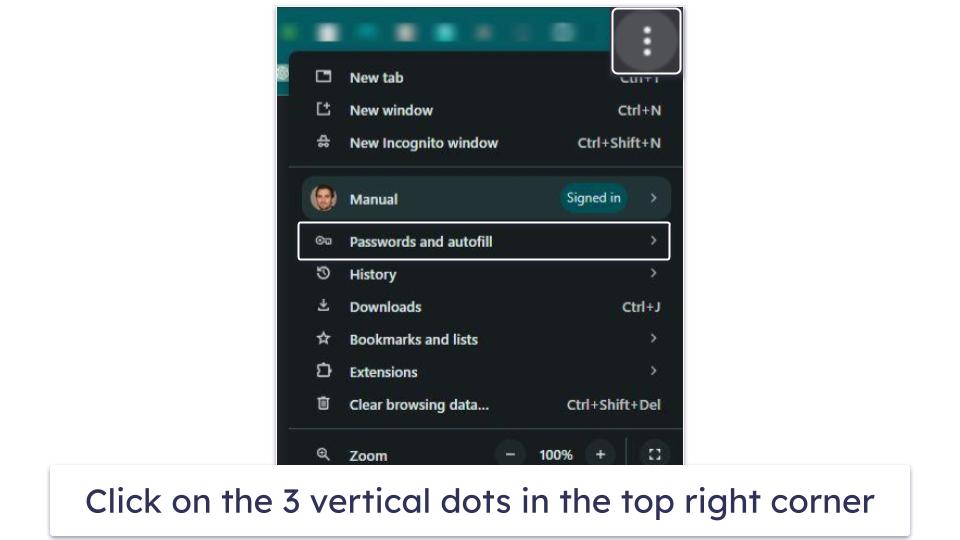
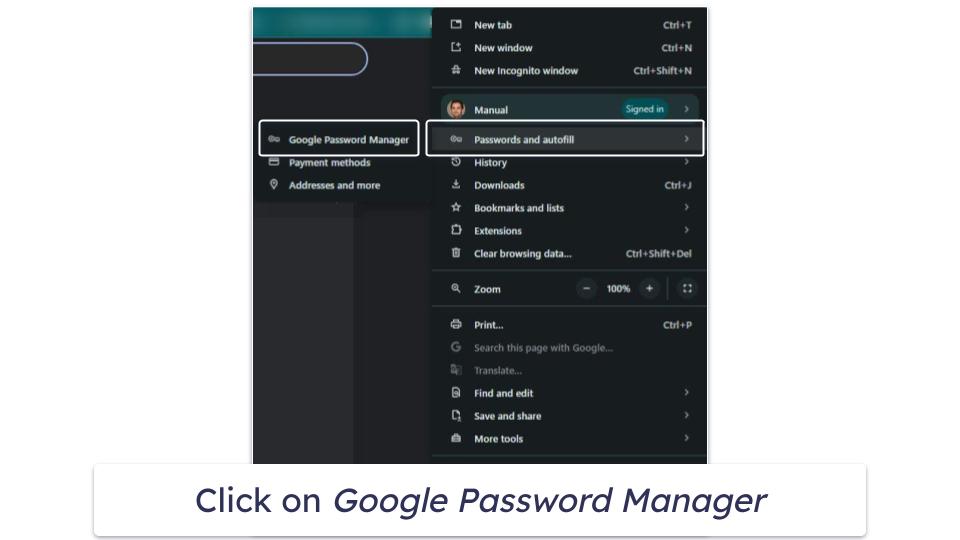
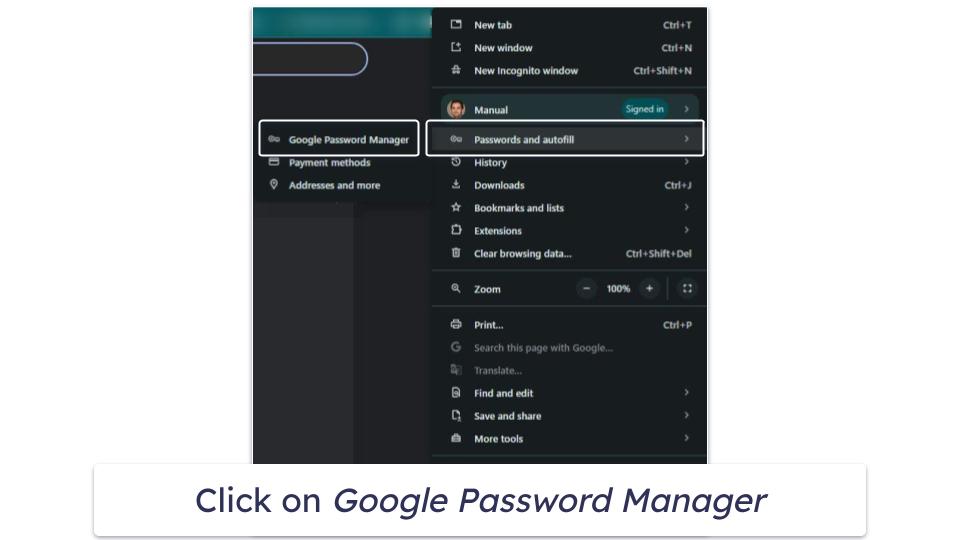
- Move your mouse over Passwords and auto-fill, then click Google Password Manager.
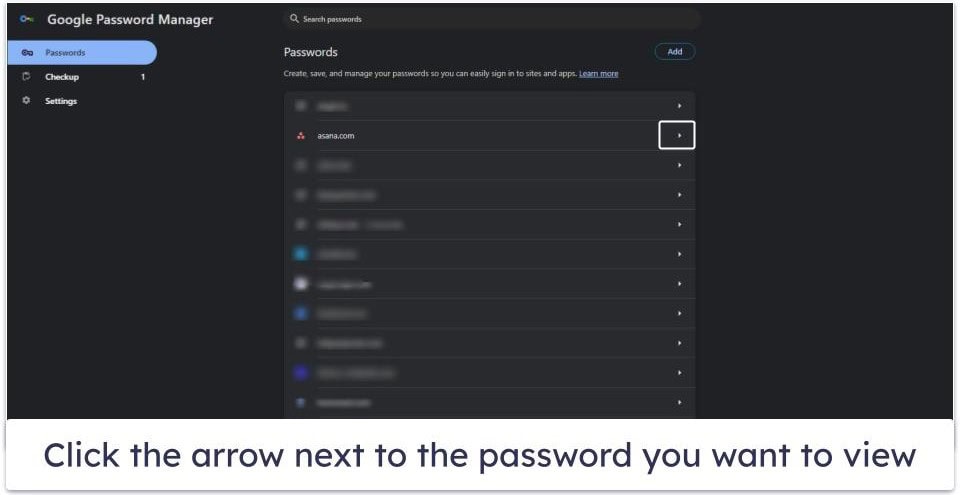
- Scroll down the list of your saved passwords and click the arrow next to the password you want to view.
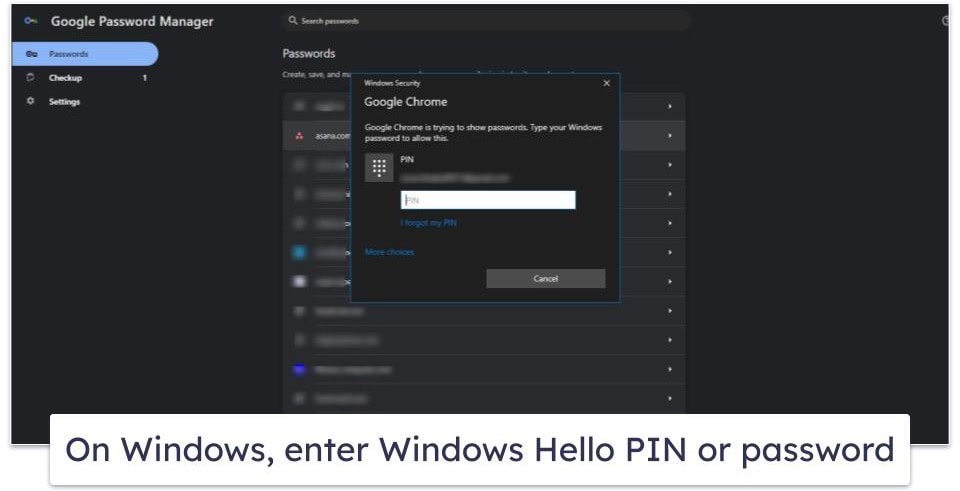
- Use your device’s biometric / authentication method, then click OK. For example, on Windows, you should enter the Windows Hello PIN or password.
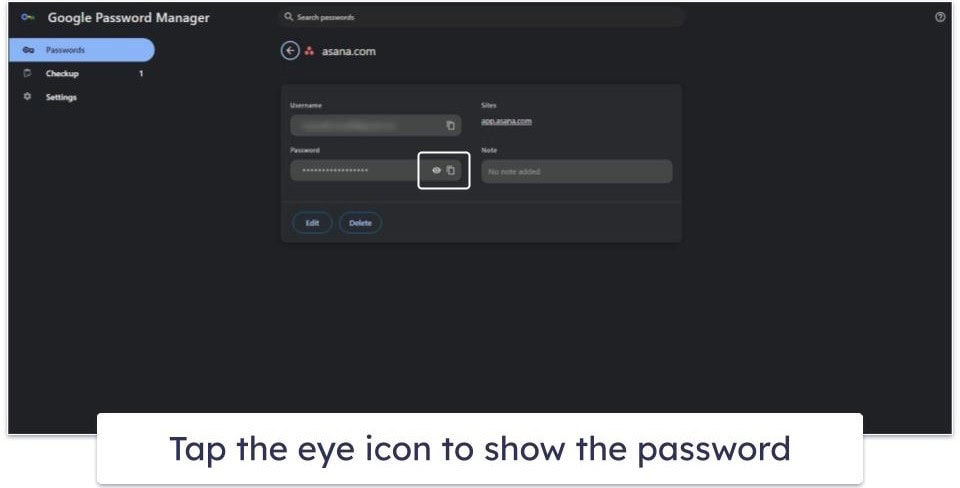
- Tap the eye icon to view the password and then copy icon to copy the password or username to the clipboard.
Smartphone or Tablet
Whether you’re using an iPhone or Android device, the steps to view your saved passwords are the same. Here’s what you need to do:
- Open Chrome on your device.
- Tap the 3 horizontal dots (⋮) in the top right, then tap Settings.
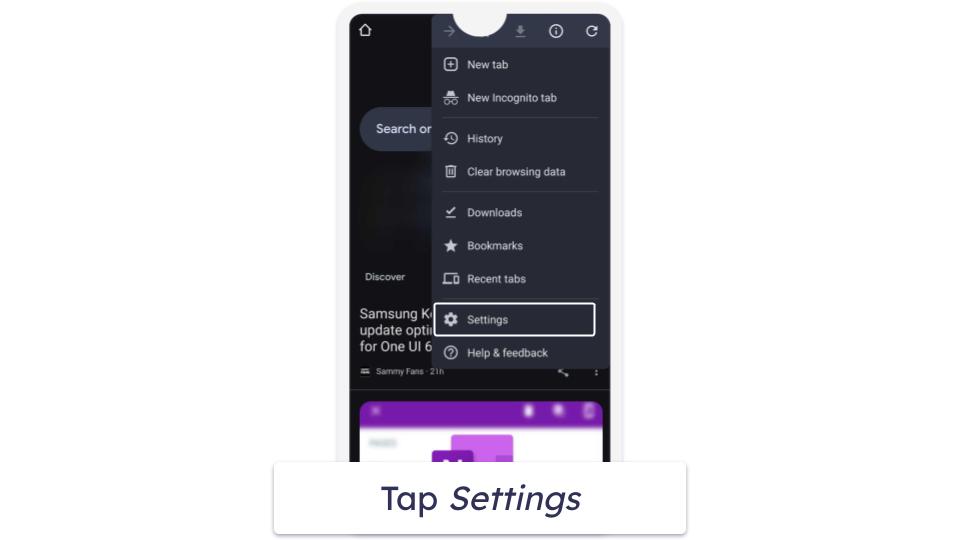
- Tap Password Manager.
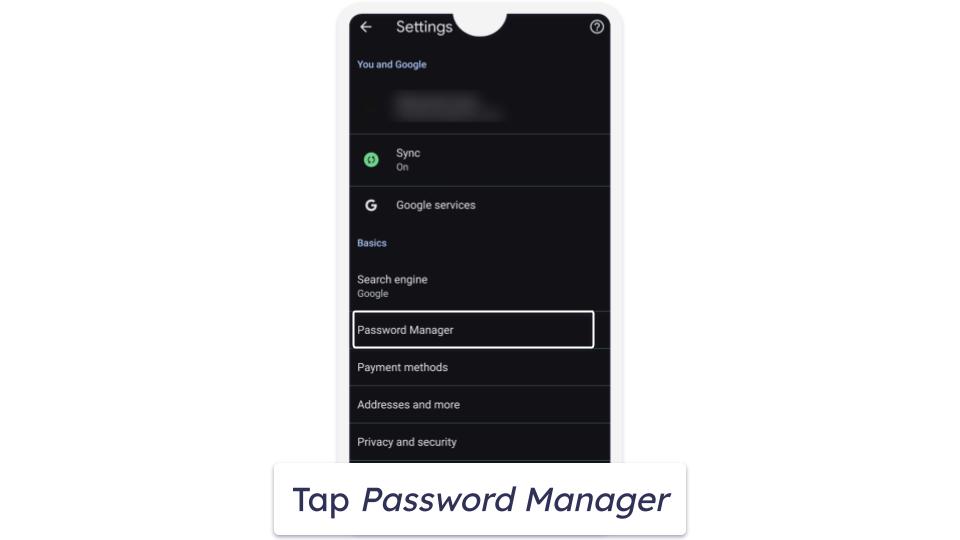
- Scroll through your saved passwords and select the account you want to view. You can also search for the password by typing the site name in the search bar. Keep in mind that you’ll be prompted to use your device’s authentication feature to be able to view the password.
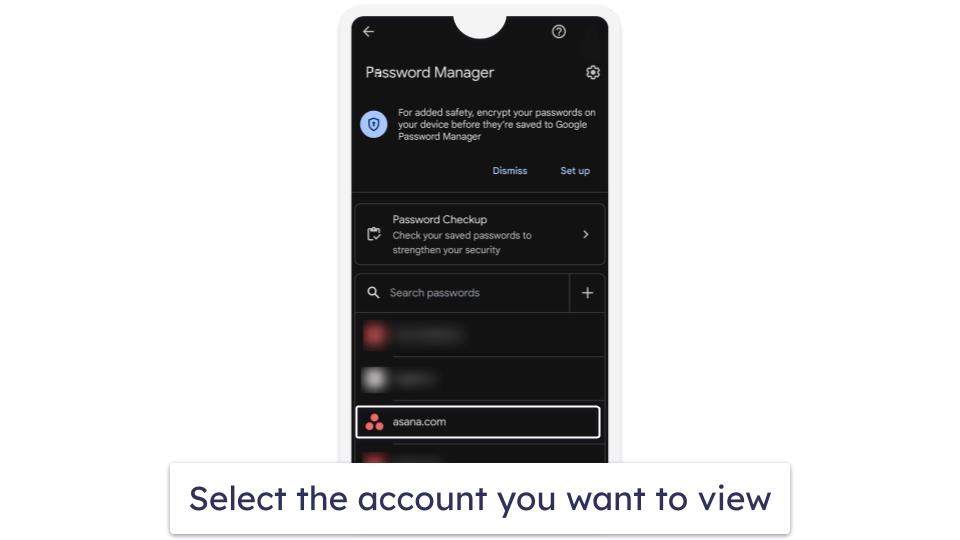
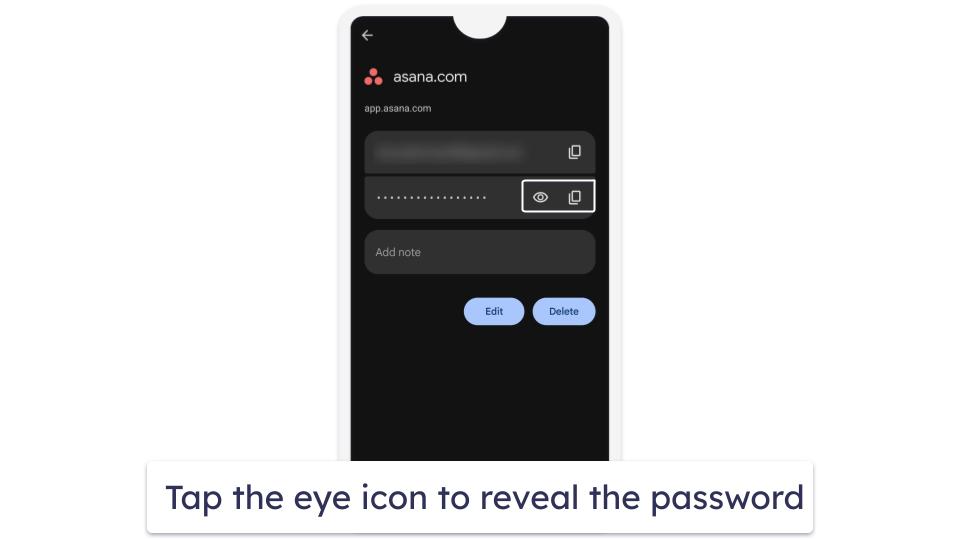
- Once you confirm your identity, an overview screen will appear with the account name and saved password hidden by default. To reveal the password, simply tap the eye icon. You can also copy the password to the clipboard to paste it elsewhere by tapping the copy icon.
How to Access Saved Passwords Without the Chrome Browser (Android only)
Google added a setting that lets you easily access your saved passwords on Android devices without having to use the Chrome browser. All you need is to create a shortcut on your home screen that will take you directly to the Password Manager page. To manage your passwords with ease, simply follow the steps below:
- Open the Chrome app.
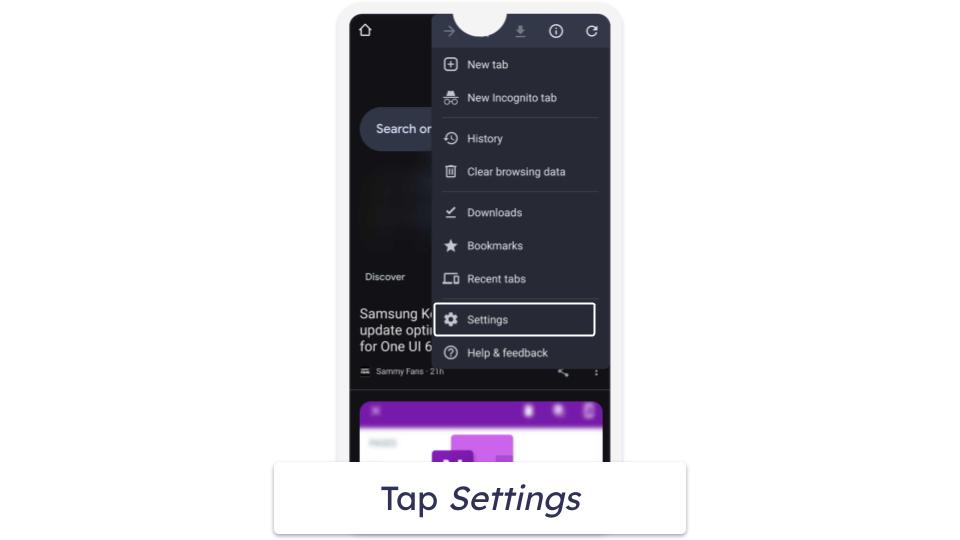
- In the upper-right corner, tap the 3 vertical dots, then tap Settings.
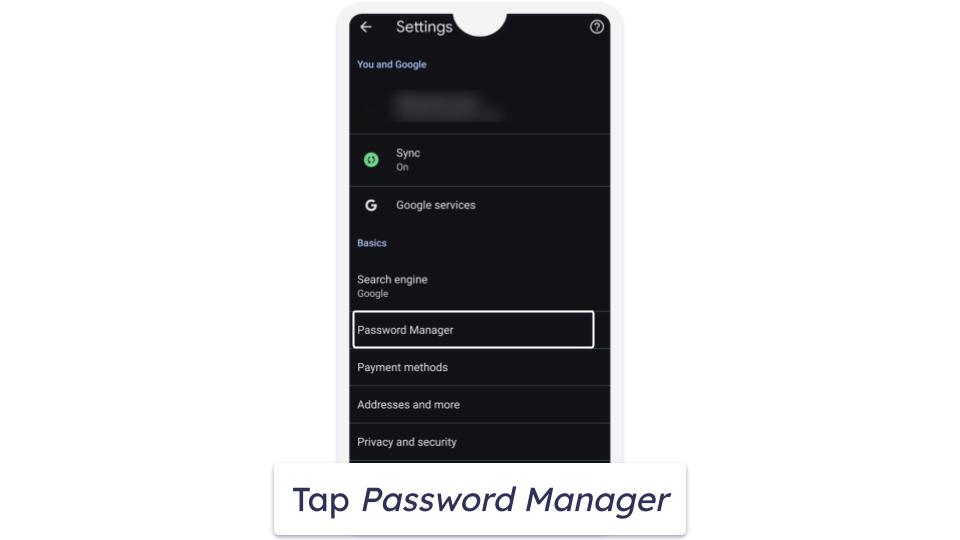
- Scroll down to Password Manager, then tap on it.
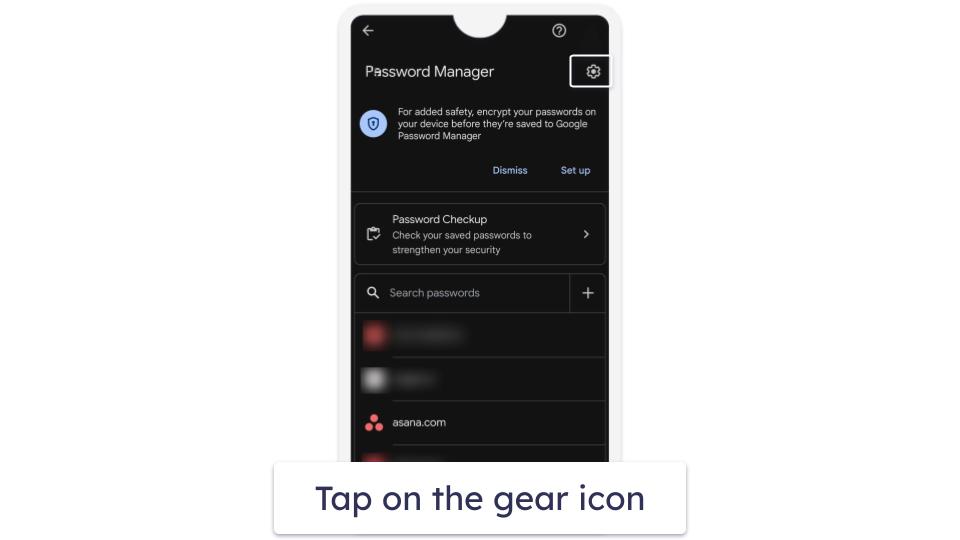
- Tap on the gear icon on the upper-right corner of the settings page.
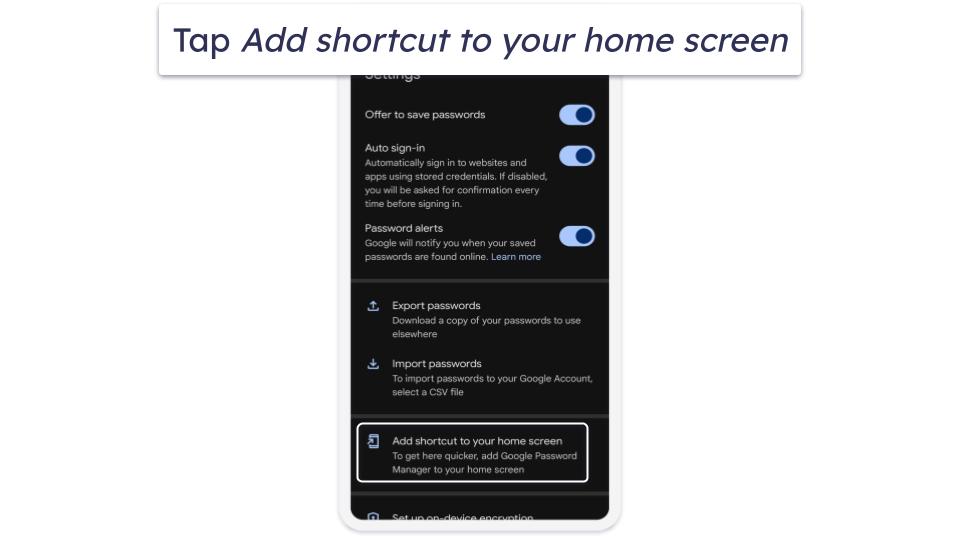
- Select Add shortcut to your home screen, then tap Add.
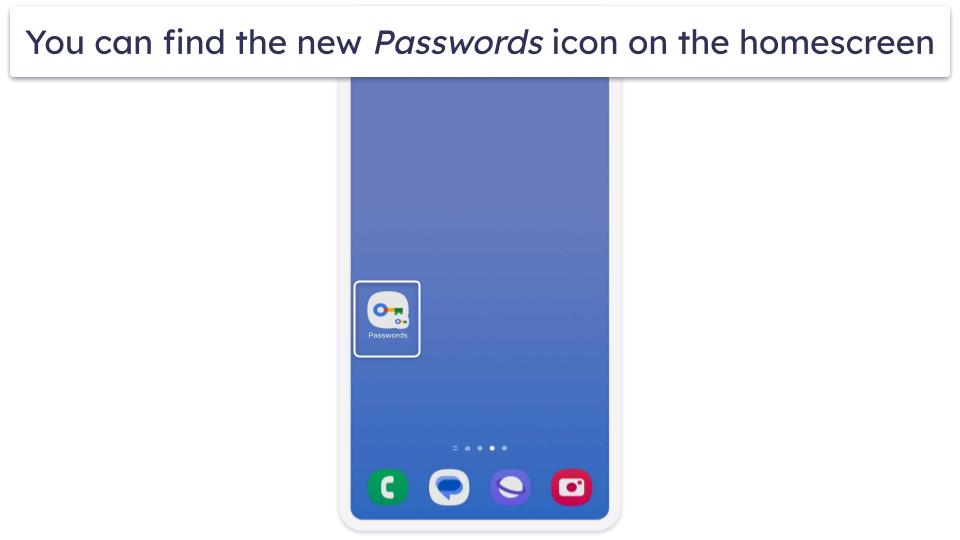
- After returning to the home screen, you’ll find a new “Passwords” icon, and tapping it will take you to the Password Manager page.
How to Manage Your Saved Passwords in Chrome in 2026
Add a New Password
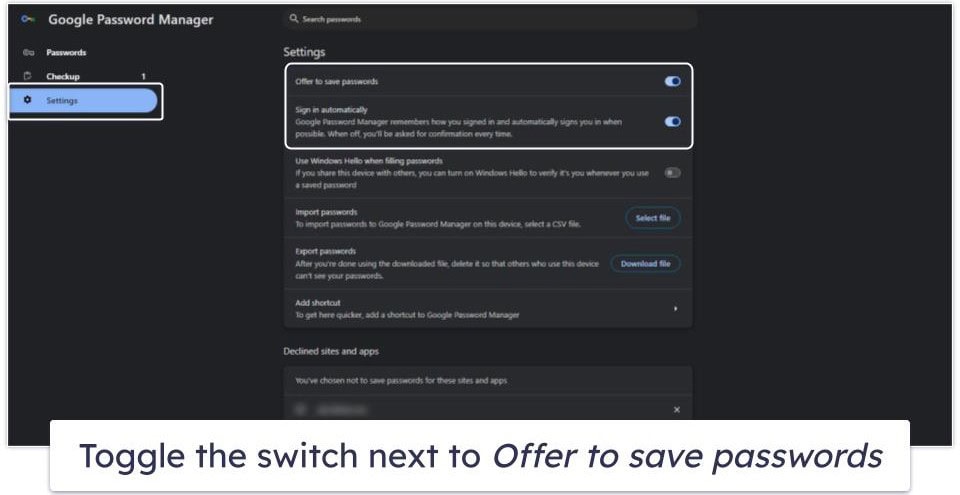
Chrome will automatically offer to save your password when you create a new account on any site — all you have to do is to make sure that the Offer to save passwords option is enabled:
- From Google Password Manager’s window, click on Settings.
- Look for Offer to save passwords at the top and toggle the option on.
Adding new passwords to Google Password Manager is simple — here’s what you need to do:
- Open Chrome and click the 3 vertical dots in the top right corner.
- Hover over Passwords and auto-fill, then click Google Password Manager.

- Click on the Add button, then enter the website, username, and password.
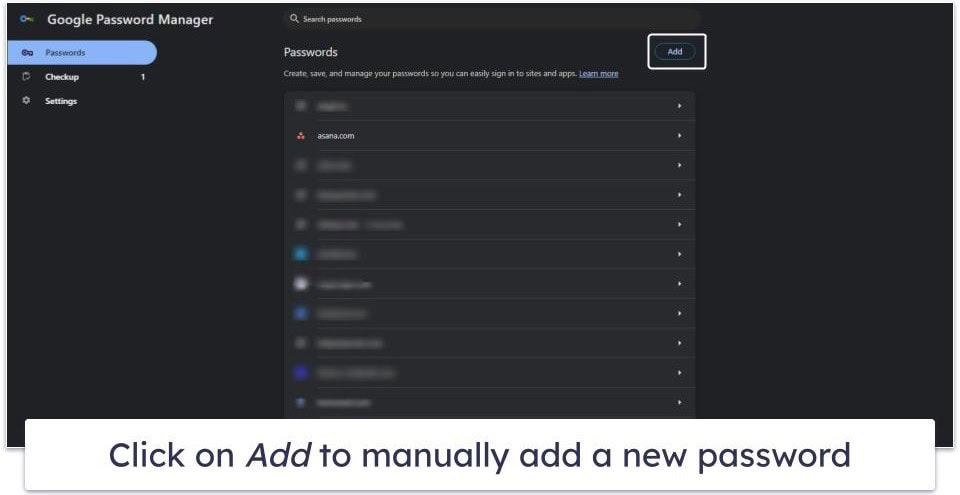
- Finally, click Save and you’re done!
Edit or Delete Existing Passwords
- Open Chrome and click the 3 vertical dots in the top right corner.
- Hover over Passwords and auto-fill, then click Google Password Manager.
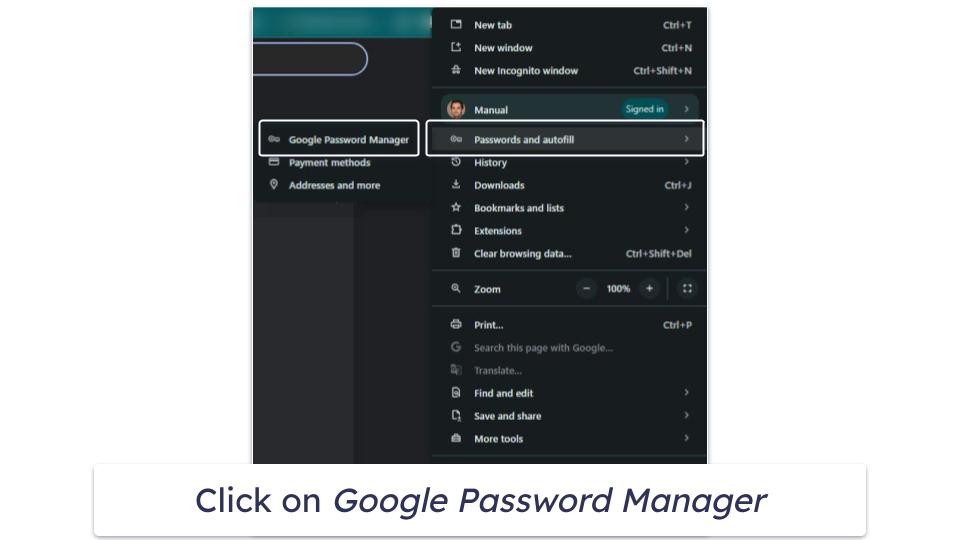
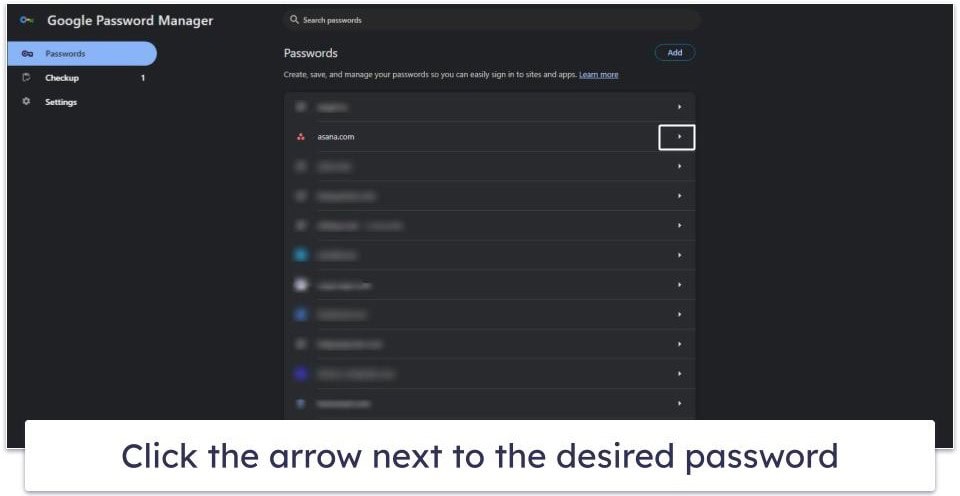
- Scroll down the list of your saved passwords and click the arrow next to the password you want to edit or delete.
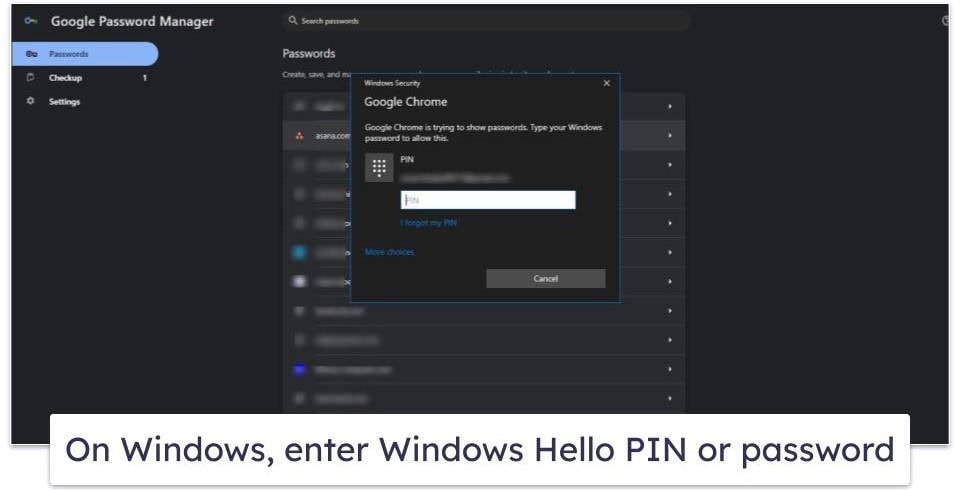
- Use your device’s biometric / authentication method, then click OK (on Windows this will be your Windows Helllo PIN or password).
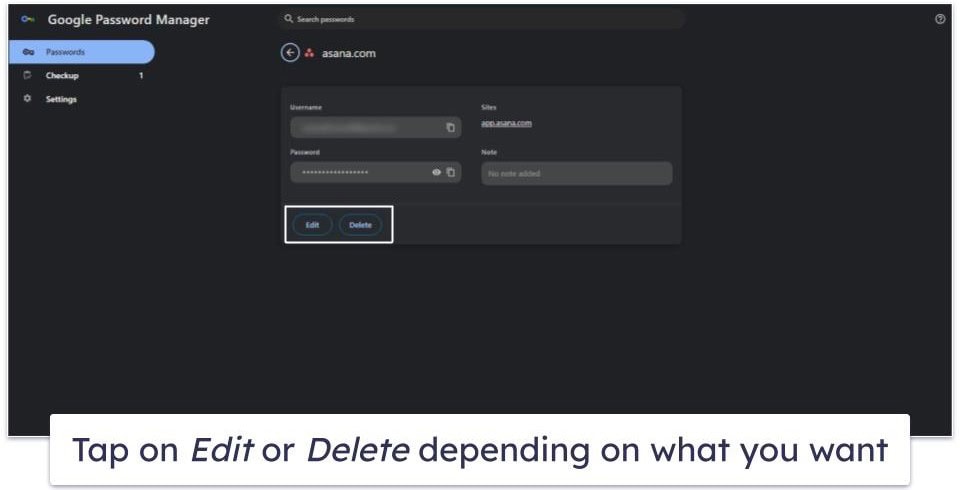
- Finally, click Edit or Delete, depending on what you want to do. You will now be able to edit or delete your password.
Sign in With a Saved Password
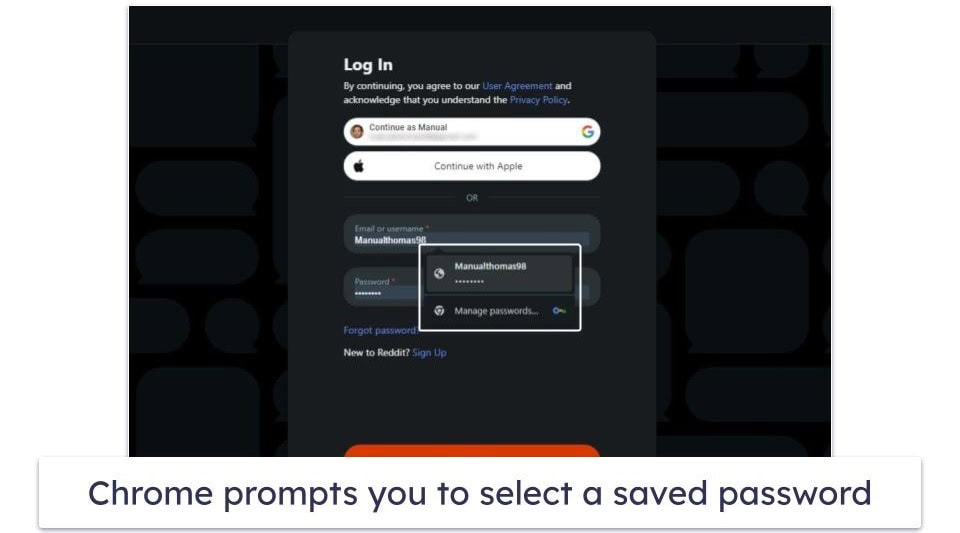
If you have previously saved your password for a site in Google Password Manager, you can use Chrome to sign in easily. Follow these steps:
- Open the website you’ve visited before and want to sign in to.
- Find the website login field.
- If you saved only one username and password for the website: Chrome will automatically fill the login field for you.

- If you saved multiple usernames and passwords for the website: Click on the username field and select the login information you want to use.
Use Biometric Logins
- Open Chrome and click the 3 vertical dots in the top right corner.
- Hover over Passwords and auto-fill, then click Google Password Manager.
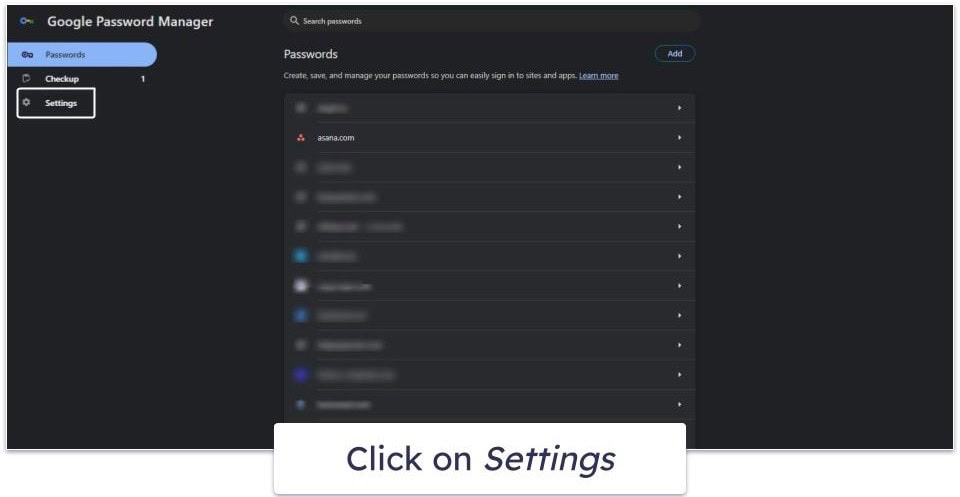
- From Google Password Manager’s window, click on Settings.
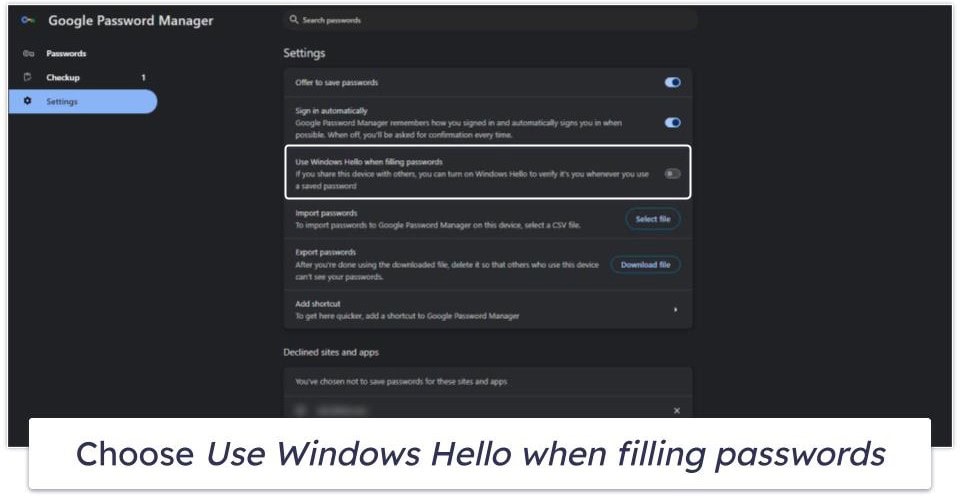
- Look for Use Windows Hello when filling passwords on Windows or Use TouchID when filling passwords on Mac in order to turn on biometric authentication.
Check Saved Passwords for Data Breaches
- Open Chrome and click the 3 vertical dots in the top right corner.
- Hover over Passwords and auto-fill, then click Google Password Manager.
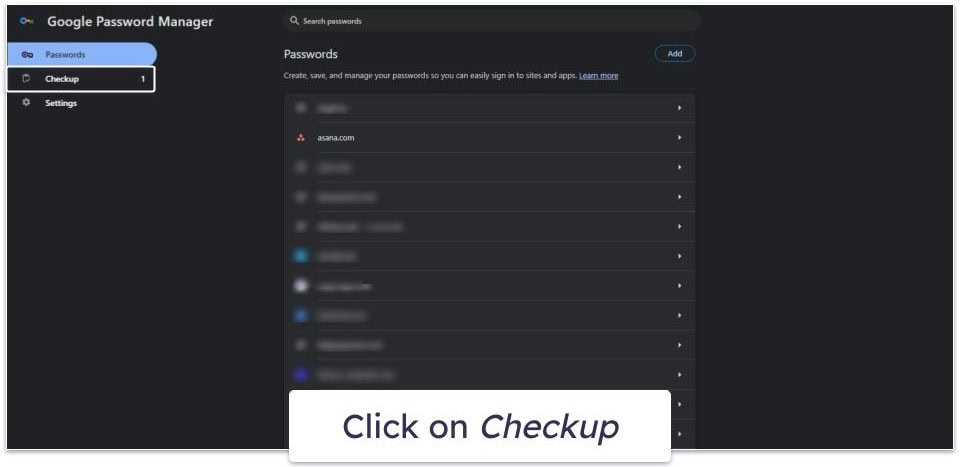
- From Google Password Manager’s window, click on Checkup.

4. Finally, select the arrow to the right of Compromised passwords.
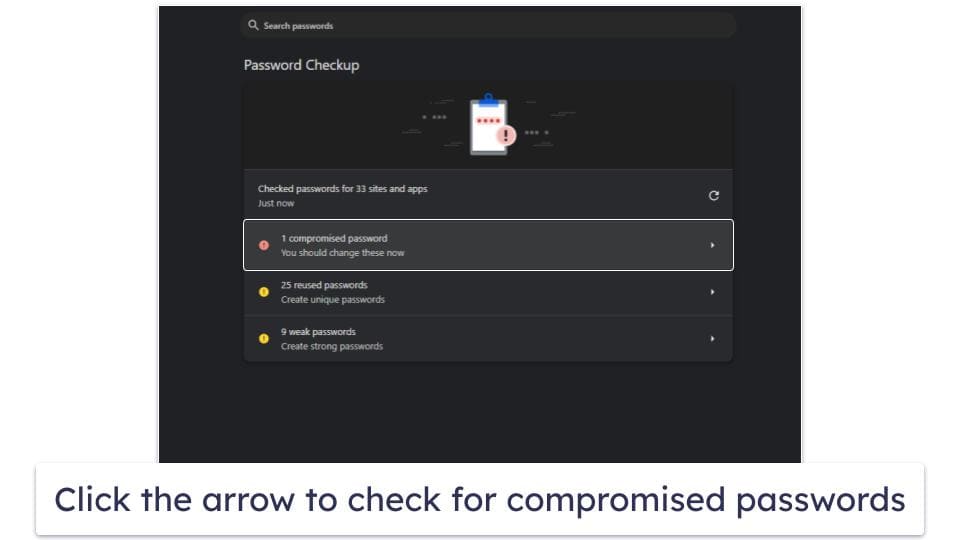
5. You will see a list of any compromised passwords associated with your accounts. Each entry provides details about the breach and recommendations for taking action, typically advising you to change the password for the affected account as soon as possible.
Is Google Password Manager Secure?
Google Password Manager is a free and easy-to-use password manager built into Chromebooks and Android devices. It’s also accessible on Windows, iOS, Mac, and Linux through the Chrome browser. It has some points in its favor, including:
- Ease of use — Google Password Manager is simple to use, making it a good choice for beginners.
- Sync across devices — It syncs passwords across all devices signed into your Google account.
- Password generation — It makes it easy to generate and store passwords.
- Form filling — it simplifies the process of filling out online forms, saving time and effort.
However, it’s far from ideal. Drawbacks of Google Password Manager include:
- Basic features — It only offers basic password management functions and lacks advanced features found in the top third-party password managers.
- No password sharing — It doesn’t support password sharing, which can be a drawback for users who need to share access with family or team members.
- Limited customer support options — It primarily relies on self-help resources and community forums, with no dedicated support for the password manager.
- Single point of failure — If your Google account is compromised, attackers could gain access to all stored passwords, increasing the risk of mass data exposure and complicating recovery efforts.
- Lacks zero knowledge architecture — Google Password Manager doesn’t employ zero knowledge architecture, meaning Google could potentially access your password data. This is a significant privacy concern for users seeking maximum security and confidentiality.
- Unclear encryption methods — The specific encryption methods used by Google Password Manager are not transparently disclosed, which may be a concern for users who prioritize verifiable security measures to protect their data. That said, it’s likely that it uses 256-bit AES encryption (this is what is listed for Google’s cloud hosting).
Overall, Google Password Manager is a decent option for Chrome users looking for basic password management. However, for those who value more advanced security features, a premium password manager is a better choice.
Why Use a Third-Party Password Manager for Chrome?
Google Password Manager is a free, basic password manager integrated with the Chrome web browser. It allows you to store an unlimited number of passwords and sync them across multiple devices. However, its features are pretty minimal, and I have reservations about Google’s lack of transparency regarding its encryption methods for stored passwords, and the fact it doesn’t employ zero-knowledge architecture.
There are other issues with Google Password Manager, too, including the lack of password sharing capability, and the lack of support for hardware security keys like YubiKey. What’s more, its password generator and password checker are pretty basic, and it lacks comprehensive dark web monitoring and encrypted file storage.
The best third-party password managers, on the other hand, are far more feature-rich, very user-friendly, and totally compatible with Chrome. Top password managers like 1Password, Dashlane, RoboForm, and Proton Pass have unique extras too, like Travel Mode to protect data while abroad (1Password), a built-in VPN for private browsing (Dashlane), storage for bookmarks (RoboForm), and email aliases with custom domains (Proton Pass).
All of the top third-party password managers on the market offer intuitive browser extensions optimized for Chrome — they sync seamlessly with Google Chrome and work intuitively with it, easily saving and auto-filling passwords and payment information whenever a login or payment field appears.
For casual users who value convenience over maximum security, Google’s password manager may be sufficient. But those who want the highest encryption standards, secure sharing, and advanced password management features should strongly consider choosing a premium third-party password manager instead.

How to Export Chrome Passwords to a Third-Party Password Manager
To export your saved passwords from Google Password Manager to other password managers, follow these steps. I’m using 1Password in this example:
- Open Chrome and click the 3 vertical dots in the top right corner.
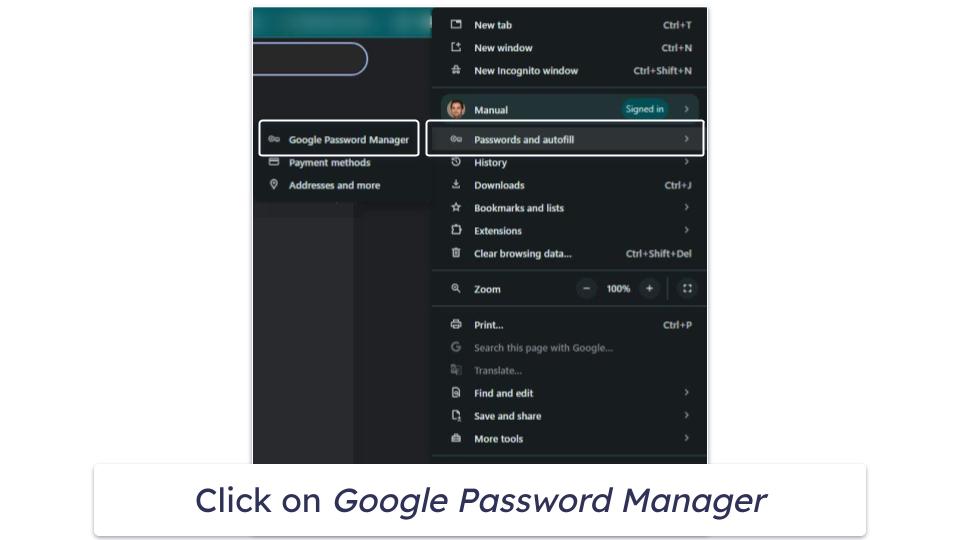
- Hover over Passwords and auto-fill, then click Google Password Manager.
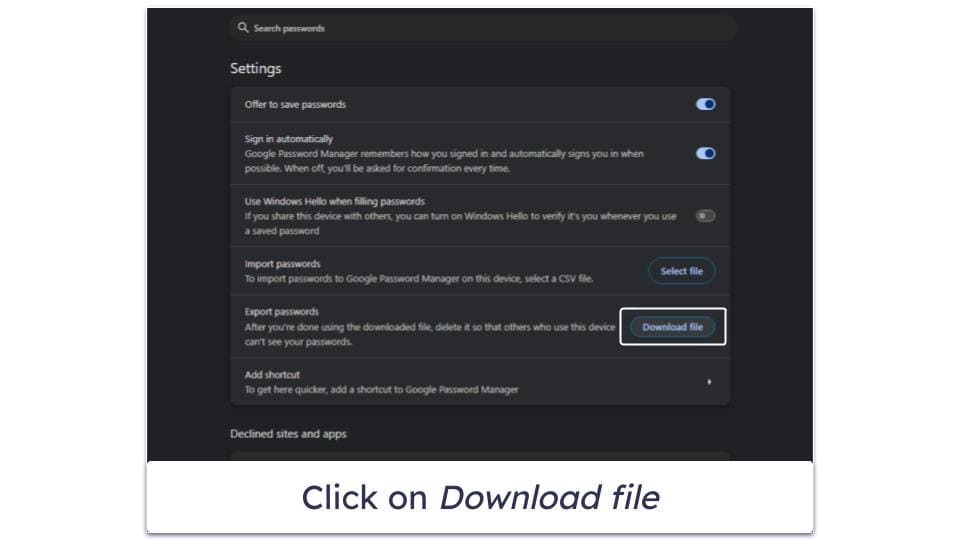
- Open Settings and select Download File in the Export passwords section.
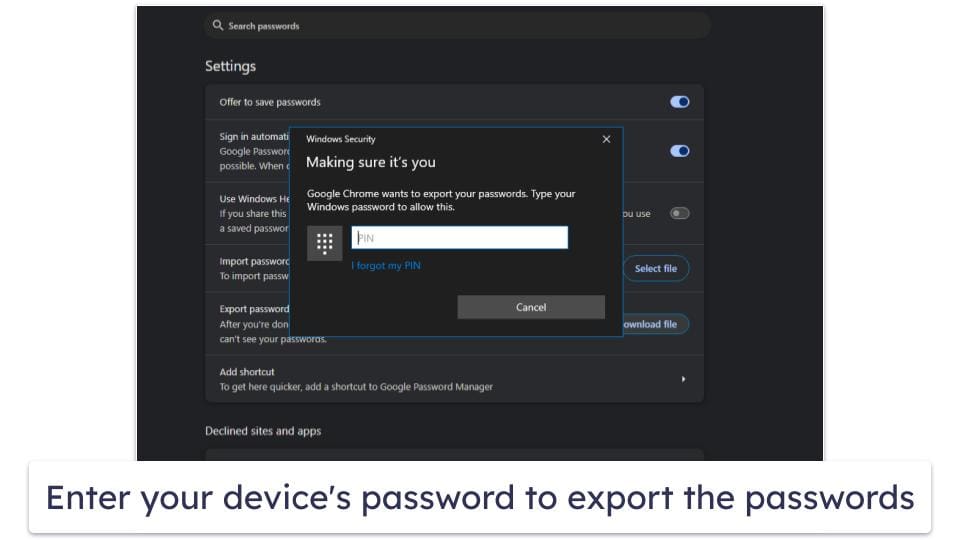
- Enter your device’s PIN or password to export the passwords.
- Save the .CSV file to your device.
- Log into your 1Password account, click the drop-down associated with your name at the top, and click Import.
- In the resulting window, click Chrome, then drag your .CSV file from your desktop file manager into the blue rectangle.
Quick Summary of the Best Password Managers for Chrome in 2026


Frequently Asked Questions
Is it safe to use a password manager?
Yes, password managers are very safe to use when you choose a reputable one. The best password managers use end-to-end 256-bit AES encryption or similar to secure your passwords. This level of encryption is highly secure and is the same standard used by governments and banks. They also have zero-knowledge policies so not even the password manager company can access your data.
Many top password managers also provide additional security features like 2FA, password vault auditing, secure password sharing, secure notes storage, emergency access, and comprehensive dark web monitoring.
Unfortunately, Google Password Manager isn’t as comprehensive or secure as the top dedicated password managers, so I highly recommend checking out our best password managers for Chrome and then deciding which one is right for you.
Should I let Google manage my passwords?
Google’s built-in password manager provides basic functionality such as password storage and auto-fill, but there are definitely better options out there. It lacks many of the advanced features found in dedicated password managers — including complex form filling, emergency access options, and password sharing. It also lacks zero-knowledge architecture and its encryption methods aren’t specified, meaning it’s potentially less secure than third-party options.
For casual users who mostly use Google services, the built-in manager may be sufficient. But for anyone who values security and comprehensive password management, I highly recommend a dedicated third-party password manager like RoboForm.
What should I do if someone else has access to my Chrome browser and saved passwords?
If someone else has access to your Chrome browser and saved passwords, you need to act quickly. First off, you have to sign out of all devices in your account settings. This will log out anyone who might be using your credentials. By taking these steps, you can protect your personal information and regain control of your accounts.
Then, you will need to change the passwords for your most important accounts, like your email, bank, and social media. Make sure to use strong, unique passwords for each account.
You should also enable two-factor authentication (2FA) on all accounts that support it. This adds an extra layer of security, making it harder for someone to access your accounts even if they have your passwords. All the best password managers support multiple 2FA methods.