Updated on: February 7, 2026
Fact-checked by Kate Davidson
Short on time? Here’s how to cancel your 1Password subscription in 2026:
- 1. Export your passwords. Export your passwords as a CSV file so you can import them into your new password manager.
- 2. Cancel your 1Password subscription. Log into 1Password, click Billing, and unsubscribe from automatic renewal.
- 3. Uninstall 1Password. Navigate to your device’s settings and uninstall the 1Password app.
- 4. Try an alternative password manager. Download and install an alternative password manager like RoboForm to keep your information secure.
1Password is my favorite password manager in 2026, and it offers excellent security and a wide range of great features. That said, it might not be the right choice for every user — you might be looking for a password manager with a free plan, or one that offers more secure password import options for mobile.
Canceling your 1Password subscription is simple. However, because all of 1Password’s plans are prepaid, there are no refunds. If you’re a brand new 1Password user and you’re still within your 14-day free trial period, make sure you cancel your subscription before the 14 days is up so you don’t get charged. That said, there’s no credit card required for the free trial, so if you haven’t entered your credit card details, you should be fine.
After canceling your subscription, you’ll have access to 1Password until the end of your billing cycle. Don’t forget to export your passwords before your subscription is up, so you can easily import them into another password manager. On that note, you should pick an alternative password manager after uninstalling 1Password — my favorite is RoboForm.
How to Cancel Your 1Password Subscription (Step-by-Step Guide)
- 💻 How to Cancel Your 1Password Subscription on Your Windows or Mac Computer.
- 📱 How to Cancel Your 1Password Subscription on Your iPhone or iPad.
- 🤖 How to Cancel Your 1Password Subscription on Your Android Device.
How to Cancel Your 1Password Subscription on Your Windows or Mac Computer
- Export your passwords by logging into the app, clicking the three dots next to your account name, and clicking Export. This will save your passwords as a CSV file and let you easily import your passwords into your next password manager.

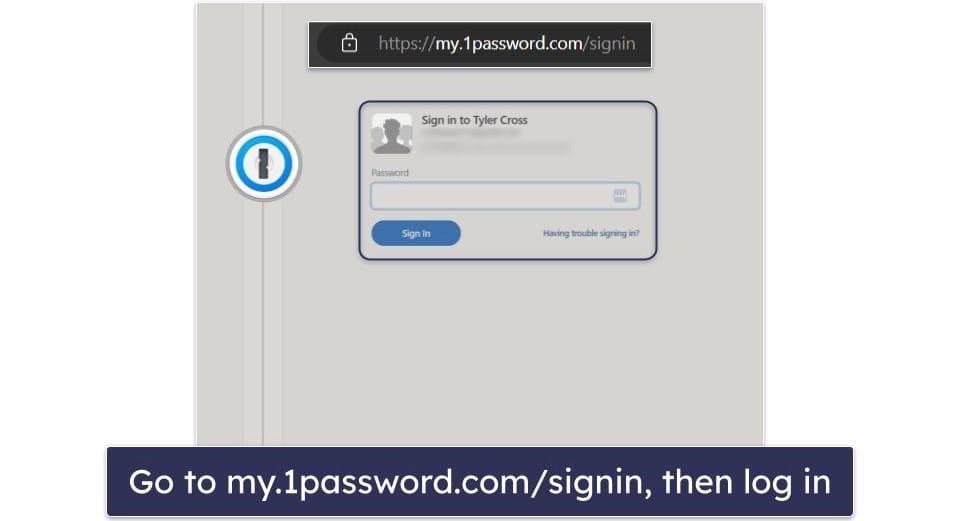
- Navigate to my.1password.com/signin and log in with your username and password.
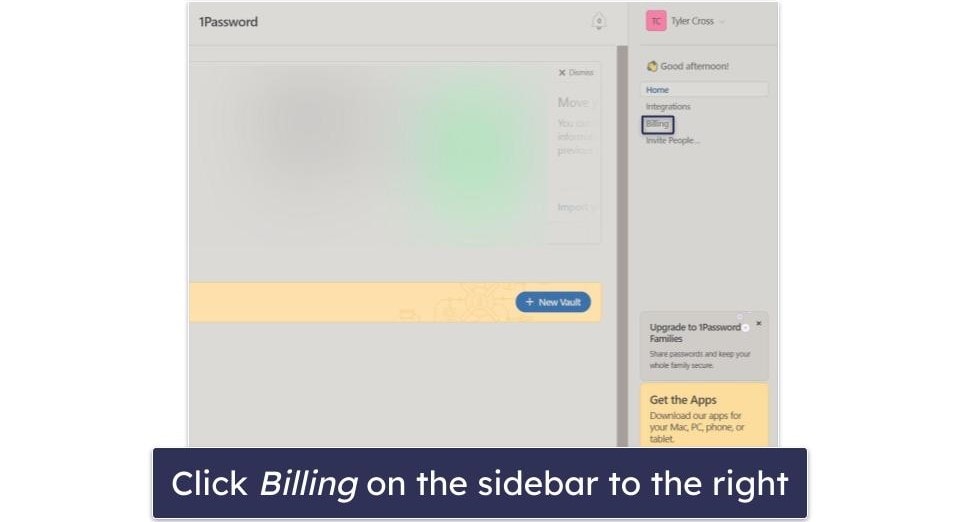
- Click Billing on the sidebar to the right.
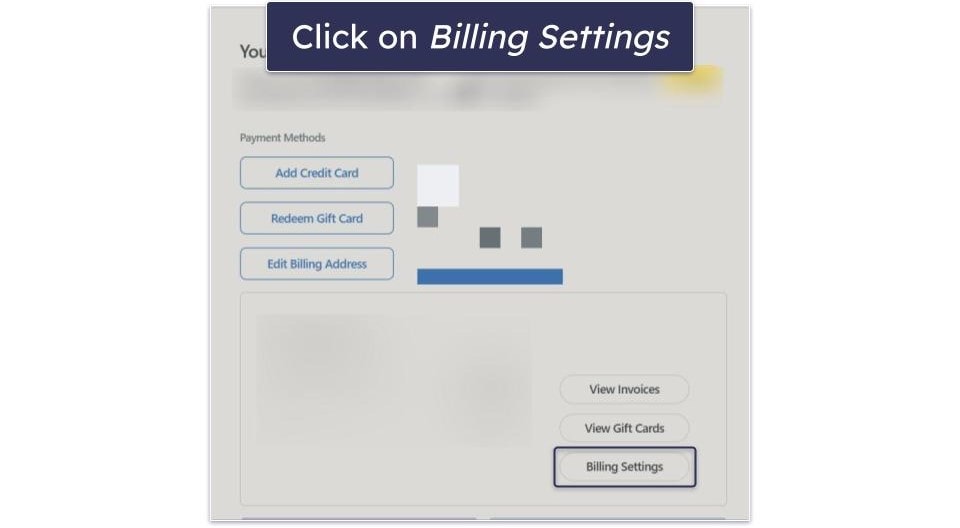
- Click on Billing Settings.
- Scroll down and click Unsubscribe.
- It will require you to type your password in one more time, then verify by clicking Unsubscribe again. After you click it, you’ll have successfully canceled your 1Password account.
- Choose an alternative password manager. RoboForm is my favorite 1Password alternative. It’s cheaper than 1Password and has the best form-filling capabilities on the market.
How to Cancel Your 1Password Subscription on Your iPhone or iPad
If you purchased your 1Password subscription on the 1Password website, all you have to do is follow my instructions above to cancel your account. However, if you purchased 1Password through the App Store, your subscription is handled there. To cancel it, you’ll need to follow these 4 steps.
- Go to your iOS Settings.
- Click on your name, then click Subscriptions.
- Click on your 1Password subscription.
- Tap Cancel Subscription (you may need to scroll down to find it).
How to Cancel Your 1Password Subscription on Your Android Smartphone or Tablet
If you purchased your subscription from the 1Password website, you can follow the instructions above to cancel it. If you purchased it through the Google Play Store, your subscription is managed there, so you’ll need to follow these instructions instead.
- Navigate to your Play Store app, tap your profile picture, then tap Payments & subscriptions.
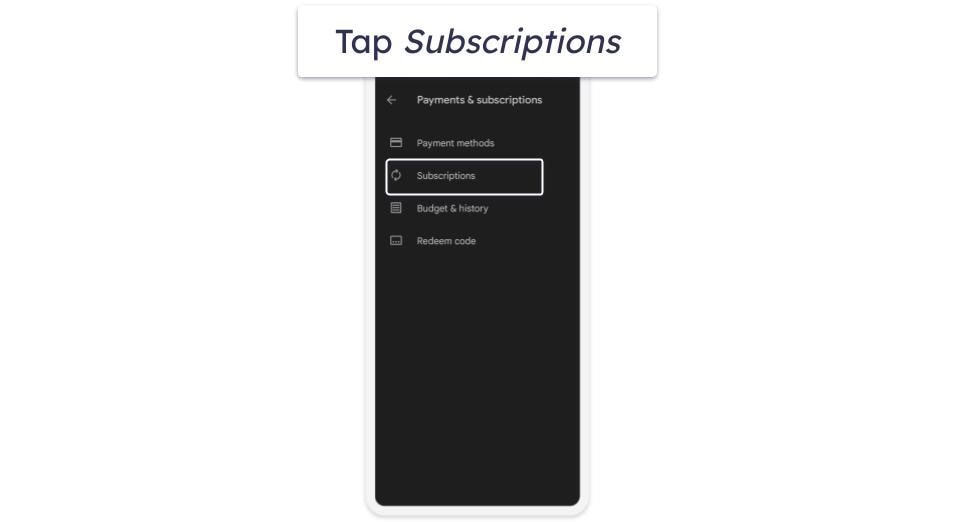
- Tap Subscriptions.
- Tap your 1Password subscription and then tap Cancel Subscription. You’ll have to verify you want to cancel. After tapping Cancel subscription 1 more time, you’ll have successfully unsubscribed from 1Password.
Quick Summary of the Best 1Password Alternatives in 2026


How to Uninstall & Fully Remove 1Password Files From Your Devices
Once you’ve selected and installed an alternative password manager, you need to uninstall 1Password. Depending on what system you’re using, these steps differ slightly, so click the option most relevant to you.
- Uninstall 1Password From Your Windows PC or Laptop.
- Uninstall 1Password From Your Mac.
- Uninstall 1Password From Your iPhone or iPad.
- Uninstall 1Password From Your Android Smartphone or Tablet.
How to Uninstall 1Password From Your Windows PC or Laptop
Uninstall 1Password on Windows 11
- Click on the Start icon at the bottom of your screen.

- In the search field at the top of the Start Menu, type “programs”.
- Find and click on Add or remove programs on the list of installed programs.
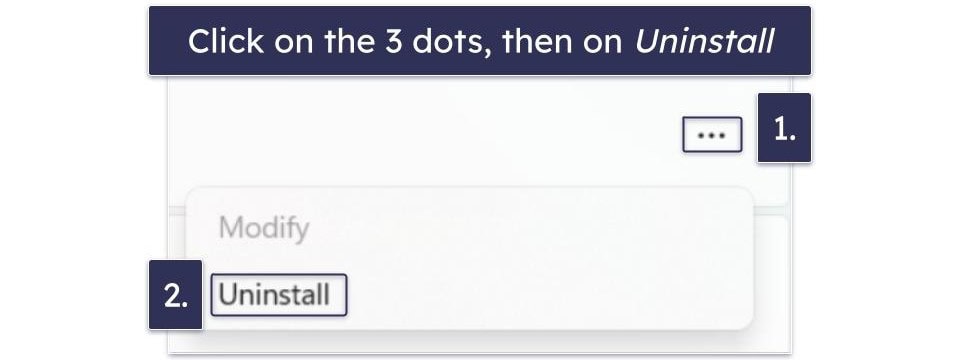
- Scroll down the App list until you find any programs related to 1Password. Click on the 3 horizontal dots next to the 1Password program and click Uninstall.
- Follow 1Password’s uninstallation wizard. Once completed, you will have successfully uninstalled 1Password from your Windows 11 PC.
Uninstall 1Password on Windows 10
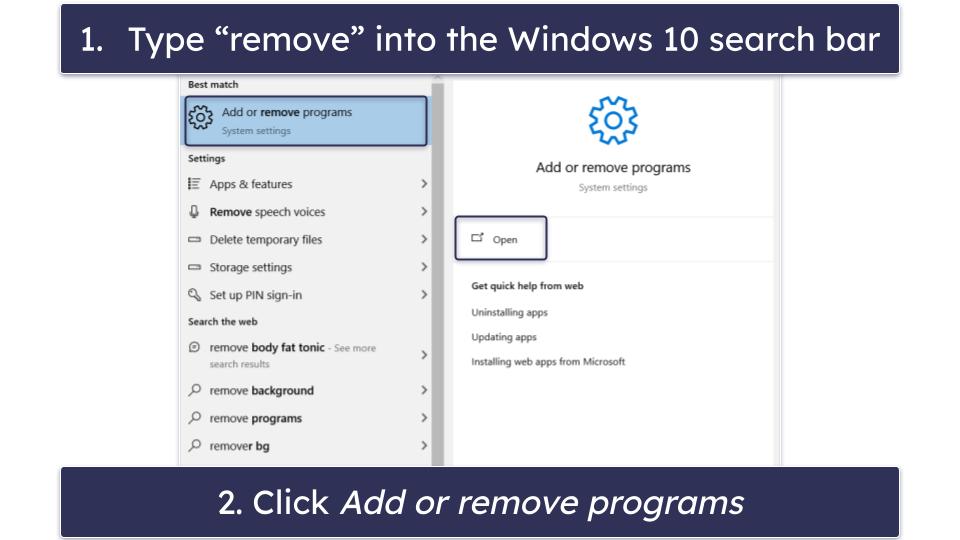
- Type “remove” into the search bar next to the Start button and click Add or remove programs.
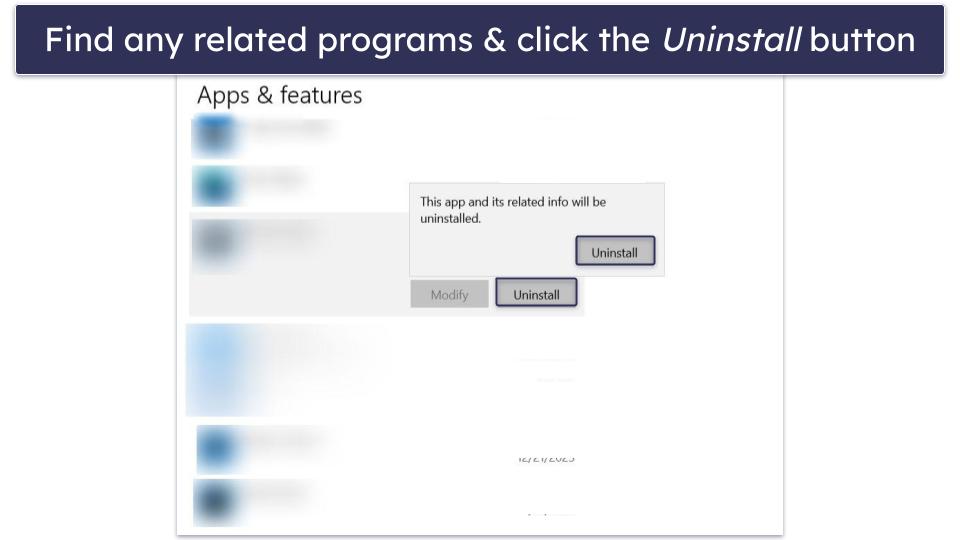
- Scroll through your list of installed apps until you find programs related to 1Password. Click on them, then click Uninstall twice.
- Follow 1Password’s uninstallation wizard. Once completed, you will have successfully uninstalled 1Password from your Windows 10 PC.
How to Uninstall 1Password From Your Mac
- In Finder, go to your Applications folder, look for the 1Password app, and drag it to the bin.
- Once you’ve done this, restart your Mac.
- You have now fully uninstalled 1Password from your Mac.
How to Uninstall 1Password From Your iPhone or iPad
- Touch and hold the 1Password app.
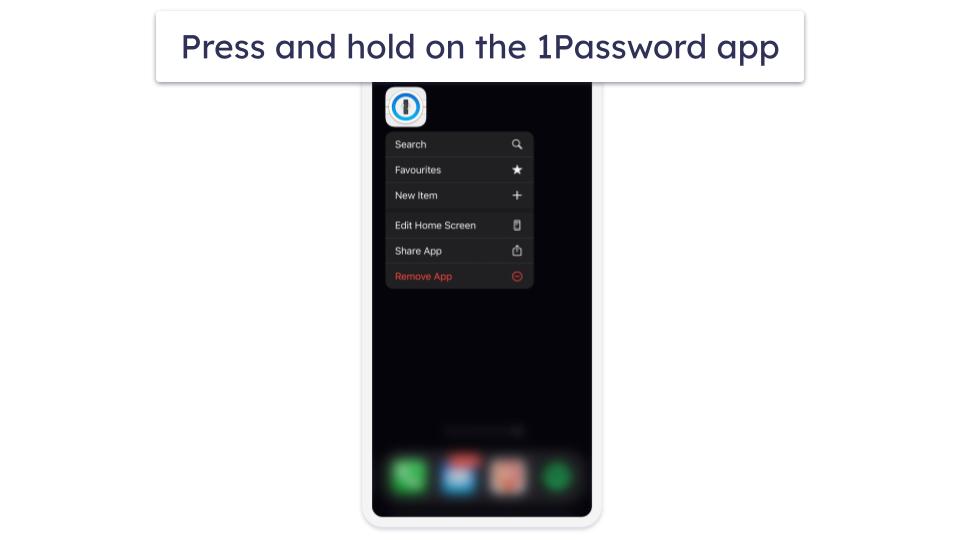
- Click Remove App

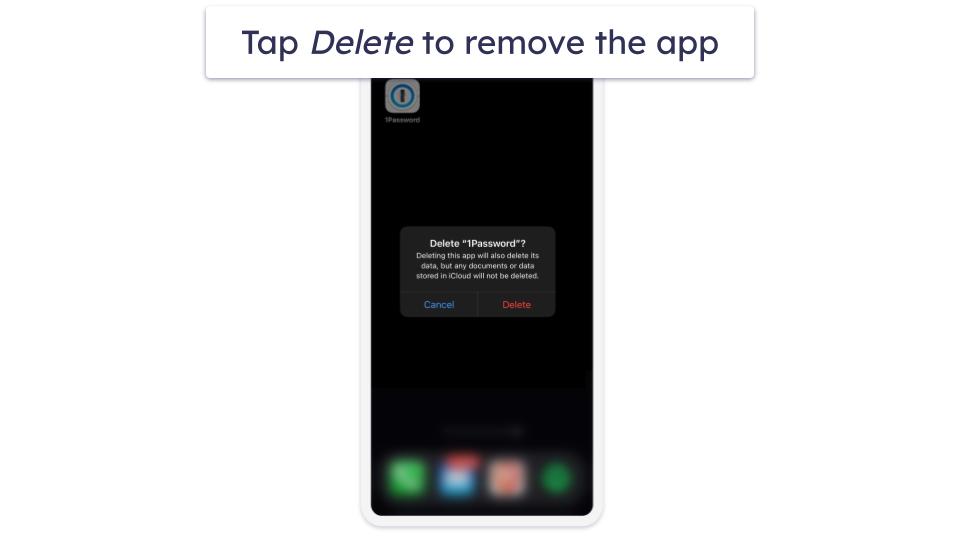
- Tap Delete, then tap Delete again to confirm.
How to Uninstall 1Password From Your Android Smartphone or Tablet
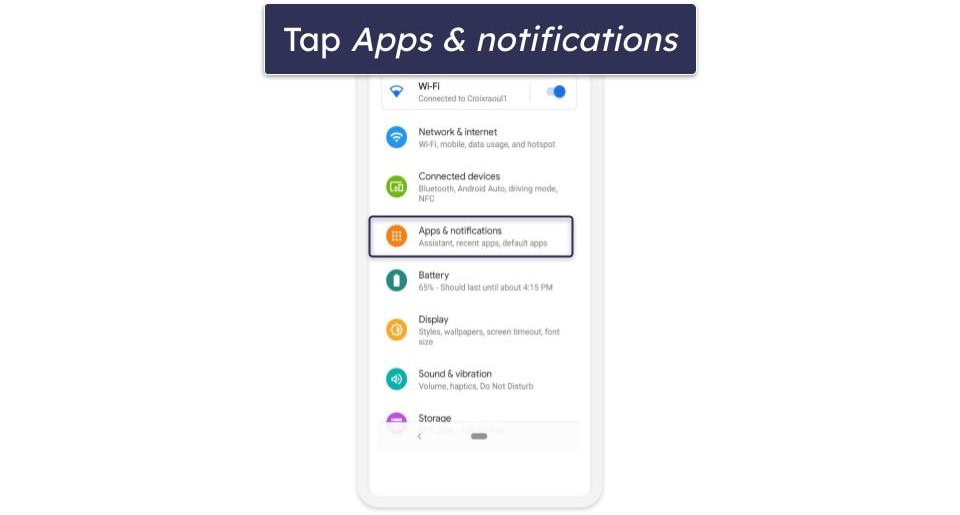
- Go to Settings, then tap Apps & notifications (or Apps on some Android devices).
- Tap Uninstall, then verify by tapping OK.
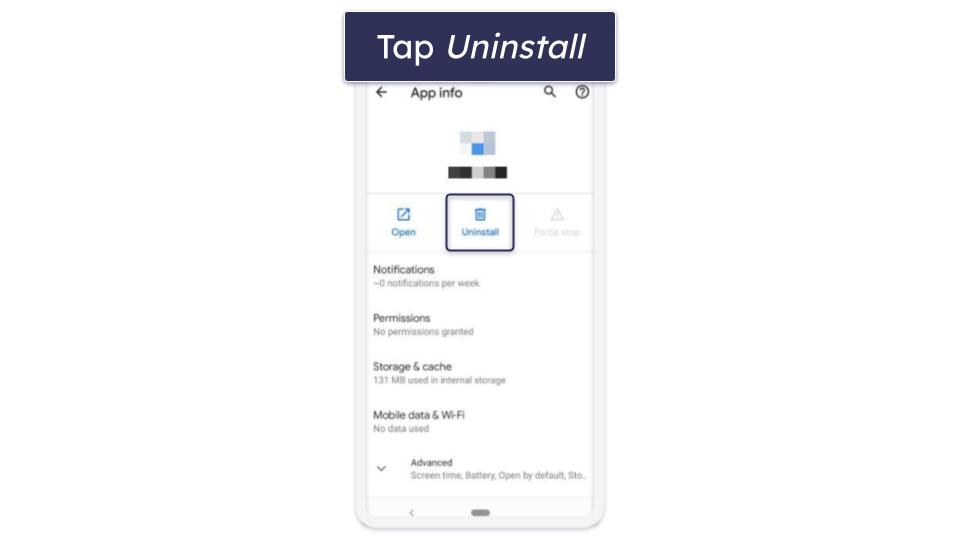
- You will then be asked to confirm that you want to delete the app. Tap OK and you’ll have finished uninstalling 1Password.
Frequently Asked Questions
Why can’t I uninstall 1Password?
Uninstalling 1Password should be a simple task — just follow the steps above and you should be able to uninstall 1Password on Windows or Mac in just a few seconds. If you’re on mobile, you can follow our instructions on uninstalling 1Password from Android and iOS devices. Just remember to export your passwords first.
What happens when I cancel my 1Password subscription?
When you cancel your 1Password subscription, you’ll retain access to 1Password until the end of your billing cycle. This is because 1Password’s plans are prepaid (meaning there are no refunds).
It’s a good idea to export your passwords if you’re canceling your subscription, so you can import them into the next password manager you use. Dashlane is an excellent and feature-rich alternative to 1Password with plans that are backed by a 30-day money-back guarantee. Other good options include RoboForm, which has low-cost plans with great automatic form-filling, and Keeper, which has its own secure messaging app, KeeperChat.
Does 1Password offer refunds?
Since 1Password operates on a prepaid system, it doesn’t offer refunds. When you cancel your auto-renewal, you’ll keep access to your 1Password account and all its features until your billing cycle ends.
All of 1Password’s plans come with a 14-day free trial period. You will have to enter payment details, but you won’t be charged until the end of the trial. While it’s not as good as a refund, it does mean you can try it out risk-free and make sure it works for you before committing. If you’re considering continuing past your trial period, you can read the full review of 1Password here.