


I have always treated Google Keep as my digital junk drawer — a reliable, if slightly chaotic, place for grocery lists and half-baked ideas.
When Google first announced the Gemini integration, I didn’t think a sticky-note app needed a brain.
But after a month of putting it to the test, I realized I was looking at it all wrong.
It turns out that Gemini isn’t just an add-on; it’s the missing link that transforms Google Keep into a productivity engine.

Using Gemini to create lists in Keep
Creating a list used to be the part of my day when my productivity actually stalled.
I would spend twenty minutes researching the right items, second-guessing if I missed anything, and manually formatting bullets.
Now, I use the Help me create a list feature in Google Keep, and it has already saved me dozens of hours.
Instead of me doing the heavy lifting, I give Gemini a starting point, and it builds the entire structure for me in seconds. It’s moved me from planning to doing almost instantly.
When I open a new note on my phone, I don’t start typing. I look for the little Gemini sparkle icon (or the Help me create a list button) in the lower-right corner.
I have learned that the secret is in the text prompt. If I give it a vague prompt, I get a vague list. But if I talk to it like a personal assistant, the results are incredible.
After it generates a list, I tap Insert, and it transforms into a perfect checklist where I can tick off items as I go.
For example, instead of googling recipes and then cross-referencing my pantry, I prompted:
Create a grocery list for a week of high-protein, vegetarian Mediterranean meals for two people on a $100 budget.
It gave me a categorized list that was actually realistic. I didn’t have to think; I just walked through the aisles.
I used to have a master packing list that was way too long. Now, I tailor it:
Packing list for a four-day business trip to London in November. Include tech essentials and formal attire.
It reminded me to pack a UK power adapter and an umbrella. Things I almost certainly would have forgotten in the rush.
I had a backyard DIY project I was working on. I told Gemini:
Step-by-step checklist to build a raised garden bed for beginners, including a list of materials I will need from the hardware store.
Exploring Google Workspace with Gemini
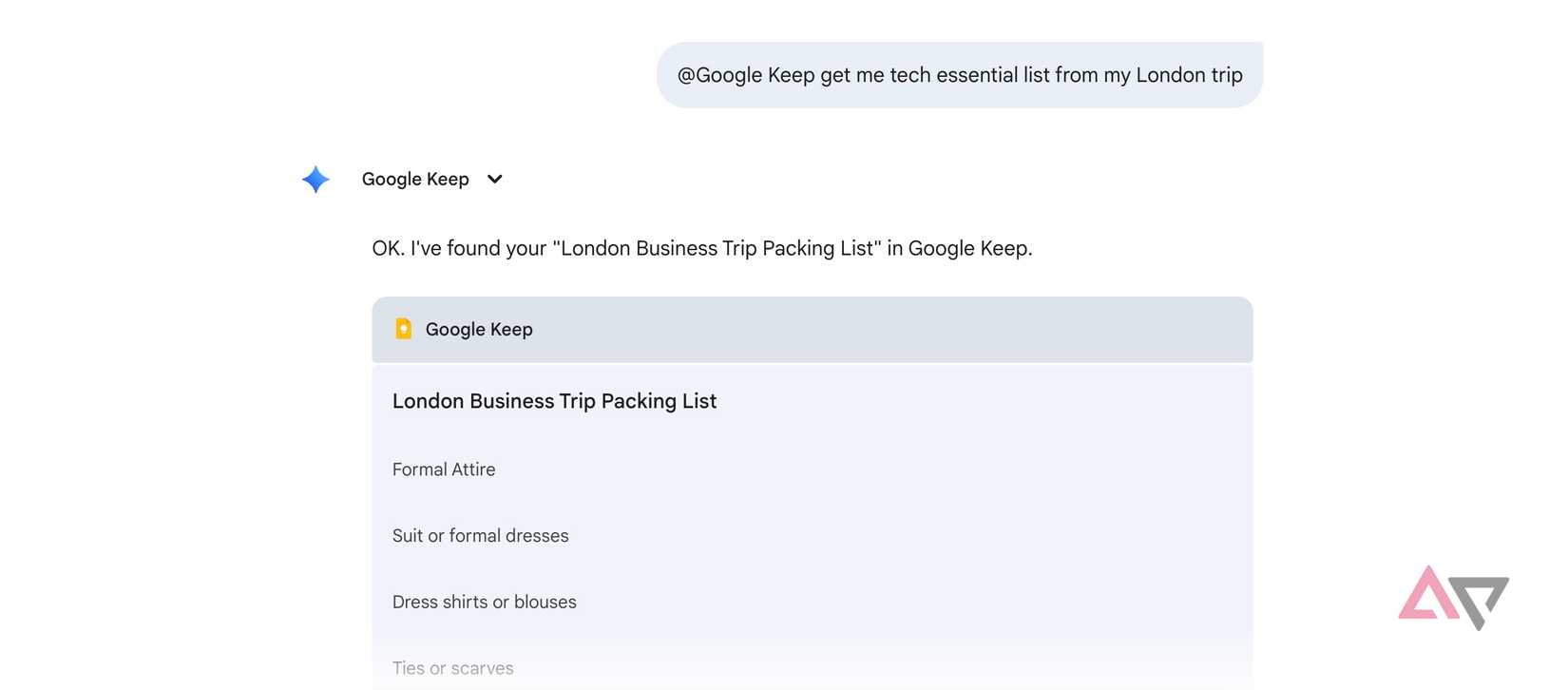
By connecting the Google Workspace extension, I have turned Gemini into a search engine for my own brain.
I used to spend way too much time scrolling through hundreds of notes, trying to find that one specific book recommendation or a random Wi-Fi password I saved three years ago. Now, I don’t even open the Keep app to find them.
The setup is quite simple. I went to the Gemini web app (or the mobile app), tapped my profile, and went to Extensions. I made sure the Google Workspace toggle was turned on.
When that’s active, Gemini has permission to read across my Docs, Gmail, and most importantly, my Keep Notes.
Here, you need to master the @ trigger. I have started treating the Gemini prompt box like a command center.
For instance, I can type @Google Keep get me tech essential list from my London trip, and the AI chatbot did the job in no time.
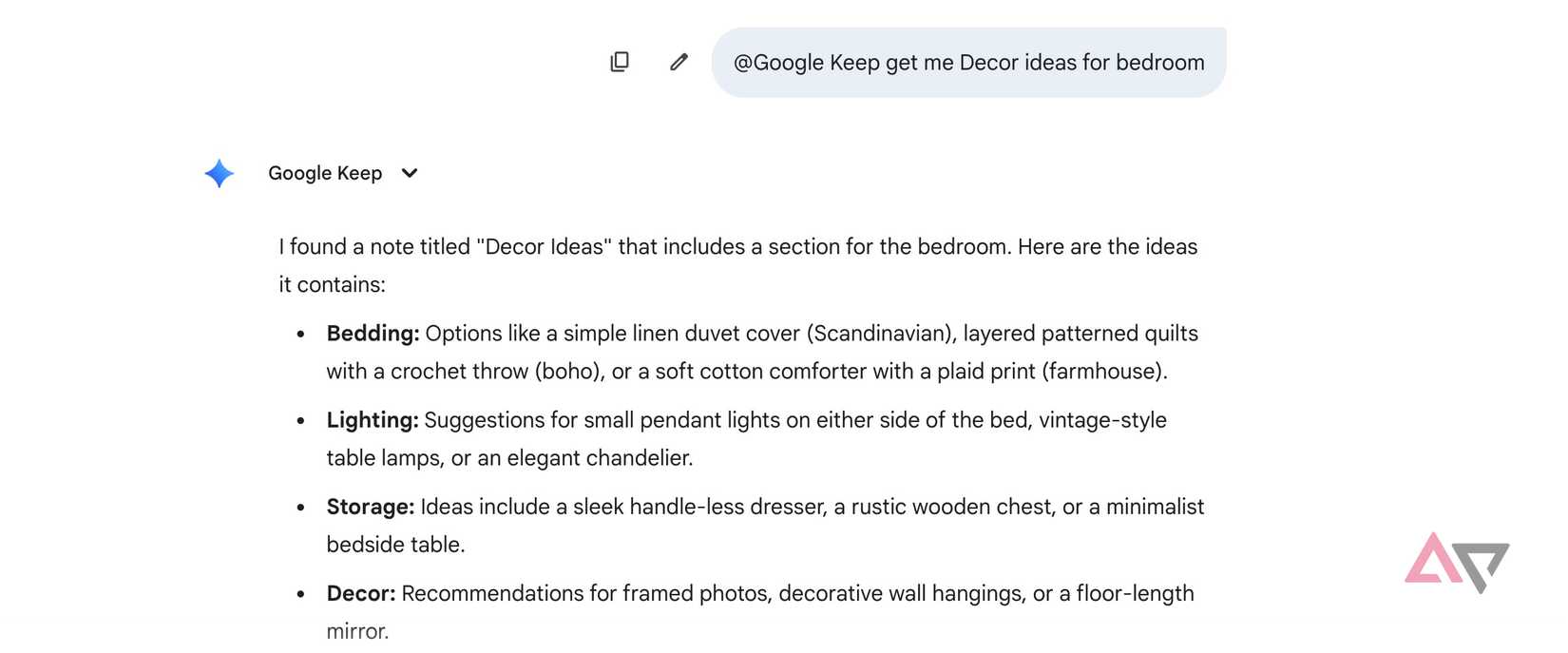
In another example, I asked @Google Keep, get me décor ideas for my bedroom, and Gemini pulled the necessary information from the dense note in seconds.
This integration eliminates constant app switching. I don’t even open Keep Notes now. I just need to remember the rough note title so that I can ask Gemini to pull details from that specific note.
I don’t worry about where I save things anymore because I know I can ask Gemini to get it for me. However, I will continue to use labels to organize my notes.

My wishlist for Gemini in Google Keep
Gemini integration in Google Keep is still in the early stages. While the Android maker has done a solid job with it, the overall execution still leaves much to be desired.
For example, I can fire up Gemini and ask it to create a list for me in Google Keep. I must open the Keep Notes, tap the AI button, and write a text prompt. Besides, the current capabilities of Gemini are limited to creating checklists only.
I can’t wait to see how Google takes the entire experience further with future updates.
Stop sleeping on Gemini in Google Keep
The beauty of Google Keep has always been its simplicity, and thankfully, Gemini manages to enhance that rather than complicate it.
It’s rare to find an AI integration that actually saves time instead of just adding another layer of digital noise. And the best part is that it works beautifully on a mobile interface, and it’s limited to the desktop only.
If you haven’t opened Keep in a while — or if you have been ignoring that little sparkle icon in the corner — give it a try today.
Aside from Google Keep, you can use Gemini to create slides in Google Slides.










