


While Apple CarPlay is often praised for its polished, ‘it just works’ simplicity, it frequently feels like a walled garden that keeps you on a fixed path.
Android Auto, however, has a secret weapon for power users that completely changes the driving experience: Custom Assistant shortcuts.
Imagine having a dedicated button right on your car’s launcher that doesn’t just open an app, but executes a complex chain of tasks — like opening your garage, setting your thermostat, and texting your ETA to your spouse — all with a single, intentional tap.
It’s the ultimate pro feature that finally gives Android the edge in the battle of the best digital co-pilot.

The problem with voice commands

Credit: Lucas Gouveia / Android Police
When I started using Android Auto and Apple CarPlay, I bought into the marketing hype: Just use your voice for everything!
It sounds fantastic, but in practice, relying solely on voice commands is the fastest way to get frustrated behind the wheel.
We have been told that talking to our car is the pinnacle of safety and convenience, but the reality of using Siri or Google Assistant while driving 70 mph is often a mess.
If I have clients or my kids in the car, I don’t always want to shout, ‘Siri, text my wife I’m picking up the dry cleaning’ or ‘Hey Google, open the garage door.’ It breaks the flow of conversation.
We have all been there. You trigger the voice assistant, the music cuts out, and suddenly there is a heavy silence while you wait for that ‘listening’ beep.
If you shudder, if the wind noise from the window is too loud, or if your cellular data dips for a second, the whole thing fails.
You end up repeating yourself three times, getting angrier with every attempt. This is where Apple really loses me.
In CarPlay, Siri is the gatekeeper. If I want to trigger a shortcut, I have to talk to her. There is no way to just pin a ‘Leave for work’ button to my dashboard.
By moving these custom actions to the launcher, I’m not just fixing a tech glitch; I’m reclaiming my focus.
Add custom actions as shortcuts
To add these shortcuts, you aren’t actually looking for an app on your car’s screen.
Instead, you have to dig into the Android Auto settings on your phone to create what Google calls Assistant actions.
I used to think the Customize Launcher menu was just for reordering apps, but there is a hidden Add a Shortcut button in there that is a total game-changer.
You can head to Android Auto settings on your phone, scroll down, and tap Customize launcher. Now, tap Add a shortcut to the Launcher, and pick an Assistant action.
You can add an assistant command from the following menu and give the launcher icon a label. Before you create a shortcut, make sure to test the command.
The next time I plugged my phone into my car, that Go Home button was sitting right there on the screen.
When I realized I could bundle commands into a single icon, I started making buttons for everything.
For example, I can add a command like ‘Navigate to work, play my Deep Work Spotify playlist, and read my calendar for today.’
I have even added a button where the Assistant starts my home navigation in Maps and sends my wife a text saying ‘I’m heading home.’
The possibilities are endless here.

Safety through simplicity
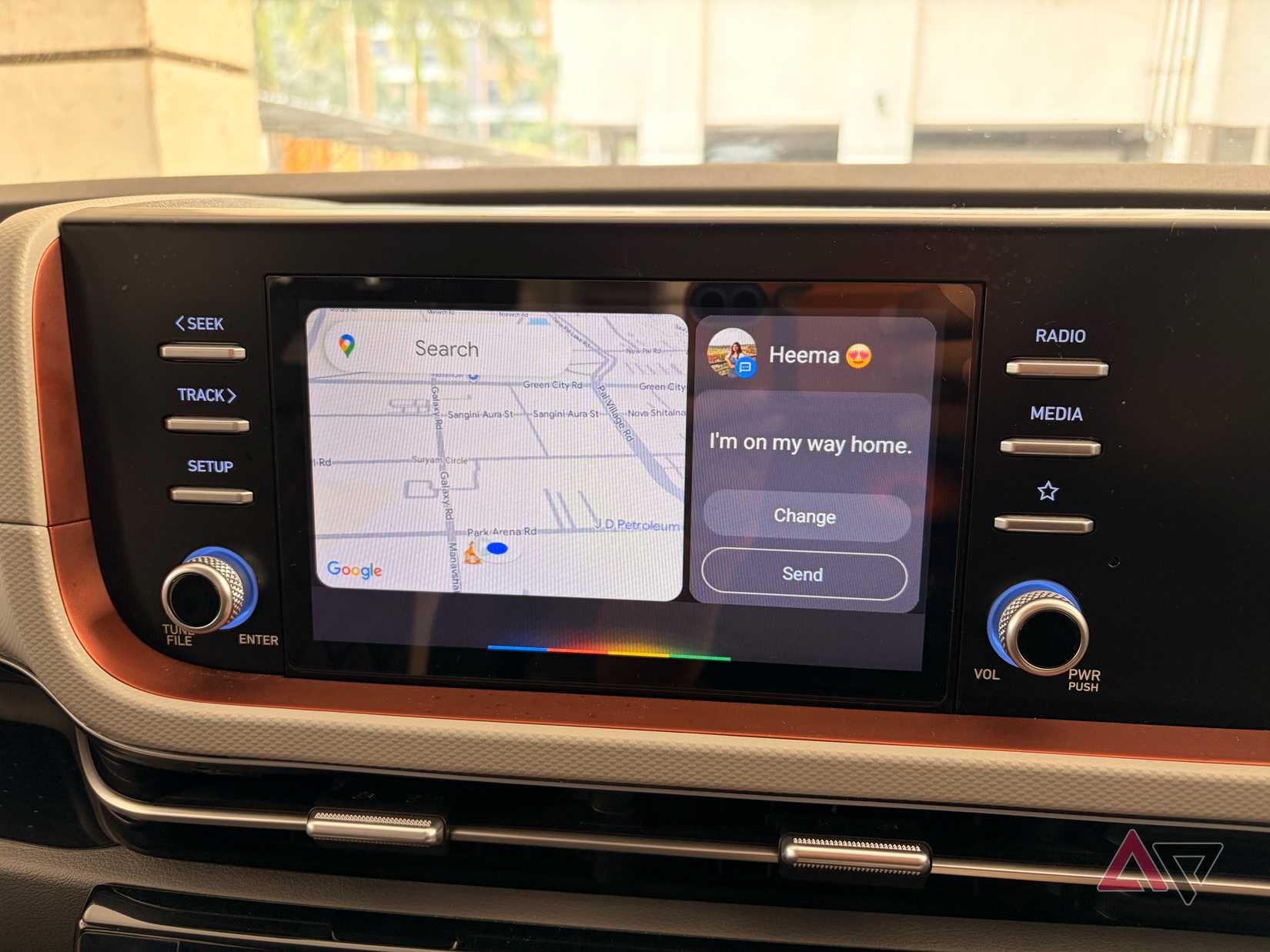
When I’m going through traffic or navigating an unfamiliar city, the last thing I want to do is start a verbal debate with my car.
Since I have a custom action pinned to my launcher, I don’t have to look at the screen to find a contact or wait for the prompt to finish.
Unlike Apple CarPlay, I’m keeping my brain focused on the road, not the interface.
What’s really exciting is that we are currently on the verge of the biggest shift in car tech since Android Auto first launched.
Google is officially replacing the legacy Assistant with Gemini, and I hope it changes these shortcuts from simple triggers to intelligent agents.
Right now, my shortcut is a macro. It does exactly what I programmed it to do.
But with Gemini integrated into the dashboard, I’m looking forward to a car that understands context. I can’t wait to see what Google comes up with Gemini in Android Auto.
Android Auto’s secret weapon against CarPlay
A smart car system should do more than just mirror your phone. It should anticipate your needs.
By bringing custom Assistant actions directly onto the launcher, Android Auto stops being a simple interface and starts becoming a personalized co-pilot.
If you haven’t added a custom shortcut to your launcher yet, you are missing out on the one feature that officially puts Android Auto in the lead.
Aside from that, you can try out these essential apps to elevate your driving experience with Android Auto.










