
I usually hide a picture in Samsung’s Secure Folder because it contains something I don’t want others to see.
So it makes sense that I’d want the photo to stay completely hidden and accessible only to me.
However, on a Samsung Galaxy phone, you don’t get this kind of privacy with Secure Folder.
That’s because when you hide a media file in Secure Folder, Google Photos keeps the backed-up version of the photo or video fully exposed in its app.
The simple solution is to delete those backed-up versions from Google Photos.
But most people likely never remember to do it.
That’s why I built a MacroDroid macro that automatically reminds me to delete the Google Photos version of every photo I move to Secure Folder.
I taught MacroDroid to tap me on the shoulder
Now I never forget to properly hide my sensitive photos
Credit: Lucas Gouveia / Android Police
MacroDroid is a super-cool app that lets you automate many things on your Android phone.
In MacroDroid, an automation is called a macro, and the free version lets you create up to five.
A macro has two parts: a trigger, the event that sets it off, and an action, what your phone does next.
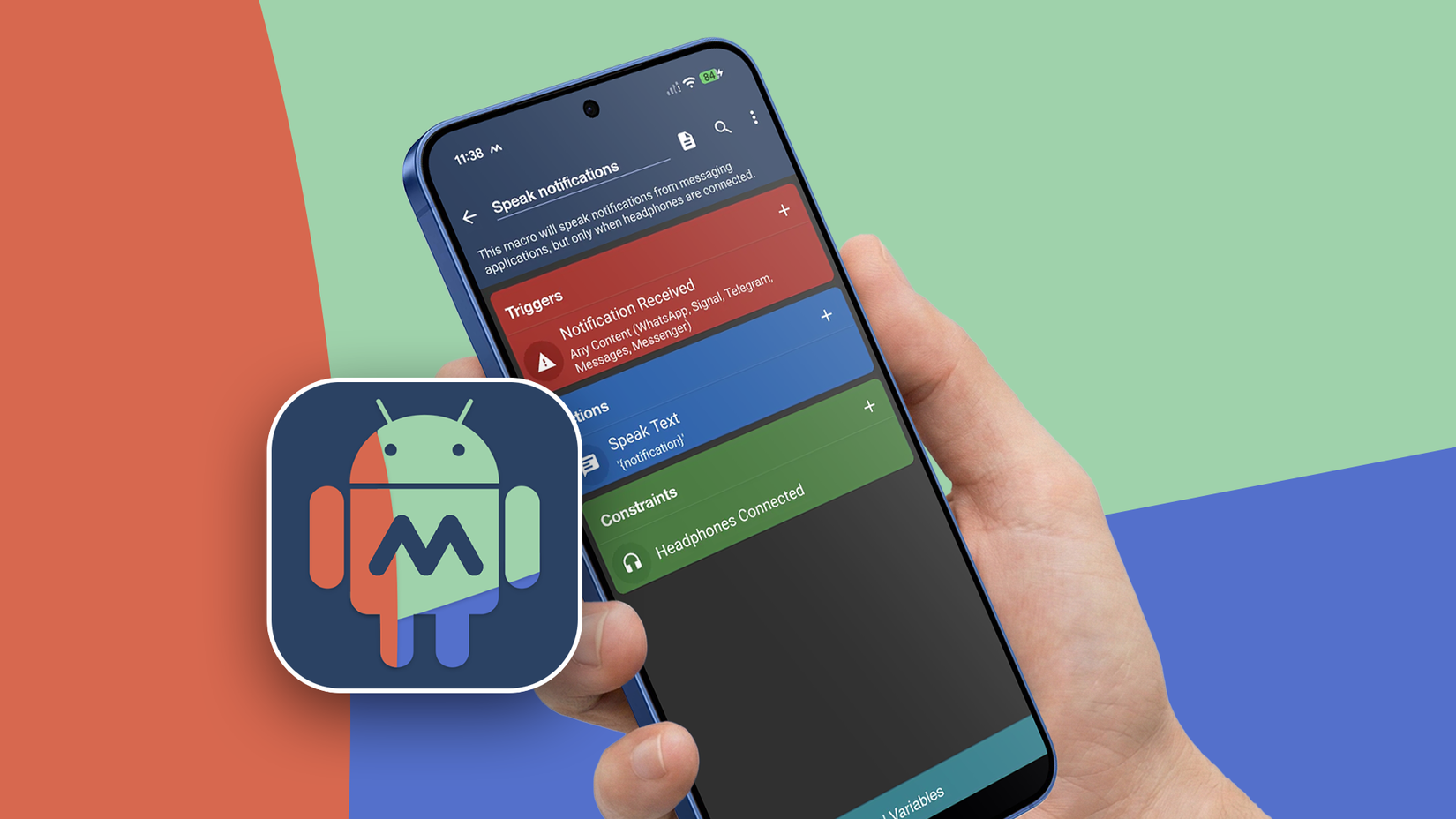
The macro I created looks for when the Move to Secure Folder option appears in my Gallery app, and it sends me a notification that says, “Delete this photo from Google Photos too.”
To build the macro, follow these steps:
- Open MacroDroid, tap Macros, then the + button, and name the macro Secure Folder Reminder.
- Add a trigger, search for screen, and pick Screen Content.
- Set Applications to Gallery, keep On Screen and Text content, and enter *Move to Secure Folder* in Text to match. Leave Include overlays (Pro Only) off.
- Add the Display Notification action. Enter “Secure Folder” as the Title and “Delete this photo from Google Photos too” as the Notification text.
- Under Notification channel, pick Notification action (High priority) so the reminder pops up on your screen.
- Tick Invoke action, action block or macro on click, then tap Action (Not Set) > Launch Application.
- Allow Appear on top when MacroDroid asks, then tap Select Application > Photos and leave its two optional boxes unticked.
- Go to Settings > Accessibility > Installed apps, turn on both MacroDroid entries, and allow MacroDroid’s notifications.
- Go back to your phone’s main Settings menu > Apps > MacroDroid > Battery, then select Unrestricted.
- Return to MacroDroid, tap the three-dot menu, and select Save changes.
My reminder has a few glaring limitations
But they’re nothing more than minor inconveniences
Credit: Lucas Gouveia/Android Police | semprong/Shutterstock
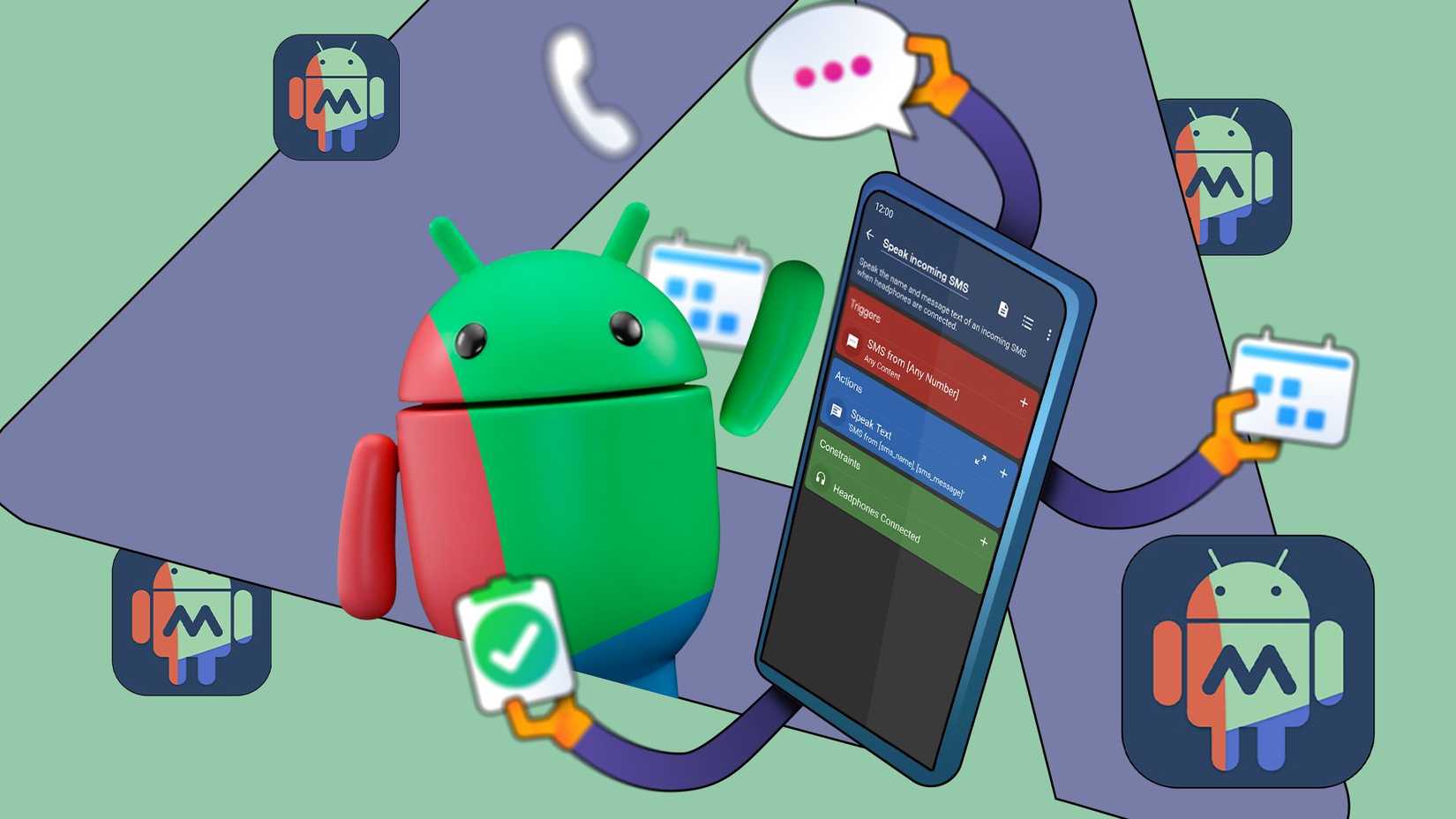
When the MacroDroid notification shows up to remind me to delete a photo, I can tap the notification.
Doing this opens the main screen of the Google Photos app, rather than taking me to the specific app I need to delete in Google Photos.
So, I have to find the copy and delete it myself.
That’s one limitation of the macro. However, a bigger drawback is that the reminder also fires when I don’t need it.
The reason is that the trigger I chose when building the macro was screen watch. It’s the only one that worked reliably out of the options I tried, including the UI Click option.
The trigger fires the automation when the words “Move to Secure Folder” appear on the screen inside the Gallery app.
This means that when you open the three-dot menu in Gallery, and the Move to Secure Folder option appears on screen, you’ll receive the reminder notification.
For me, these limitations aren’t that big of a deal. I’d rather get extra reminders when I don’t need them than let my hidden photos show up in Google Photos.
I won’t deny that the limitations of the MacroDroid reminder might not be pleasant.
At one point, I even considered ditching Samsung’s Secure Folder altogether.
Google Photos has a vault of its own
And it might actually be worth considering
Credit: Lucas Gouveia / Android Police
As I was thinking about the limitations of my MacroDroid macro, I remembered that Google Photos has a vault for hiding photos.
Since the vault, which is known as Locked Folder, is built into Google Photos, it wouldn’t have the limitations that come with Secure Folder.
For a moment, I considered moving my sensitive photos and videos from Secure Folder to Google Photos’ Locked Folder.
But then I checked what that move would require.
I’d have to remove all my media from Secure Folder. Then, I’d have to find them, one after the other, inside Google Photos and move them to Locked Folder.
Meanwhile, my hidden apps, notes, and documents would still remain inside Secure Folder.
That gives me two separate vaults to manage on a single device. I’ll pass.
Until Samsung steps in, my macro covers the gap
As useful as my MacroDroid reminder is, I’d still prefer Samsung worked with Google to fix this problem of exposed Google Photos backups.
When I tap Move to Secure Folder for a picture in Gallery, I’d like for a pop-up to appear that would offer to delete the backed-up copy of the image in Google Photos.
Or, better still, I’d like for the pop-up to offer to move the backed-up version of the picture to Locked Folder inside Google Photos.
When I remove the photo from Secure Folder, I should also be offered the option to bring it out of Google Photos’ Locked Folder.
If any version of my wish came through, it would solve the problem in the cleanest way. However, I don’t see any of these wants becoming a reality any time soon.
For that reason, I’ll keep relying on my free MacroDroid macro to get the job done.