
Google Keep is one of my favorite apps for quickly jotting down ideas, making checklists, and saving information I don’t want to forget. However, its default settings don’t always make for the smoothest experience, especially when you use it throughout the day.
A few small tweaks can make a surprising difference, from changing how new notes and completed list items appear to making reminders more useful and keeping important notes within easy reach.
I’ve changed several Google Keep settings to make my notes easier to manage and ensure the app fits more naturally into my daily routine. Here are the ones worth changing.
Make new notes open as text notes by default
Skip the extra step
Google Keep captures all kinds of information, from handwritten sketches and photos to audio recordings and checklists.
However, if you primarily use it to jot down thoughts, ideas, and quick reminders, having to choose a note type every time you tap the + button feels like an unnecessary extra step.
Thankfully, Google added a setting that brings back one-tap text note creation.
To enable it, open Google Keep on your Android phone, tap the menu icon in the upper-left corner, and select Settings. Under Note creation, enable Create text notes by default.
Now, tapping the floating + button opens a blank text note with the keyboard ready. You can still long-press the + button to display options for creating lists, drawings, image notes, and audio notes.
Turn off rich link previews to keep notes tidy
Save URLs without the bulky preview cards
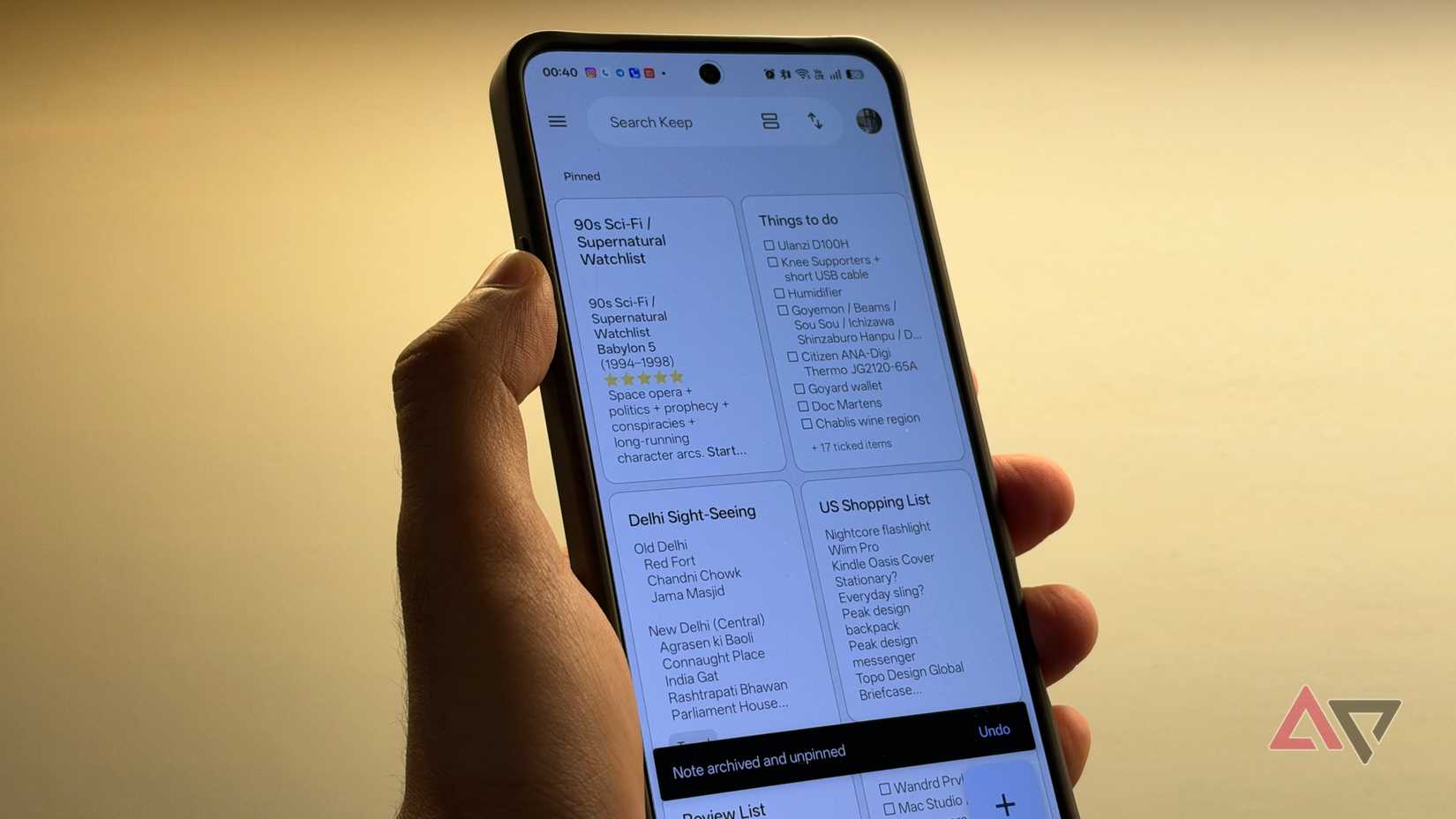
I often paste website links into Google Keep when saving research, articles to read later, or useful reference material. However, Keep automatically turns these URLs into rich link previews, complete with thumbnails and snippets from the linked pages.
While this can be handy when I want to revisit a website, it also makes notes unnecessarily bulky. If I save several links in one note, the previews take up considerable space and make it harder to scan the information I’ve written.
I prefer keeping my notes compact, with URLs appearing as simple text rather than large preview cards.
To change this, open Google Keep, tap the menu icon in the upper-left corner, and go to Settings. Find Display rich link previews and turn it off. From then on, Keep retains the URLs you paste without generating the accompanying preview cards.
This setting is useful if you use Keep as a research repository or frequently save multiple links in the same note. You still have the original URLs, so you can tap them when you want to visit the web pages.
I made Keep accessible from my home screen
Create new notes without opening Google Keep
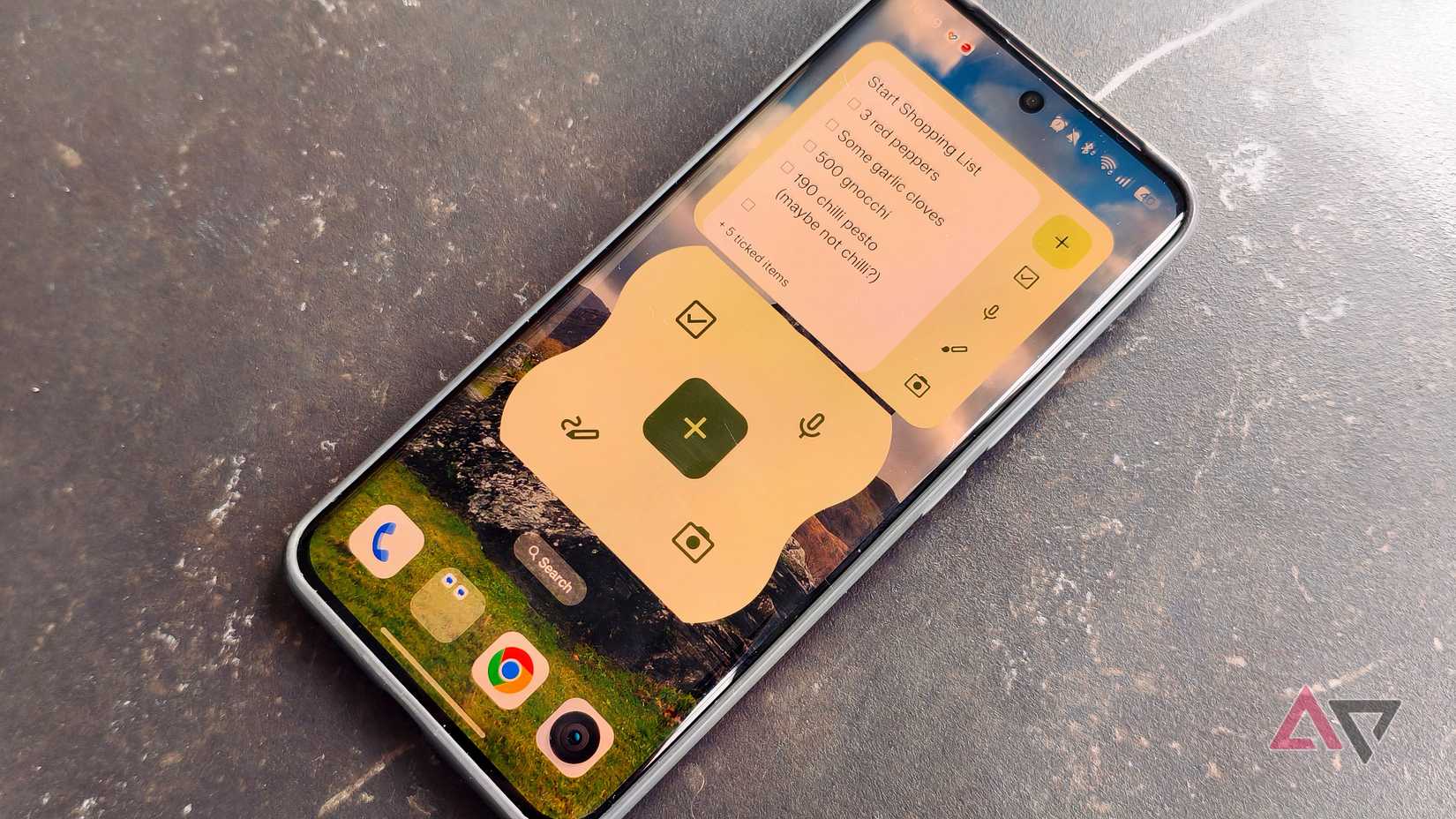
I don’t always want to open an app, wait for it to load, and then create a note. Sometimes I just need to jot down an idea before I forget it.
Google Keep has a Quick capture widget that solves this problem. It lets me create notes and lists from my Android home screen.
To add it, long-press an empty area of your home screen and tap Widgets. Scroll down to Google Keep, expand its widget options, and find Quick capture. Touch and hold it, then drag it to your preferred spot on the home screen. You can also resize the widget to fit your layout.
The widget provides shortcuts to create different types of notes without opening Keep. I can start a text note, create a checklist, record an audio note, make a drawing, or capture a photo.
Switch to List view for easier browsing
Make your notes easier to scan
Google Keep displays notes in a grid by default, placing them in separate cards across multiple columns. While this layout is useful when you want to see several notes at once, I find it can get a little cluttered when I’m juggling lots of saved information.
Switching to List view gives my notes a cleaner, more linear layout, making it easier to scan them and find what I’m looking for.
To change the layout, open Google Keep and look for the List view icon near the top of the screen, next to your profile picture on Android.
Tap it, and Keep arranges your notes in a single column instead of a grid. Tap the same icon again to return to Grid view when you prefer.
I like List view when I’m using Keep on my phone because the wider note cards make individual entries easier to read. It’s also useful when I have several notes with longer titles or descriptions and want to get a better preview without opening each one.
Grid view still makes sense if you prefer a compact overview and want to see more notes simultaneously, so there’s no universally better option.
Pin Google Keep to Android’s Share menu
Make capturing information from other apps easier
I often come across interesting articles, useful website links, quotes, or bits of information while browsing the web or scrolling through other apps.
Instead of copying everything, switching to Keep, creating a new note, and pasting the content manually, I use Android’s Share menu to send information to Keep.
To do this, open the web page, select the text or link you want to save, and tap Share. From the Android sharing panel, select Google Keep. Keep lets you create a new note with the shared content or add it to an existing note. You can then add other details before saving it.
Android sometimes rearranges the apps in the sharing panel based on your usage, which means Keep might not always appear in the same place. However, you can pin it to make it easier to find.
To pin Google Keep, open the Share menu from any app, find Keep in the list of available apps, long-press its icon, and tap Pin. Keep moves to the front of the app-sharing list.
The next time you want to save an article, image, or snippet of text, you can select Keep without scrolling through the entire list.
These simple changes made Google Keep my go-to note-taking app
Google Keep is already a handy place to store ideas, reminders, checklists, and useful information, but a few small adjustments can make it more convenient.
I like having Quick Capture on my home screen and being able to send links and other information to Keep from the Share menu. These changes save me a few taps every time I use the app.