
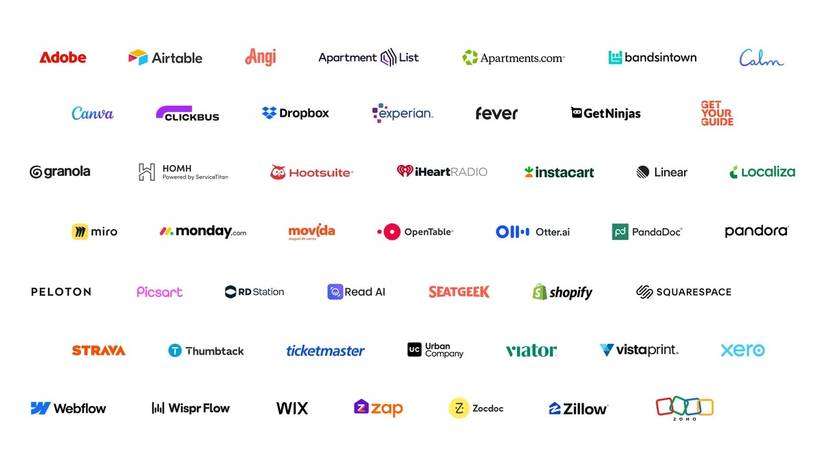
Last month, Google opened a preview of its Connected Apps Platform for developers and said more than 50 connected apps are now live across Gemini and Search.
Thanks to that decision, I can now fill a grocery cart or track down concert tickets without leaving the Gemini chat window.
Speaking of decisions with consequences, Gemini makes a few of its own.
If you don’t tell Gemini which app to use, it decides for you. That choice can change who you’re buying from and how much you pay.
A couple of small habits keep your money going where you want it. Here’s how to name the app yourself, pick the right store inside it, and block the apps you don’t trust.
Gemini now connects to dozens of apps
Which means some could reach your wallet

Credit: Lucas Gouveia / Android Police
Instacart and Ticketmaster are two of the biggest shopping names in the directory. I’ll use them as examples throughout, but the same thing can happen with any app you connect.
Here is the gist. You type what you want. Gemini stops answering questions and starts doing the work inside the partner’s service for you.
Under the hood, the platform runs on the Model Context Protocol, or MCP, a standard that lets developers hook their services into Google’s system without jumping through hoops.
The directory is filling up fast, and more apps means more choice. It also means more apps that could plausibly answer the same vague request and more decisions Gemini makes when you don’t specify.
Credit: Google
Google is vague about how Gemini picks an app
And first impressions tend to last
Credit: Lucas Gouveia / Android Police
When you type something generic like “order groceries,” Gemini has to make a business decision for you.
Google’s documentation only says that if an app is available, Gemini automatically uses it. For that first pick, that’s about as specific as it gets.
For some app categories, like notes and lists, Google says Gemini defaults to the last app it used, and you have to name a different one to switch to it.
If shopping works the same way, one vague grocery request could decide where your next several orders go.
To Google’s credit, Gemini doesn’t hide the app after it has chosen. But seeing the choice after the fact isn’t the same as knowing why it was made.
Assumptions are where your money ends up when you aren’t looking. The fix is to either be very specific with your prompts or type @ followed by the app’s name.
Gemini then sends the request to that exact integration instead of picking one on its own.
If you haven’t linked that service, Gemini stops and asks you to authorize the account connection before it goes any further.
Example 1: Ticketmaster and Fever plan very different weekends
If you ask from the wrong app, you may get the wrong plan
Credit: Ticketmaster
If you ask Gemini for “weekend events in Chicago,” you may get very different results.
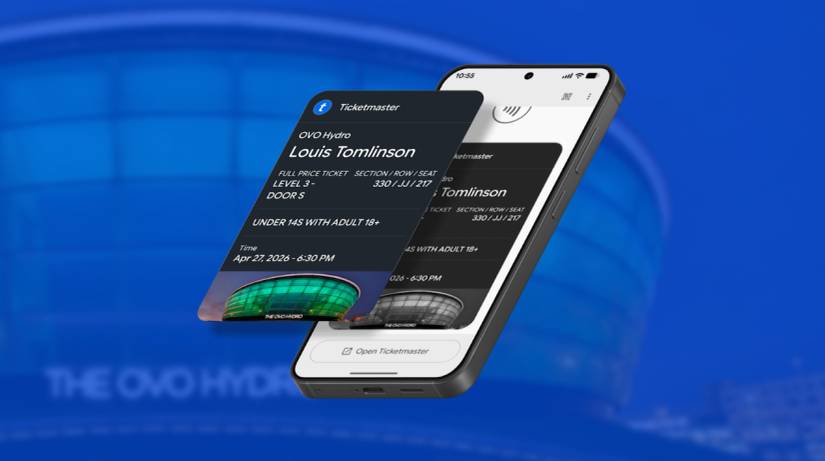
If Gemini goes with “@Ticketmaster weekend events in Chicago,” you’ll get big-ticket events like major concerts and pro sports, plus large theater productions.
The same prompt as “@Fever weekend events in Chicago” leans toward immersive local experiences and themed pop-ups.
But if you leave out the @ mention, Gemini may decide which version of your weekend you see.
Ticketmaster and Fever are only one pair, but they show a problem you’ll run into across the whole directory.
Plenty of apps can answer the same request, and each one answers it differently.
Angi and Thumbtack can help you find someone to fix a leaking sink. Viator and GetYourGuide can book a tour for your next trip.
Example 2: Costco and Aldi won’t fill the same cart at the same price
Instacart asks a second question
Credit: Lucas Gouveia / Android Police
Picking the app is sometimes only half the decision. Some apps give you even more choices after you’re inside. Let’s use Instacart as an example.
After you or Gemini picks the app, someone has to specify a retailer and the store of choice.
Why? Because Costco and Aldi, for example, won’t price things the same, which changes what you pay for items and fees.
Ordering groceries through a chatbot doesn’t make the markup go away, so keep an eye on your cart.
How to turn off a connected app
Every app gets an off switch
Credit: Lucas Gouveia / Android Police
If there’s an app you never want Gemini reaching for, turn it off.
Open Settings from the gear icon. Choose Personal Intelligence, then Connected Apps.
You’ll see third-party apps listed alongside Google’s services, such as the Workspace apps. Click More options next to any app you don’t want Gemini using, then disconnect it.
Sometimes convenience has a cost
Filling a cart from a chat window is amazing. A few years ago, we would have dismissed it as sci-fi.
But when shopping gets this easy, it’s tempting to stop thinking. The easier it gets, the less attention we tend to pay.
So spell it out. Tell Gemini which app, which store, and exactly what you want. Gemini gets better after you start making these small tweaks and getting specific with your wallet.
Gemini is a capable shopper, but you should be shopping on your terms.