


Quick replies give you some reprieve when you’re feeling overwhelmed with all your tasks and notifications, but can’t find a minute to respond to someone who is trying desperately to get your attention.
Ignoring your close contacts won’t do you any favors, even if they know you’re busy, and it is during work hours.
But there’s no point in being rude. It’s better to acknowledge your messages and send a quick reply that you’re busy, and let them know when you’re done or available.
If not, automate your device to send a reminder to reply later.
That’s where I began tinkering with smart replies and suggestions on Google Messages. Outside those features, I have been using quick replies to postpone calls for me.
Here’s how I am doing it and how you can set it up for yourself.
You can do this on any device running the latest version of Android, including Samsung Galaxy devices with the One UI skin installed.

Setting up smart replies to Google Messages
One tap acknowledgment takes some social stress off
Credit: Lucas Gouveia / Android Police | ViDI Studio / Shutterstock
Smart replies are AI-generated. When a smart reply is generated, you can’t manually edit it. So that’s where you’re relying on AI to capture your chat’s context properly.
I wasn’t sure about using this tool at first, in case it didn’t work out properly. But most of my chats in Google Messages remain short.
Plus, anything that is sent, I have to approve. Your smart replies appear above your keyboard in the chat window, and you need to select them.
I don’t use the tool for anything too extravagant. If I found out I was getting word-bombed or that there were highly personal details present in my messages, I would just leave short replies with no follow-ups.
For Google Messages, you can enable this in your Google Messages settings. Open Google Messages, tap your profile icon, then select Messages settings.
From there, scroll down, tap Suggestions, then toggle Smart Reply on.
Another option I don’t use often but do try out is the Magic Compose feature.
It’s similar to smart replies, where it gives you some contextual suggestions on what to say, and you can also use the AI to change the tone on something you’ve typed.
This is usually an experimental option for me, but I kept trying it out just to see if the AI can produce human-like responses (so it doesn’t appear I used AI to fix the tone in my messages).
It did fine, but I wouldn’t overuse it to fake my own emotions in a message.
The last option I prefer to enable is the Nudges feature. Basically, any messages I haven’t responded to yet, I toggle on Suggest message reminders, which appear at the top of my chats in Google Messages.
For the most part, using these features gets people off my back and lets them know I’ve replied, especially when some of my contacts eyeball my read receipts when I open them.
Smart replies aren’t my favorite to use, since I’d like to edit them before I send anything. Plus, most of the replies I’ve used are slightly generic at best, but at least the ones I select all sound like responses I’d give.
Using quick responses in the Phone app
Decline a call with one fast and professional message
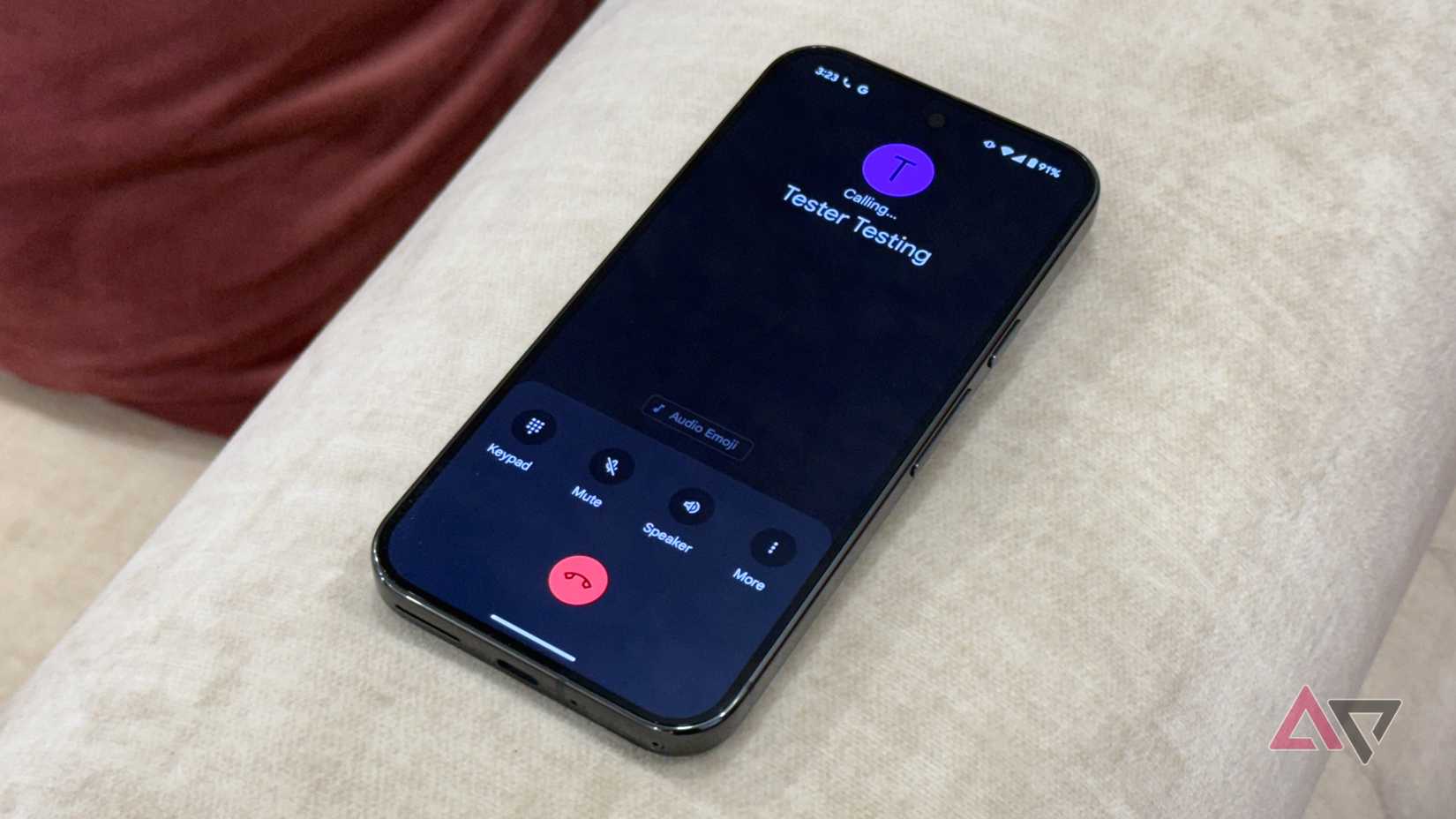
Spam calling is no fun to deal with. Though thankfully, keeping spam numbers blocked is not an issue. I will still get phone calls from unknown numbers.
But it doesn’t mean I can stop everything I am doing every time someone calls my smartphone. It breaks my focus, and I’d never get work done.
That’s where I have been using the quick responses feature.
So whenever a call comes through, you can select a phrase when you decline it. You select a template, and you can edit it to personalize it.
I generally type a response like, “I can’t pick up the phone, but I’ll get back to you later,” or “I can’t talk right now, send a text on what you need.”
It’s simple to set up. Open your Phone app (it doesn’t matter if you use the Google Phone app or Samsung’s, since quick responses are supported in both) and select Settings.
In the Samsung Phone app, you can do this in two ways. The first is to select Text call under Call assist in your Call settings. This gets you to the quick responses section.
In that section, you can choose the template to edit, or you can create your own.
I prefer to create my own since the default options are already solid and don’t need tweaking.
When you use quick responses with the Samsung Phone app, the message is said aloud to the caller.
The second place to send a quick reply is also in your Call settings. Tap Quick decline messages, then choose a default message or tap the plus sign in the upper-right corner to make your own.
Choosing this method will send a message to callers when you can’t or don’t want to answer, but you will receive a reminder later.
It’s good in the short term if you’re busy driving or in the middle of a meeting, but have time to chat later.
If you’re using the Google Phone app, setting up quick responses is even easier. Open the Phone app, tap the hamburger button, and select Settings. Scroll down to Quick responses.
The quick responses feature is nifty to get someone off your back until you can answer or call back.
Gmail also has a smart reply feature
One wonderful thing about email messages is that they’re typically less urgent than phone calls. Most people are patient if it takes you a few hours or a day to respond.
But some emails can be answered with a quick response. Similar to your Google Messages smart reply function, you can enable smart replies for AI-generated responses.
AI will analyze the context and give suggestions for a reply.
If you want more than a one-line response, you need a Google Workspace Business or Enterprise account plan activated to use the Contextual Smart Reply to receive more detailed responses from Gemini.










