


I’ve been using Android Auto long enough to know its quirks.
When it works, it’s great. Navigation on a big screen, hands-free calls, and music controls work beautifully.
When it doesn’t, the annoyances pile up fast: flaky wireless connections, missing apps you know should work, and visuals that don’t quite fit your car’s display.
Out of frustration, I ended up poking around Android Auto’s hidden developer settings, not expecting much, and definitely not expecting fixes.
However, buried in that menu were toggles that addressed some of my biggest pet peeves, without rooting or breaking anything.
Here’s how a few tweaks made a big difference.
How to use Android Auto’s developer settings
The developer menu isn’t hidden behind any hacks or third-party tools. It’s just buried deep enough that most people never stumble across it.
First, open the Settings app on your phone and scroll down to Connected devices. From there, tap Android Auto.
If you don’t see it right away, search for Android Auto in Settings.
After you’re on the Android Auto settings page, scroll all the way down to the bottom and tap Version repeatedly. After about ten taps, you’ll see a prompt telling you that developer settings have been enabled.
Now, tap the three-dot menu in the upper-right corner and select Developer settings. You’ll see a long list of toggles and options, many of which are meant for testing or debugging.
Most of them won’t make sense at first glance, and some are best left alone. But buried in that list are a few useful settings that can make Android Auto less annoying to deal with.
Toggle Wireless Android Auto for fewer connection headaches
One of the perks of unlocking Android Auto’s hidden developer settings is that you get direct control over Wireless Android Auto, using a toggle that isn’t available in the standard settings menu.
After you enable developer options, you’ll see an option labeled Wireless Android Auto. Turning this on actively enables wireless projection whenever possible, rather than waiting for a cable connection.
If Wireless Android Auto is enabled, your phone can connect over Wi-Fi and Bluetooth without a USB cable as soon as you start the car.
If you turn it off, Android Auto will only work over a wired connection, even if your car supports wireless projection.
That choice matters because wireless Android Auto isn’t always the best option.
Wireless connections can be less stable than wired ones, especially in cars with weaker head units or in areas with heavy wireless interference.
Drops or delayed responses can affect navigation, music playback, and voice commands.
Battery drain is another trade-off. Wireless Android Auto keeps your phone busy handling Wi-Fi, Bluetooth, GPS, and continuous data transmission while also driving the car’s interface. On longer drives, that drain adds up quickly.
Being able to turn off Wireless Android Auto gives you control. For short trips, wireless is convenient and cable-free. For longer drives or when stability matters more than convenience, forcing a wired USB connection is often the better option.
The Wireless Android Auto toggle lets you choose how you want it to behave, and that alone makes it worth unlocking the developer menu.
Unknown Sources: Using apps that Google doesn’t officially support
Credit: Lucas Gouveia / Android Police | arda savasciogullari / Shutterstock
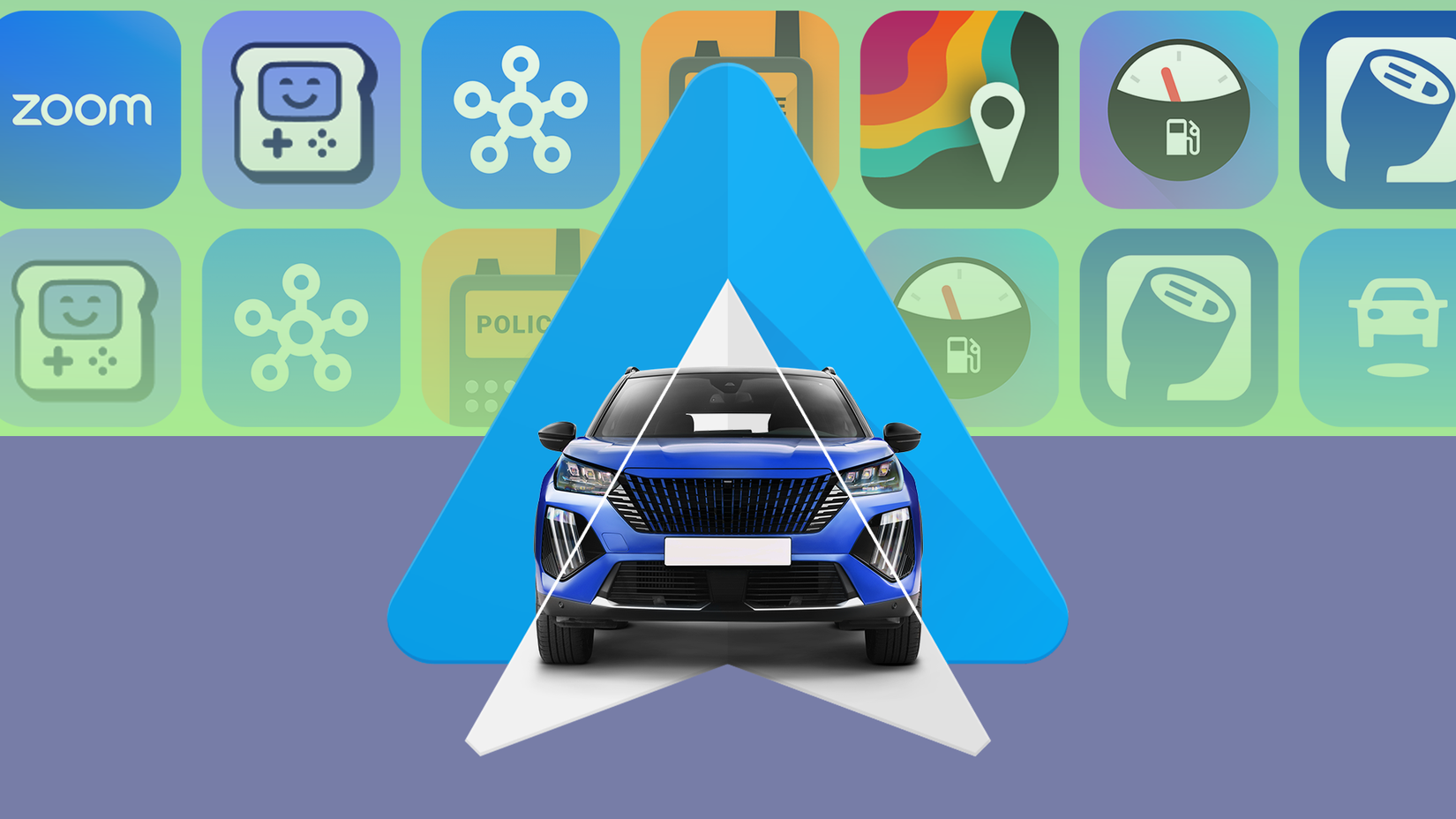
By default, Android Auto only shows apps that Google has approved and distributed through the Play Store. That keeps things safe and consistent, but it also means some genuinely useful apps never appear on your car’s screen.
Checking Unknown Sources in developer settings loosens that restriction. It allows Android Auto to run compatible apps that aren’t officially listed by Google, as long as they’re designed to work with the Android Auto interface.
It can open the door to third-party navigation tools, alternative media players, or utility apps that Google doesn’t support yet.
This setting is essential if you want to use alternatives like NewPipe for YouTube audio or Spotify variants.
After turning on Unknown Sources, go back to Android Auto settings, tap Customize launcher, and you’ll see the newly available apps listed there.
Check the ones you want, and only then will they appear on your Android Auto home screen.
It’s worth noting that not every app behaves well on a car screen, and some may feel rough around the edges.
There’s also a reason Google locks this down by default: Android Auto is meant to minimize distractions while driving. If an app isn’t built with that in mind, it can be more distracting than helpful.
Video resolution: For sharper visuals
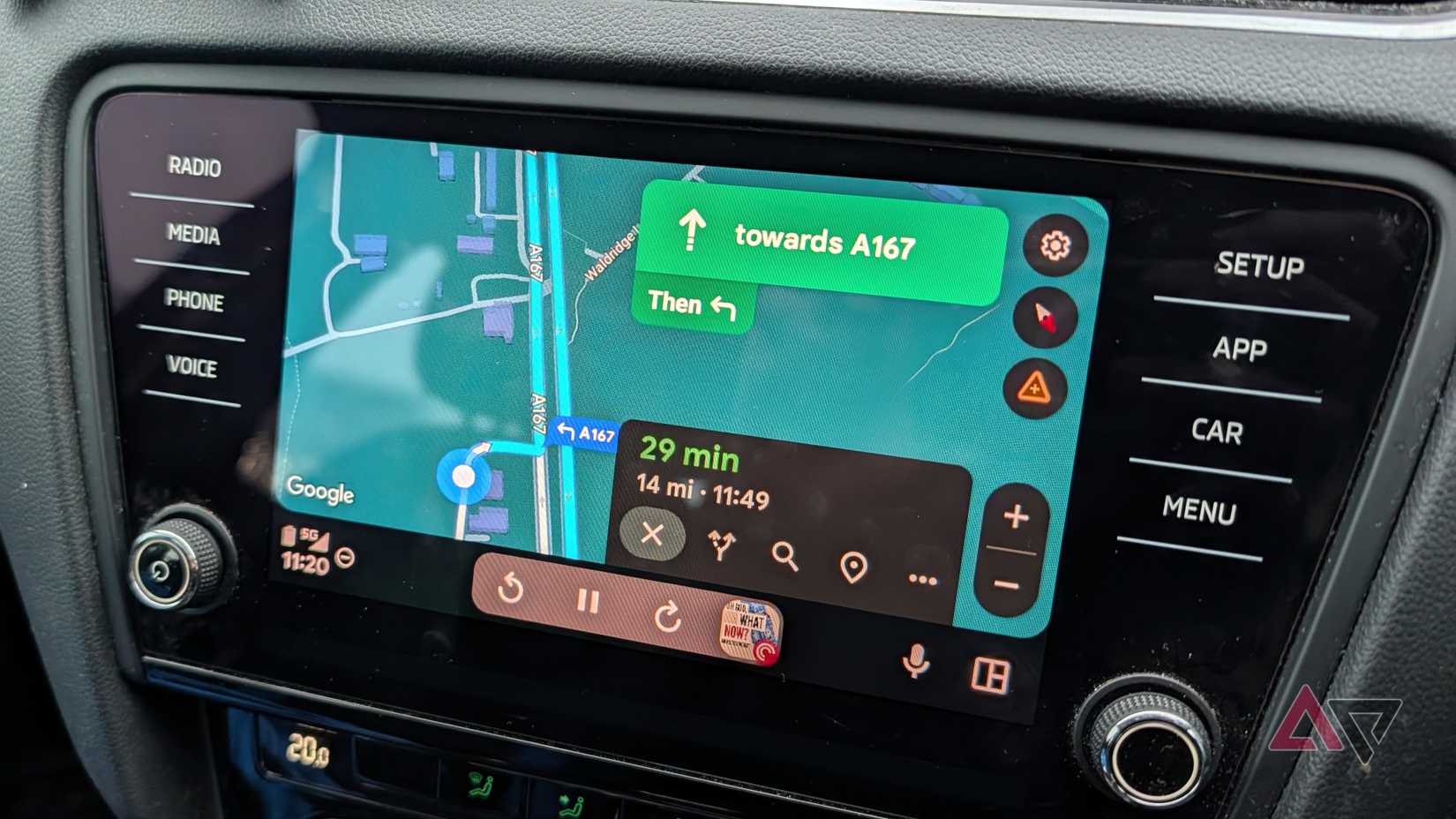
Android Auto is designed to work with a variety of car displays, ranging from basic 6-inch screens to large infotainment panels.
To ensure stability, the system usually defaults to a conservative resolution for rendering user interface elements and map graphics.
However, on higher-resolution screens or in vehicles with better hardware, the text and lines may appear slightly blurred.
In the developer settings, you can tap Video Resolution to select a different option. On compatible head units, this can result in sharper visuals.
This hidden menu improved my Android Auto experience
Unlocking Android Auto’s developer settings made the system more flexible.
Being able to control wireless behavior, allow apps that Google doesn’t officially support, and tweak display resolution enhanced my driving experience.
Most drivers will never need this menu, and Google is probably right to keep it hidden.
But if you’ve been tolerating small annoyances, especially around wireless connections, app availability, or display quality, it’s worth exploring.











