


Digital clutter is the bane of my existence. My notifications run wild, I have apps that stay installed for years, and then wonder why I get sudden battery drain issues after casual use.
Plus, I’ve been trying to work on my digital footprint, installing fewer third-party apps unless they use minimal permissions. But there’s still a problem with the apps I have enabled on my device.
The number of apps I have installed on my phone is almost disgusting. I try to sweep the problem under the rug by hiding my apps in folders, and while it keeps them out of my view, it doesn’t necessarily declutter my phone.
But opening up each folder and looking through every app overwhelms me.
That’s why I now openly face the problem. I focus on managing and uninstalling unused apps.
The method I use is easy, and you can do this on any smartphone, whether you own one of Google’s latest flagships or use a budget Android phone.
Don’t be afraid to purge all your unused apps
I delete old software directly from my storage
Credit: Lucas Gouveia / Android Police
I like that my smartphone has tools to help me find unused apps. I can go to the apps page or check through the storage and file manager.
I don’t need to install cleaning apps to help de-junk my device. Android already has one built in through the file manager app. You can use Files by Google.
If you prefer to be selective and uninstall from a list, you can find a list of inactive apps in your applications.
I don’t find that nearly as handy, since I prefer to uninstall apps without having to select each app individually.
Samsung devices will have an unused apps section inside the Device care settings and Storage option. Apps not used in the past 30 days will show up on this list.
You can do this in the Files app or open the Google Play Store.
Personally, I prefer using the Files app because it lets me remove temporary files from another menu. So it becomes a two-for-one deal to clean out everything.
If you dislike the default Files app, you can always look into third-party file managers that integrate better with your setup.
I like having one uniform file manager across my devices, and that’s always Google’s Files app. Even as a primary Samsung user, I stick with Google’s default file manager.
To uninstall apps in the Files app, tap Apps, then tap the three-dot icon next to the app name.
From there, choose Uninstall > Ok. Repeat these for all the apps you wish to remove.
You can also look through large apps or select Unused apps to filter your list. However, it will require enabling the Files app to access your apps and storage to see this information.
Repeat until you’re satisfied with the app cleaning.
If you prefer not to use a file manager, you can uninstall apps similarly in the Play Store.
You can access the Play Store to view a list of apps, then select them to uninstall from a list. To do this: open the Google Play Store, tap on your profile, and choose Manage apps & device. Select the Manage tab.
From there, you can choose the apps in the list by tapping the boxes. Checkmark all the apps and then tap the garbage can icon in the upper-right corner. Choose Uninstall to confirm.
I like doing this in bulk. I am also trying to kick myself into doing it more often when I transfer all my apps and data to a new phone.
It turns out that I have let unused apps sit on my device for years and kept them hidden in folders.
Handling apps on your device that you aren’t sure about
If I don’t want to part ways with an app, I archive it
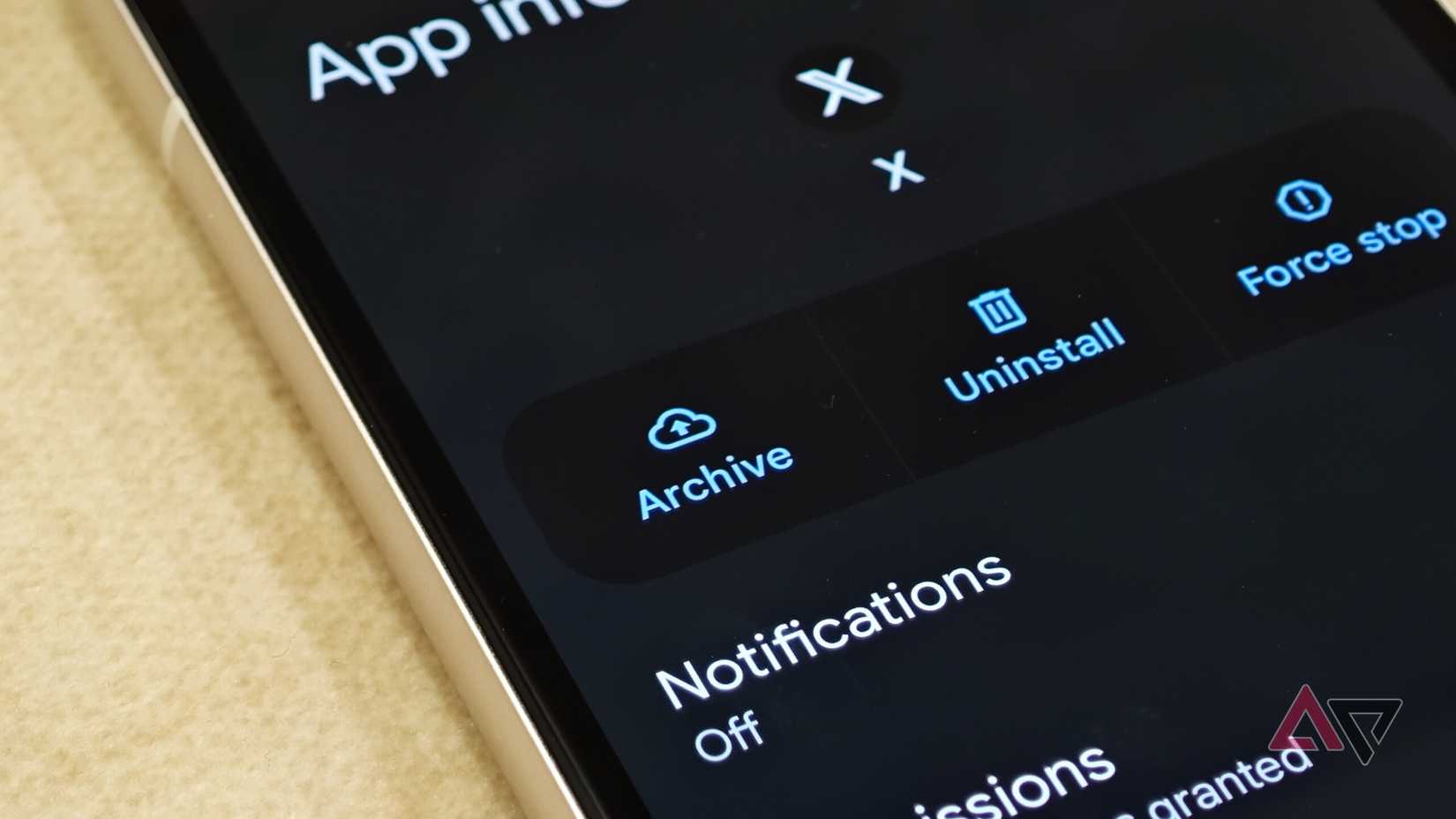
I’m somewhat of an app hoarder. Even if I only open them a few times a month, I don’t necessarily want to part ways with them.
That’s where archiving apps have been a much better tool for me.
It’s a nice halfway solution. It doesn’t remove the app from its view, but it saves on storage space and prevents your apps’ notifications from going haywire.
It’s also a nice way to keep my app data. I don’t have to worry about losing my saved logins or re-configuring the settings.
Archiving apps have been my main go-to to keep my digital clutter under control. It also makes reinstalling easy.
You can archive apps in two ways. You can use the built-in OS feature on Android 15 and later devices, or the auto-archiving option in the Google Play Store.
Since I already had digital clutter, I found the built-in option much preferable. The auto-archiving feature in the Play Store is mainly useful for addressing storage space issues.
So, to me, the auto-archiving Play Store is mostly an emergency option if storage space runs low, which doesn’t always help me since I keep upgrading my devices’ internal storage.
I’d rather just archive apps as a general clean-up option via the built-in OS settings.
If you want to turn on auto-archiving of unused apps in the Play Store, open the Play Store, tap your profile, then scroll down and select Settings.
Choose General and toggle on Automatically archive apps.
If you wish to archive apps through your OS, open Settings on your Android device and select Apps or Applications.
Choose an app from the list, then tap Archive. The option will be at the bottom of the screen or at the top, depending on the OS skin you have installed (Google Pixel has it toward the top, and Samsung devices have it toward the bottom).
I found the archive option to be a great second step for apps I still had on my phone that I sometimes use but not that often, after I did the bulk-uninstall app cleanup.
Do a spring-cleaning of your photos
If you’re like me and your photo albums are out of your control, you’ll want to back up and remove old photos.
The last thing you would want is to have your storage space filled up with too many similar shots or accidentally duplicated images in your folders.
Thankfully, it is straightforward to fix, as it only requires a few simple taps through default photo management apps like Google Photos or Samsung Gallery (for Samsung users).









