


Samsung loves hiding some of its most useful features in the least obvious places, and this one might be one of the best examples yet.
I had been struggling to get a few Wi-Fi security cameras working properly in certain parts of my home, even after adding a new satellite to my mesh network.
That is when I realized my Samsung Galaxy S24 had a hidden Wi-Fi tool that let me walk around the house and see exactly where things were going wrong.
Buried in One UI is a setting called Connectivity Labs that I had never touched before, and it showed me the weak spots in my network and helped me reposition my mesh routers to actually fix them.
If you’ve been facing internet issues in your home, it might not be your ISP. In my case, it was just bad Wi-Fi placement.
Here is how Connectivity Labs helped me figure that out and how you can use it to do the same.
How to enable Connectivity Labs on Samsung Galaxy phones
The option is hidden inside Wi-Fi settings, but is easy to turn on
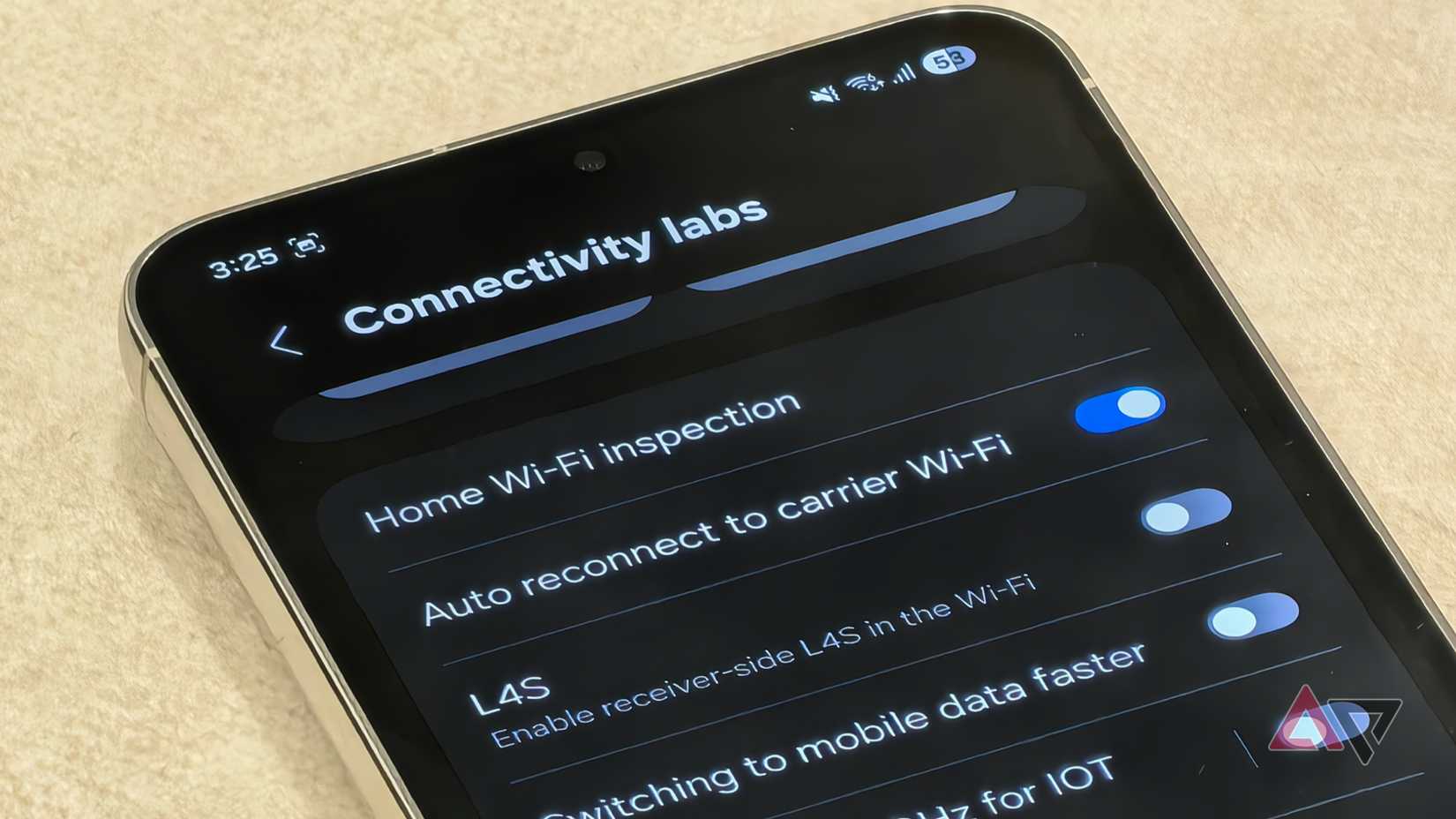
Connectivity Labs is not directly visible on Galaxy phones by default. Instead, you need to manually enable it through the Wi-Fi settings.
The feature is available on all Samsung Galaxy devices running One UI 6 or newer, which includes all recent phones like the Galaxy S25, Galaxy S24, and every Galaxy S-series device from the Galaxy S20 onward.
To get started, open the Settings app and head to Connections > Wi-Fi. Make sure your phone is connected to a Wi-Fi network, then tap the three-dot menu in the upper-right corner and select Intelligent Wi-Fi.
Next, scroll all the way down and tap the Intelligent Wi-Fi software version option seven times. After repeatedly tapping it, you will see a message confirming that Connectivity Labs has been enabled.
When activated, Connectivity Labs appears at the bottom of the page, and you can access its settings by simply tapping it.
How I used Connectivity Labs to find weak Wi-Fi spots in my home
It clearly shows where your network drops or slows down
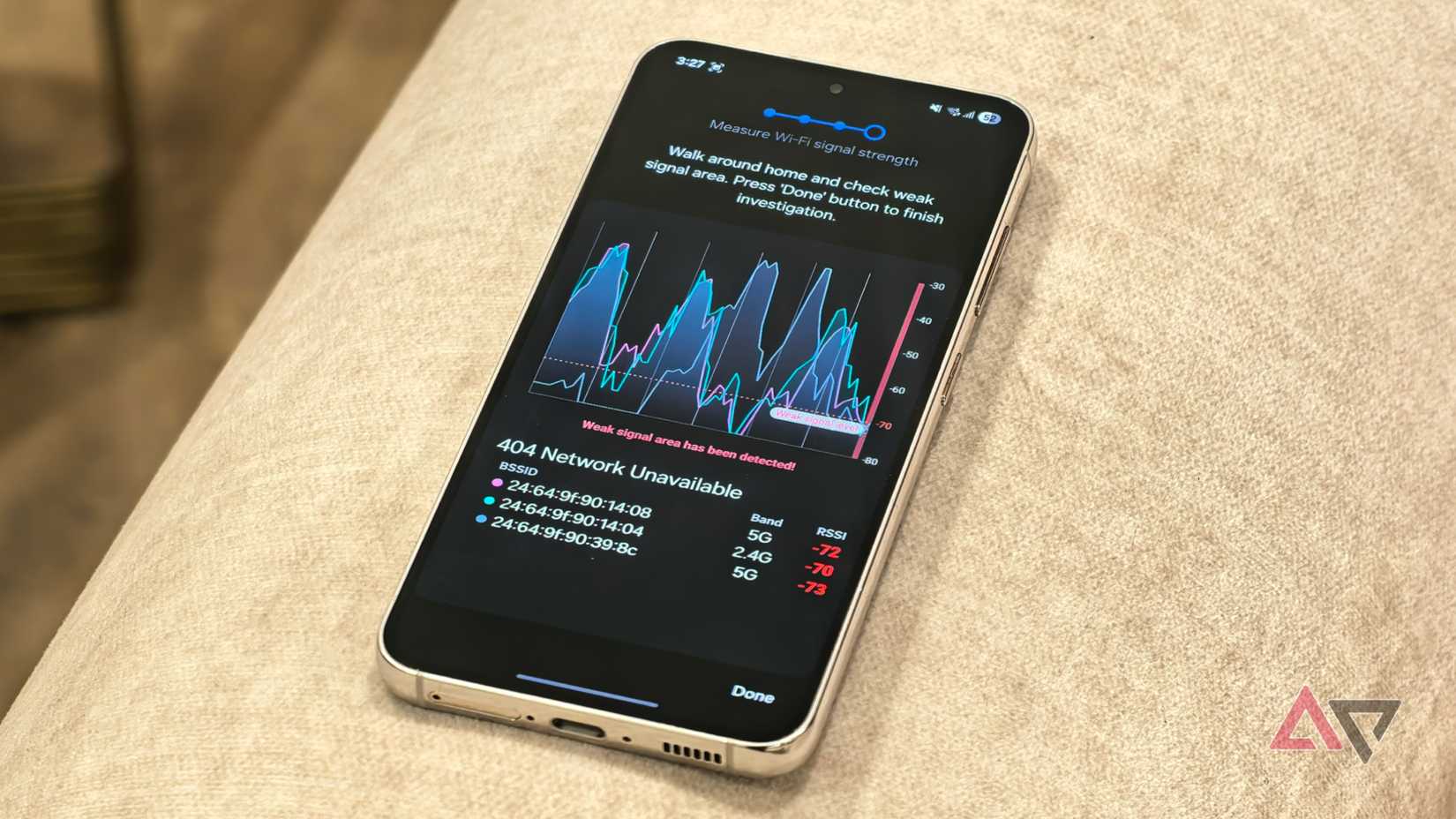
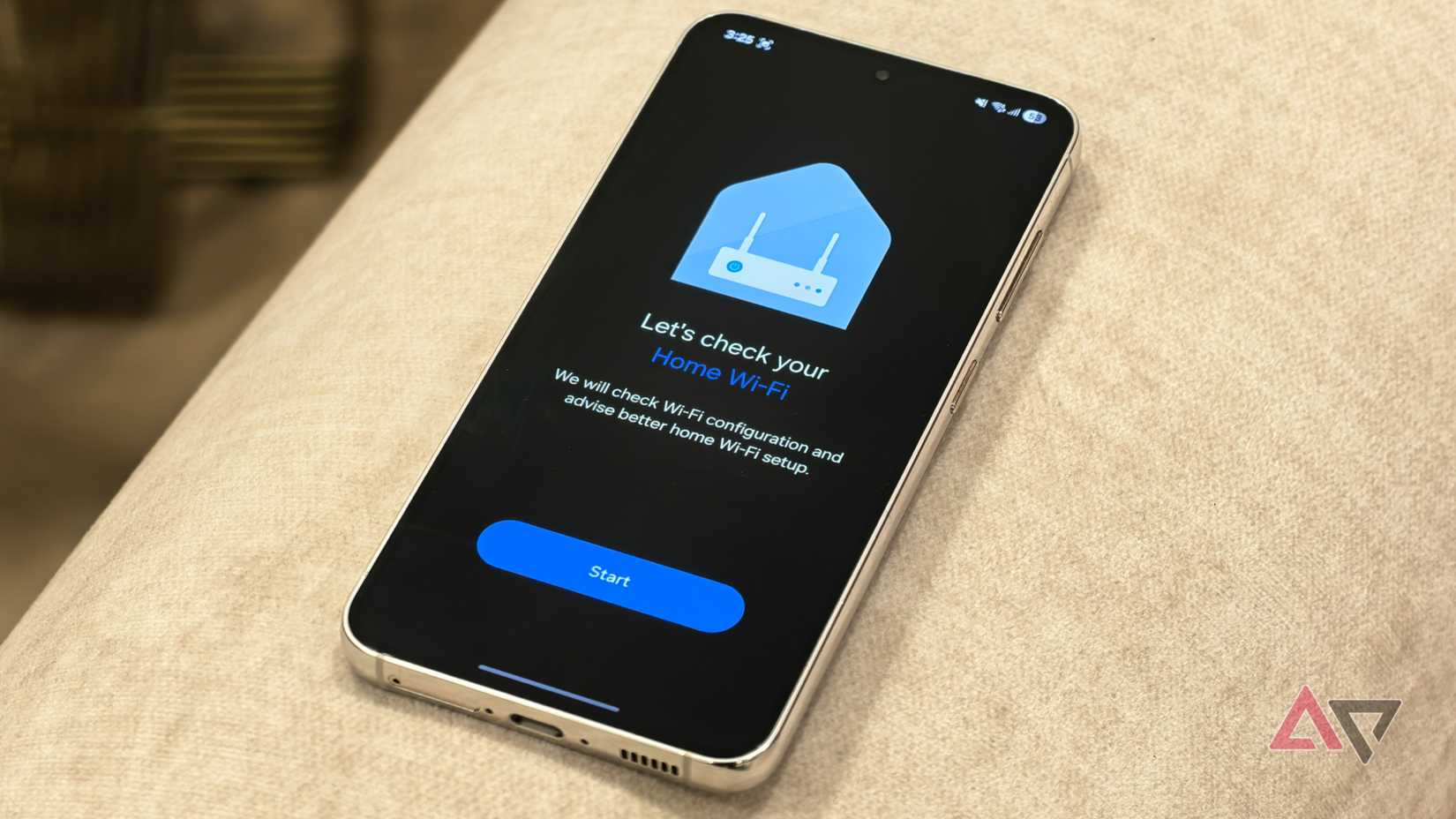
Connectivity Labs includes several tools, but the one I found most useful was Home Wi-Fi inspection, which helps identify weak Wi-Fi spots in your home.
You can access it by scrolling down in the Connectivity Labs section and tapping the option with the same name.
When you open it, the tool first shows a brief introduction explaining what Home Wi-Fi inspection does. You then need to select the Wi-Fi network you want to inspect.
If there are any configuration issues, the tool will flag them. If not, it will confirm that your network is properly configured, after which you can move to the next step.
This is where the real test begins.
After tapping Start, you need to walk around different areas of your home with your phone.
As you move, the tool plots a live Wi-Fi signal graph, allowing you to see exactly where your connection weakens or drops.
You can judge signal strength either from the graph or from the numerical values shown next to each Wi-Fi band. A value closer to zero indicates a stronger signal.
In my case, the area where my security camera struggled to stay connected showed up as a clear weak spot. That confirmed the issue was router placement rather than my ISP.
Everything else Connectivity Labs lets you monitor and fix
There are plenty of other features in Connectivity Labs
Beyond the Home Wi-Fi Inspection tool, Connectivity Labs also includes several other useful features, such as Switching to mobile data faster.
When enabled, your Galaxy phone automatically switches to mobile data if it detects that the connected Wi-Fi network is weak, helping maintain faster and more reliable internet access.
I’ve also enabled the Show band information toggle, which clearly displays whether the Wi-Fi network you are connected to or trying to connect to is using the 2.4 GHz or 5 GHz band.
Personally, I prefer connecting to 5 GHz networks whenever possible, as they generally offer faster speeds.
Another helpful option is Nearby Wi-Fi information. This lists the signal strength of nearby Wi-Fi networks, making it easier to identify which one offers the strongest connection.
This feature can be especially useful in public places where multiple networks are available and signal quality varies.
This may be Samsung’s best hidden One UI feature overall
On the whole, Connectivity Labs is a genuinely useful hidden tool on Samsung Galaxy smartphones that helps you monitor Wi-Fi performance on your phone and even evaluate router placement around your home.
That said, it is just one of many hidden features on Galaxy devices. Samsung phones also include other lesser-known tools, such as Dual Messenger and Bluetooth audio sharing, that are worth checking out.










