


I don’t like Google bundling its own apps with every Android phone. But some Google apps are so useful that I want them right after booting a new phone for the first time.
Gboard is one such app. It has several handy features, including one that fixed my biggest typing fear on Android. However, not every feature is meant for everyone.
I, for one, don’t use Gboard’s autocorrect feature because of how poorly it performs. I can name a few more such Gboard features that need improvements to win me over.
On the flip side, Gboard also has several excellent features, which rarely fail when you need them. Despite being great at what they do, I don’t use all of them.
I’ve been ignoring them for as long as I can remember, and I plan to continue skipping them in the future.
Here are five brilliant Gboard features I will keep avoiding in 2026.

Emoji Kitchen
Credit: Lucas Gouveia / Android Police
I was randomly checking messages in one of the group chats that I was part of the other day.
Although I wasn’t looking to establish anything, I was surprised to see the number of times everyone, including myself, used emojis in their conversations.
This was the first time I gave any thought to the kind of impact it has on our lives and how it evolved.
I won’t share all my thoughts here, but one particular emoji capability I realized is purely gimmicky and is rarely useful: Emoji Kitchen.
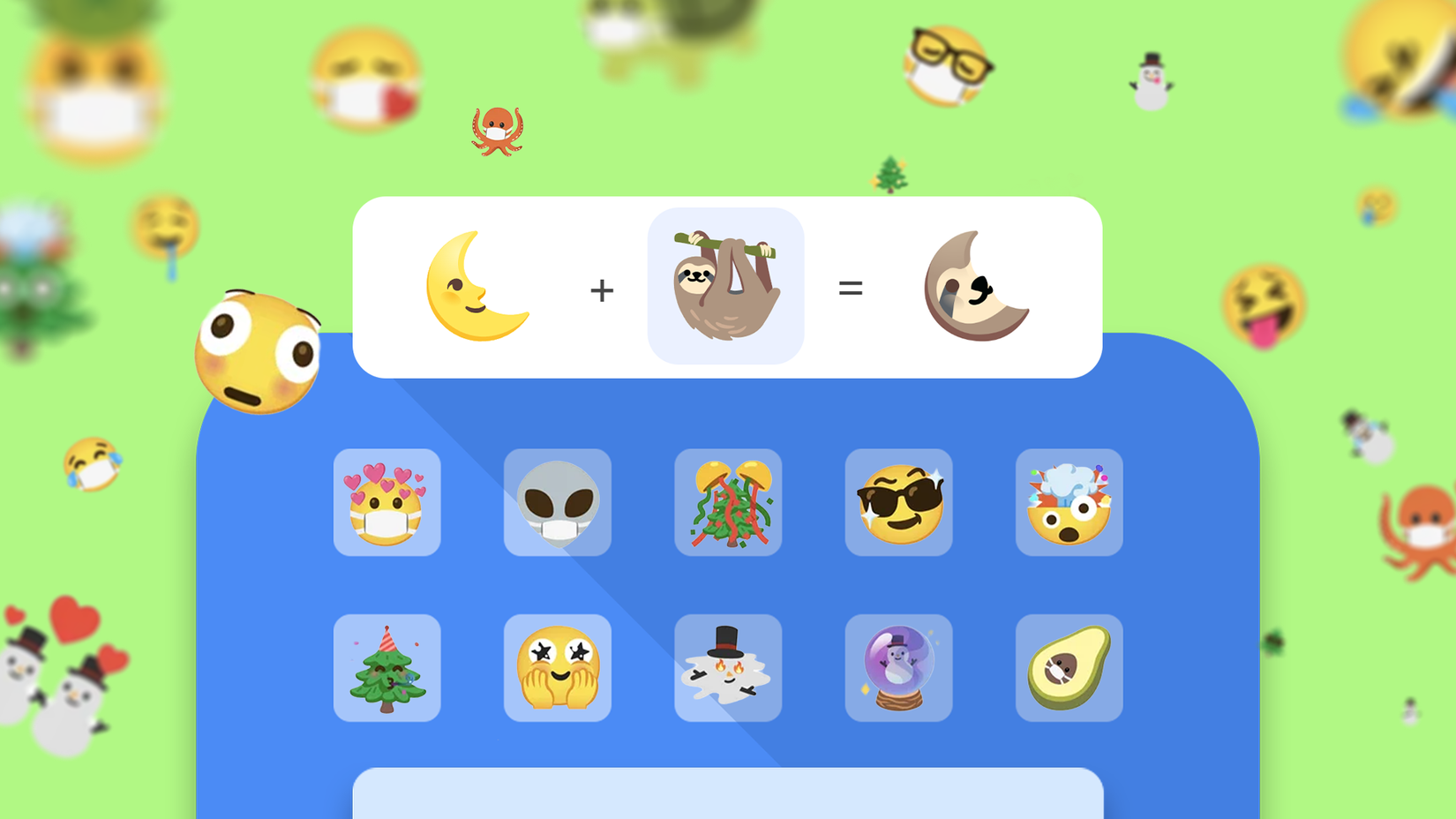
Emoji Kitchen sounds excellent on paper and does exactly what it promises. It combines two emojis to create the mashup you want.
For example, you can combine a hungry face emoji with a pizza emoticon to create a unique one that expresses that you are hungry for pizza. The possibilities are endless.
While it’s fun, it distracts me from the conversation and keeps me busy making the perfect mashup instead of replying quickly.
It can work for someone who has the time to create a mashup rather than sending a quick reply describing their feelings in text.
I find text a lot easier to express complex feelings because it keeps me in the flow, unlike Emoji Kitchen, which may not always produce the best results.
I often end up wasting my time experimenting through trial and error. I clearly don’t need it, so I’ll skip this one this year and beyond.
Clipboard Manager
Gboard’s Clipboard Manager stores all your copied items, including texts, links, and images, for a temporary period.
This makes it easy for you to copy everything you want at once and paste it later.
Clipboard Manager is available on some of the best Android keyboard apps, including Gboard.
Gboard’s Clipboard Manager does more than just store items. You can also use it to pin certain items so that they are always visible on top and are never automatically deleted.
Gboard does nothing wrong with Clipboard Manager, but I still don’t use it because I’m not a big fan of typing on my phone to write a long draft, which is when I need the feature most.
I also need it when I’m doing research on my phone, but in that case, I use SwiftKey instead of Gboard because of the former’s Cloud Clipboard feature.
In my workflow, the Clipboard Manager makes more sense when I can copy items and paste them later on my Windows PC.
I don’t blame Google for not adding this feature because it doesn’t make much business sense for the company to support this cross-device clipboard feature on a rival platform, especially when it already has ChromeOS.
I don’t see this changing anytime soon, so I’ll skip Gboard’s Clipboard Manager.
Clipboard suggestions
Clipboard suggestions are another interesting feature in Gboard.
When you copy something and then tap a text field, Gboard automatically shows the copied item in the Suggestions strip. You can tap it to paste the copied item into the text field.
The idea is great, but the implementation is poor. When I copy something, I don’t always want to paste it immediately.
The problem I have with this is that it shows suggestions only when I’m about to write a new sentence after adding a period.
I could not build the habit of using the feature because I don’t see it when I need it most. I still rely on the old way of taping and holding to paste.
It can only work when you need to quickly copy and paste something, like a contact number.
I don’t remember the last time I needed to copy and paste a contact number, so I don’t have a solid reason to form the habit of using it.
I’ll pass this one, too.
Floating keyboard
Everyone loves freedom, and so do I.
Google’s Android keyboard app loves it, too. It allows users to change the position of the keyboard from the bottom to anywhere on the phone’s screen.
You can do it on Gboard after switching to the Floating keyboard mode.
I initially found it fascinating and tried it a few times, but only to realize it doesn’t make sense on a device with a screen size under seven inches.
It was a chaotic experience each time I tried it. On top of that, I don’t get any real benefits from typing on Gboard’s Floating keyboard.
I never used an Android tablet, but the floating keyboard is something that I would love to try again if I ever buy an Android tablet.
I have no plans to buy an Android tablet this year, so there is no question of typing on my phone in Gboard’s Floating keyboard mode.
Voice typing
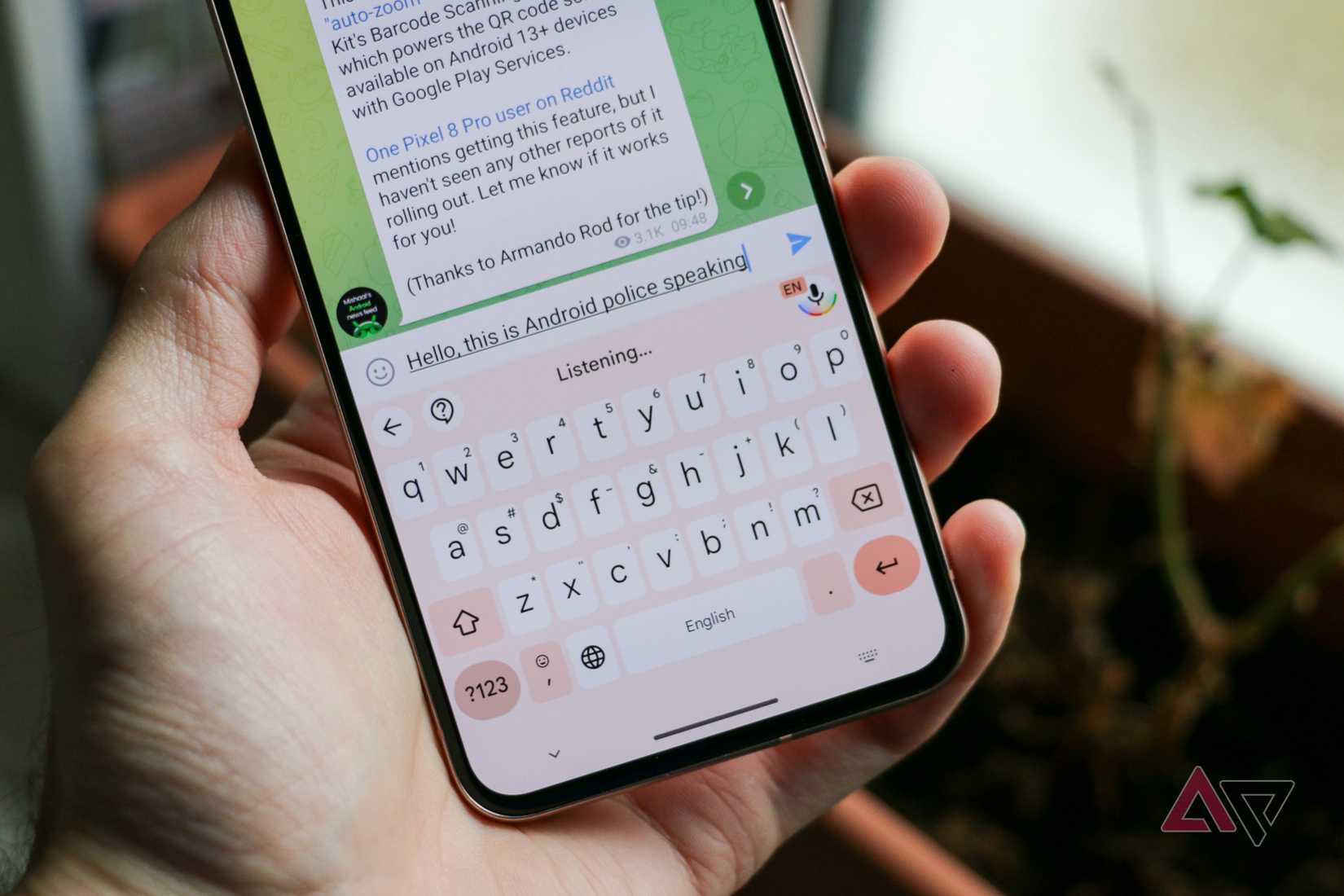
Unlike the above features, I don’t have any nuance in my argument about why I don’t like to type with my voice. I just don’t like it. Simple.
I tried Gboard’s voice typing a few times in the past out of curiosity, and it turned out to be as bad as I expected.
The biggest drawback is how poorly it handles commas and other punctuation marks. It isn’t great at catching everything I speak accurately, either.
Even if all these issues get resolved, I won’t type with my voice because it feels weird. This one is a hard no for me.
I’m excited about Gboard more than I ever was
I don’t dislike any of the above features, but they don’t fit in with how I want to type on my phone, either. But which keyboard apps are free of such features? None.
Instead, my focus is on what matters to me the most. Gboard gets most of them right, perhaps more than any other keyboard app, for the things that I need the most.
However, more than any of its existing set of excellent features, I’m excited to see whether Google enables cross-device features, such as Cloud Clipboard, on Gboard when Google materializes Android desktop, which is expected to happen this year.
Even if Google doesn’t bring any substantial changes to Gboard to enable cross-device features, Gboard will still be my favorite on my Android phone, unless the Mountain View tech giant breaks what’s already working for me.










