


I thought Google Docs, with its powerful collaborative tools, was all I needed for my daily workflow.
That quickly changed the moment I activated the Google Workspace toggle in Gemini settings.
This single, often-overlooked setting transforms Gemini from a powerful general-purpose AI into a deeply personalized research assistant. It instantly grants it secure access to my entire Google Drive ecosystem.
Now, instead of manually digging through dozens of files for a specific statistic or summary, I can ask Gemini to instantly retrieve that exact piece of information and fly through my tasks.

Limitations with Google Docs
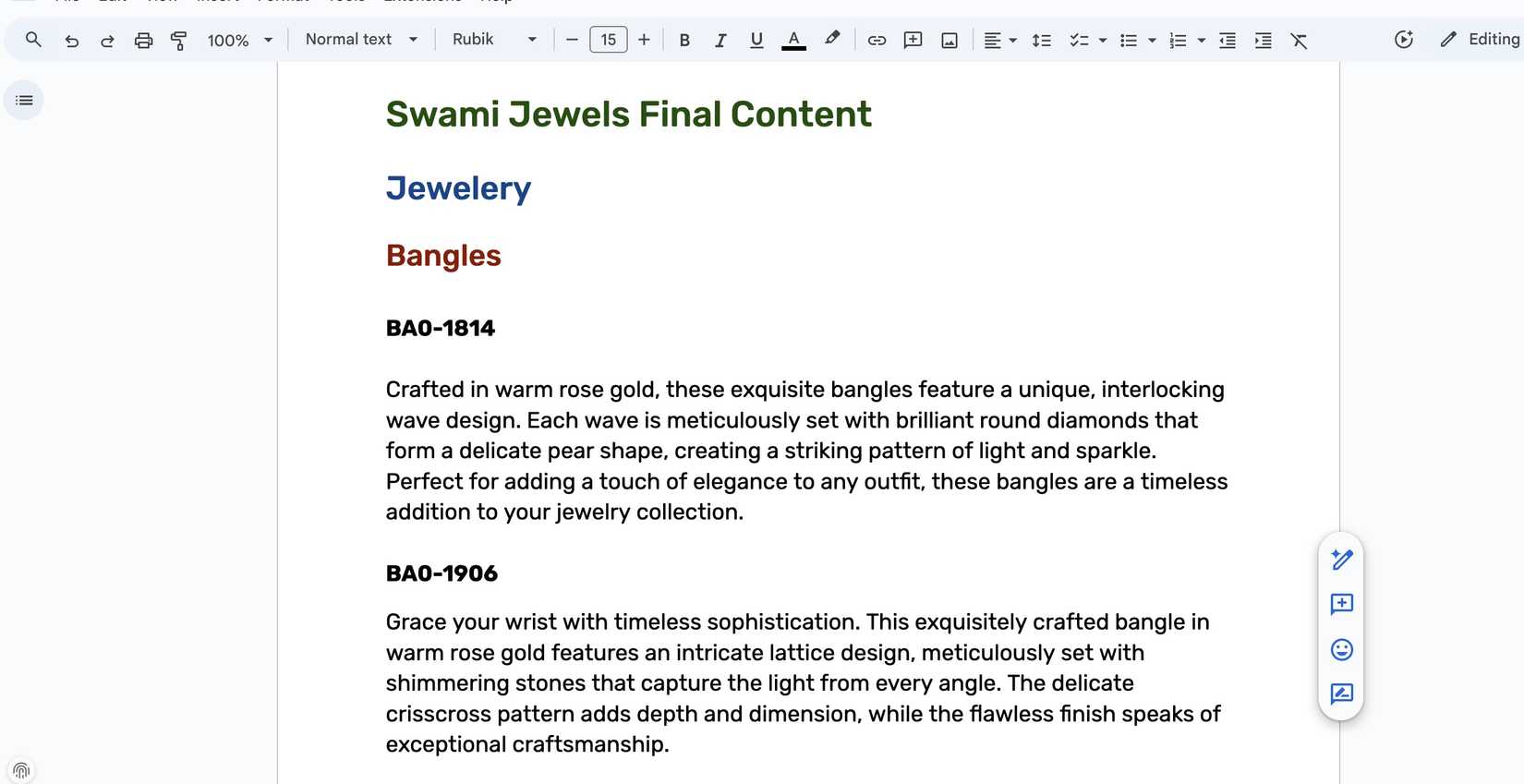
Google Docs always gave me real-time collaboration, reliable cloud sync, and the ability to access my work anywhere. When AI started appearing in word processors, it was a nice convenience.
The first wave of in-document AI features — whether it was Microsoft Copilot inside Word, Apple Intelligence in Pages, or Gemini in Google Docs — felt very familiar.
They were great for simple tasks: rephrasing a sentence, making a paragraph sound more formal, or summarizing the document I was currently working on.
Overall, Gemini AI works in that one single file only. And this is where the major problem lies: my work isn’t confined to one file. My process requires me to constantly leave the current Doc to gather external content.
I would pause writing a proposal to open a second tab and hunt through my Google Drive for the client’s last briefing PDF.
I would stop drafting a memo to switch to Gmail and search for an email thread with the necessary action items. Then, I would copy, paste, and switch back.
I realized the AI needed to exist outside the document that connects the entire workspace.
Gemini is the solution
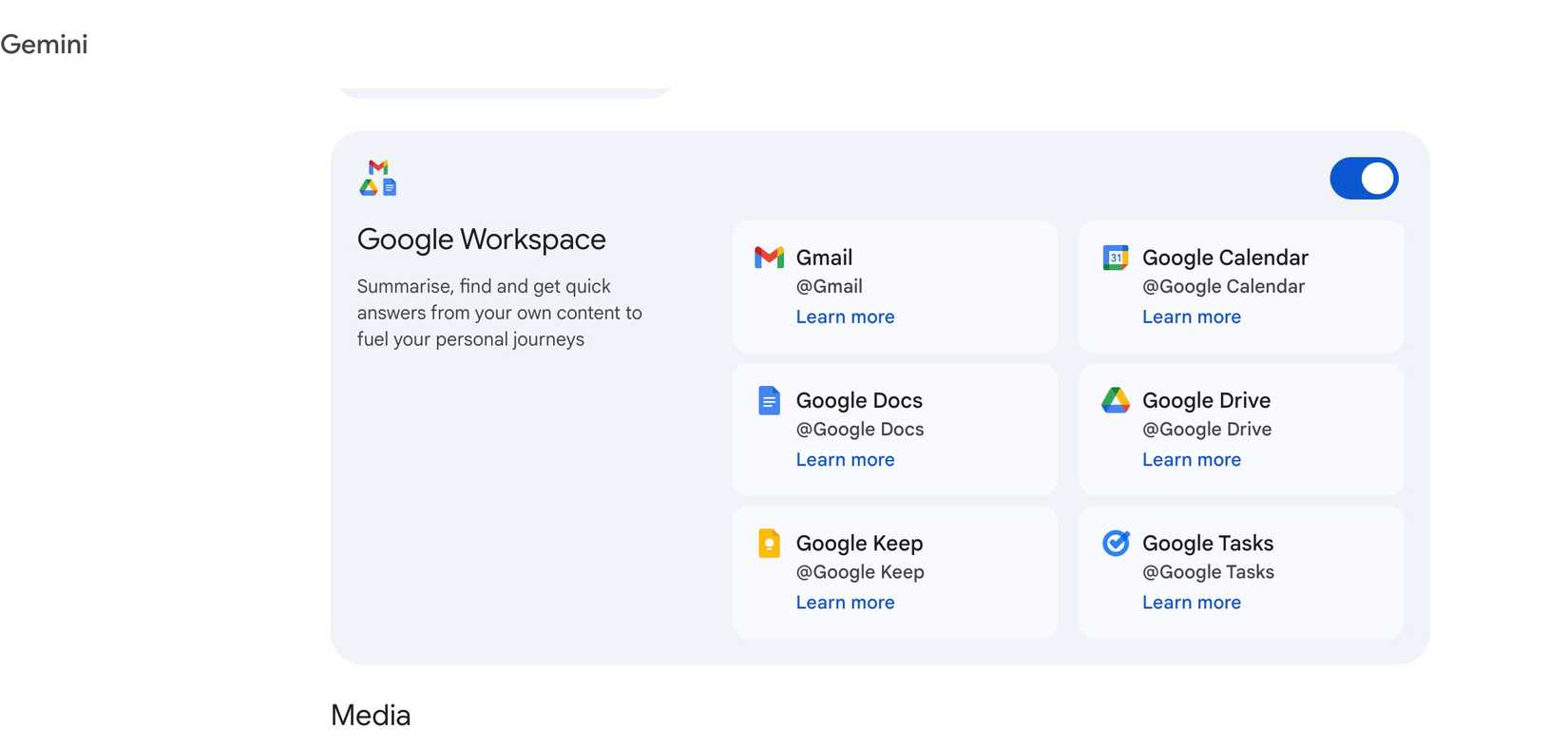
The fix wasn’t a complex new application. It was flipping one crucial option in Gemini: the Google Workspace toggle. And just like that, Gemini stopped being just a generic helper and became my personalized research assistant.
It allows Gemini to index the content of all my private, scattered files. It turns my disorganized folder structure into a unified, searchable, and usable knowledge base.
The key part is that the information stays private. Now, Gemini doesn’t just know what’s on the public web; it knows my specific project history, client communications, and internal data points.
Instead of having to open a new tab, navigate to Drive, use the search bar, open a file, and then copy the information, I could simply speak a natural language command to Gemini and ask it to pull the data I needed while I stayed focused on my draft.
Now, it was no longer about writing better sentences; it was about having all the required facts available instantly, without ever breaking focus.
My killer new workflow
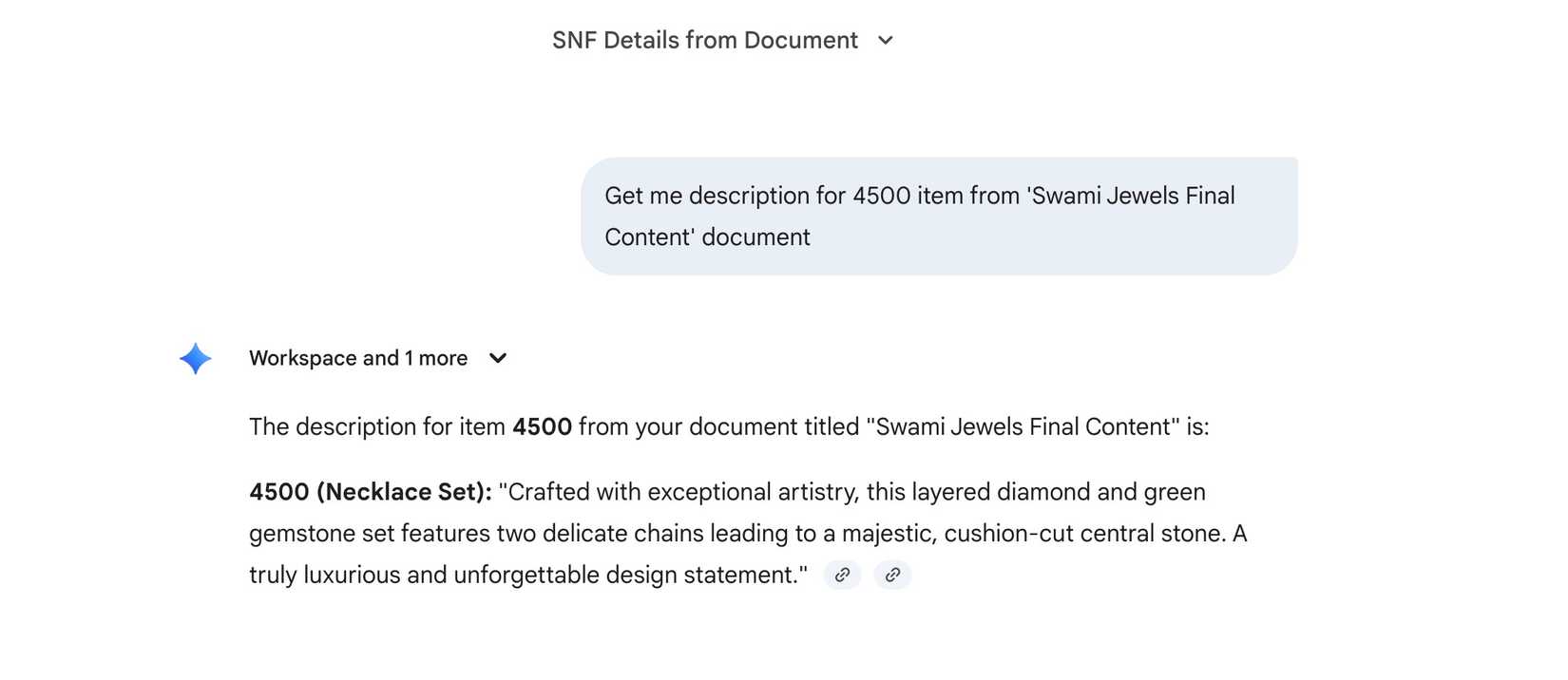
After the Workspace toggle was flipped, the change wasn’t subtle — it was a major shift in how I work.
I have a long document (around 3,300 words) in Google Docs. It carries descriptions for different jewelry items that I need to upload to my website.
Now, instead of opening the document and finding a relevant item number, I can fire up Gemini and ask it to pull the details for a particular necklace or bangle.
I also have several NFL-related drafts in Google Docs. If I need to find streaming details for the upcoming NFL game, I can find the same via a single prompt in Gemini.
Since Gmail is part of my Google Workspace package, I can even ask Gemini to pull relevant details right from my inbox.
Suppose I’m writing a client project brief, I can ask Gemini to get meeting details from the client’s email. The possibilities are endless here.
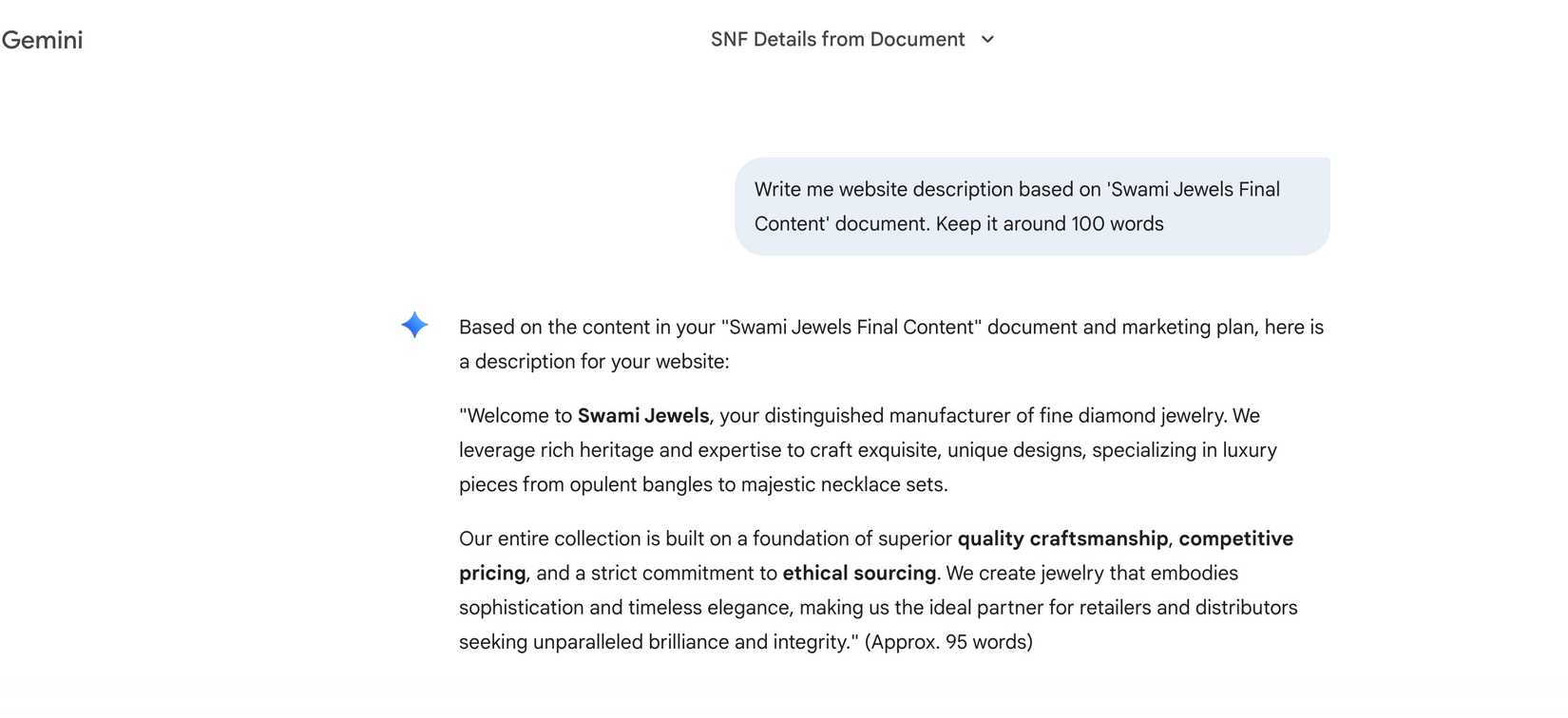
Gemini’s magic doesn’t end here. I can even ask it to create content based on a specific document in my Google Workspace account.
For example, I run a prompt ‘Write me website description based on Swami Jewels Final Content document. Keep it around 100 words.’ I receive a relevant answer in no time.
Gemini scans the document content, understands the context, and writes the website description accordingly.
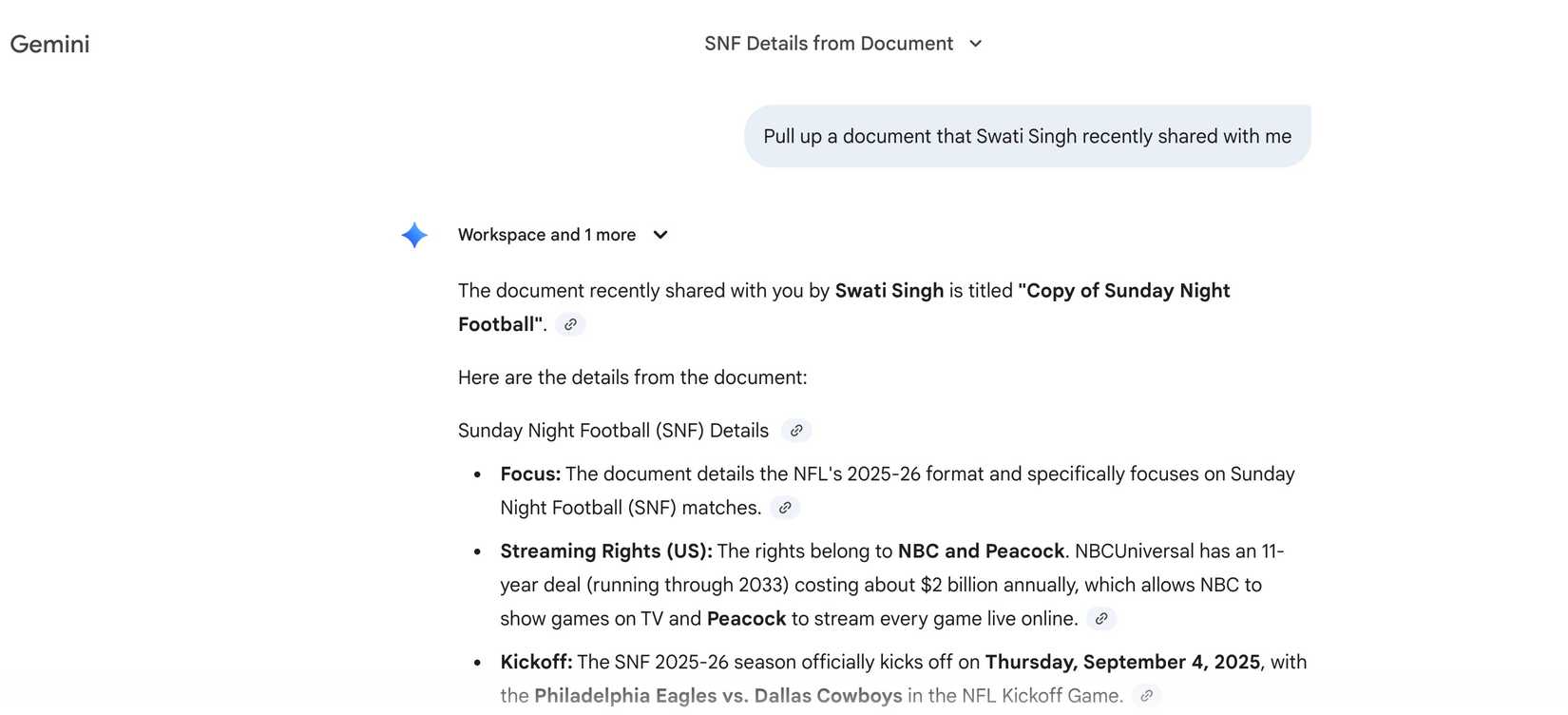
At times, when I’m not sure about the file name, I can ask Gemini to pull up a document that a specific person recently shared with me, and it finds the document and summarizes the content automatically.
These use cases prove that the integration is about more than convenience.
From basic to brilliant
Overall, the real magic isn’t in Gemini’s general intelligence, but in its ability to become your personal knowledge management system when you flip that Google Workspace toggle.
It transforms your messy collection of Drive documents into a centralized, instantly accessible brain, capable of pulling relevant data on demand.
If you are still treating Gemini and Google Docs as separate tools, you are leaving countless hours of productivity on the table.
Take five seconds today, enable the integration, learn about basic Gemini prompts, and unlock the most powerful research assistant.
Aside from Google Docs, the Google Workspace toggle also works with your Keep Notes account. Read my dedicated post to learn more about it.










