

I’ve had a mixed experience with the Pixel 10 Pro.
On the one hand, it takes the best photos of any Pixel I’ve used, and its display is far better than I need it to be.
On the other hand, it doesn’t offer much in the way of new software, and its Tensor G5 chip is not as effective as it should be.
Nevertheless, it’s a good phone that could last me for its seven-year software lifespan.
However, one of the features I’ve struggled to find a use for is Pixel Screenshots. This app debuted alongside the Pixel 9, and since then, I’ve been struggling to find a use for it in my day-to-day life.
I never screenshot receipts; I don’t attend enough events to lose track of them, and my notes app works better for reminders. However, the app saved me this holiday season.

I’ve never managed to make effective gift lists in the past
Standard note-taking apps can’t fix human error

I’m incredibly forgetful and absent-minded, so if I have an idea, I have to write it down instantly before it’s gone forever. This makes choosing the right notes app incredibly important, but it does have one downside.
My scatterbrained approach to jotting down everything that comes to mind makes finding these notes later a challenge.
While I can search for text easily enough, the text I write is rarely precise enough to help me find the item again later. A problem in most situations, it becomes far worse when searching for gift ideas I wrote down.
I used to write gift lists for various people throughout the year, then refer to them when Christmas or birthdays rolled around. The problem is that I was rarely specific enough.
For example, one item in a now-abandoned gift list reads “red knitted gloves.” Did I spot a specific pair, or did my subject just mention those three words in passing? Or maybe I was entirely wrong, and they wanted blue ones instead.
The obvious solution would be to write more detailed notes, but I struggle to be that organized in my personal life. Thus, when I got my Pixel 10 Pro, an opportunity presented itself.
Pixel Screenshots has been quietly helping me in the background
I don’t need to worry about saving the wrong item
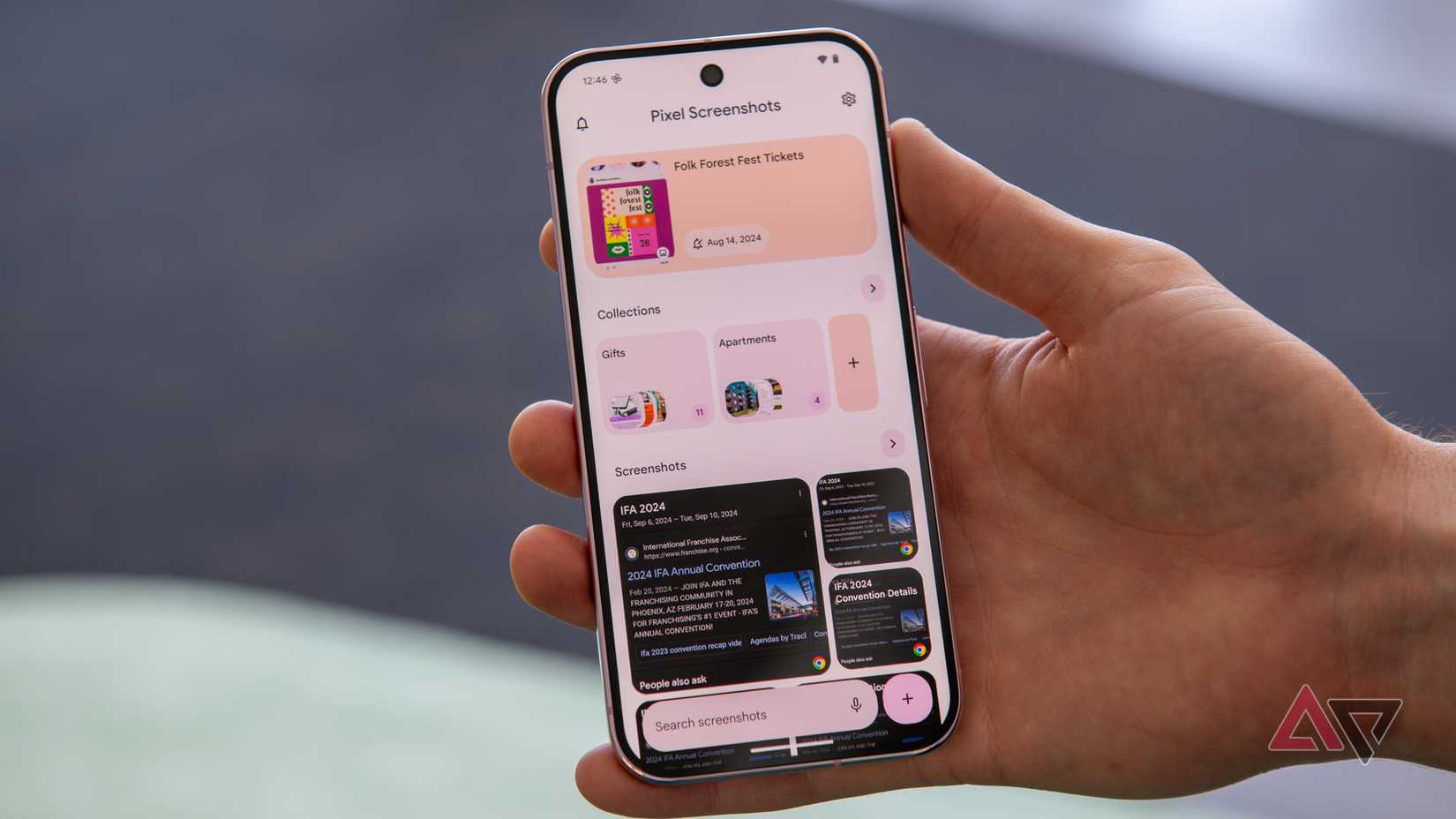
Since I got my Pixel 10 Pro, I’ve taken a different approach to saving gift ideas. Rather than jotting down notes, I’ll take screenshots instead.
If I’m scrolling through Amazon and spot a book on military history? Screenshot it. Spot a book on wildflowers in a store? Open the shop’s website and screenshot the book.
Over the past two months, I’ve been regularly recording everything that could be a gift, and now my investment in screenshots is paying dividends.
Last weekend, I put this new approach to the test. I opened Pixel Screenshots and typed “find me gift ideas.” And the result was underwhelming.
I expected that Pixel Screenshots would pull up a limited selection. Instead, the first result it pulled up was a screenshot I took of Pixel Screenshots, two gift ideas, and a screenshot of me trying to get Gemini to create a home automation.
I was disheartened by this result, but not surprised. AI-powered features are usually just the quickest way to feel disappointed in something.
Nevertheless, after a bit of tinkering, I managed to make the app work for me.
Pixel Screenshots required more work than I wanted, but it was still effective
Just like all AI tools, you can’t rely on it to do all the work
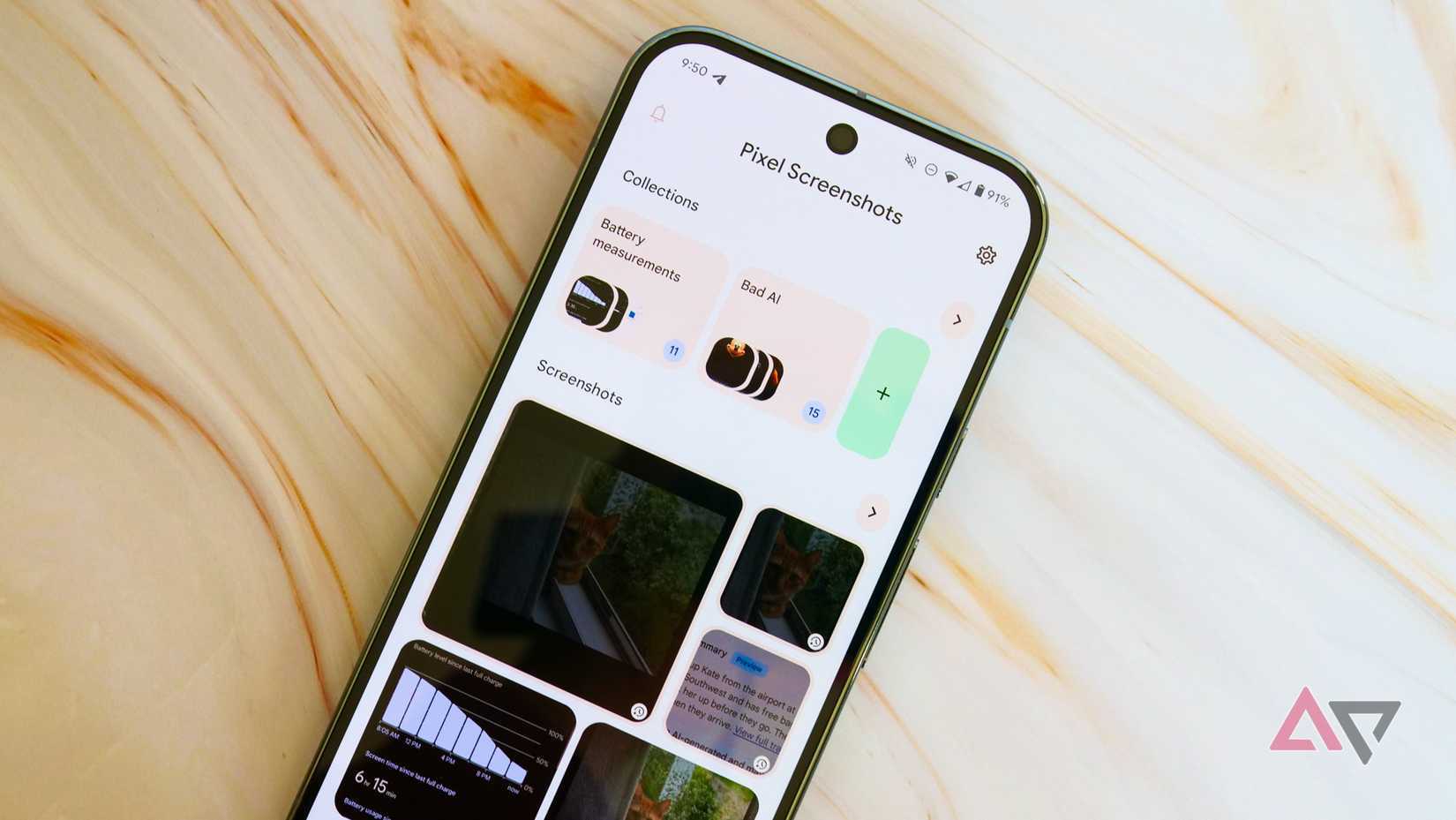
After playing around with various ways of phrasing “find me gifts” (I found that asking it to “find items I can buy online” pulled up the most relevant options), I had created a list of all my saved gift ideas from the past two months in one collection.
While I was annoyed that Pixel Screenshots wasn’t better at filtering out irrelevant items, the process took me about 10 minutes. Barely worth complaining about when I consider the wasted hours trying to figure out what my half-thought-out notes were meant to mean.
Now I had a list of 30-odd items comprising gift ideas for friends, family, and more.
Annoyingly, you can’t search within a collection, so I couldn’t search for all the biking accessories I had saved for my dad.
However, Gemini Nano had extracted as much information as it could from the screenshot, so I could tap a single button to find the exact item again instantly.
Pixel Screenshots is a fantastic shopping asset, but don’t let it do all the work
My only regret is that I didn’t start using Pixel Screenshots earlier.
Had I set a goal of saving at least 10 ideas a month, the app would have over a hundred ideas to work with for my prompts. Just like any AI tool, the more data you input, the better quality the output.
While it might be too late to start intentionally using Pixel Screenshots for this year’s holiday shopping, it might still be able to help.
Search for gift ideas in the app and see if you’ve saved any ideas and promptly forgotten about them. If so, you might save hours or days of wasted searching as you tackle your holiday shopping.










