


I’ve always been lukewarm about using Galaxy AI features, mainly because I often need to find reasons to use them or end up stumbling on them later.
But since I upgraded my Samsung Galaxy S23 to my Samsung Galaxy S25+, I’ve had a whole new world open up to me.
It’s the natural integration with Google Gemini as your primary digital assistant that finally makes sense for me. I don’t have to load the official app every time I want to use it.
You can summon it across multiple apps and send it, or speak contextual requests, like adding an event to your calendar or checking information in a video you’re currently watching.
It’s made me a bit lazier in everyday use, but given what I have to do daily, I am more thankful for it.
Samsung’s seamless actions feature is a game-changer
One long-press is all you need to use it
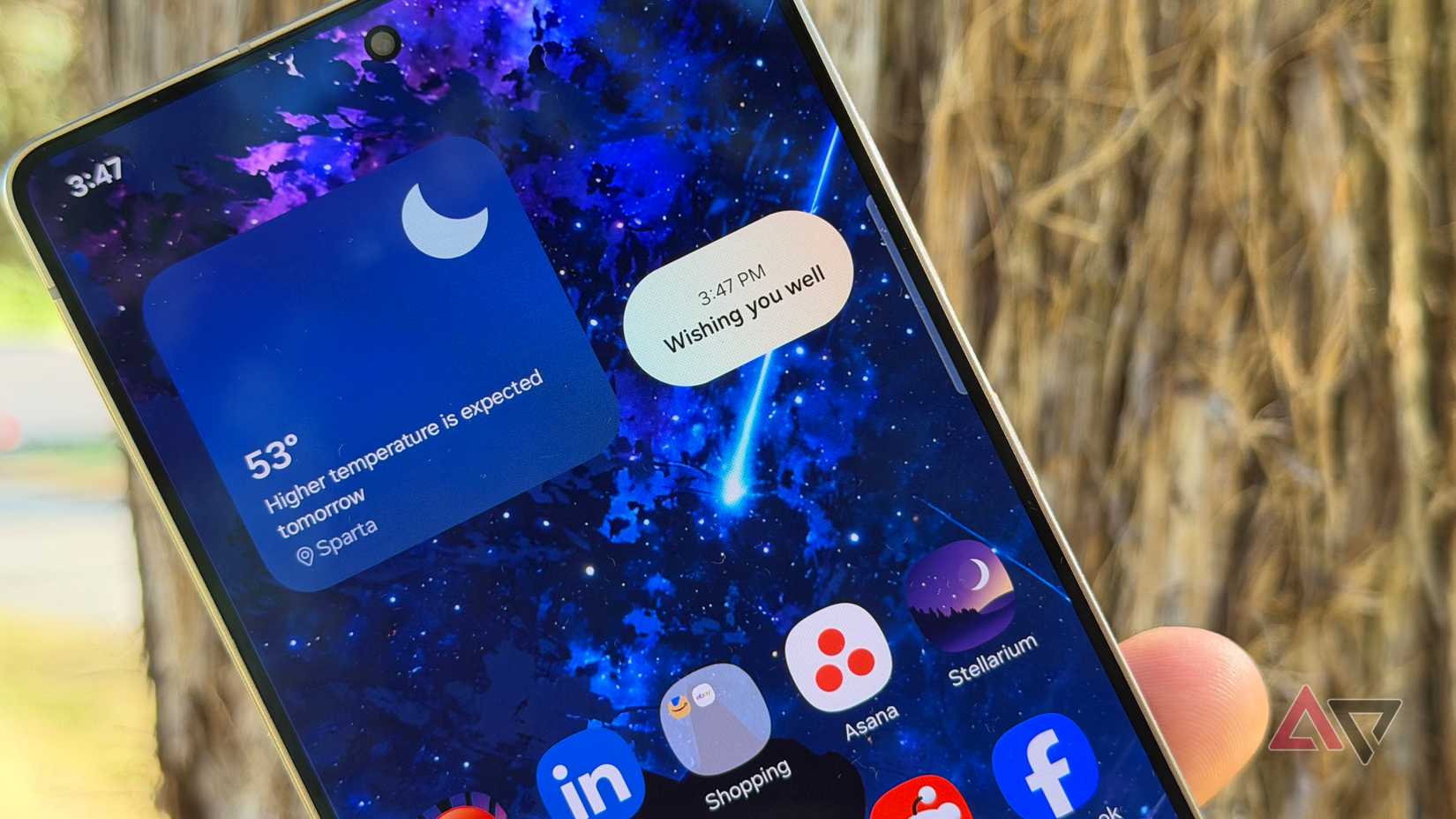
Earlier this year, Samsung launched seamless actions across apps on the Galaxy S25 series. Seamless actions across apps is a feature powered by Google Gemini.
When you open your phone, long-press the side button to summon Google Gemini. You can do this on your home screen or in various apps. It’s a lot like interacting with Bixby and is similar to using the former Google Assistant.
When you open Gemini in this way, it lets you send or tell it commands while you’re in your apps.
An example would be adding events to your calendar: you can ask Gemini to find out when a specific public event is or when a holiday is, and have it record that context and add it to your calendar.
This helps a lot since I tend to be forgetful about important dates. Instead of stopping what I am doing, I can long-press the side button and ask Gemini to record it for me.
For example, recently, one of my friends told me his birthday was on the American Thanksgiving weekend.
I completely forgot when American Thanksgiving was (I focus on Canadian Thanksgiving), so I used Gemini to look up the date, recorded it as his birthday, then used that to mark my calendar.
While I can look this up myself with a simple Google search, the idea is to avoid interruptions. Using Gemini helps me stay focused on my workday tasks, especially when many involve using my phone.
I’ve also used this tool to help record meeting dates and times. Again, when I see the alert for an upcoming meeting, I can instruct Gemini to add the meeting date and time, as well as mention the platform where it is taking place.
The byproduct of using Gemini in this way is that it also helps me remember it. Writing it or speaking it aloud makes it easier to retain it in my memory.
If you wish to use Gemini with your calendar app, ensure that Gemini Apps Activity is turned back on.
If you’ve recently turned it off to preserve your privacy, it will prevent Gemini from gaining access to your apps.
As another perk for having a Galaxy device on One UI 8, if I forget about a scheduled event, Now Brief will list a previously recorded upcoming calendar event. So even if I completely forget about it, I can use Now Brief to remind me.
Using Gemini to ask questions and take notes from videos
I no longer need to watch YouTube videos for hours to get the information I need
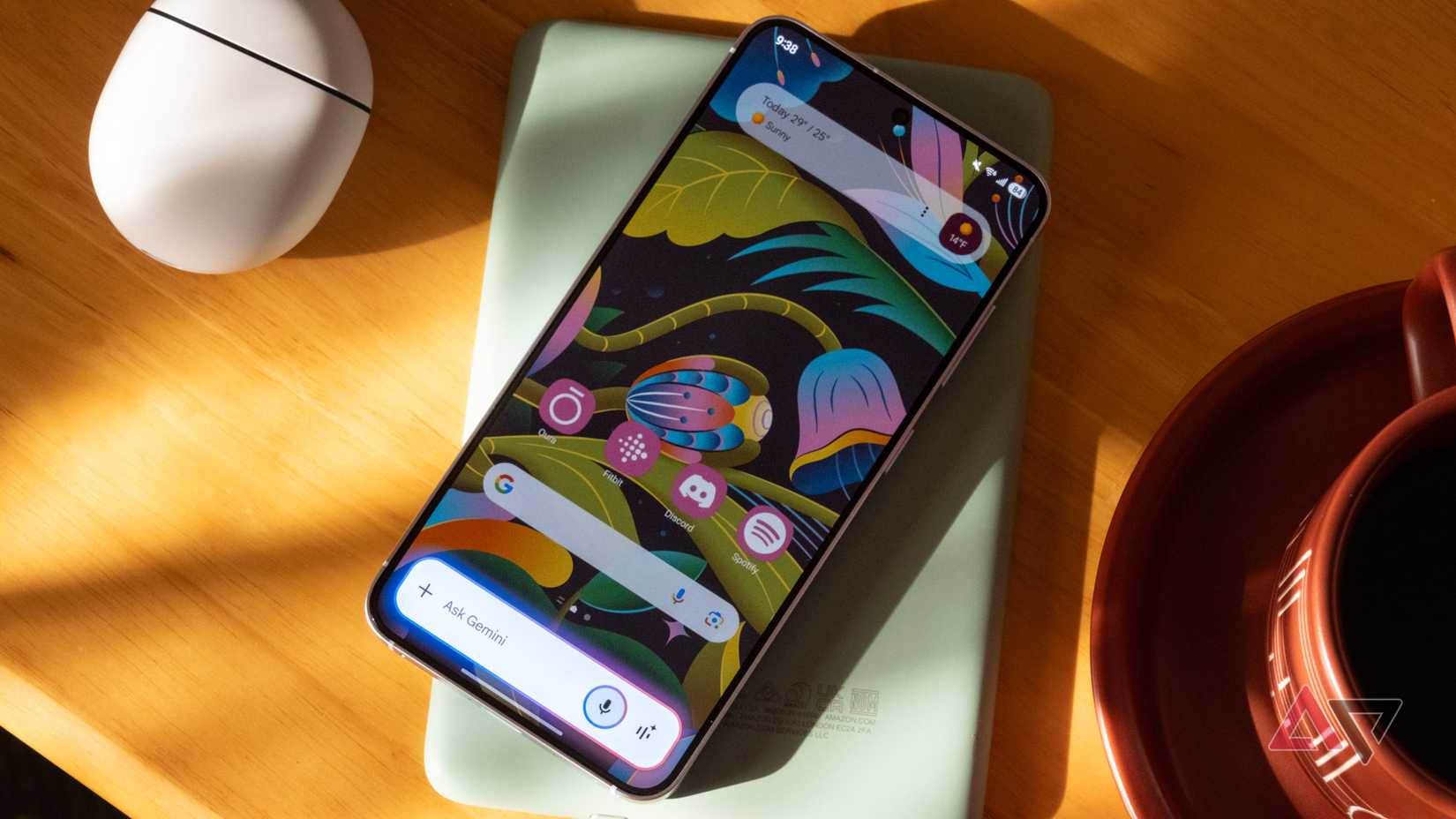
This is my absolute favorite part of Samsung’s seamless actions across apps feature: asking questions and taking notes from YouTube videos.
I spend an embarrassing amount of time on YouTube. Videos are great for my audio and visual learning.
But with all the YouTube ads and my general device setup, it can definitely slow me down when I use it for learning. This is because I often take notes on another device to help me absorb content or recall important information later.
Taking notes can really slow me down, especially when I have to pause the video and wait for ads to finish.
You can make this process so much easier by simply never leaving the YouTube app (plus, doing so doesn’t pause the video or leave you with a mini-player).
Long-pressing the side button while you’re watching a YouTube video will bring up Gemini with an Ask about video option.
You can use Gemini to answer questions or enter/speak a command to summarize a particular video (it automatically links the video you are currently watching).
I really like this because it helps trim the fat from some long-form videos. I often like to do this with podcasts and reviews. Sometimes, all I want is to know whether a feature is included and how it works, without having to flip through the entire video.
Plus, I’m a lot less patient with hour-long videos; this is partly because of how much video content I consume daily, but the other is due to YouTube’s ad monetization structure.
Using Gemini to answer questions about the video really shortens the time. It’s an easy way to generate summaries, so you don’t necessarily have to watch a full video to check if a subtopic is being covered or not.
If you are seeking a specific answer, just remember that context is key, as it helps to outline what you want to know and make sure it answers only information from the video (I have had it add extra information from a Google search).
If you also want to save anything to Samsung Notes, you need to instruct it to save it as a note; otherwise, it won’t, leaving you with the regular on-screen response inside the window.
Just remember that this feature isn’t perfect, Gemini doesn’t always get it right, and sometimes it can give you too much information depending on the length and detail of the video.
However, it has saved me loads of time, helping me filter out unhelpful videos (clickbait titles are part of the algorithm, sadly) and filler.
So far, I have found it most effective when I have specific questions, like wanting to learn more about the upcoming AI notifications summary in One UI 8.5, rather than simply asking for a transcript summary of what’s being discussed.
Turn your Galaxy device into a productive tool
While my mantra is always about keeping everything simple to avoid feeling overwhelmed, it still happens anyway.
But thankfully, my Samsung Galaxy S25+ actually helps me, instead of making it worse. It’s nice not to have to open a new app each time I have a question, or to manually scan through paragraphs to confirm a common fact.
I spend a lot of time on my phone (maybe too much), which makes me appreciate the tools that make my job much easier and faster, like the integrated Gemini Assistant or Circle to Search.

- SoC
-
Qualcomm Snapdragon 8 Elite for Galaxy
- RAM
-
12GB
- Storage
-
128GB, 256GB, 512GB
- Battery
-
4,000mAh
- Ports
-
USB-C
- Operating System
-
Android 15 and One UI 7
Samsung’s Galaxy S25 keeps things small without sacrificing power. With a Snapdragon 8 Elite processor, 12GB of RAM, and all sorts of tools courtesy of Galaxy AI, this is everything you expect from a modern flagship squeezed into a relatively svelte chassis.











