


Phones and laptops have always lived separate lives. Your phone is the first point of interaction for quick ideas, while your laptop is where the real work happens.
It’s not until recently that there’s been any real bridge between the two. Interoperability is now a thing if you factor in Microsoft’s Link to Windows, clipboard syncing from OEMs, and third-party apps.
You may not know that, and probably still email yourself paragraphs. Other times, you’re retyping text just to get it on another device.
Cut out these manual processes and let your devices communicate quicker. Here are X ways to share clipboards between your Android phone and PC.
Use Google Docs for instant syncing
Credit: Lucas Gouveia / Android Police
Among the benefits of Google’s Workspace is how naturally everything syncs.
Docs has been a staple for students, writers, and office workers for years because it does one thing incredibly well. It provides live, real-time editing across every device you own. If you type a word on your phone, it appears on your laptop instantly.
Install the Google Docs app from the Play Store on your Android phone, then open docs.google.com on your laptop. Ensure you’re signed in to the same account on both devices.
Create a new document or open an existing one. Then type or paste anything on either device. You’ll see it update instantly, as long as you have a strong internet connection. Whatever you type on one appears on the other in real time.
Turn on SwiftKey’s Cloud Clipboard
SwiftKey is one of Gboard’s best alternatives. It’s the closest an Android input method has come to feeling truly connected with your device. It has a Cloud Clipboard feature. It links anything you copy on your phone with your Windows PC, and vice versa.
You need to be signed in to the same Microsoft account; otherwise, it won’t work. Download the app from the Google Play Store on your phone. You’ll see prompts to set it as your primary keyboard. Do it to access all features.
Then follow the steps below to copy and paste successfully:
Enable clipboard history syncing on SwiftKey Keyboard
- Tap the three-dot icon in the keyboard’s upper-right corner. Then select the settings icon.
- Alternatively, tap the clipboard icon, and you’ll see a prompt to enable cross-device syncing. Then tap OK.
- Tap the toggle button beside Sync clipboard history.
- You’ll be redirected to a login page. Sign in with your Microsoft account.
- Consent to sharing your input data with Microsoft to proceed.
Enable clipboard history on Windows PCs
- Enter your computer’s settings menu. Press the Windows button on your keyboard, and you should see the icon in the lower-left corner.
- Navigate to Settings > System > Clipboard.
- Turn on the toggle button under Clipboard history.
-
Click Get started beneath Sync clipboard history.

- Sign in to your Microsoft account.
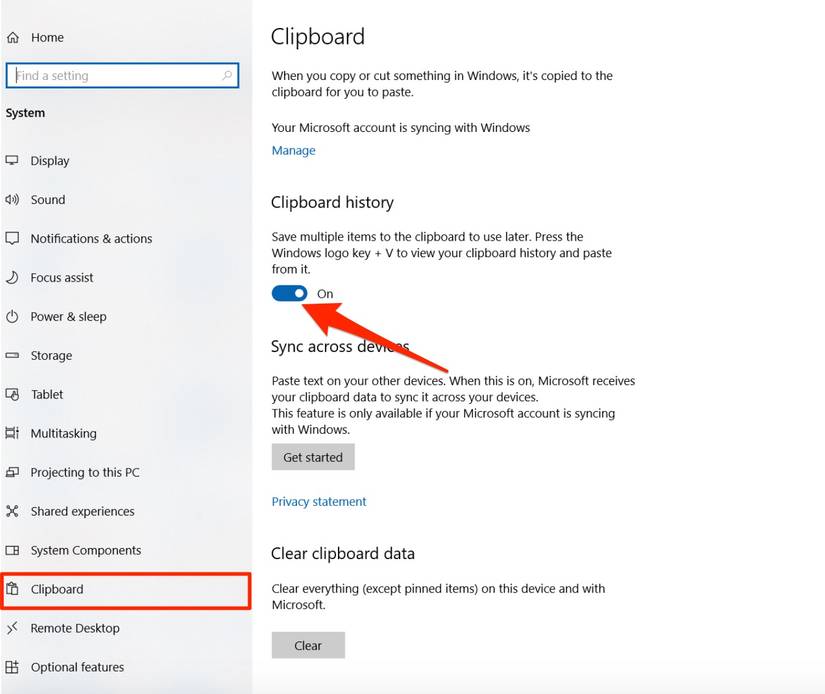
When you copy something on your phone, it appears in your computer’s keyboard history. Press Windows key + V to access it.
Connect your phone to a PC with Link to Windows
Microsoft’s Link to Windows app is a bridge between your mobile phone and Windows laptop. It mirrors your notifications, lets you send texts from your PC, access photos, and provides basic access to your phone without touching it.
Clipboard sharing is also a possibility via the Cross-device sharing feature.
Although it’s existed since 2018, the company polished it in 2025 to feel like a more native solution.
You need a Windows 10 or 11 PC to use it. However, Microsoft has limited full clipboard syncing to the Surface Duo and a handful of phone manufacturers. It mostly works on devices running Android 10 or higher.
Follow these steps to use it:
- Launch Link to Windows on your PC.
- Follow the on-screen prompts to successfully pair your phone and computer.
-
On the computer, go to Settings > Features > Cross-device copy and paste.
- Tap the toggle button to enable the feature.
- On your phone, follow the aforementioned steps to enable clipboard history syncing on SwiftKey Keyboard.
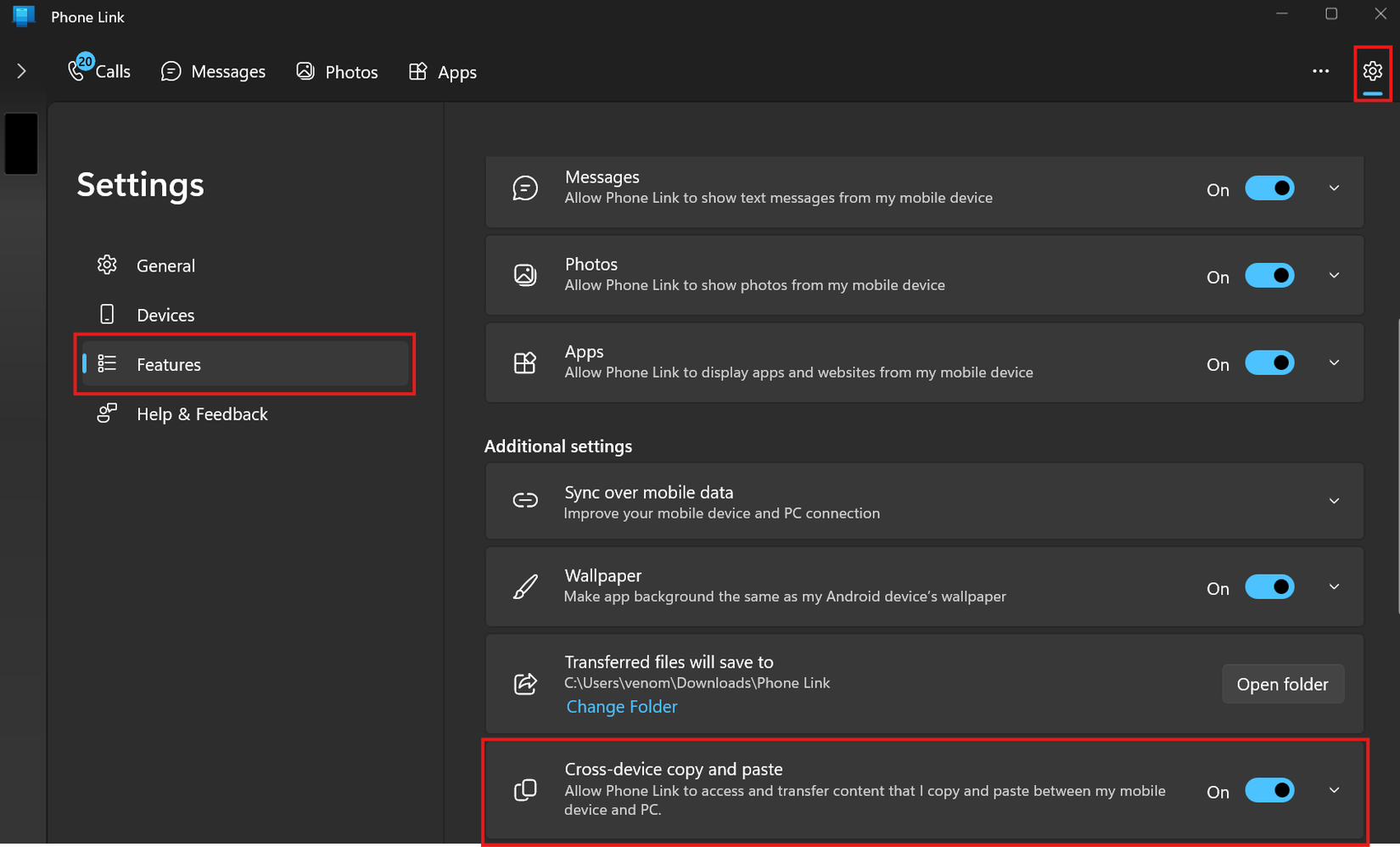
Any text you copy on your phone becomes available in your computer’s clipboard history.
Download KDE Connect
KDE Connect is a more flexible link between your phone and PC. It isn’t tied to any company’s ecosystem. Hence, you can install it on any device.
Use it if you have a MacBook and an Android phone, or other device combinations.
Download the PC app from the official website and the mobile app from the Google Play Store. Next, follow the steps below to use it:
- Connect your phone and PC to the same Wi-Fi network.
- Launch KDE Connect on both devices.
- The app detects your computer from the shared network. Tap its name and select Request pairing.
- A code appears on the PC app with the pairing request. Accept it.
- On the phone app, tap Send clipboard.
- Return to your PC and press the paste command on any note or word editing app. On Windows, press Ctrl + V. On a MacBook, press Command + V.
You’ll see your phone’s last copied texts after applying the past commands.
Use multi-device connect on OnePlus phones
Multi-Device Connect is very much a BBK Group ecosystem feature. It only works on OnePlus, OPPO, and Realme as they all sit under the same parent company.
Even compatible phones may struggle to make it work because of regional limitations. But there’s a sideloading trick around it. The feature basically lets your phone, tablet, and PCs work together as if they’re one device.
You can drag files between them, view your phone screen on your PC, share your clipboard, answer notifications, and control your laptop remotely.
First, install the O+ Connect app on your computer and launch it. Second, follow the steps below:
- Go to Settings > Connection and sharing > Multi-Screen Connect.
- Tap Add new device and follow the on-screen prompts to pair the devices.
- Under Cross-device features, select Content sync.
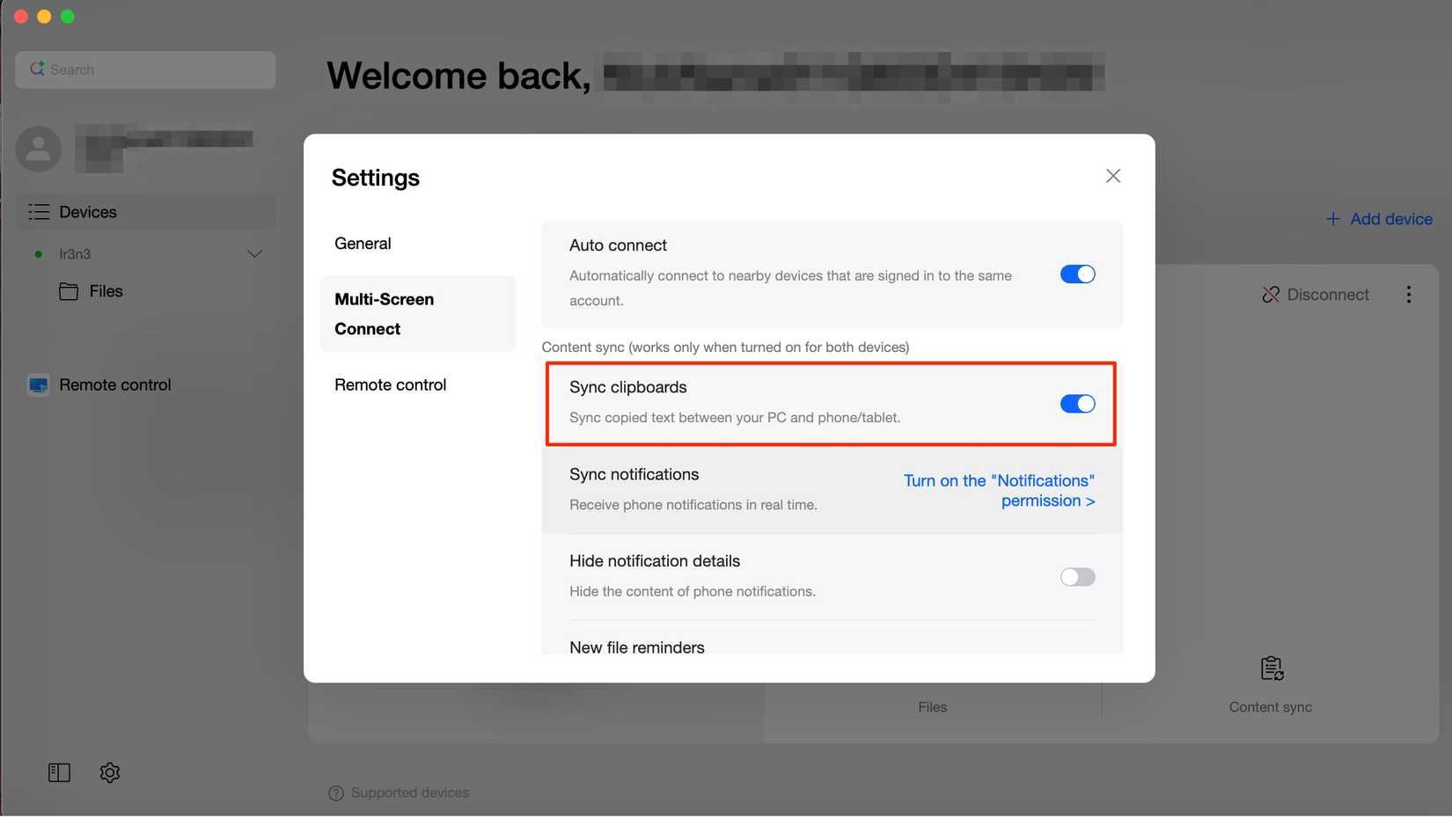
- Enable Sync clipboards.
-
On O+ Connect, tap the settings icon in the lower-left corner. Go to Multi-Screen Connect and enable Sync clipboards.
- Copy text on your phone, then press the paste command on your PC keyboard.
Mirror your devices with ease
Exchanging clipboards and files between your phone and laptop is effective. But it’s the bare minimum of what cross-device setups can do for you.
Your phone can project a full desktop mode with Samsung DeX, run your apps in windowed layouts, connect to a monitor, and replace your computer when you’re far away.
The line between both devices is thinner than ever now. Perhaps, the only thing really separating them is the size of the screen you’re looking at.







