

I feel confident saying that the addition of Quick Settings tiles to smartphone interfaces is one of the most significant improvements to the technology in its relatively short lifespan.
From its early days as nothing more than a Wi-Fi/Bluetooth toggle panel to the modern iteration that features easy access to dozens of vital smartphone functionalities, Quick Settings has conservatively saved users from millions, if not billions, of unnecessary taps and clicks.
However, while smartphone interfaces have become highly customizable over the years, the Quick Settings panel has remained fairly boring, with its supreme functionality negating the need for any further design changes.
That is, until Google decided that the average Google Pixel 10 user deserved to mix it up a bit when it came to the Quick Settings tiles in Android 16, and you need to run, not walk, to customize them as soon as you can.
Quick Settings tiles are customizable now
You can change the size!
Quick Settings was a bit bulky on Android until recently.
The oblong tiles that housed features like the Wi-Fi connection, Google Wallet, and the flashlight app were almost too easy to press, given that they took up the majority of the panel, allowing for only four tiles to be visible in the initial swipe and eight tiles when it’s completely unfurled.
Granted, big buttons are helpful for some users, but for others, a bit of customization was sorely needed for the extremely helpful feature. Fortunately, that’s exactly what we got.
That’s right, as part of the Android 16 update that was released in June 2025, Google has officially made it possible to edit the size of your Quick Settings tiles.
You can make the wider oblong shape into a simple circle icon, which will save space and make it possible to add as many as 16 tiles onto the first page of your panel.
Even better, you can edit individual tiles, so the important ones, like flashlight, can remain large while other, less significant tiles can be a bit smaller and out of the way.
Right now, the functionality is only available for Pixel devices, but that could change in the future.
Samsung has made it clear that this specific customization is a priority, with plans to establish the same kind of Quick Settings tile adjustments on One UI 8.5.
If you don’t have a Pixel, but you need smaller Quick Settings tiles, start holding your breath now.
How to resize your Quick Settings tiles
So easy you pretty much have to do it
If you have a Pixel 10, and you’re wondering why your Quick Settings tiles are still wide and oblong, don’t fret.
Even on the Pixel 10, your Quick Settings tiles will be set to the wider oblong size as the default, so you’ll have to go through the editing process to take advantage of these new, tinier tiles.
Luckily, the process couldn’t be easier, and you have a few options in terms of how you want to approach resizing your Quick Settings tiles.
To get started, pull up your Quick Settings panel. Not the small one either; you’ll have to do the double swipe to get the full Quick Settings panel up on your display. Then, click the small pencil icon in the lower-right corner, which allows you to edit your Quick Settings tiles.
Now, however, instead of only being able to rearrange your tiles, you can resize them as well. Just tap and hold the tile you want to change, and a small, draggable nub will appear on the right side of it, allowing you to change the size at your leisure.
If you want to make all your Quick Settings tiles smaller and don’t want to drag all those nubs, I don’t blame you, because I didn’t want to do that either.
Alternatively, I simply deleted all my Quick Setting tiles (or as many as I was allowed to) and then re-added them.
The re-added tiles come back in the smaller icon size rather than the wider oblong size, which can save you, at most, a few seconds, but time is money in 2025.
A small but meaningful improvement
I use these tiles a lot more than I realized
If you don’t use your Quick Settings tiles that often, this may seem like an unbelievably insignificant change, but I can assure you, as someone who uses them a lot, this is a big deal.
Being forced to make the choice between easily pressable buttons or more apps and functionalities available on my Quick Settings panel was tragic, and now I don’t have to live that way.
I can make the flashlight button big enough to press in the dark, while still keeping the Wi-Fi and Bluetooth connection buttons as small as possible to make room for the Quick Share and Google Home tiles.
It’s a small yet meaningful change that will absolutely have a long-term impact on how I use my device, which is why I recommend you make these changes to your Quick Settings tiles as soon as possible.
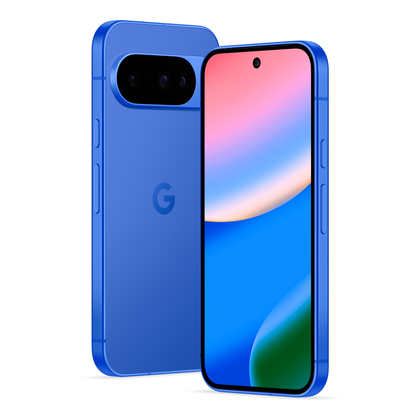
Credit: Google
Google Pixel 10

- SoC
-
Google Tensor G5
- RAM
-
12GB
- Storage
-
128GB / 256GB
- Battery
-
4970mAh
This striking-looking addition to the Pixel line offers a slew of Gemini features, an 5x telephoto lens, and seven years of updates, making this a smartphone that will last you a while.









