
Kristel van Hoof
Updated on: November 29, 2025
Fact-checked by Kate Davidson
Short on time? Here’s how to set parental controls on Netflix:
- Set up a Kids profile. Log into your Netflix account, navigate to Manage Profiles, and create a Kids profile.
- Configure the content settings. Set maturity ratings, block titles, lock access to other profiles, turn autoplay previews off, and more. Then, click Save. Netflix will now apply all of the rules you’ve set for your kid’s Netflix profile.
- Set time limits. Get a third-party parental control app to limit how much time your kid spends on Netflix. I recommend Qustodio.
Netflix offers built-in parental controls that are completely free. They let you block titles, set maturity ratings, access viewing history, and adjust autoplay settings.
But there are some downsides to Netflix’s parental controls. For example, you don’t get any screen time management tools, so there’s no way to control how much time your kid spends streaming on the site.
For this reason, I recommend getting a good parental control app to use alongside Netflix’s parental control features. Qustodio is my favorite parental control app — it comes with excellent screen time management tools, web and app filtering, and detailed activity reports to keep your kids safe on Netflix. You can test out all of its premium features risk-free thanks to its 30-day money-back guarantee.
Are Netflix’s Built-In Parental Controls Good Enough in 2025?
Netflix’s built-in parental controls are good, but they’re missing screen time limits. Although they allow you to set content restrictions, your child could still spend hours on Netflix and access the app and site when they’re at school or when they’re supposed to be doing their homework.
Parental controls like Qustodio come with great screen time management tools that allow you to set daily time restrictions and block the Netflix app and site if you don’t want your kid to access them for some time. Plus, you get good activity reports that show you how much time your kid is spending on Netflix and whether you need to adjust the screen time limits.
Quick Summary of the Best Parental Controls for Netflix in 2025



Editor’s Note: ExpressVPN and this site are in the same ownership group.
How to Set Parental Controls on Netflix
Setting up Netflix’s parental controls is pretty straightforward. It allows you to set maturity ratings, block titles, access viewing history, adjust autoplay settings, stop autoplay previews, and lock access to other profiles
The setup process is easy and only takes a couple of minutes:
Step 1. Log Into Your Netflix Account
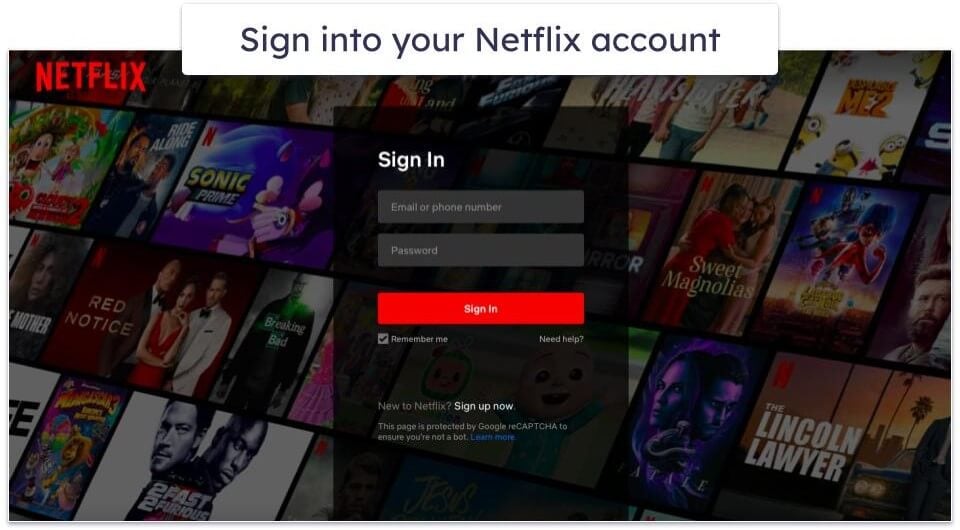
Launch the Netflix app or visit the Netflix site. Log into your account with your credentials.
Step 2. Create a Kids Profile
Click the Add Profile button. If you already clicked on your own profile, select your profile icon in the upper corner, click Manage Profiles, and select Add Profile. Enter your child’s name, click on Kid?, and click Continue. Then, click Done. And that’s it. You’ve now created a Kids profile on Netflix.
Netflix will automatically filter out content that’s not suitable for children under the age of 12 by default for this profile. Also, neither you nor your kid will be able to access any settings from within that profile.
Step 3. Access Profile and Parental Controls

To access Profile & Parental Controls, click on your profile icon in the upper right corner and select Account. Scroll down, and you’ll find the Profile & Parental Controls settings. To set rules for your child’s profile, click on the arrow next to their Netflix icon — this will reveal the full list of parental controls available through the site, including viewing restrictions, viewing history, and playback settings.
Step 4. Set Viewing Restrictions
Viewing restrictions on Netflix are age-based. Through this feature, Netflix allows you to choose the maturity rating for your child to automatically block any titles that aren’t appropriate for your child’s age. The streaming giant determines what’s allowed and what’s not based on the frequency and impact of mature content, including violence, sex, adult language, and more. You can also manually blacklist specific titles that you don’t want your kid to watch.
Keep in mind that Netflix uses local rating systems for different countries. In the EU, specific countries have their own rating systems based on age. Since I’m in the EU, Netflix gives me age-based options. In the US, Netflix uses the MPAA system with classifications like PG-13 and R.
Also, if the Children’s Profile box is enabled, Netflix will only display content rated for ages 12 and under. If you have older kids and would prefer the profile’s maximum age rating to be higher than 12, you can simply leave this box unchecked.
Step 5. Check Viewing History
In the Viewing History tab, Netflix lets you see what your child watches on the site. It shows the title and the date when your child opened and watched a title, and it lets you report the title in case you believe that Netflix mismatched it. I particularly like the Download All option, which downloads everything that your child enjoys watching to your computer. This means you’ll have your child’s favorite shows available for offline watching when you’re on the move and also get a chance to easily check whether the content is appropriate.
Step 6. Change the Playback Settings
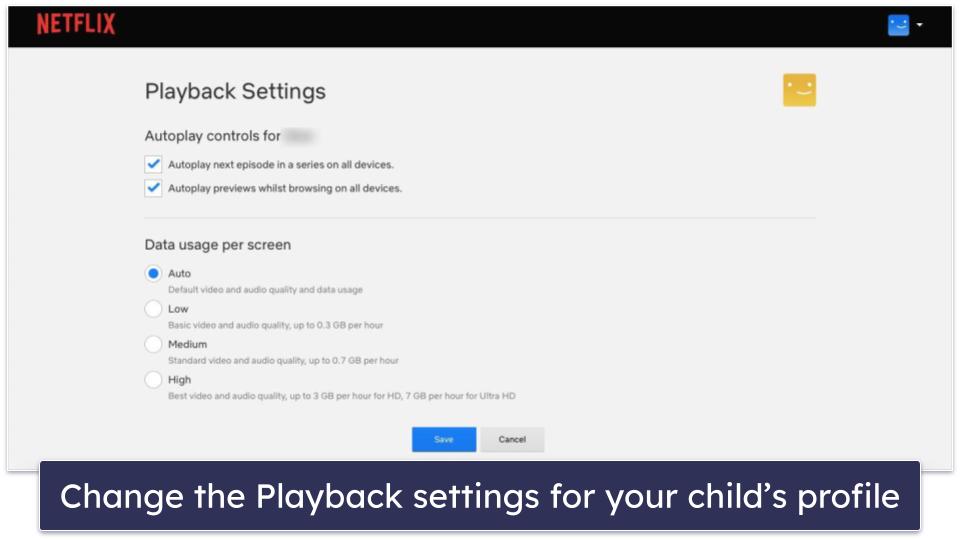
Netflix allows you to turn off autoplay for next episodes and previews in your kid’s profile and adjust data usage per screen, which is handy when you’re on mobile data and don’t want your kid to use too much of it on Netflix. To turn off autoplay controls, just untick the boxes next to the autoplay settings. To change the data usage per screen, pick one of the available options listed. Then, click Save.
Step 7. Lock Your Profile With a Pin
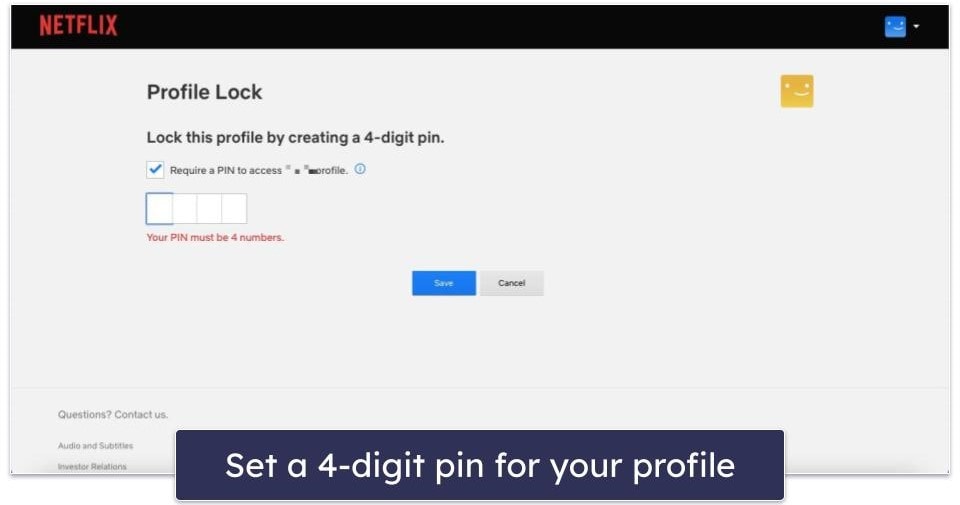
To prevent your kid from accessing your profile, set up a unique 4-digit pin code. All you have to do is click on the arrow next to the profile you want to lock under the Profiles & Parental Controls section and select Profile Lock. Add a pin and click Save.
I like this option because it means your child won’t be able to get around the restrictions of their profile by watching content from your profile. After you add a pin to your profile, Netflix will ask you if you want it to require this pin to add new profiles. I recommend enabling this feature since it prevents your child from creating a new profile without restrictions.
Tried Setting Up Netflix’s Parental Controls, But They’re Not Working? Try These Troubleshooting Steps
- Check if your Netflix app is up-to-date. If you’re using the Netflix app, and it’s outdated, it might be possible that it doesn’t support certain features. To check whether there’s an available update, go to the app store, search for the Netflix app, and if there’s an update, you’ll see an Update button next to the app’s name.
- Review your settings. Double-check whether you’ve saved the parental control settings in the Netflix app. It’s easy to forget to click the Save button.
- Verify profile selection. Netflix’s parental controls are profile-specific, which means you need to set specific rules for each of your children’s profiles.
- Clear cache and cookies. Cached data can cause all sorts of problems, especially when it’s corrupted. Clear your browser’s cache and cookies or restart your streaming device to refresh the controls.
- Test on another device. If the controls aren’t working on one device, try another. This helps determine if the issue is device-specific or account-related.
- Contact customer support. If the controls still don’t work, reach out to Netflix’s customer support. They can provide tailored assistance to troubleshoot and resolve the problem.
Can Kids Get Past Parental Controls on Netflix?
It’s quite difficult to get around Netflix’s parental controls, especially if your kid has no way to access your Netflix profile from the app. Netflix doesn’t allow them to access any settings from their profile, so if you’ve enabled the right settings, they’ll have to abide by your rules.
That said, your child might figure out your Netflix password. If they do, they’ll be able to access your Netflix profile and modify the settings for their account. To prevent this from happening, I recommend setting a 4-digit pin code for the adult profiles on Netflix. This means that even if your child sees your Netflix login credentials, they still won’t be able to access your profiles.
Your child can also circumvent Netflix’s parental control by making a new profile. The good news is, Netflix lets you configure its settings, so only people who know the 4-digit pin can create new accounts.
Finally, your child may gain access to a friend’s Netflix account, which allows them access to content they can’t watch on their profile. If that happens, you’ll need a good third-party parental control app like Qustodio or Norton Family to block the Netflix app and site.
Frequently Asked Questions
How can I limit my child’s screen time on Netflix effectively?
You can limit your child’s screen time on Netflix with a good parental control app. My recommendation is Qustodio, as it offers daily screen time allowances with 15-minute increments. In addition, it lets you set time limits specifically for the Netflix app. The parental app is compatible with iOS, Android, Windows, macOS, Chromebook, and Kindle devices.
Can I control access to the Netflix app?
Yes, most top parental controls allow you to block the Netflix app. A lot of them also let you block Netflix’s URL, so your child can’t get around your restrictions, and Qustodio even sends an alert when your child tries to access any blocked app.
Why should I use third-party parental control apps for Netflix when it already has built-in controls?
Netflix’s built-in controls lack essential features needed for effective monitoring. For example, they don’t allow you to set screen time limits or stop your kid from accessing the app and site at certain times. Third-party apps like Qustodio provide all of this and more, which is why I always recommend using Netflix’s parental control apps in combination with a third-party app for the safest possible Netflix experience for your child.
Are third-party parental control apps compatible with various devices?
Yes, most parental controls are compatible with a wide range of devices. The parental controls on this list are compatible with Android, iOS, Windows, macOS, Chromebook, and more. Qustodio even allows cross-platform support, so you can monitor your child’s Netflix account on all their devices.