


One of the things I’ve always liked about YouTube is that I rarely have to think about what to watch.
I open the app, and the algorithm usually figures it out for me, surfacing the best recommendations right on the home page.
This is very different from other streaming services like Netflix or Amazon Prime Video, where you often spend more time browsing than actually watching, unless you are continuing a movie or show you already started.
However, things change when a kid in your home grabs your phone, or you accidentally tap a few videos or scroll through similar YouTube Shorts, and your entire recommended feed is thrown off.
The frustrating part is that YouTube never clearly tells you how to fix this. The good news is that with a few small changes, you can get your recommendations back on track. Here’s how.
Clear your YouTube watch history
Removing old data helps YouTube relearn what you enjoy watching
One of the most basic ways YouTube learns what and how you watch is through your watch history.
When you start watching similar types of content around the same topic, YouTube begins recommending more of it.
And the simplest way to get YouTube to unlearn that and get back on track is by clearing your watch history or deleting the videos you don’t want YouTube to learn from.
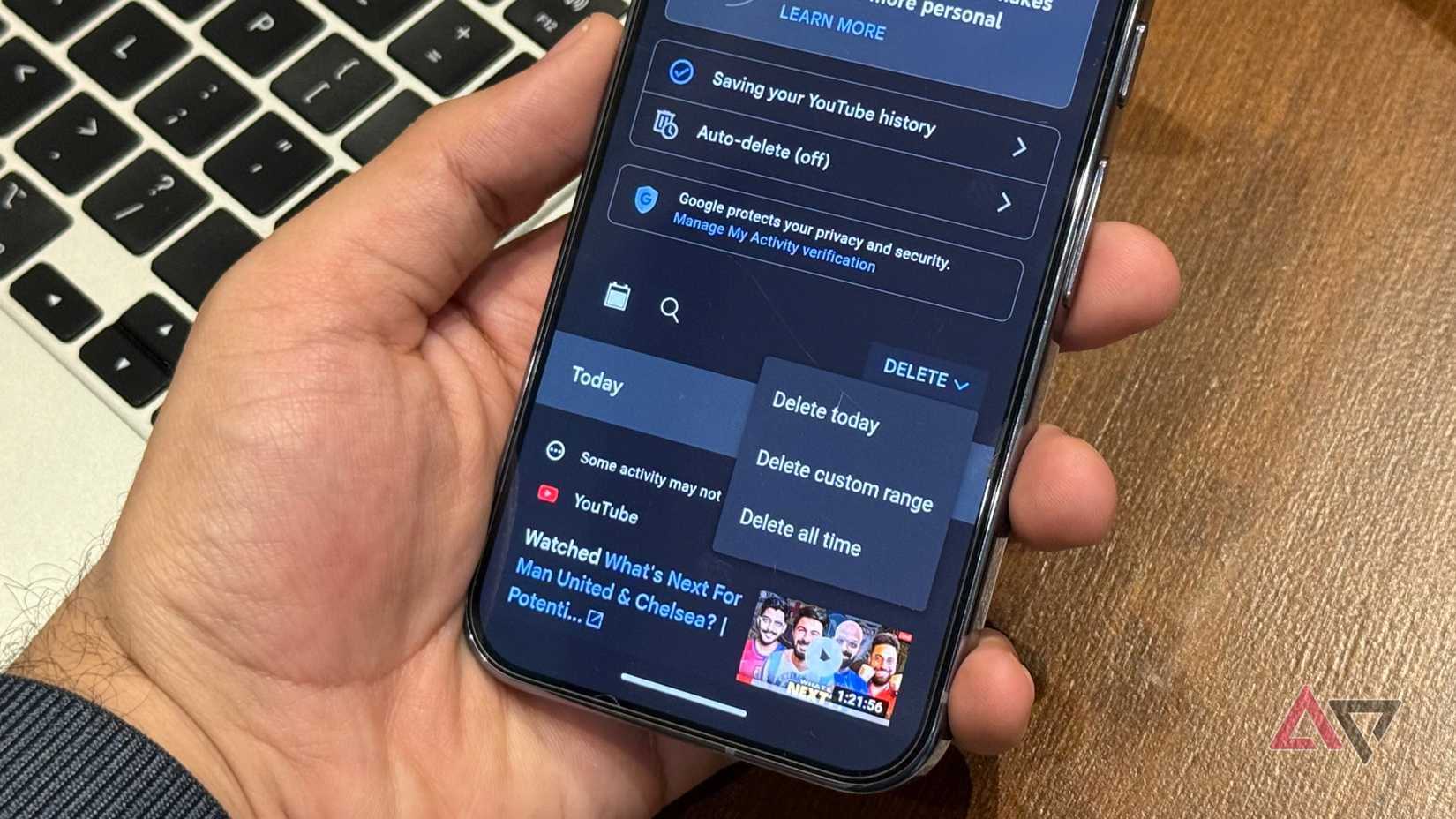
To clear your watch history in the YouTube app, tap your profile icon and then select Settings. After that, select Manage all history.
From there, you can delete individual videos or choose a custom range by tapping the Delete icon and selecting Delete today, Delete custom range, or Delete all time to reset everything.
Reset likes so YouTube can relearn your interests again
Outdated likes can keep pushing content you no longer enjoy
Another basic signal YouTube uses to understand what content you like or don’t like is the Like and Dislike buttons on videos.
The more videos you like or dislike regularly, the more similar content YouTube pushes to your Home feed.
Thankfully, if you accidentally liked something, whether it’s a YouTube Short or a video you didn’t mean to, you can easily remove that like, so YouTube understands the change and stops recommending similar content.
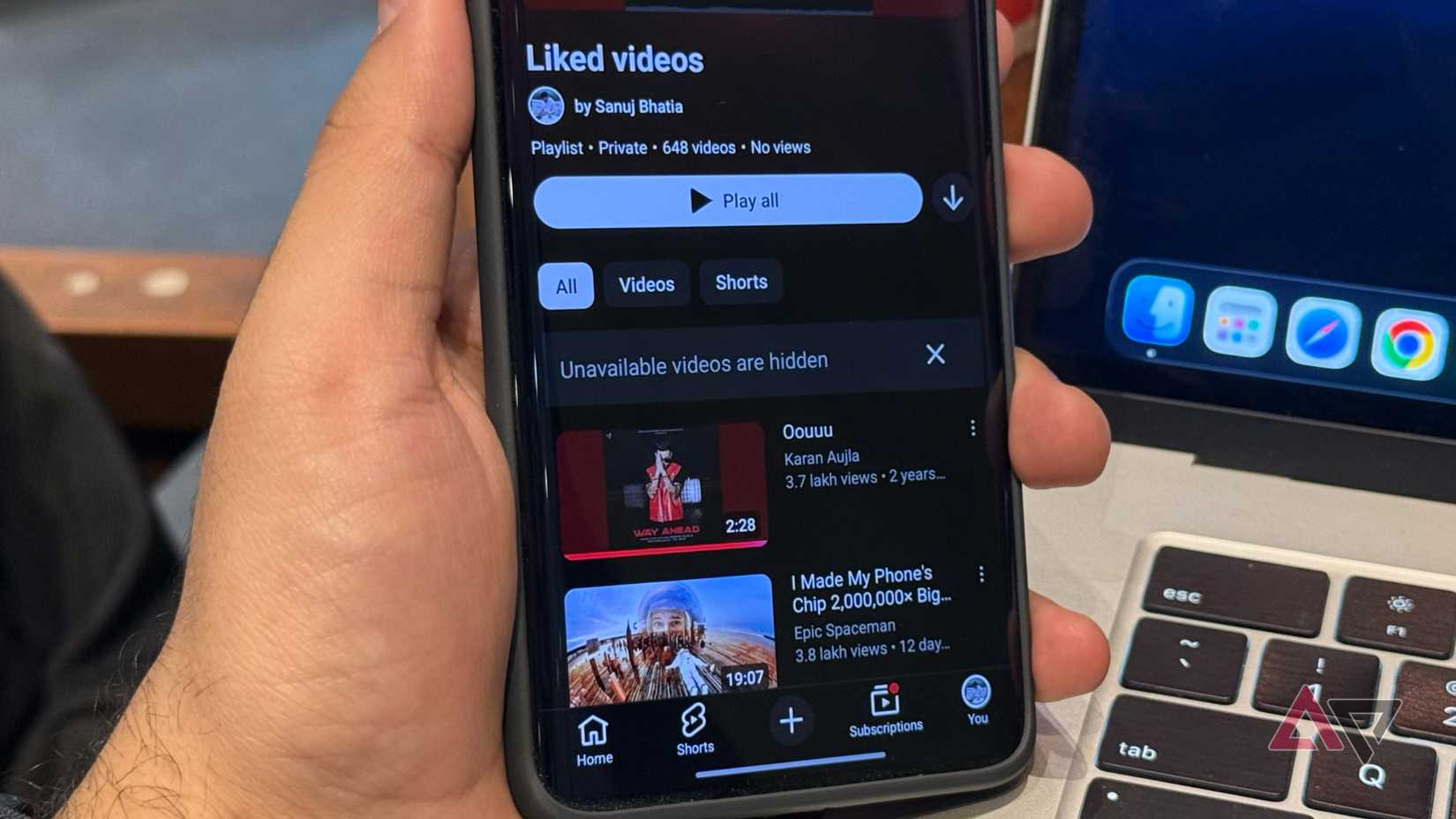
To view and remove likes, open the YouTube app and go to the You tab. Next, select Liked videos from the Playlists section, then open the videos you don’t want there and remove the like.
Alternatively, you can visit this link to see all your YouTube likes and dislikes in one place and remove any you want.
Use the ‘Not Interested’ and ‘Don’t recommend channel’ options
Actively telling YouTube what you dislike improves suggestions quickly

While YouTube doesn’t offer a simple way to reset your recommended videos, it does provide a few buttons on the Home page that tell the algorithm what you like and don’t like.
Whenever you see a video on the Home screen that you’re not interested in, tap the three-dot menu next to the title and select Not interested.
If YouTube keeps showing a specific channel you don’t want to see again, you can also use the Don’t recommend channel option.
After you choose this, that channel won’t appear in your Home feed again, although you can still see its videos by subscribing to it and viewing them in your Subscriptions feed.
Use Incognito mode for guilt-free or random viewing
This keeps certain videos from influencing your recommendations
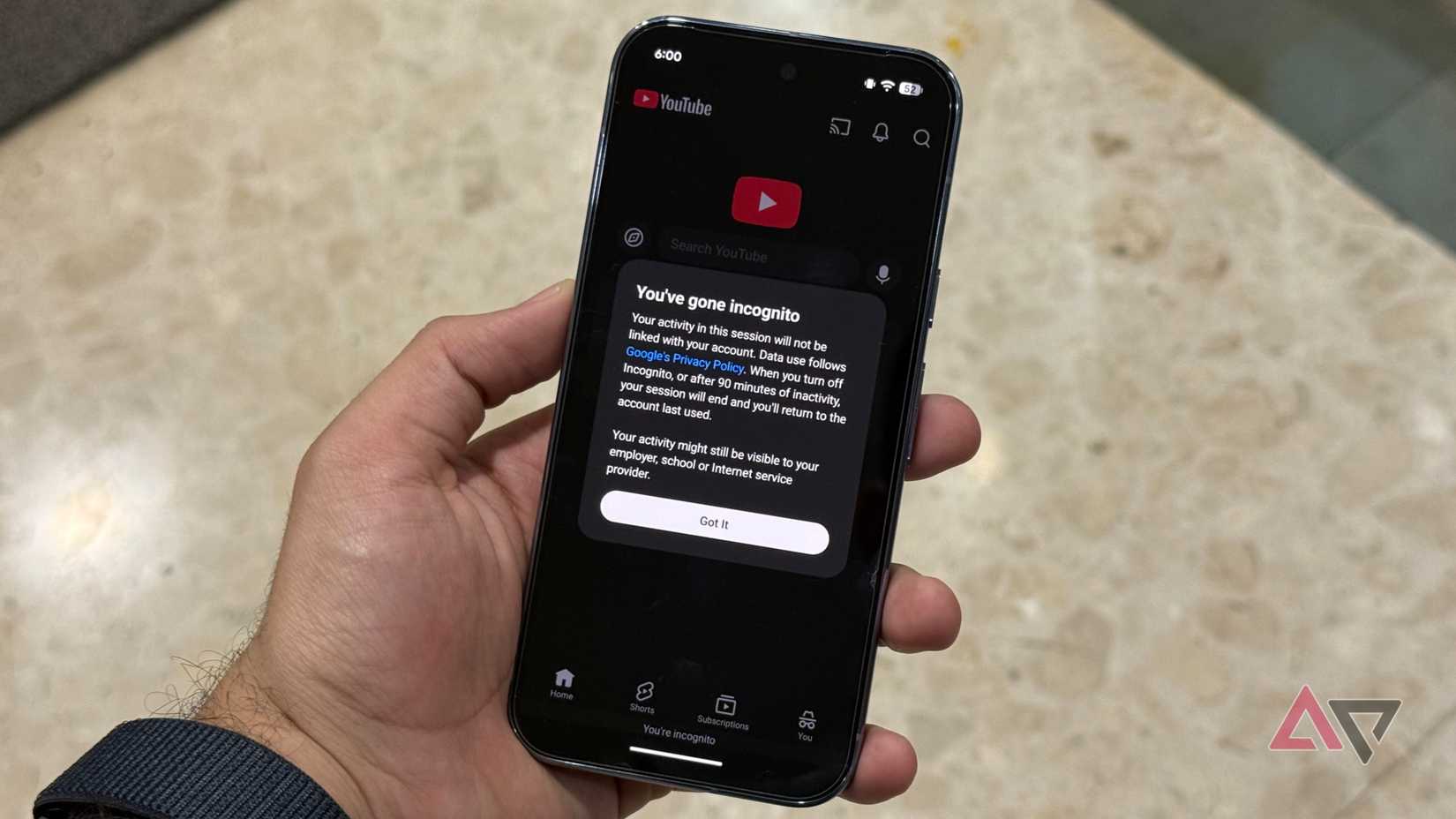
There are times when you’re forced to watch or open a video you’re not really interested in, whether it’s in a social setting or someone else plays it on your phone, and that can end up throwing off your usual YouTube recommendations.
One of the easiest ways to handle those moments when you have to watch something you normally wouldn’t is by using YouTube’s Incognito mode.
Similar to how it works in Google Chrome, anything you watch or search for in YouTube’s Incognito mode doesn’t affect your recommendations or your watch and search history.
Instead, it’s a temporary YouTube session that stays separate.
To use Incognito mode, open the YouTube app and tap the You tab in the lower-right corner. Now, above the History section, tap Turn on Incognito, and you’ll be able to browse privately.
To exit Incognito mode, go to the You tab again and tap Turn off Incognito.
Create separate accounts for different content types
Keeping genres apart helps YouTube stay far more accurate
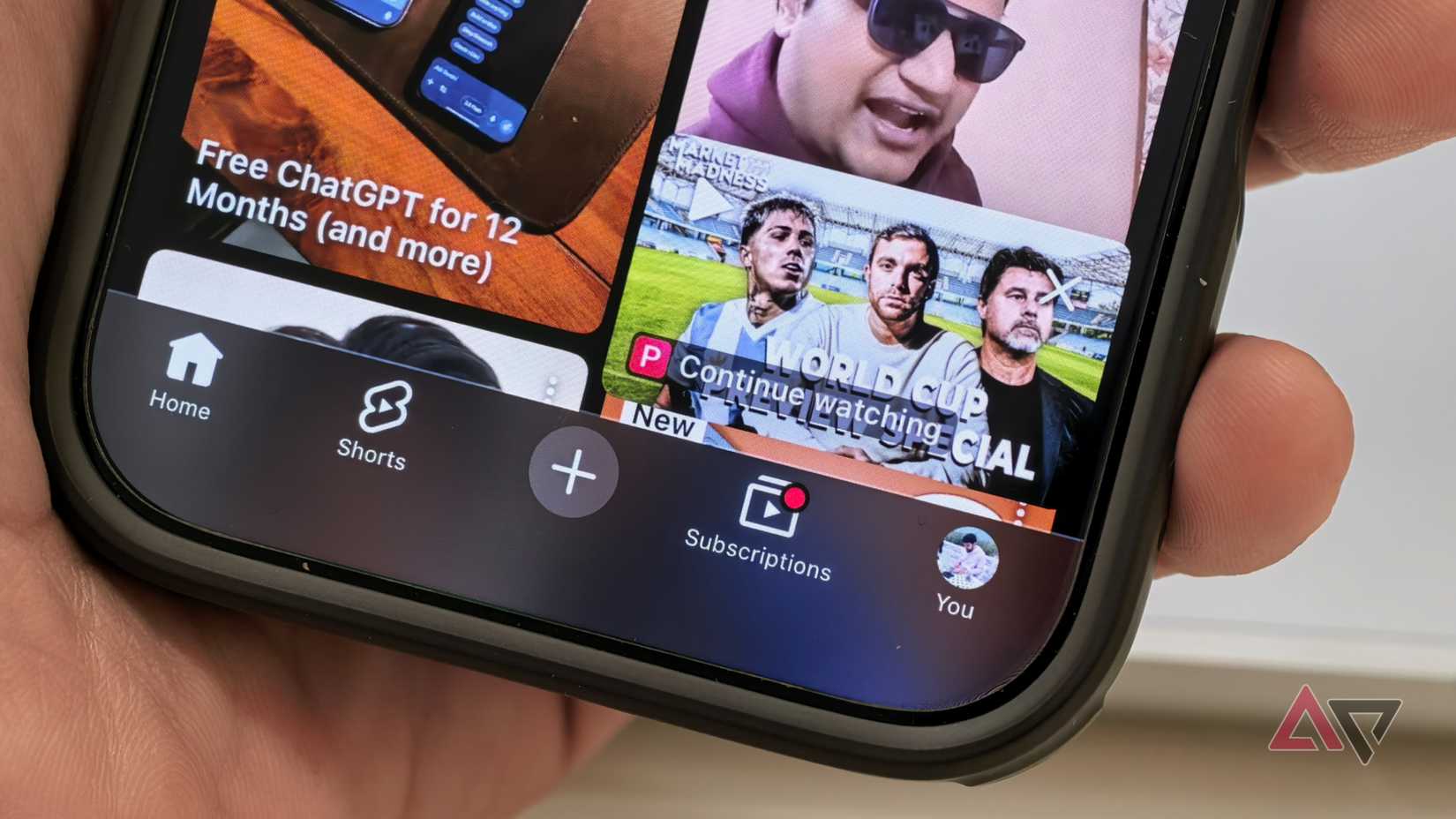
If you’re like me, you probably use YouTube for more than just one thing.
Maybe you watch football-related content, learn a new skill, study for college, and more, since there’s a YouTube video for almost everything.
However, there are times when you start watching one type of content and end up seeing only that on your Home feed.
For example, I’m interested in both consumer tech and the Chelsea football club, but after watching a lot of football content, I stopped seeing new tech videos.
That’s why I’ve started using different YouTube accounts for each interest. It makes sure one feed stays focused on one topic while the other shows something else.
It’s not ideal, but if you want to separate work and personal content, this is one way to do it.
Check the New to you tab for better discovery
It helps surface creators and videos outside your usual loop
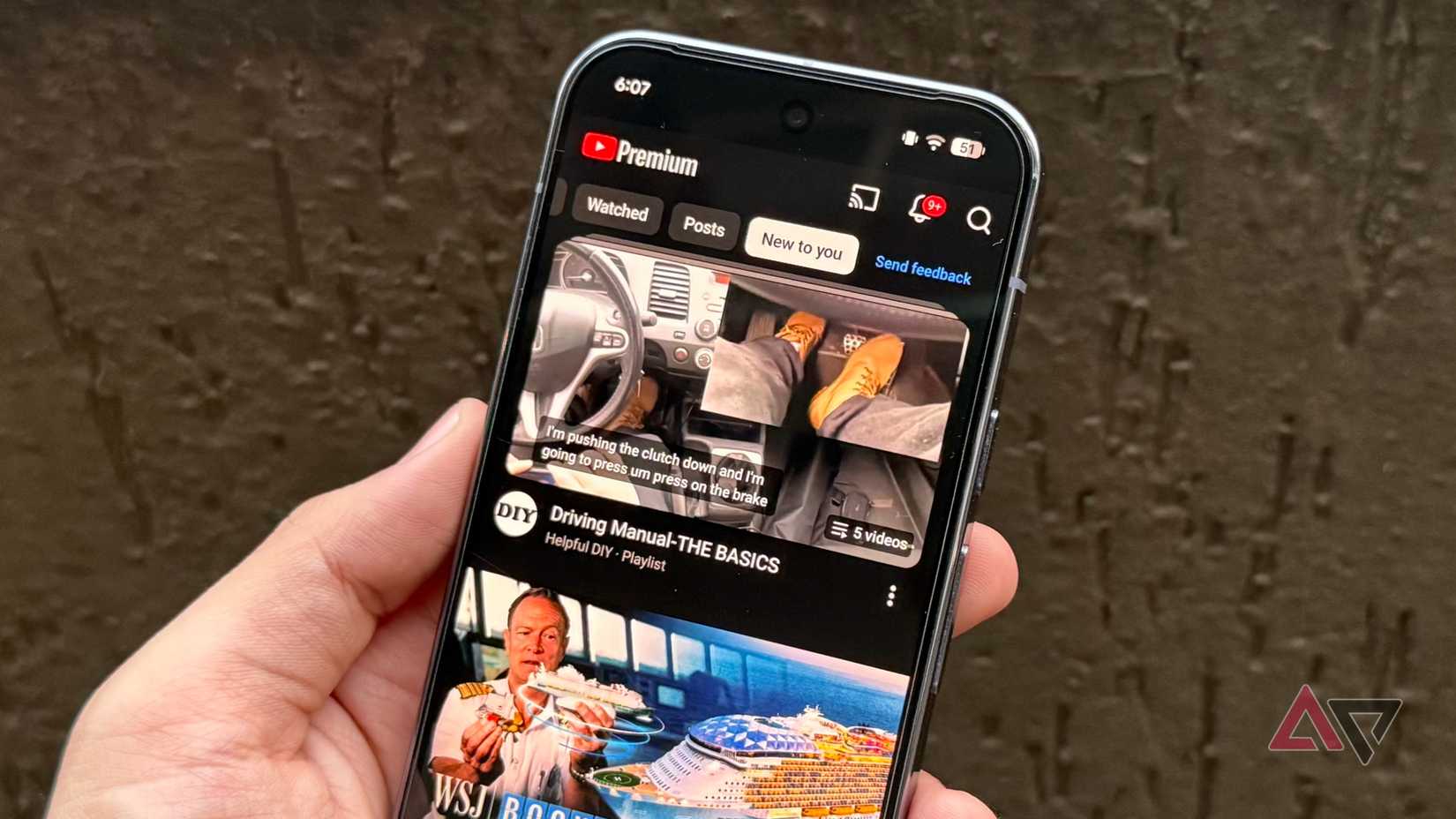
YouTube has recently started rolling out a new tab on the Home screen called New to you. This section shows videos around topics you’re interested in from channels you’re not subscribed to.
One way to give YouTube a better signal about what you like and don’t like is by watching videos from this New to you tab.
When you watch similar content there, it helps YouTube understand what kind of recommendations to show on your main Home page.
Unsubscribe from channels you no longer watch
A smaller subscription list leads to a cleaner home feed

If you’ve been on YouTube for more than a few years, chances are you’re subscribed to many channels, even though you no longer watch content from all of them.
You might be subscribed to channels you subscribed to when you first started watching content on YouTube, but don’t watch anymore.
However, it’s worth noting that these subscriptions and channels still influence your recommendations and take up space in your feed.
One of the easiest ways to tell YouTube you’re no longer interested in certain topics is by going to the Subscriptions tab and unsubscribing from channels you don’t want to see anymore.
This is how I fixed my YouTube recommendations for good
These are some of the ways I fixed my YouTube recommendations.
It’s still a mystery why Google doesn’t let you completely reset your YouTube feed from scratch with a simple button, but these methods can help achieve the same result.
In addition to these, there are several underrated features that YouTube doesn’t advertise much, but they’re genuinely helpful and could be useful for you, too.










