


I’ve been using Android for years, and yet, every so often, I stumble across features that make me wonder: How did I survive without this?
Small tweaks, gestures, and shortcuts can accumulate to save you hours over the course of a week.
Over the past few months, I’ve been trying out every little time-saver Android offers. These are the tools that I now use daily, without thinking, and the difference they make is staggering.
Split-screen multitasking
Two apps, one screen
Split-screen mode is a classic Android feature that may go unnoticed, but it’s a game-changer for productivity.
Most days, I use a split screen when I’m replying to someone on WhatsApp or Google Messages and need to confirm something in Keep, Gmail, or Drive. Instead of going back and forth, I drag open the second app and glance at whatever I need.
It’s also become one of my favorite ways to deal with bite-sized tasks.
If I’m on a call, I’ll keep the dialer up top and run my to-do list at the bottom to tick off follow-ups while I’m listening. When I’m reading long articles, I’ll pin the Firefox browser on one side and my notes app on the other, which is perfect for capturing ideas without losing the flow.
And on days when I’m planning my week, having Calendar open next to Maps helps me figure out commute times while scheduling meetings.
It’s also beneficial for comparing prices, copying details between apps, or watching tutorials while doing tasks in real time.
To activate Split screen, go to your Recent Apps view, tap the three-dot menu icon at the top, and choose Split screen. Now, select the second app.
Split-screen multitasking not only saves time but also reduces cognitive load by allowing me to concentrate on one workflow instead of switching back and forth.
Clipboard history
A multi-copy lifesaver
Credit: Lucas Gouveia / Android Police
If you’re like me, you copy and paste text, links, and snippets across apps dozens of times a day.
Android’s clipboard history maintains a list of everything you’ve copied, allowing you to access multiple items at once, including recent screenshots.
You can enable it in Settings > System > Keyboard > Gboard > Clipboard. To access it, use any app that takes text input. Tap the clipboard icon on Gboard, and you’ll see your most recently copied text or screenshots.
I now use it to juggle multiple URLs, text chunks, and addresses, without switching between apps. I also pin a few clippings that I often use, so they stay at the top of the clipboard.
Automation with MacroDroid and built-in tools
Putting everyday tasks on autopilot
Credit: Lucas Gouveia/Android Police | semprong/Shutterstock
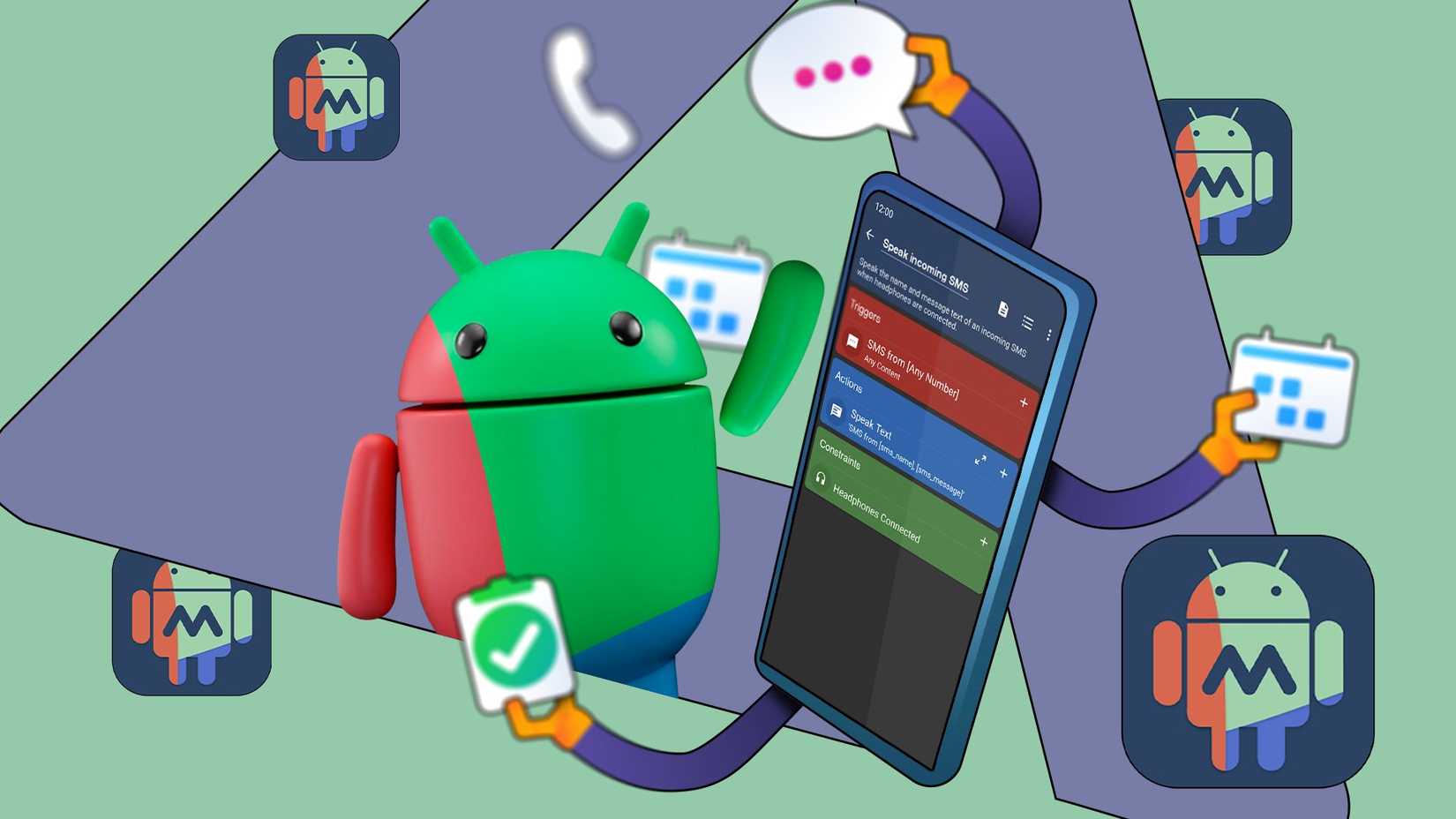
Automation is an area where Android excels in saving time. Apps like MacroDroid and Tasker allow triggers and actions that handle repetitive tasks for you.
My most frequently used automation is simple: When I connect my Bluetooth headphones, MacroDroid automatically opens Spotify and adjusts the volume to my preferred level. It sounds like I have saved two or three taps, but when you do it a few times a day, it adds up.
I also use a location-based macro that reminds me to check for grocery coupons as soon as I step into the store parking lot.
And while I don’t use a Samsung phone, I’ll admit their Modes and Routines feature is one of the best examples of where Android automation shines. It allows you to create rule-based setups for work, sleep, travel, fitness, and more.
Even without Samsung’s version, Android’s native tools combined with MacroDroid create a surprisingly capable automation setup.
Custom Quick Settings
Turning it into a control center
Credit: Lucas Gouveia/Android Police
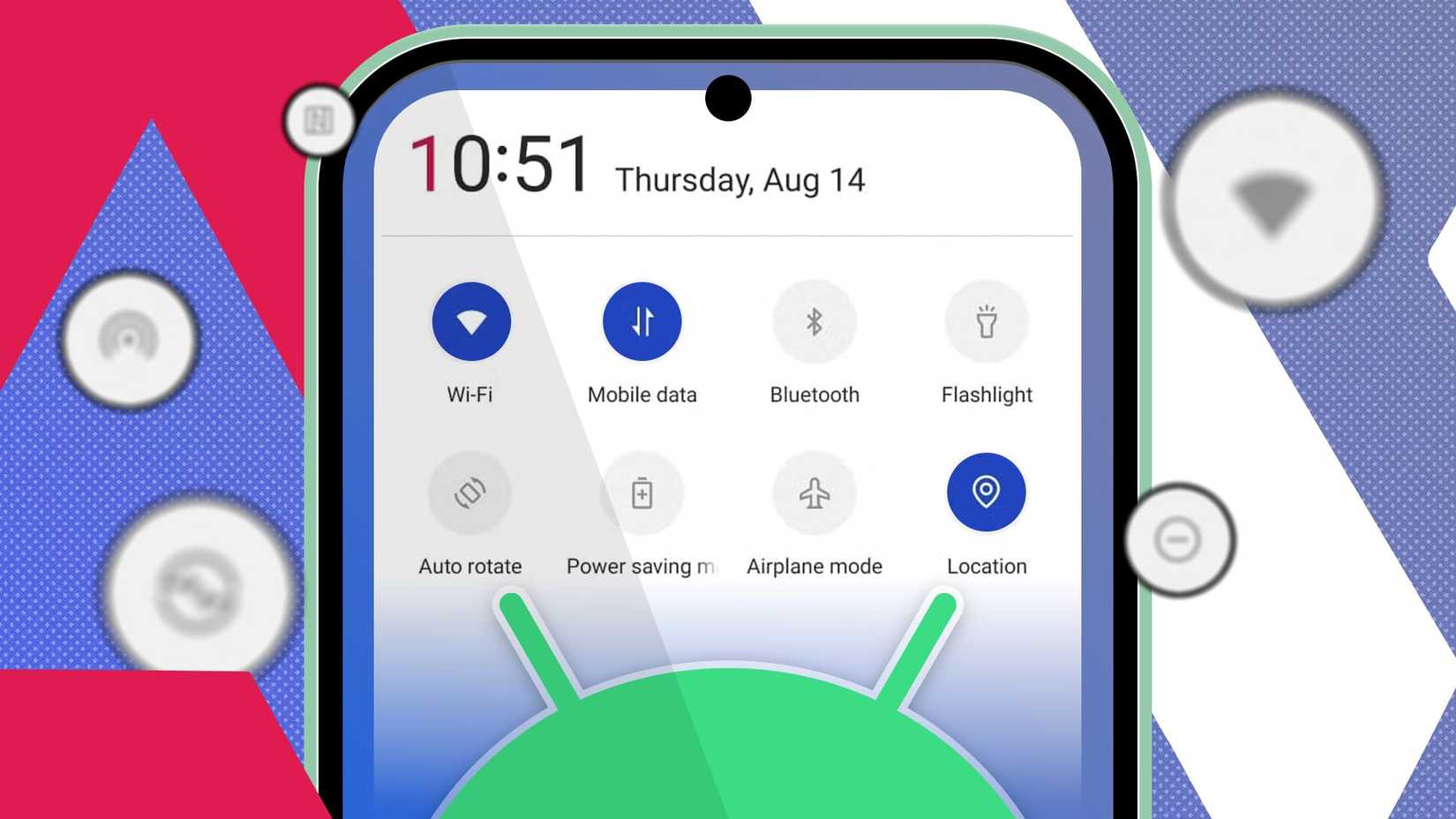
If there’s one Android feature that has saved me more time than anything else, it’s the ability to customize the Quick Settings panel.
By default, Quick Settings features tiles I never touch, such as screencast, NFC, and hotspot toggles. I remove the ones I don’t use and rebuild them around the actions I use multiple times a day.
Now, one swipe offers instant access to Do Not Disturb, the flashlight, QR code scanner, and Google Wallet. I even added a tile that adds a new task in the TickTick app.
And because I use MacroDroid, I have a tile that triggers one of my routines: a Focus mode that dims the screen, lowers volume, and turns off notifications.
Gboard’s personal dictionary
The secret to lightning-fast typing
One of the Android features that saves me the most time is Gboard’s personal dictionary, especially when paired with its shortcut feature.
The idea is simple: you create a custom phrase and assign it a short trigger text. Then, whenever you type that shortcut, Gboard automatically expands it into the correct phrase.
I use it every day for things I type frequently but don’t want to re-enter manually. For example, my apartment address is addr, and my email address is em.
It conserves mental effort as much as it saves time, since I’m no longer rewriting the same lines repeatedly across Gmail, Messages, Slack, or any app where Gboard is active.
Setting it up is straightforward. You can navigate to Settings > System settings > Keyboard and input method > Gboard > Dictionary > Personal dictionary. Then type your long phrase and assign your shortcut text.
When you type the shortcut, Gboard instantly suggests the expansion.
Gesture navigation
It makes navigation feel effortless
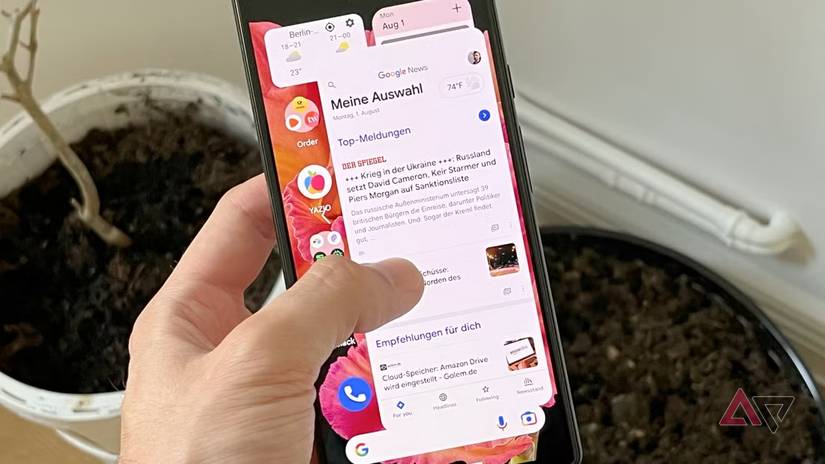
Gesture navigation might seem like a minor upgrade over the classic three-button layout, but after you learn the hidden shortcuts within the gesture system, it becomes one of the fastest ways to move around your phone.
The most significant time-saver for me is the quick-switch gesture: a simple swipe along the bottom edge instantly jumps back to the last app I was using.
If I’m responding to a message while checking something on the Firefox browser, or swapping between Maps and Spotify on the go, this tiny swipe means I’m not constantly dragging open the Recent Apps view.
Additionally, the app overview swipe allows me to quickly access the multitasking screen by swiping up slowly. This way, I can easily clear apps or return to something I was using earlier.
Access the camera from the lock screen
Never miss a shot
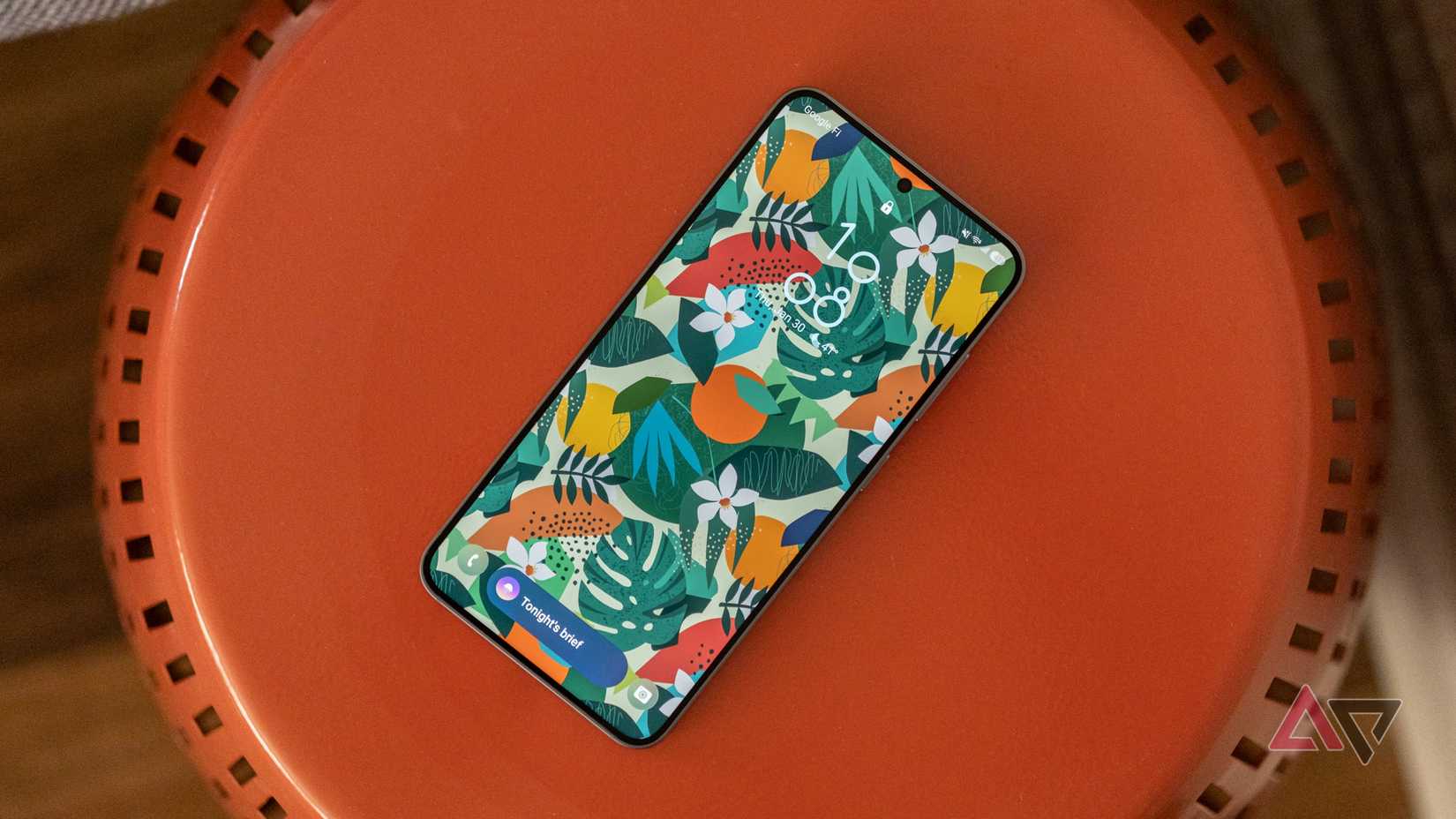
The lock-screen camera shortcut consistently saves me precious seconds. I swipe the camera icon on the lock screen to quickly capture photos without digging through home screens or fumbling to find the right app.
I’ve captured quick moments, like my cat diving head-first into a laundry basket, a perfect sunrise on my balcony, and even a funny sign while traveling, all because I didn’t lose time unlocking my phone and looking for the camera icon.
On most Android phones, the shortcut sits in a corner of the lock screen. Some devices require a double-press of the power button, while others utilize a long press or a swipe gesture.
For anyone trying to save time or be more present, this shortcut is a nifty fix. You don’t waste time navigating your phone; you get the shot and move on with your day.
The small Android tweaks that made a big difference
Reclaiming time isn’t just about downloading new apps or reinventing your workflow; sometimes, it’s about finally noticing the different settings on your phone.
Features such as gesture shortcuts, an improved clipboard, and automation tools can help you complete tasks more quickly.










